
API Keys
API keys let external systems authenticate to WebinarStack. Use them when you want your own backend, scripts, internal tools, AI tools, or integration workers to call the WebinarStack REST API or the WebinarStack AI Tools MCP surface.
This guide explains how API keys work in Settings, what each field means, how to choose scopes and surfaces, how to use a key in requests, how to rotate or delete a key, and how to read API activity after the key is in use.
The Short Version
Section titled “The Short Version”| Concept | What It Means |
|---|---|
| Where to manage keys | Settings > API Keys. |
| Main use | Authenticating external systems to WebinarStack. |
| API reference | webinarstack.co/api/v1/docs. |
| Key format | Starts with wsk_live_. |
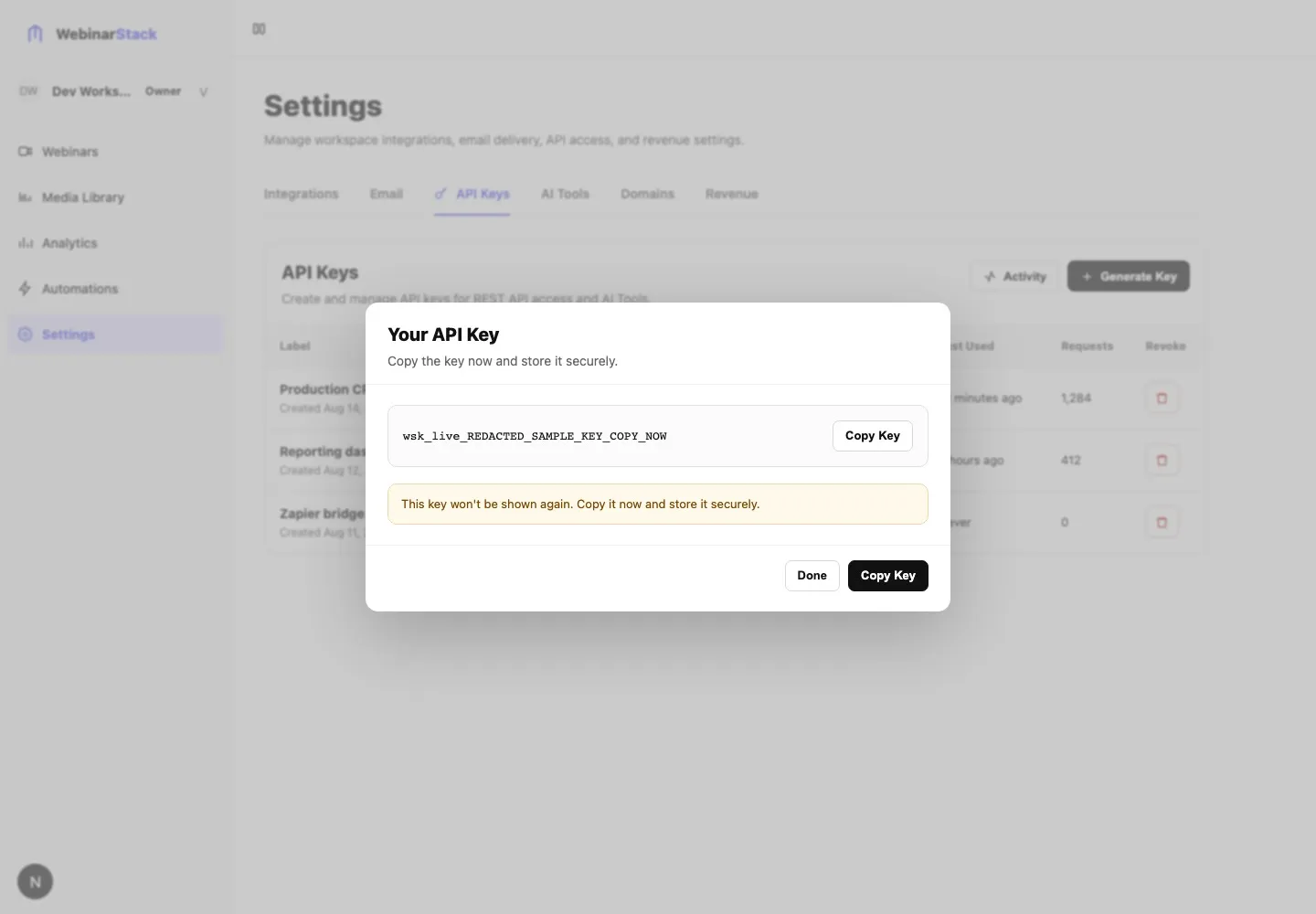
| Key visibility | The full key is shown once when created. It cannot be viewed again later. |
| Storage model | WebinarStack stores a hash, prefix, and last-four-character hint, not the plaintext key. |
| Access model | Keys have resource scopes and allowed surfaces. |
| Surfaces | REST API and AI Tools (MCP). |
| Create permission | Account members can create API keys for the current workspace. |
| Delete permission | Account owners revoke keys. |
| Delete behavior | Revoking hard-deletes the key row. Apps using that key immediately lose access. |
| Monitoring | API Keys > Activity shows REST and MCP usage. |
| Rate limit | API access uses a shared account-level rate limit across REST API and AI Tools. |
The most important practical rule is this: copy the key immediately when it is created. WebinarStack will not show the full plaintext key again.
What API Keys Are For
Section titled “What API Keys Are For”Use API keys when another system needs to call WebinarStack programmatically.
Common examples:
- A backend creates webinar registrations after a checkout or form submission.
- A CRM sync reads webinar, session, and registration data.
- A sales workflow creates webhook subscriptions through the REST API.
- An operations script exports or audits webinar setup.
- An internal admin tool updates webinar configuration.
- An AI tool connects to WebinarStack through the MCP surface.
- A developer tests WebinarStack API calls locally with
curl, Postman, or a script.
API keys are account-scoped. A key created in one WebinarStack workspace should only access resources for that workspace.
API Keys Versus Other Secrets
Section titled “API Keys Versus Other Secrets”Several WebinarStack features use credentials. They are not interchangeable.
| Secret Type | Where It Lives | What It Does |
|---|---|---|
| WebinarStack API key | Settings > API Keys. | Lets your systems call WebinarStack REST API or AI Tools. |
| AI Tools MCP key | Settings > AI Tools or API Keys. | Lets MCP-compatible AI clients call WebinarStack tools. |
| SendGrid API key | Settings > Email. | Lets WebinarStack send email through your SendGrid account. |
| Postmark server token | Settings > Email. | Lets WebinarStack send email through your Postmark server. |
| Integration provider key | Settings > Integrations. | Lets WebinarStack update tools such as Kit, ActiveCampaign, Mailchimp, or MailerLite. |
| Webhook secret | Automation webhook rule or API webhook subscription. | Lets your receiver verify that a webhook came from WebinarStack. |
| Zapier Catch Hook URL | Zapier. | Lets Zapier receive WebinarStack webhook events. |
Use a WebinarStack API key when the request is coming into WebinarStack. Use provider credentials when WebinarStack needs to call another provider.
Where To Find API Keys
Section titled “Where To Find API Keys”- Open your WebinarStack dashboard.
- Go to Settings.
- Select the API Keys tab.
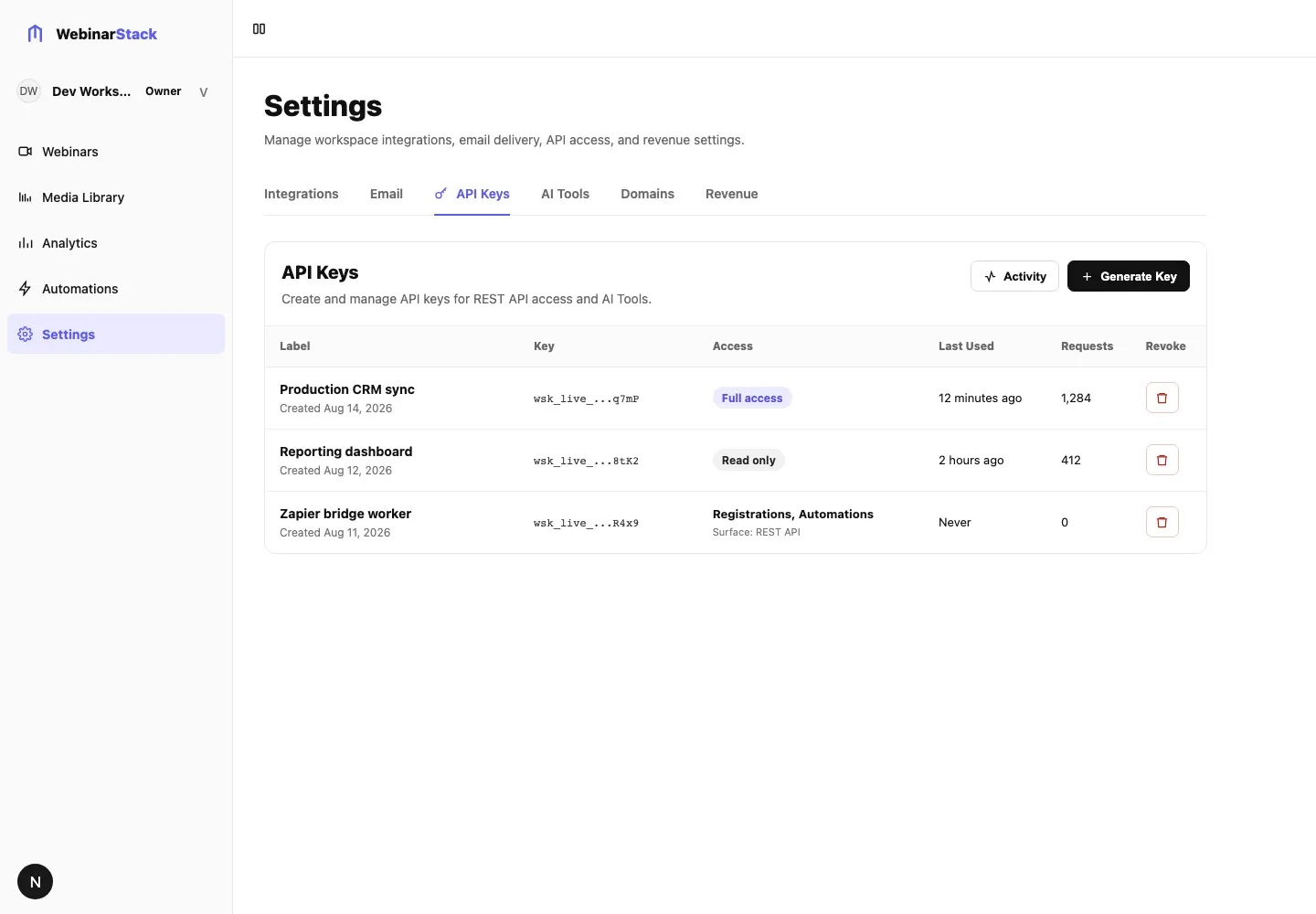
The API Keys tab shows:
| Column Or Control | Meaning |
|---|---|
| Generate Key | Opens the create-key dialog. |
| Activity | Opens the API activity timeline for REST and AI Tools usage. |
| Label | Human-readable name for the key. |
| Key | Masked key display, such as wsk_live_...abcd. |
| Access | Summary of the key’s scopes and surfaces. |
| Last Used | When the key last successfully authenticated far enough to reach the API layer. |
| Requests | Count of authenticated requests made with the key. |
| Revoke | Opens the confirmation dialog to delete the key. |
If there are no keys yet, the tab shows an empty state with a Generate Key button.
Key Format And Storage
Section titled “Key Format And Storage”New API keys use this shape:
wsk_live_XXXXXXXXXXXXXXXXXXXXXXXXXXXXXXXXThe full key has:
| Part | Meaning |
|---|---|
wsk_live_ |
WebinarStack live API key prefix. |
| 32 random characters | The secret body of the key. |
WebinarStack stores:
| Stored Value | Purpose |
|---|---|
| Hash | Used to verify the key without storing the plaintext secret. |
| Prefix | Used for efficient lookup. |
| Key hint | Last four characters shown in the UI so humans can identify the key. |
| Label | Human-readable description. |
| Scopes | Resource permissions. |
| Allowed surfaces | REST API, AI Tools, or both. |
| Last used timestamp | Operational visibility. |
| Request count | Basic usage visibility. |
WebinarStack does not store the plaintext key. If the key is lost, create a replacement and revoke the lost key.
Create An API Key
Section titled “Create An API Key”- Go to Settings.
- Open API Keys.
- Click Generate Key.
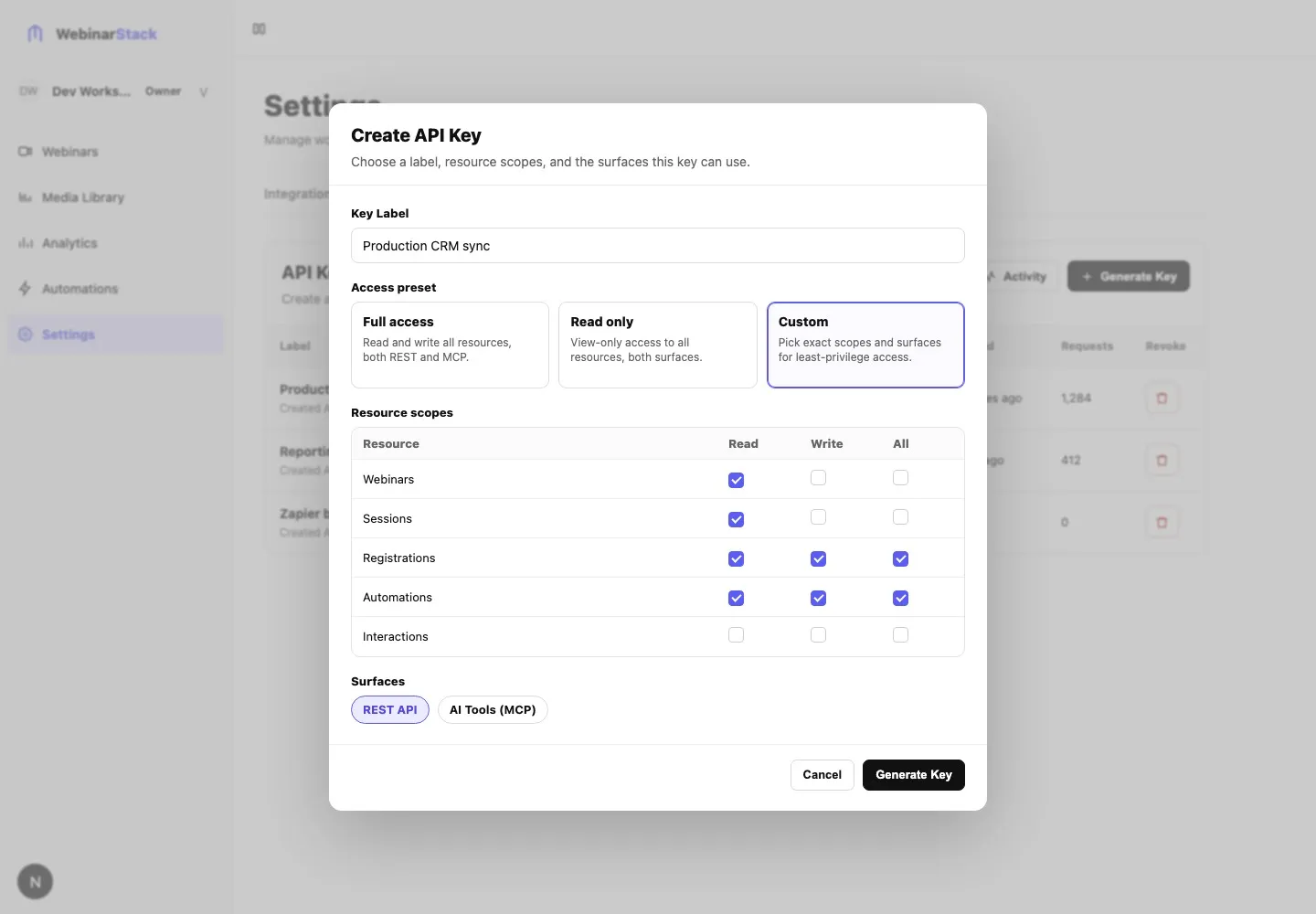
- Enter a Key Label.
- Choose an access preset or configure custom access.
- Choose the allowed surface or surfaces.
- Click Generate Key.
- Copy the key from the Your API Key dialog.
- Store it in a password manager, secrets manager, or environment variable.
- Click Done after you have stored it.
The reveal dialog is the only time the full key is shown.
Key Label
Section titled “Key Label”The label helps humans understand why the key exists.
Good labels:
Production CRM syncStaging registration importerAgency reporting dashboardZapier bridge workerInternal analytics exportMCP access for ops assistant
Avoid vague labels:
testnew keyapijohndo not delete
A good label should answer three questions: which system uses the key, which environment it belongs to, and why it exists.
Access Presets
Section titled “Access Presets”The create dialog has three access presets.
| Preset | What It Grants | Best For |
|---|---|---|
| Full access | Read and write access to every resource, on both REST API and AI Tools surfaces. | Trusted internal systems that manage many parts of WebinarStack. |
| Read only | Read access to every resource, on both REST API and AI Tools surfaces. | Reporting, audits, exports, dashboards, and AI assistants that should not change data. |
| Custom | Exact scopes and surfaces selected by you. | Production integrations, vendors, focused workers, and least-privilege setups. |
Use Custom for most production integrations. It takes slightly longer to set up, but it limits the damage if a key is copied into the wrong place or a connected system is compromised.
Resource Scopes
Section titled “Resource Scopes”Scopes decide which resources a key can read or write.
| Scope | What It Allows |
|---|---|
webinars:read |
Read webinar records and webinar setup data. |
webinars:write |
Create, update, duplicate, publish, archive, or delete webinar-level configuration. |
sessions:read |
Read session schedules and session records. |
sessions:write |
Reset or force session progress for API-controlled sessions. |
registrations:read |
Read attendee registration records. |
registrations:write |
Create registrations, bulk register attendees, or rotate registration access tokens. |
automations:read |
Read automation rules, webhook subscriptions, webhook deliveries, and automation execution history. |
automations:write |
Create, update, delete, rotate, or redeliver automation and webhook subscription resources. |
interactions:read |
Read offers, polls, CTAs, and other webinar interaction records. |
interactions:write |
Create, update, or delete webinar interaction records. |
Read and write are separate. If a workflow creates a registration and then fetches it later, grant both the write scope needed for creation and the read scope needed for lookup.
Surfaces
Section titled “Surfaces”Surfaces decide where a key can authenticate.
| Surface | UI Label | Use It For |
|---|---|---|
rest |
REST API | Direct calls to /api/v1/... endpoints. |
mcp |
AI Tools (MCP) | MCP-compatible AI clients and WebinarStack AI Tools. |
A key can allow REST only, AI Tools only, or both.
Choose REST API when you are writing code that calls WebinarStack endpoints directly.
Choose AI Tools (MCP) when the key is for an MCP client or AI assistant integration. The AI Tools tab may also create MCP-specific keys with the right MCP surface selected for you.
Avoid giving both surfaces to a key unless the same trusted system truly needs both.
For Claude-specific setup, see Claude Code MCP Connections and Claude Web and Desktop MCP Setup. Claude Web and Claude Desktop usually use an OAuth connector grant rather than a copied wsk_live_ API key, while Claude Code can use either OAuth or a key-based MCP configuration.
Common Access Patterns
Section titled “Common Access Patterns”| Use Case | Recommended Access |
|---|---|
| Reporting dashboard | Custom: read scopes needed by the dashboard, REST API only. |
| Registration importer | Custom: registrations:write, plus webinars:read and sessions:read if the importer looks up webinar or session IDs. REST API only. |
| CRM sync | Custom: registrations:read, webinars:read, and any write scope only if the sync changes WebinarStack data. REST API only. |
| Automation manager | Custom: automations:read, automations:write, and webinars:read. REST API only. |
| Webhook subscription manager | Custom: automations:read, automations:write, and webinars:read. REST API only. |
| Content/setup management tool | Custom or Full access depending on how much of webinar setup it owns. REST API only. |
| Read-only AI assistant | Read only preset, or Custom read scopes with AI Tools (MCP) only. |
| Internal owner-controlled tool | Full access if it genuinely administers the whole workspace. |
Do not use Full access just because it is convenient during setup. If you start with Full access for testing, rotate to a narrower custom key before production.
Use An API Key
Section titled “Use An API Key”Send the key in the Authorization header as a Bearer token.
curl https://app.webinarstack.co/api/v1/webinars \ -H "Authorization: Bearer $WEBINARSTACK_API_KEY"In JavaScript:
const response = await fetch('https://app.webinarstack.co/api/v1/webinars', {  headers: {    Authorization: `Bearer ${process.env.WEBINARSTACK_API_KEY}`,  },})
if (!response.ok) {  throw new Error(`WebinarStack API error ${response.status}`)}
const body = await response.json()
For JSON write requests, include Content-Type: application/json.
curl -X POST https://app.webinarstack.co/api/v1/webinars/{webinarId}/registrations \ -H "Authorization: Bearer $WEBINARSTACK_API_KEY" \ -H "Content-Type: application/json" \ -H "Idempotency-Key: $(uuidgen)" \ -d '{ "name": "Jane Smith", "email": "jane@example.com", "sessionTime": "2026-05-01T18:00:00.000Z" }'Use the app host for your environment. For production, that is typically:
https://app.webinarstack.coOpen the interactive API reference when you need endpoint paths, request bodies, response schemas, authentication details, or OpenAPI-generated examples:
If you are working against a specific environment, use the same /api/v1/docs path on that environment’s app host.
The OpenAPI JSON is available at:
https://webinarstack.co/api/v1/openapi.jsonWrite Requests And Idempotency
Section titled “Write Requests And Idempotency”Most API write requests support an optional Idempotency-Key header.
Use it when your system might retry a request after a timeout, network failure, deployment restart, queue retry, or worker crash.
Idempotency-Key: 7d82698f-5a73-4c33-9c10-d62c0fd97f4aIdempotency behavior:
| Situation | Result |
|---|---|
| Same key and same request body within the idempotency window | WebinarStack can replay the cached response. |
| Same key and different request body | WebinarStack returns a conflict. |
| Same key while the first request is still processing | WebinarStack returns a conflict and you should retry shortly. |
| No idempotency key | The request still runs, but your retry logic can accidentally repeat writes. |
Use a fresh idempotency key for each logical write operation. Do not reuse one idempotency key across unrelated API calls.
Read The Key List
Section titled “Read The Key List”After keys exist, the API Keys tab shows a table.
| Column | How To Read It |
|---|---|
| Label | The human-readable key name. |
| Key | Masked display using the key prefix and last-four-character hint. |
| Access | Full access, Read only, or a custom resource/surface summary. |
| Last Used | Never until the key successfully authenticates far enough to reach the API layer. |
| Requests | Count of authenticated requests that used this key. |
| Revoke | Owner-only destructive action that deletes the key. |
You cannot use the table to recover the full key. The masked display is only for identification.
Use Activity
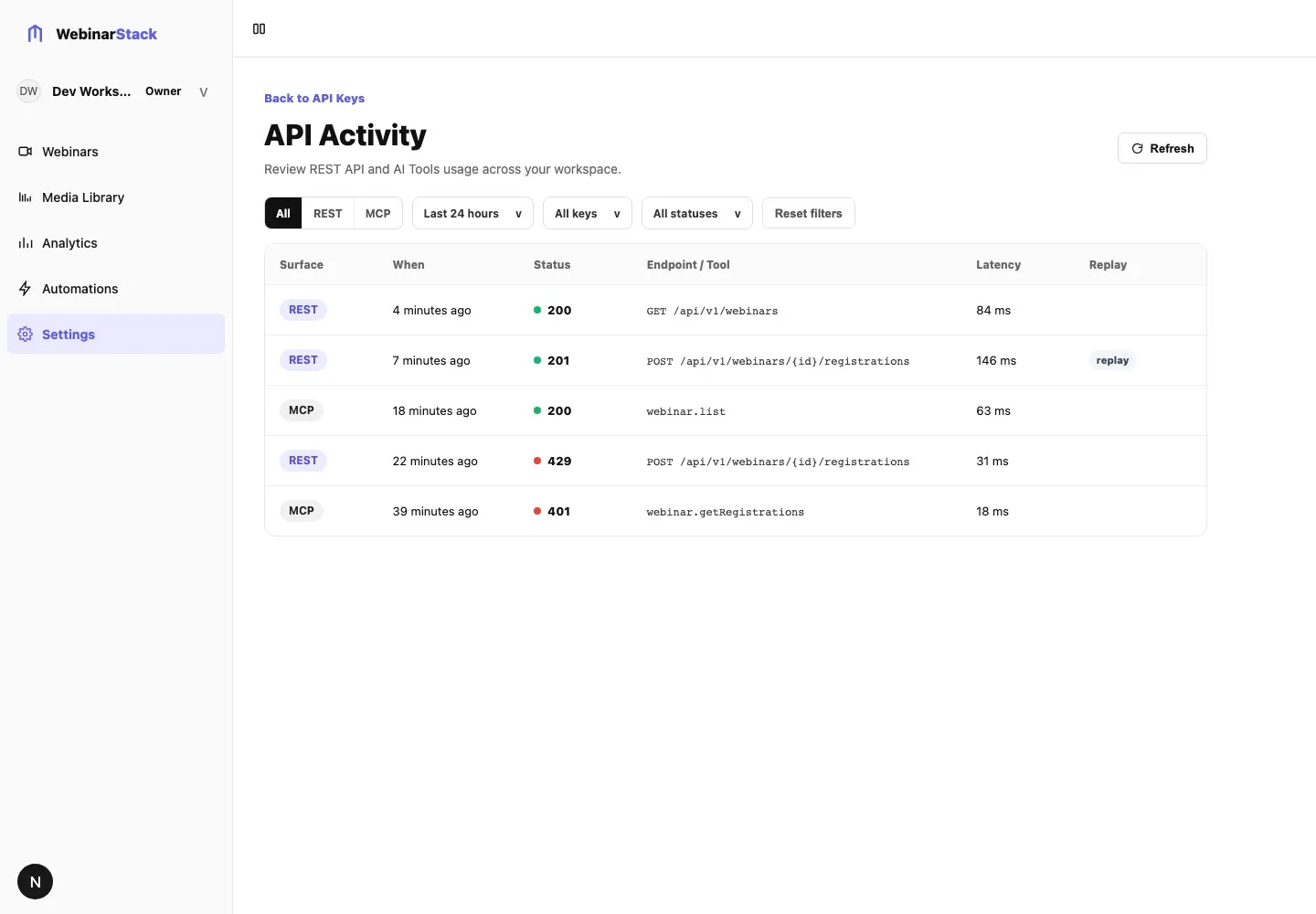
Section titled “Use Activity”Click Activity from the API Keys tab to inspect recent REST API and AI Tools usage.
Activity helps answer:
- Is this key being used?
- Which surface is using it?
- Which REST endpoint or MCP tool was called?
- Did the call succeed or fail?
- Which key generated the activity?
- Did a write response come from an idempotency replay?
The Activity page has these filters:
| Filter | Options |
|---|---|
| Surface | All, REST, MCP. |
| Time range | Last hour, Last 24 hours, Last 7 days, Last 30 days, Last 90 days. |
| API key | All keys or one specific key. |
| Status | All, Success, Failure. |
The default view is all surfaces, all keys, all statuses, and the last 24 hours.
Activity rows show:
| Column | Meaning |
|---|---|
| Surface | REST or MCP. |
| When | Relative time, with exact timestamp available on hover. |
| Status | HTTP-style status code and success/failure indicator. |
| Endpoint / Tool | REST method and path, or MCP tool name. |
| Replay | Shows replay when a REST response was served from the idempotency cache. |
Activity is retained for a rolling 90-day window. Older REST and MCP activity rows are deleted by the retention sweep.
Some authentication failures do not appear in Activity because WebinarStack cannot safely associate missing, malformed, wrong-surface, or wrong-scope credentials with a verified account in a way that preserves the security model. If a client sees 401 Unauthorized but no Activity row, inspect the key value, surface, and scopes.
Rotate A Key
Section titled “Rotate A Key”There is no in-place edit flow for an existing key’s scopes or plaintext value. Rotate by creating a replacement key, updating clients, and revoking the old key.
Recommended rotation flow:
- Open Settings > API Keys.
- Generate a new key with the same or narrower access.
- Store the new key in your secret manager.
- Deploy or restart the systems that use the key.
- Trigger a low-risk test request.
- Confirm the new key appears in Last Used or Activity.
- Revoke the old key.
- Watch Activity and downstream logs for failures.
Use this flow when:
- A key might have been exposed.
- A contractor, vendor, or employee no longer needs access.
- You are moving from test to production.
- You want to narrow a Full access key.
- You lost the plaintext value.
- You are replacing a shared key with per-system keys.
Revoke Or Delete A Key
Section titled “Revoke Or Delete A Key”The UI calls deletion Revoke because the operational outcome is access revocation.
To revoke a key:
- Go to Settings > API Keys.
- Find the key by label and last-four-character hint.
- Click Revoke.
- Review the confirmation message.
- Click Revoke Key.
The confirmation dialog warns that any applications using the key will immediately lose access.
After revocation:
- The key row is hard-deleted.
- The plaintext key cannot authenticate.
- Requests using that key return
401 Unauthorized. - The key no longer appears in the API Keys list.
- You cannot undo the revoke action.
Only account owners can revoke keys. If you are a member and need a key removed, ask a workspace owner.
Lost Keys
Section titled “Lost Keys”If you lose the plaintext value, WebinarStack cannot show it again.
Do this instead:
- Create a replacement key.
- Update the system that needs the key.
- Confirm the replacement is working.
- Revoke the lost key.
Do not leave a lost key active just because you are unsure where it is used. Use the label, last-used timestamp, request count, and Activity filters to identify likely owners before revoking.
Compromised Keys
Section titled “Compromised Keys”If a key may have been copied into a public repo, ticket, screenshot, AI prompt, browser recording, build log, or vendor system you do not trust, treat it as compromised.
Immediate response:
- Revoke the key.
- Create a replacement with the narrowest needed access.
- Update the affected system.
- Review Activity for unusual REST endpoints or MCP tools.
- Check downstream systems for unexpected changes.
- Update internal runbooks so the same exposure path does not happen again.
Do not try to “hide” a compromised key by renaming it. Rename is not the access control mechanism; revocation is.
Rate Limits
Section titled “Rate Limits”API access uses a shared account-level rate limit across REST API and AI Tools.
When the limit is exceeded, the API returns:
429 Too Many RequestsThe response includes rate-limit headers:
| Header | Meaning |
|---|---|
X-RateLimit-Limit |
Maximum requests allowed in the current window. |
X-RateLimit-Remaining |
Requests remaining in the current window. |
X-RateLimit-Reset |
Unix timestamp when the current window resets. |
Retry-After |
Seconds to wait before retrying after a rate-limit response. |
Because the limit is account-level, creating more keys does not increase throughput. If a worker is rate-limited, reduce request volume, add backoff, batch work where supported, or spread non-urgent jobs over time.
Error Responses
Section titled “Error Responses”Common API-key-related responses:
| Response | What It Usually Means |
|---|---|
401 Unauthorized with Invalid API key |
Missing Bearer header, malformed key, revoked key, wrong surface, or missing required scope. |
403 Forbidden |
The key authenticated, but the requested account/resource/action is not allowed by the route or account state. |
404 Not Found |
The resource does not exist for this account, was deleted/archived, or the ID is wrong. |
409 Conflict |
Idempotency key conflict on a write request. |
429 Too Many Requests |
Account-level API rate limit exceeded. |
Unauthorized responses intentionally do not reveal whether the problem was the key value, surface, or scope. This prevents attackers from probing which permissions exist.
Troubleshooting
Section titled “Troubleshooting”I Created A Key But Cannot See It Again
Section titled “I Created A Key But Cannot See It Again”This is expected. The full plaintext key is shown only once. The list only shows a masked hint.
Fix:
- Create a new key.
- Store it securely.
- Revoke the lost key after confirming the replacement works.
Generate Key Is Disabled
Section titled “Generate Key Is Disabled”Check the create dialog:
- The label must not be blank.
- At least one scope must be selected.
- At least one surface must be selected.
If you manually edit the scope grid or surface chips, the preset switches to Custom.
A REST Request Returns 401 Unauthorized
Section titled “A REST Request Returns 401 Unauthorized”Check:
- The header is exactly
Authorization: Bearer <key>. - The key starts with
wsk_live_. - The key was copied without spaces, quotes, or line breaks.
- The key has the REST API surface selected.
- The key has the required scope for that endpoint.
- The key has not been revoked.
- You are calling the correct environment.
Because several auth failures return the same 401 body, do not assume the key itself is wrong until you check surface and scopes.
A Request Returns 429 Too Many Requests
Section titled “A Request Returns 429 Too Many Requests”Check:
Retry-After.X-RateLimit-Remaining.- Whether another system in the same workspace is using the shared account-level API budget.
- Whether an AI Tools client is making MCP calls at the same time as REST jobs.
Use exponential backoff and avoid tight retry loops.
The Key Shows Never Used
Section titled “The Key Shows Never Used”This usually means the key has not successfully authenticated far enough to update usage.
Check:
- The client is actually using the new key, not an old environment variable.
- The key is for the correct workspace.
- The key allows the surface being used.
- The first request is not failing before authentication completes.
- Activity filters are not hiding the row.
Revoking A Key Broke An Integration
Section titled “Revoking A Key Broke An Integration”If the wrong key was revoked:
- Create a replacement key.
- Update the affected integration.
- Test with a low-risk API call.
- Confirm Activity shows the new key.
Revocation cannot be undone. The deleted key cannot be restored.
Activity Shows Failures
Section titled “Activity Shows Failures”Use the Activity row to identify the surface, endpoint or tool, status code, and time.
Then check:
- The downstream app or worker logs at the same timestamp.
- Whether the request body was valid.
- Whether the resource ID belongs to the current workspace.
- Whether the key has the scope needed for that route.
- Whether a write retry reused an idempotency key with a different body.
Best Practices
Section titled “Best Practices”- Use one key per system, service, vendor, or environment.
- Use descriptive labels.
- Prefer Custom access for production keys.
- Grant the minimum scopes needed.
- Grant only the surface the system uses.
- Store keys in a secret manager or environment variable.
- Never commit keys to source control.
- Never paste keys into AI prompts, screenshots, support tickets, or issue trackers.
- Use
Idempotency-Keyfor write retries. - Rotate shared keys into separate per-system keys.
- Review Activity before revoking a key with unclear ownership.
- Revoke unused, lost, or compromised keys immediately.
What To Ask Your Favorite AI
Section titled “What To Ask Your Favorite AI”AI can help you design key scopes, write API clients, debug request errors, and plan key rotation. Do not paste real API keys into AI tools.
Use placeholders such as:
WEBINARSTACK_API_KEYwsk_live_REDACTEDREDACTED_WEBINAR_IDREDACTED_REGISTRATION_ID
Prompt: Choose API Key Scopes
Section titled “Prompt: Choose API Key Scopes”I need to create a WebinarStack API key for this integration:[describe what the integration does]
Available resource scopes:- webinars:read- webinars:write- sessions:read- sessions:write- registrations:read- registrations:write- automations:read- automations:write- interactions:read- interactions:write
Available surfaces:- REST API- AI Tools (MCP)
Please recommend the minimum access needed, explain why each scope is required, and call out any scope that is convenient but not strictly necessary.
Do not ask me for a real API key.Prompt: Write A Safe API Client
Section titled “Prompt: Write A Safe API Client”Write a [TypeScript/Python/Ruby/PHP] client function that calls the WebinarStack REST API.
Requirements:- Read the API key from WEBINARSTACK_API_KEY- Send Authorization: Bearer <key>- Send Content-Type: application/json for writes- Use Idempotency-Key for write requests- Handle 401, 409, and 429 responses explicitly- Respect Retry-After on 429- Never log the API key
Endpoint:[paste endpoint path and method]
Sample request body with fake data:[paste redacted sample]Prompt: Plan API Key Rotation
Section titled “Prompt: Plan API Key Rotation”I need to rotate a WebinarStack API key used by [system name].
Current key access:[describe scopes and surfaces, not the secret]
Deployment environment:[describe where the key is stored, such as Vercel env var, AWS Secrets Manager, GitHub Actions secret, Kubernetes secret, etc.]
Please create a step-by-step rotation plan that:- Avoids downtime- Verifies the new key with a low-risk API call- Uses Activity to confirm the new key is active- Identifies when it is safe to revoke the old key- Includes rollback steps
Do not ask me to paste the real key.Prompt: Troubleshoot API Key Authentication
Section titled “Prompt: Troubleshoot API Key Authentication”I am getting an error from the WebinarStack API.
Response:- Status: [status code]- Body: [redacted response body]- Headers: [redacted rate-limit headers if present]
Request:- Method: [GET/POST/PATCH/DELETE]- Path: [path only, no secret]- Surface: REST API- Key access I intended to grant: [scopes and surfaces]
Please give me the likely causes and a safe checklist. Do not ask for my real API key.