
Media Library
The Media Library is the central place where your workspace stores reusable webinar media. Use it for hosted webinar videos, replay videos, adaptive segment clips, brand images, host avatars, header images, offer artwork, and other image assets you want to reuse across WebinarStack.
This guide explains every part of the Media Library, how WebinarStack CDN media works, how it differs from external YouTube and Vimeo videos, how image uploads work, and how to choose the right media type when building a webinar.
The Short Version
Section titled “The Short Version”| Media Option | What It Is | Best For |
|---|---|---|
| WebinarStack CDN video | A video uploaded to WebinarStack and streamed through WebinarStack-managed CDN infrastructure. | Main webinar videos, replay videos, adaptive segments, and mobile-heavy audiences. |
| YouTube video URL | A YouTube-hosted video pasted into WebinarStack. | Existing YouTube content that is already published and embeddable. |
| Vimeo video URL | A Vimeo-hosted video pasted into WebinarStack. | Existing Vimeo libraries, private/professional hosting workflows, and teams already managing content in Vimeo. |
| WebinarStack CDN image | An image uploaded to WebinarStack and served from the Media Library. | Logos, favicons, header images, host avatars, widget logos, offer artwork, and page-builder images. |
| External image URL | An image hosted somewhere else and pasted into an image field. | Assets already managed on your website, brand CDN, or another image host. |
The most important distinction is this: WebinarStack CDN media is uploaded, stored, managed, and delivered by WebinarStack. External URLs stay hosted by the external provider. WebinarStack can use those URLs, but it does not upload, process, rename, delete, or guarantee delivery of the external media.
Where To Find The Media Library
Section titled “Where To Find The Media Library”Open the WebinarStack dashboard and select Media Library from the sidebar.
The page has two tabs:
- Videos for WebinarStack CDN-hosted videos.
- Images for WebinarStack CDN-hosted image assets.
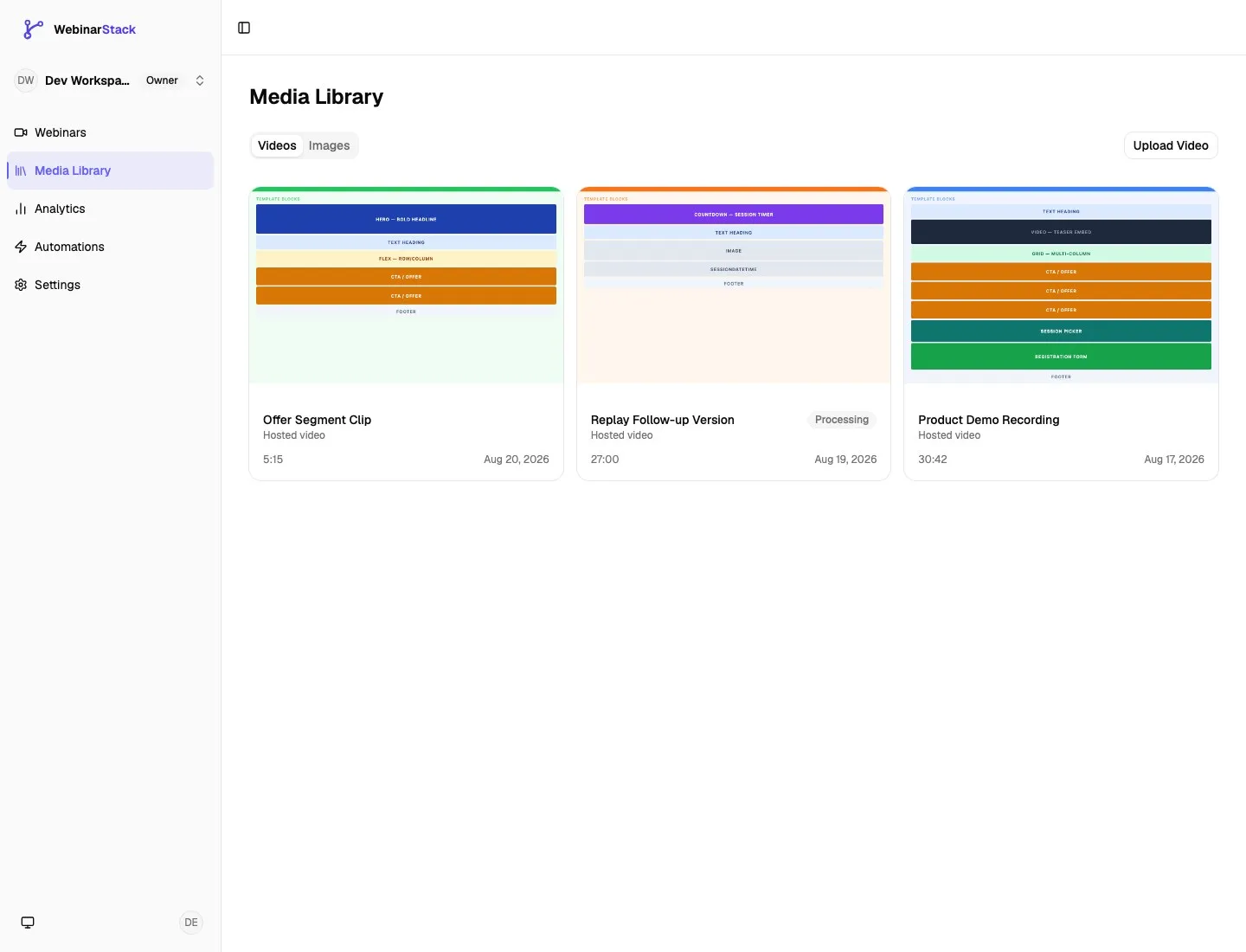
Media is scoped to the current workspace. If you switch workspaces, you are looking at that workspace’s media library, not a shared global library.
Media Types
Section titled “Media Types”WebinarStack CDN Videos
Section titled “WebinarStack CDN Videos”A WebinarStack CDN video is a video file uploaded to WebinarStack. In the app, this appears as WebinarStack CDN or Hosted video.
Use WebinarStack CDN videos when you want WebinarStack to manage the video delivery path. Hosted videos are useful for:
- Standard webinar videos.
- Replay videos.
- Adaptive webinar segment videos.
- Offer or pitch clips used in branches.
- Video content that should not depend on YouTube or Vimeo embed behavior.
- Mobile-heavy webinar audiences where provider continuity matters.
WebinarStack CDN video uploads currently support:
| Field | Value |
|---|---|
| Supported file types | MP4 and MOV |
| Maximum file size | 10 GB |
| Upload behavior | Resumable browser upload |
| Processing states | Uploading, Processing, Ready, Failed |
| Playback model | CDN-backed adaptive HLS streaming |
Hosted videos are managed inside WebinarStack. You can rename them, select them in webinar setup, select them for replay, use them in adaptive segments, and delete them when they are no longer referenced.
External YouTube Videos
Section titled “External YouTube Videos”A YouTube video is not uploaded to the Media Library. Instead, you paste a YouTube URL into a video field, and WebinarStack stores the provider reference for playback.
Supported YouTube URL formats include:
| Format | Example |
|---|---|
| Watch URL | https://youtube.com/watch?v=VIDEO_ID |
| Short URL | https://youtu.be/VIDEO_ID |
| Embed URL | https://youtube.com/embed/VIDEO_ID |
Use YouTube when:
- The video already lives on YouTube.
- Your team wants to keep managing the video in YouTube.
- The video is configured to allow embedding.
- You are comfortable with YouTube controlling the external player behavior.
YouTube videos are best-effort on mobile in adaptive flows. Mobile browsers can require a fresh user interaction when a provider swaps or rebinds the underlying video element, so WebinarStack CDN is the safer choice for mobile-heavy adaptive webinars.
External Vimeo Videos
Section titled “External Vimeo Videos”A Vimeo video works like YouTube from WebinarStack’s perspective: the video stays hosted by Vimeo, and WebinarStack stores a Vimeo reference from the URL you paste.
Supported Vimeo URL formats include:
| Format | Example |
|---|---|
| Standard URL | https://vimeo.com/123456789 |
| Video path URL | https://vimeo.com/video/123456789 |
| Player URL | https://player.vimeo.com/video/123456789 |
Use Vimeo when:
- Your video library is already managed in Vimeo.
- Vimeo privacy and embed settings are part of your team’s workflow.
- You want to keep the source video in Vimeo instead of uploading it into WebinarStack.
For adaptive segment editing, WebinarStack can attempt to read Vimeo duration from Vimeo metadata when the duration field is empty. YouTube does not expose duration through the same no-key metadata path, so YouTube segment durations usually need to be entered manually.
WebinarStack CDN Images
Section titled “WebinarStack CDN Images”A WebinarStack CDN image is an image uploaded to WebinarStack and stored as a reusable image asset.
Hosted image uploads currently support:
| Field | Value |
|---|---|
| Supported file types | PNG, JPG, JPEG, WEBP, ICO |
| Maximum file size | 5 MB |
| Blocked file type | SVG |
| Common uses | Logos, favicons, header images, host avatars, widget logos, offer images, page-builder images |
SVG files are blocked for security reasons. If you have an SVG logo, export it as PNG or WEBP before uploading it.
External Image URLs
Section titled “External Image URLs”Some image fields also allow an External URL option. That means the image stays hosted somewhere else, and WebinarStack stores the URL.
Use external image URLs when:
- The asset is already hosted on your website or brand CDN.
- Your marketing site controls the image and may update it in place.
- You do not need the image to appear in the Media Library.
Use WebinarStack CDN images when:
- You want non-technical users to pick images from the app.
- You want the asset reused across webinars.
- You want WebinarStack to track where the asset is used before deletion.
- You do not want attendee pages depending on a third-party image URL you might later move or remove.
Videos Tab Walkthrough
Section titled “Videos Tab Walkthrough”The Videos tab shows every WebinarStack CDN video available in the current workspace.
Each video card shows:
| Card Item | What It Means |
|---|---|
| Preview image | The hosted video’s thumbnail, when available. |
| Title | The internal media name used in pickers and asset details. |
| Type | Hosted video, meaning the video is stored as WebinarStack CDN media. |
| Status badge | Uploading, Processing, Ready, or Failed. Ready videos can play. Processing videos are still being prepared. |
| Duration | The video’s playback length. |
| Upload date | The date the media asset was created in the workspace. |
Upload A Video
Section titled “Upload A Video”Click Upload Video on the Videos tab.
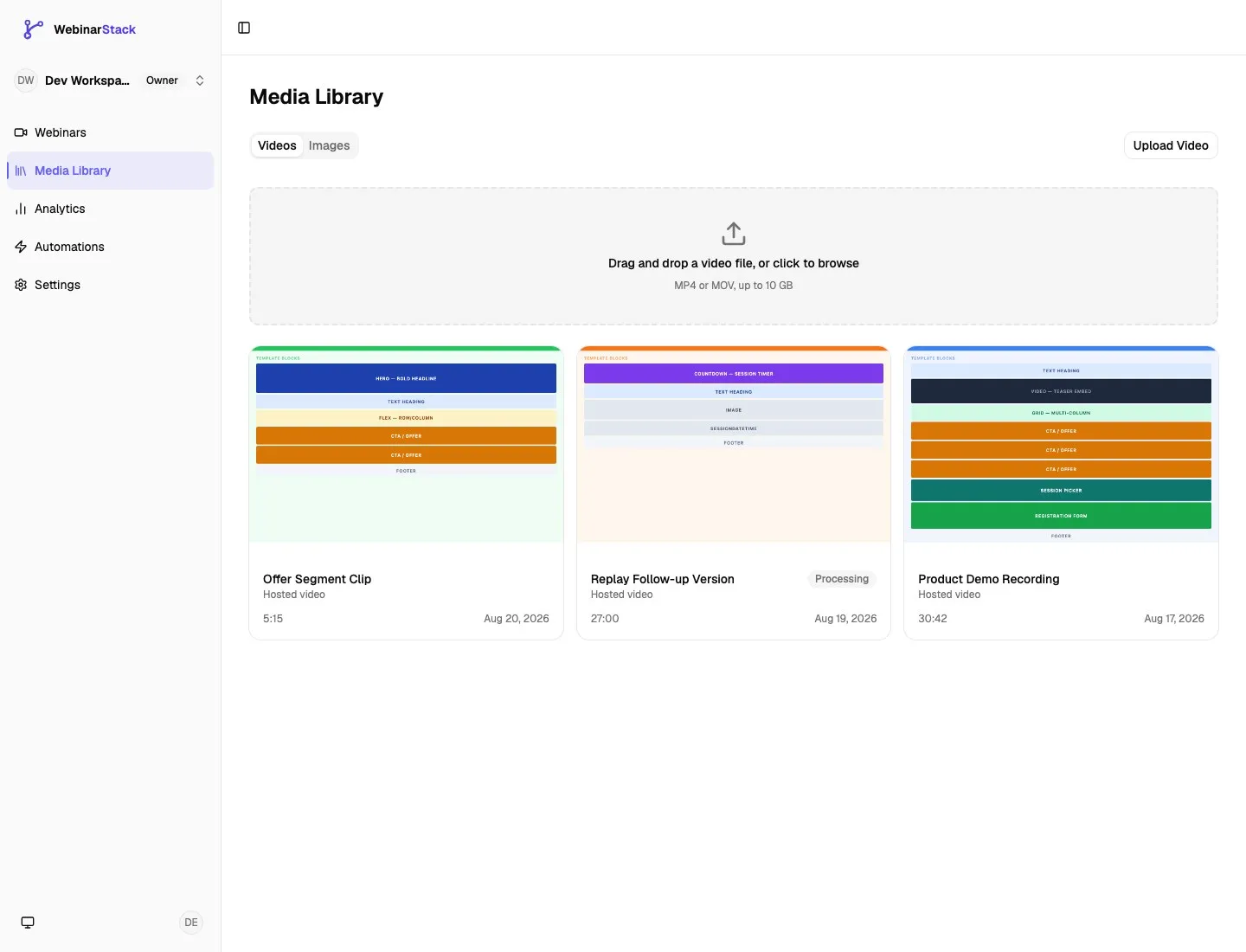
You can drag a file onto the upload area or click the upload area to browse for a file.
The upload flow:
- WebinarStack creates a signed upload intent for the current workspace.
- Your browser uploads the file through a resumable upload flow.
- The video appears in the Media Library with an uploading or processing status.
- WebinarStack processes the file for streaming.
- When processing finishes, the video becomes ready and can be used in attendee playback.
If a large upload is interrupted, the browser can attempt to resume a previous upload instead of starting over from zero.
Understand Video Statuses
Section titled “Understand Video Statuses”| Status | Meaning | What To Do |
|---|---|---|
| Uploading | The original file is still being uploaded. | Keep the browser tab open until upload completes. |
| Processing | The file uploaded, but WebinarStack is still preparing it for streaming. | You can select it, but it will not play for attendees until it is ready. |
| Ready | The video has a streaming playlist and can be used. | Use it in setup, replay, or adaptive segments. |
| Failed | Processing failed. | Re-upload the source file or choose another video. |
The Media Library and video picker refresh while a video is uploading or processing. When a processing video becomes ready, WebinarStack shows a ready notification in the app.
Rename Or Delete A Video
Section titled “Rename Or Delete A Video”Click a video card to open Asset details.
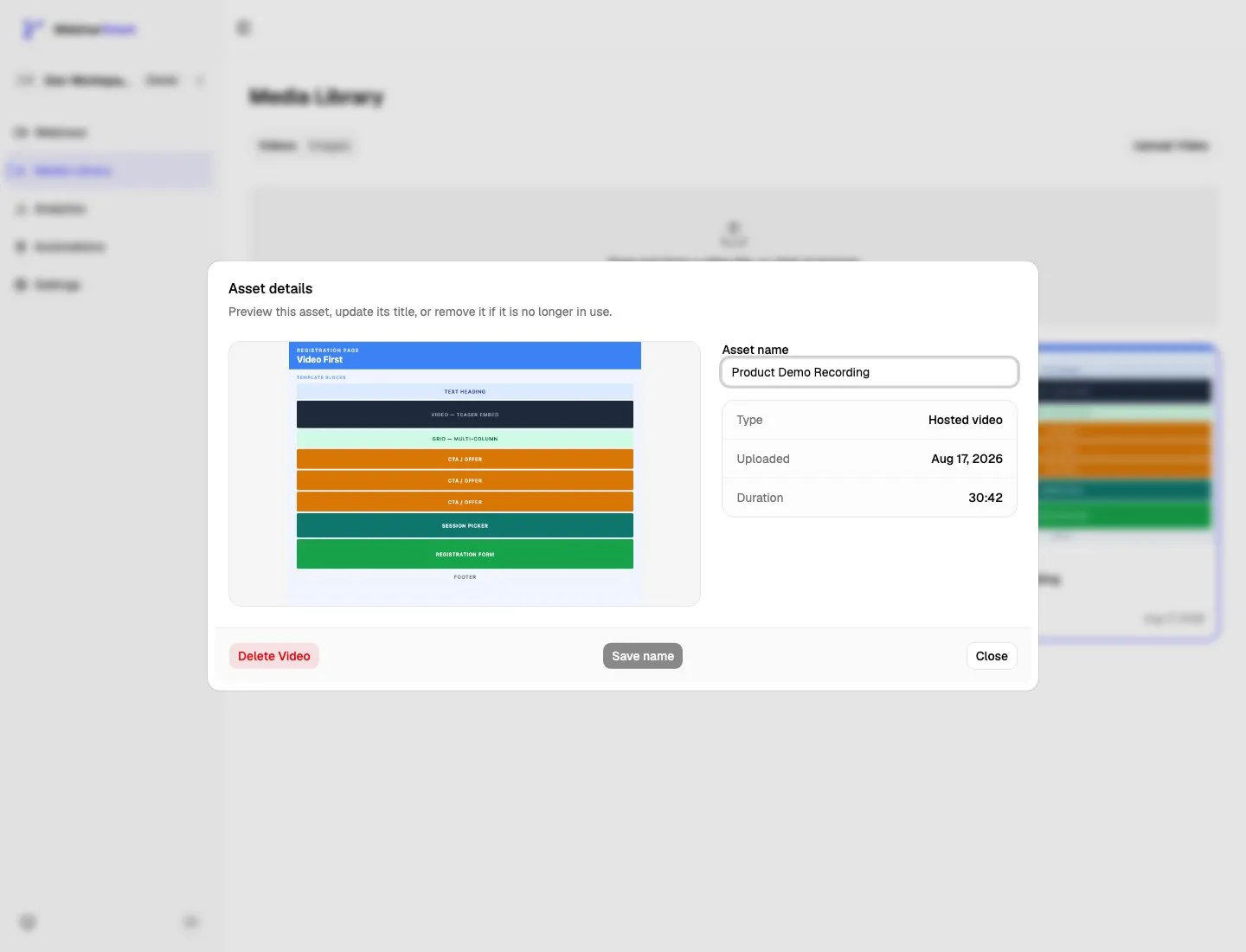
From the details dialog, you can:
- Preview the video thumbnail.
- Rename the asset.
- See the media type.
- See when it was uploaded.
- See the duration.
- Delete the video if it is no longer in use.
Deleting a hosted video removes the managed CDN video from WebinarStack. If the video is referenced by a webinar or adaptive segment, WebinarStack blocks deletion until you unlink it.
Images Tab Walkthrough
Section titled “Images Tab Walkthrough”The Images tab shows every hosted image asset in the current workspace.
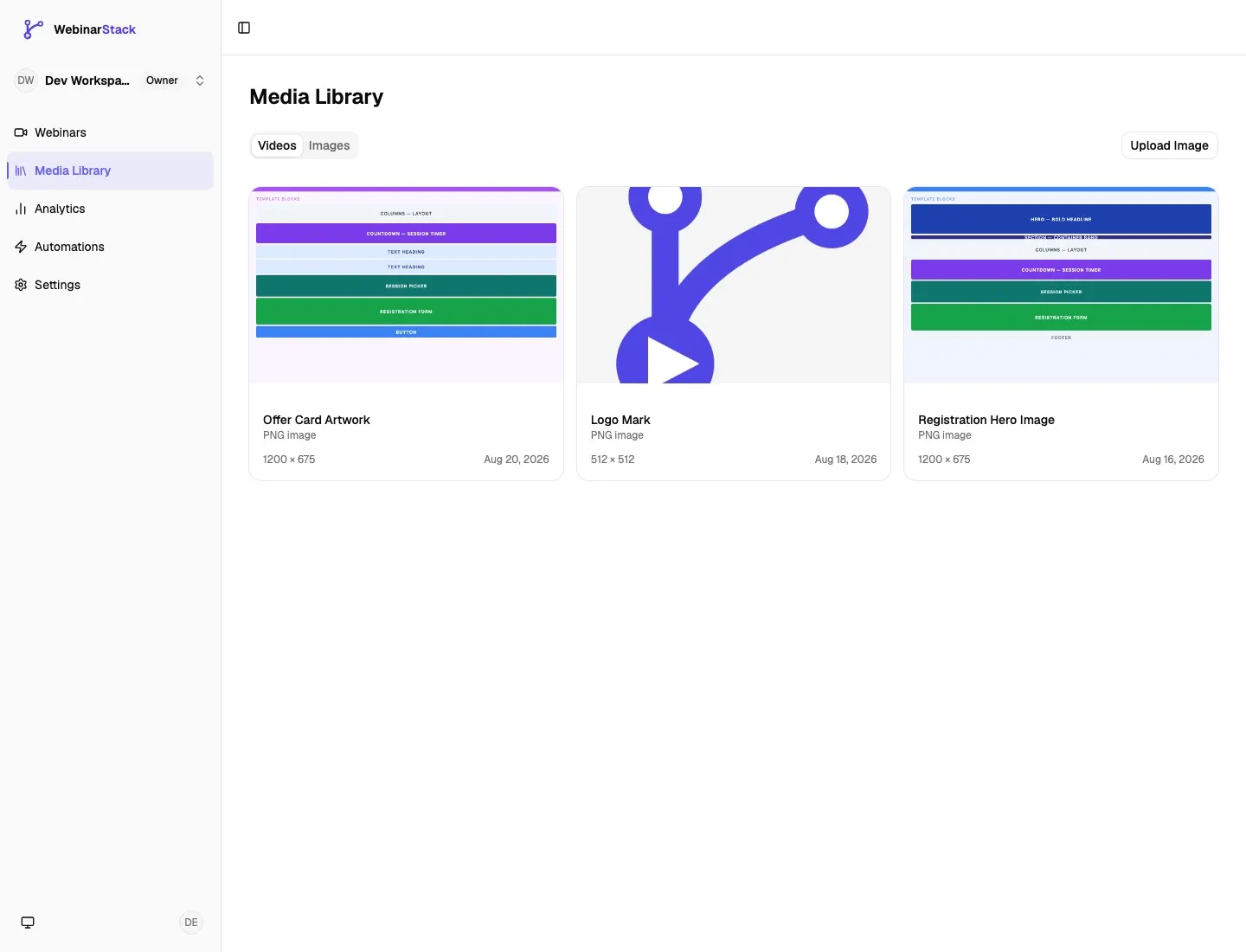
Each image card shows:
| Card Item | What It Means |
|---|---|
| Preview | The image itself. |
| Title | The internal media name. |
| Type | The detected file type, such as PNG image, JPG image, WEBP image, or ICO image. |
| Dimensions | Width and height when available. |
| Upload date | The date the image was added to the workspace. |
Upload An Image
Section titled “Upload An Image”Click Upload Image on the Images tab. Your browser opens a file picker.
Choose a supported image file:
- PNG
- JPG or JPEG
- WEBP
- ICO
The upload flow:
- WebinarStack checks that you are signed in and working in the current workspace.
- WebinarStack validates the file type and size.
- SVG files are rejected.
- WebinarStack creates an asset record.
- The file is stored in WebinarStack CDN media storage.
- The image appears in the Images tab and in WebinarStack CDN image pickers.
Image uploads are immediate compared with video uploads. There is no long processing step like hosted video transcoding.
Rename Or Delete An Image
Section titled “Rename Or Delete An Image”Click an image card to open Asset details.
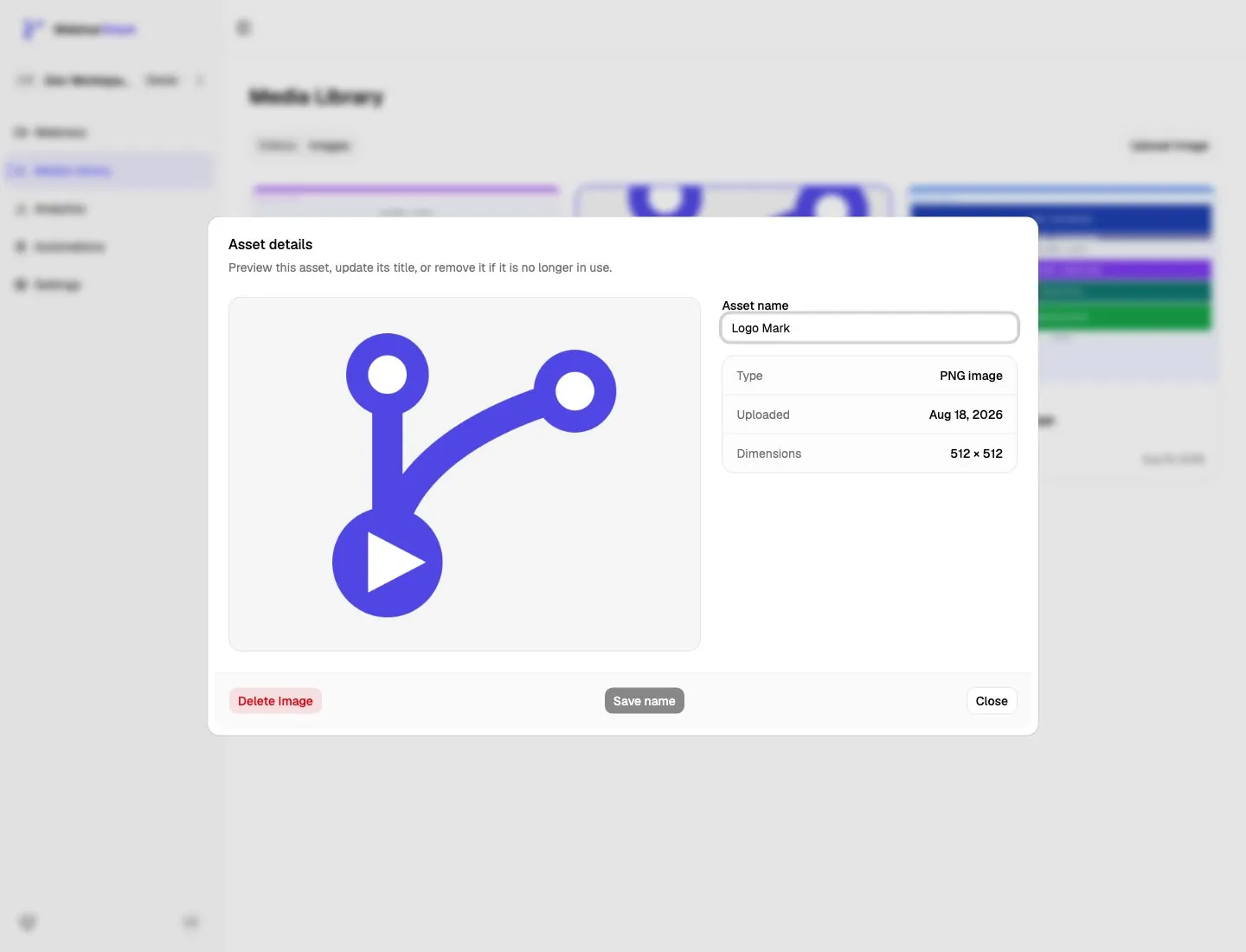
From the details dialog, you can:
- Preview the image.
- Rename the asset.
- See the detected image type.
- See when it was uploaded.
- See image dimensions.
- Delete the image if it is no longer in use.
Deleting an image removes the hosted image from WebinarStack CDN storage. WebinarStack blocks deletion when the image is still referenced by important surfaces such as webinar brand images, favicons, host avatars, widget logos, interaction images, or page-builder content.
Using Hosted Videos In Webinars
Section titled “Using Hosted Videos In Webinars”Hosted videos can be selected anywhere the app asks for a WebinarStack CDN video.
Common places include:
- The new webinar form.
- The Setup tab for a standard webinar.
- The Replay tab for replay-specific video.
- The Flow tab for adaptive webinar segments.
When you choose WebinarStack CDN, WebinarStack opens a video picker with existing hosted videos and an upload tab.
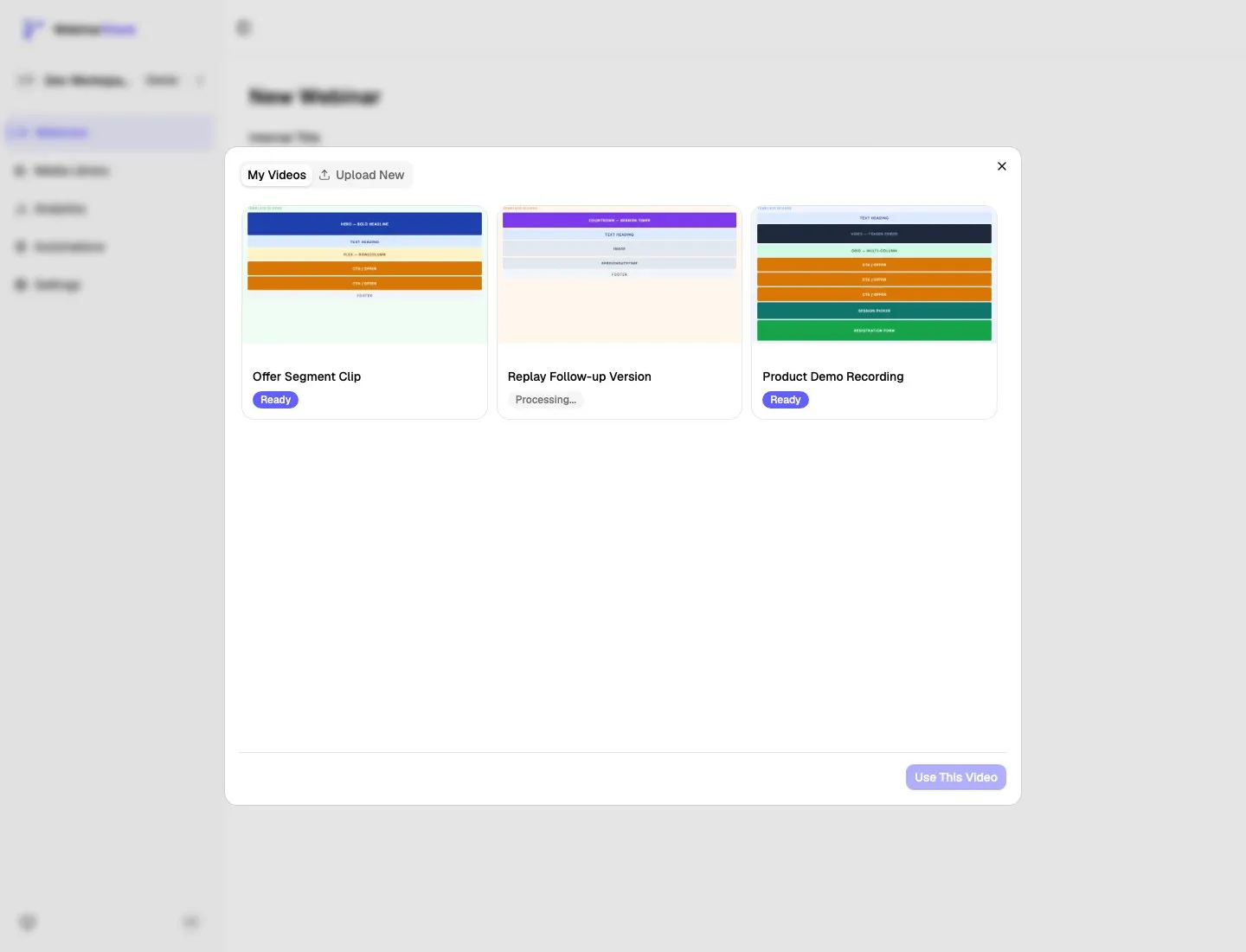
The picker shows:
| Picker Area | What It Does |
|---|---|
| My Videos | Lists hosted videos already in the Media Library. |
| Upload New | Lets you upload a new MP4 or MOV without leaving the picker. |
| Status badge | Shows whether the video is ready, processing, uploading, or failed. |
| Use This Video | Assigns the selected hosted video to the webinar field you are editing. |
You can select a video while it is still processing, but the attendee experience will not be playable until the video is ready.
Using External YouTube Or Vimeo Videos
Section titled “Using External YouTube Or Vimeo Videos”Choose External video URL when the video should stay hosted on YouTube or Vimeo.
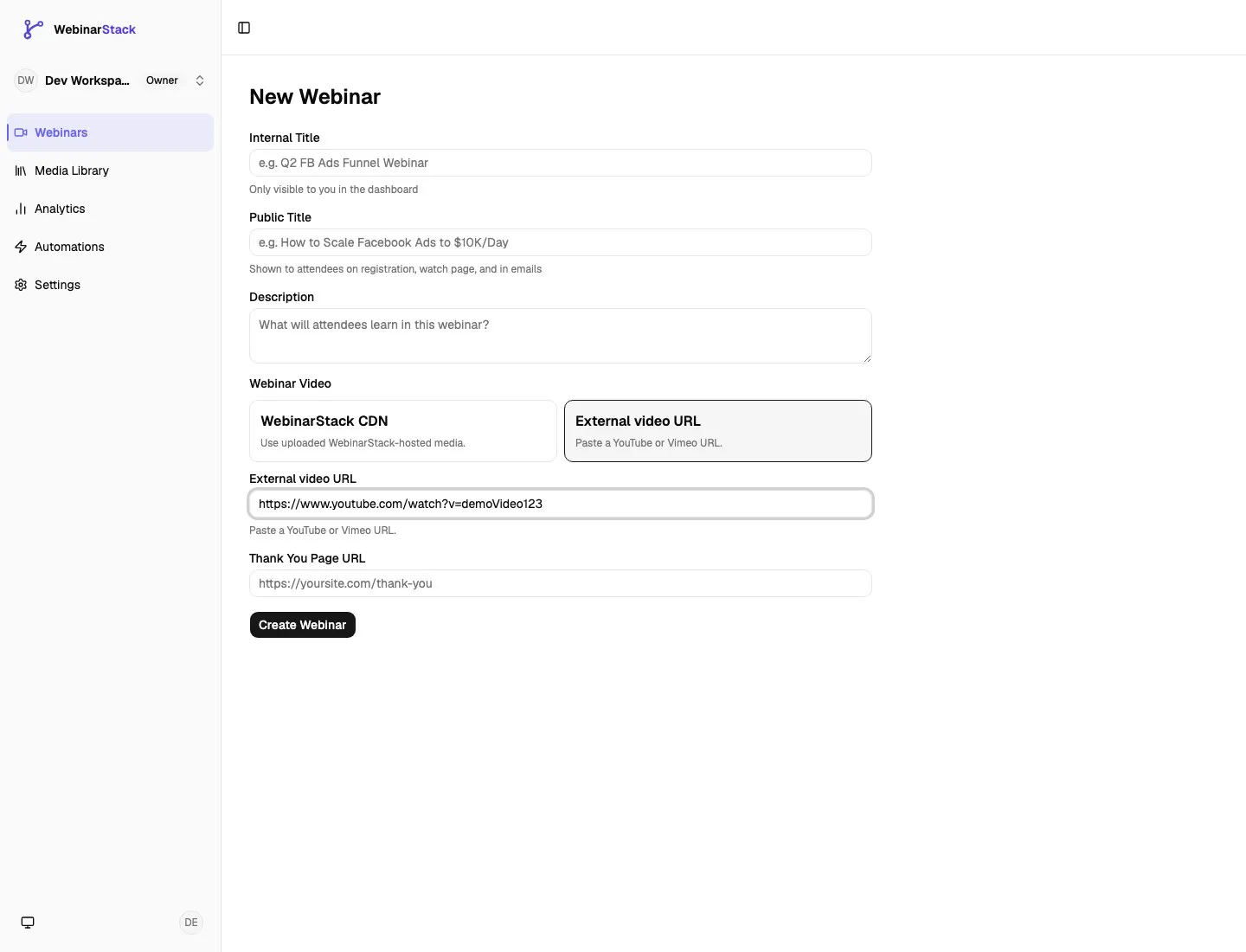
Use this option when:
- The video already exists on YouTube or Vimeo.
- You want to keep managing the source video in that provider.
- Your external provider is configured to allow the video to be embedded.
Do not use this option for arbitrary direct video files, raw MP4 URLs, or files stored in another CDN. External video fields validate for supported YouTube and Vimeo URLs. If you have a video file, upload it as a WebinarStack CDN video instead.
Standard Webinar Video
Section titled “Standard Webinar Video”For a standard webinar, the webinar video is set in the new webinar form and later in the Setup tab.
Choose:
- WebinarStack CDN when you want a hosted video from the Media Library.
- External video URL when you want YouTube or Vimeo.
Replay Video
Section titled “Replay Video”The Replay tab has the same source concept. You can use:
- The original live webinar video.
- A separate WebinarStack CDN replay video.
- A separate YouTube or Vimeo replay URL.
Use a separate replay video when you want a shorter version, a different call to action, edited timing, or evergreen replay content that differs from the live-style presentation.
Adaptive Segment Videos
Section titled “Adaptive Segment Videos”Adaptive webinars use videos at the segment level instead of one single webinar-level video.
Each segment can use:
- WebinarStack CDN.
- YouTube.
- Vimeo.
For mobile-heavy adaptive webinars, WebinarStack CDN is recommended because the player can preserve a more consistent video element across segment transitions. YouTube and Vimeo can still work, but mobile browsers may require attendees to tap to restore audio after some transitions.
Using Hosted Images In Webinars
Section titled “Using Hosted Images In Webinars”Image fields use the same source model as videos: you can paste an external URL or choose an image from WebinarStack CDN.
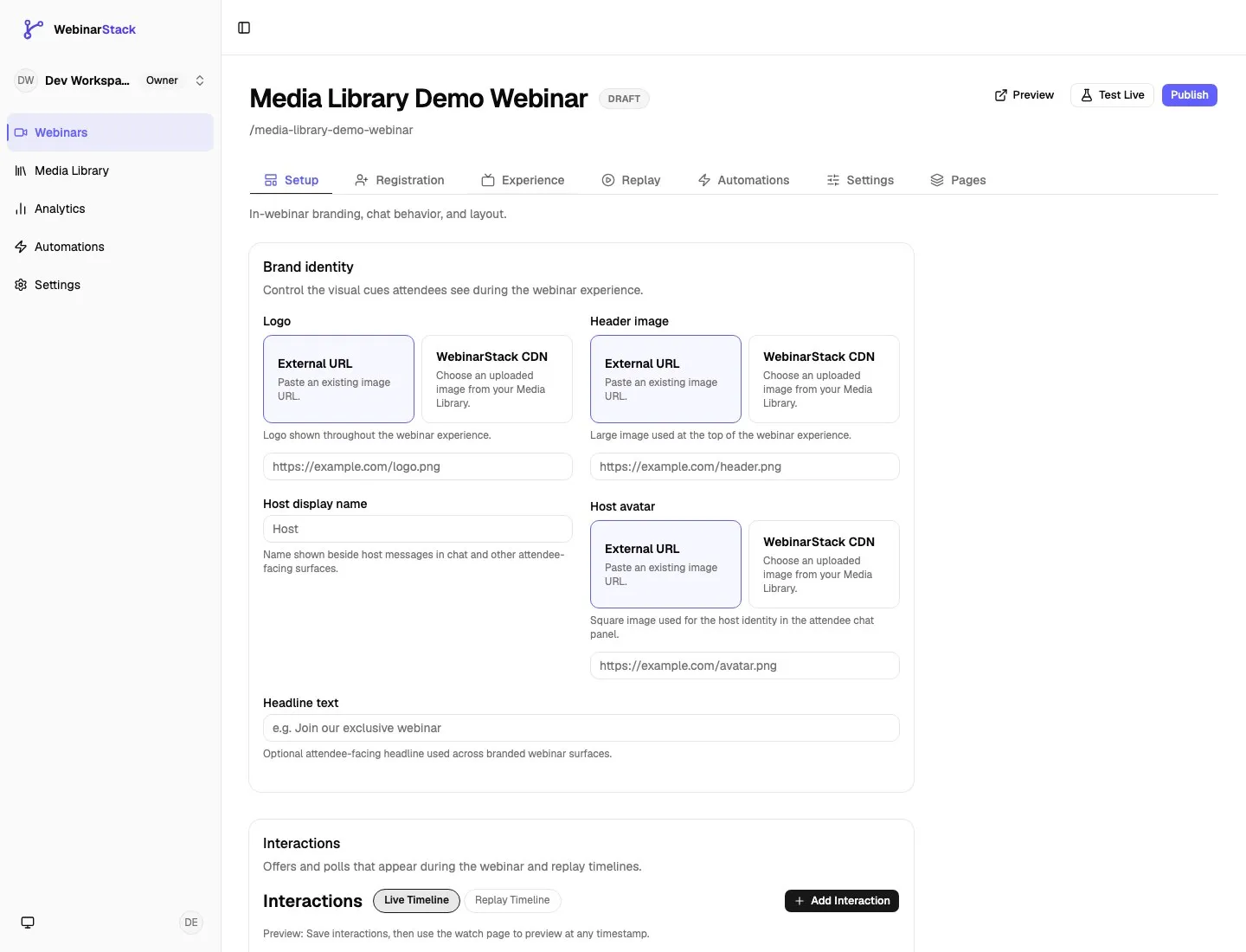
In the Experience tab, image source fields appear for:
- Logo.
- Header image.
- Host avatar.
Hosted images are also used by other surfaces such as:
- Favicons.
- Widget logos.
- Offer and interaction images.
- Page-builder images and layout content.
Choose External URL when the image is hosted somewhere else. Choose WebinarStack CDN when you want to pick an uploaded image from the Media Library.
WebinarStack CDN Deep Dive
Section titled “WebinarStack CDN Deep Dive”In the app, WebinarStack CDN means WebinarStack hosts and serves the media for you. You do not need your own CDN account, storage bucket, streaming provider account, or upload-signing code.
Hosted Video Architecture
Section titled “Hosted Video Architecture”Hosted video has three phases: upload, processing, and streaming.
| Phase | What Happens |
|---|---|
| Upload | WebinarStack creates a signed upload session and the browser uploads the original MP4 or MOV file. |
| Processing | WebinarStack prepares the uploaded video for streaming, creates thumbnails and metadata, and marks the video ready when playback assets are available. |
| Streaming | Attendee playback uses CDN-backed HLS streaming instead of serving one large downloadable file. |
HLS streaming means the player loads a playlist and then video segments. This lets playback adapt more cleanly to network conditions than forcing the browser to download one large file.
Signed Playback
Section titled “Signed Playback”Hosted video playback is not just a permanent public file URL.
When an attendee or dashboard preview needs to play a hosted video, WebinarStack checks the webinar, account, and attendee context, then mints a short-lived playback URL for the streaming playlist. The player loads that URL and streams video segments from the CDN.
This gives WebinarStack control over:
- Which account owns the video.
- Whether the video is ready.
- Whether the attendee or preview is allowed to request playback.
- How long a playback URL remains valid.
- Refreshing playback if a signed URL expires.
Why Hosted Video Helps On Mobile
Section titled “Why Hosted Video Helps On Mobile”Mobile browsers have stricter media rules than desktop browsers. Audio usually requires a user tap, and that permission can be tied to the actual video element on the page.
In adaptive webinars, viewers may move between different segments. WebinarStack CDN is designed for that flow because WebinarStack controls the hosted playback path and can keep the player behavior more consistent across segment transitions.
YouTube and Vimeo are still supported, but they are external players. Their SDKs and mobile behavior are controlled by those providers, so audio continuity is best-effort in adaptive paths.
Hosted Image Architecture
Section titled “Hosted Image Architecture”Hosted images are simpler than hosted videos.
When you upload an image:
- WebinarStack validates the file.
- WebinarStack blocks unsupported or risky formats.
- The file is stored in workspace-scoped CDN media storage.
- WebinarStack saves a reusable asset record with title, file type, dimensions, size, and CDN URL.
- WebinarStack fields can reference that hosted image.
Images do not need video processing. Once upload succeeds, the image can be used immediately.
Account Scope And Safety
Section titled “Account Scope And Safety”Media Library assets belong to a workspace. A user must have access to the current workspace to list, upload, rename, or delete its media.
Deletion is guarded because media can be reused. WebinarStack checks references before allowing deletion so a brand logo, header image, segment video, or active webinar does not break because someone deleted the underlying asset too early.
Field Reference
Section titled “Field Reference”Media Library Controls
Section titled “Media Library Controls”| Control | Where | Meaning |
|---|---|---|
| Videos tab | Media Library | Shows hosted videos uploaded to WebinarStack CDN. |
| Images tab | Media Library | Shows hosted images uploaded to WebinarStack CDN. |
| Upload Video | Videos tab | Opens the MP4/MOV upload area. |
| Upload Image | Images tab | Opens the browser file picker for PNG, JPG, WEBP, or ICO files. |
| Asset card | Videos or Images tab | Opens the asset details dialog. |
| Asset name | Details dialog | Editable internal title shown in Media Library cards and pickers. |
| Save name | Details dialog | Saves the asset’s internal title. |
| Delete Video | Video details dialog | Deletes the hosted video if it is not referenced. |
| Delete Image | Image details dialog | Deletes the hosted image if it is not referenced. |
Video Source Fields
Section titled “Video Source Fields”| Field | Meaning |
|---|---|
| WebinarStack CDN | Select or upload a hosted video from the Media Library. |
| External video URL | Paste a supported YouTube or Vimeo URL. |
| Choose WebinarStack CDN video | Opens the hosted video picker. |
| Use This Video | Assigns the selected hosted video to the current webinar field. |
| Replay video | Optional replay-specific source; can be hosted or external. |
| Segment video provider | Adaptive segment source selector; supports WebinarStack CDN, YouTube, and Vimeo. |
| Duration | Segment duration in seconds for adaptive flows. Hosted videos and Vimeo can help populate this; YouTube often needs manual entry. |
Image Source Fields
Section titled “Image Source Fields”| Field | Meaning |
|---|---|
| External URL | Paste an image URL hosted outside WebinarStack. |
| WebinarStack CDN | Choose an uploaded image from the Media Library. |
| Choose WebinarStack CDN image | Opens the hosted image picker. |
| Upload New | Uploads a new hosted image from the picker, when the picker is available. |
| Clear | Removes the selected hosted image from that field. |
| Change | Opens the picker to choose a different hosted image. |
Recommended Choices
Section titled “Recommended Choices”| Situation | Recommended Choice |
|---|---|
| Main webinar video for most users | WebinarStack CDN video |
| Adaptive webinar with mobile traffic | WebinarStack CDN video |
| Replay that should differ from the live webinar | Separate WebinarStack CDN replay video |
| Existing polished YouTube or Vimeo content | External video URL |
| Brand logo, host avatar, or header image reused across webinars | WebinarStack CDN image |
| One-off image already managed on your marketing site | External image URL |
| Favicon | ICO or PNG hosted image |
| SVG logo | Export to PNG or WEBP before upload |
Troubleshooting
Section titled “Troubleshooting”| Problem | Likely Cause | Fix |
|---|---|---|
| Video upload is not accepted | The file is not MP4/MOV or is over 10 GB. | Export an MP4/MOV under the limit and upload again. |
| Video stays processing | The file is still being transcoded or processing is delayed. | Wait and refresh. If it fails, re-upload the source file. |
| Hosted video does not play | The video is not ready or the playback request is not authorized. | Confirm status is Ready and test from the webinar preview. |
| YouTube or Vimeo URL is rejected | The URL is not one of the supported YouTube/Vimeo formats. | Paste a standard watch, short, embed, Vimeo, or Vimeo player URL. |
| External video does not embed | Provider privacy or embed settings block playback. | Update YouTube/Vimeo embed/privacy settings or use WebinarStack CDN. |
| Image upload is rejected | Unsupported type, SVG file, or file over 5 MB. | Upload PNG, JPG, WEBP, or ICO under 5 MB. |
| Delete is blocked | The asset is still referenced by a webinar, segment, page, widget, or interaction. | Remove the asset from those places first, then delete it. |
| Image source picker does not show an expected image | The image was uploaded in another workspace or did not finish uploading. | Switch to the correct workspace or upload the image again. |