
Zapier Integration
The Zapier integration lets you send WebinarStack automation events into a Zap so Zapier can update another app, create a task, add a spreadsheet row, alert a team, enrich a lead, or start a multi-step workflow.
In the current WebinarStack product, Zapier is powered by outbound automation webhooks. Zapier gives you a Webhooks by Zapier URL, and WebinarStack sends signed JSON to that URL when an automation rule fires.
This guide explains exactly how to set that up, what fields are available, how to map them in Zapier, how delivery and retries work, and how to ask an AI assistant for help without exposing secrets.
The Short Version
Section titled “The Short Version”| Concept | What It Means |
|---|---|
| Integration type | Outbound WebinarStack automation webhook to a Zapier webhook trigger. |
| Zapier app to use | Webhooks by Zapier. |
| Zapier trigger event | Catch Hook for most setups. Catch Raw Hook only when you need raw request data or headers. |
| Where to configure WebinarStack | Webinar editor > Automations > webhook action. |
| Where to configure Zapier | Zap editor > Trigger > Webhooks by Zapier. |
| WebinarStack field to paste into Zapier | None. Zapier generates the URL. |
| Zapier field to paste into WebinarStack | The Catch Hook URL. |
| WebinarStack action type | Webhook. |
| Payload format | JSON. |
| Signature header | X-WebinarStack-Signature: sha256=<hex>. |
| Webhook secret | Auto-generated by WebinarStack after the rule is saved. |
| Delivery history | Available on saved webhook automation rules. |
| Re-fire support | Failed webhook deliveries can be re-fired from the rule editor. |
The most important practical rule is this: Zapier is the receiving system. Create the Zap first, copy the Catch Hook URL from Zapier, then paste that URL into the WebinarStack webhook automation.
What Zapier Does In WebinarStack
Section titled “What Zapier Does In WebinarStack”Zapier acts as a no-code workflow destination for WebinarStack automation events.
When a WebinarStack automation rule fires:
- WebinarStack evaluates the trigger and conditions.
- If the rule passes, WebinarStack queues the webhook action.
- WebinarStack builds a JSON payload with attendee, webinar, trigger, and event data.
- WebinarStack signs the exact JSON body with the rule’s webhook secret.
- WebinarStack sends an HTTP
POSTrequest to the Zapier Catch Hook URL. - Zapier accepts the webhook and starts the Zap.
- Zapier runs the steps you configured, such as updating a CRM or posting to Slack.
- WebinarStack records whether Zapier accepted the webhook request.
This gives you a flexible way to connect WebinarStack to tools that do not have a native WebinarStack integration yet.
What Zapier Does Not Do
Section titled “What Zapier Does Not Do”The Zapier path has clear boundaries.
| It Does | It Does Not Do |
|---|---|
| Receive WebinarStack event payloads through Webhooks by Zapier. | Add a native Zapier settings card inside WebinarStack. |
| Start a Zap when a webinar automation rule sends a webhook. | Automatically create WebinarStack automation rules for you. |
| Let you map WebinarStack fields into thousands of Zapier-supported apps. | Guarantee that every later Zap action succeeded after Zapier accepted the webhook. |
| Work well for no-code routing, alerts, CRM updates, spreadsheets, and task creation. | Replace a custom backend when you need strict signature verification, complex retries, or deep business logic. |
| Receive the payload through a secret Zapier webhook URL. | Automatically verify the X-WebinarStack-Signature header in a simple Catch Hook setup. |
If you only need a normal no-code workflow, send WebinarStack directly to Zapier. If the Zap controls sensitive business operations or high-value records, consider adding a small secure bridge that verifies the WebinarStack signature before forwarding sanitized data to Zapier.
When To Use Zapier
Section titled “When To Use Zapier”Use Zapier when you want to connect WebinarStack to another tool without building a custom integration.
Good Zapier use cases:
- Add each new registrant to Google Sheets.
- Create or update a CRM contact when someone registers.
- Apply a sales tag when an attendee watches most of the webinar.
- Notify a Slack channel when someone clicks an offer.
- Create a sales task when a high-intent poll answer is submitted.
- Send webinar activity to Airtable for operations tracking.
- Start a support workflow when a chat message contains a certain keyword.
- Add no-shows to a nurture sequence in another email platform.
- Route different webinar behaviors to different apps using Zapier filters or paths.
Use a native WebinarStack integration instead when the destination is already supported and the native action does exactly what you need. Use a custom webhook receiver instead when you need strict security controls, advanced deduplication, long-running processing, or custom database logic.
How The Pieces Fit Together
Section titled “How The Pieces Fit Together”There are two systems to configure.
| System | What You Configure | Why It Matters |
|---|---|---|
| Zapier | A Zap with a Webhooks by Zapier trigger. | Creates the URL that receives WebinarStack events. |
| WebinarStack | An automation rule with Action Type set to Webhook. | Decides when WebinarStack should send an event to Zapier. |
The URL flows from Zapier to WebinarStack.
- Zapier creates the Catch Hook URL.
- You copy that URL.
- You paste it into the WebinarStack Destination URL field.
- WebinarStack sends future matching automation events to that URL.
Prerequisites
Section titled “Prerequisites”Before setup, decide what business outcome the Zap should create.
| Requirement | Why It Matters |
|---|---|
| Zapier account | Needed to create the Zap and receive webhook events. |
| Access to Webhooks by Zapier | Zapier controls plan and feature access for webhook triggers. Check your Zapier account if the app is not available. |
| WebinarStack webinar | Automation webhooks are configured from a webinar’s Automations tab. |
| Trigger decision | The event that should start the workflow, such as Registered, Watched Percentage, Clicked Offer, or Sent Chat Message. |
| Destination app credentials | Zapier needs access to the app you want to update, such as a CRM, Google Sheets, Slack, Airtable, or project tool. |
| Sample attendee event | Zapier needs a representative test payload so you can map fields correctly. |
Do not paste real Zapier webhook URLs, WebinarStack webhook secrets, CRM API keys, or app credentials into public AI chats, screenshots, support tickets, or issue trackers.
Step 1: Create The Zapier Trigger
Section titled “Step 1: Create The Zapier Trigger”Start in Zapier.
- Create a new Zap.
- Choose Webhooks by Zapier as the trigger app.
- Choose Catch Hook as the trigger event.
- Continue to the trigger setup step.
- Leave optional child-key picking empty unless you know you only want Zapier to extract one nested part of the payload.
- Go to the test step.
- Copy the webhook URL Zapier gives you.
Zapier calls this URL the hook URL or webhook URL. Treat it like a secret. Anyone who has the URL can attempt to send data into that Zap.
For most WebinarStack workflows, use Catch Hook. It parses the JSON body into fields that are easier to map in later Zap steps.
Use Catch Raw Hook only when you specifically need the unparsed body or request headers. Zapier’s webhook trigger documentation notes that Catch Raw Hook exposes raw request details but has a smaller payload limit than the standard webhook trigger.
Official Zapier references:
Step 2: Create The WebinarStack Automation
Section titled “Step 2: Create The WebinarStack Automation”Now create the rule in WebinarStack.
- Open the webinar you want to automate.
- Go to Automations.
- Click Add Automation.
- Give the rule a clear name.
- Choose the trigger that should send data to Zapier.
- Add conditions if the Zap should only run for a subset of attendees.
- Set Action Type to Webhook.
- Paste the Zapier Catch Hook URL into Destination URL.
- Save the automation rule.
- Reopen the saved rule if you need to copy the generated webhook secret.
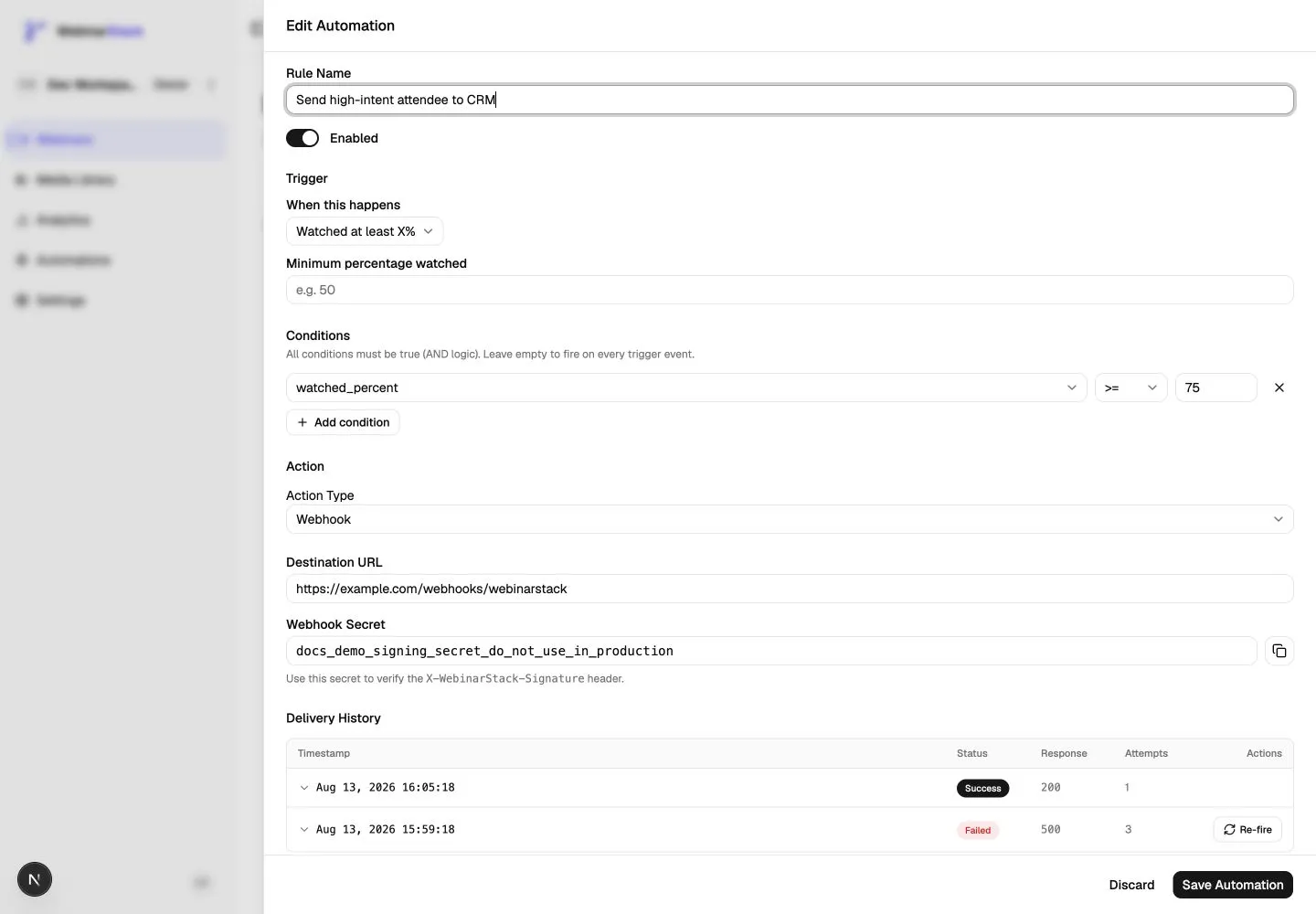
The saved webhook rule shows the generated secret and delivery history. Zapier does not ask for the WebinarStack secret in a basic Catch Hook setup. The secret is used when the receiver verifies X-WebinarStack-Signature.
WebinarStack Fields
Section titled “WebinarStack Fields”Webhook automation rules use the standard automation rule fields plus webhook-specific fields.
| Field | Meaning | How To Use It With Zapier |
|---|---|---|
| Rule Name | Internal label for the automation. | Name it after the Zap outcome, such as Zapier - New Registrant to CRM. |
| Enabled | Whether the rule can run. | Keep it off while drafting if you do not want live attendees to trigger the Zap yet. |
| Trigger | The event that starts rule evaluation. | Choose the attendee behavior or timing event that should start the Zap. |
| Conditions | Additional requirements that must pass. | Use conditions to keep Zapier from receiving low-value or irrelevant events. |
| Action Type | What WebinarStack does after the rule passes. | Choose Webhook. |
| Destination URL | The external URL that receives the POST request. | Paste the Zapier Catch Hook URL exactly as Zapier provides it. |
| Webhook Secret | Auto-generated signing secret. | Use only if you build a verification bridge or advanced raw-hook verification flow. |
| Delivery History | Recent webhook attempts for this rule. | Use this to confirm Zapier accepted the payload or to inspect failures. |
Good rule names make Zapier easier to operate later. Include the destination and purpose, not just the trigger. For example, Zapier - Offer Click to Sales Task is clearer than Webhook 1.
Which WebinarStack Trigger To Choose
Section titled “Which WebinarStack Trigger To Choose”Choose the trigger based on what the Zap should accomplish.
| WebinarStack Trigger | Best Zapier Use |
|---|---|
| Registered | Add a contact, spreadsheet row, CRM lead, or campaign member. |
| Before session | Send a reminder or prepare a sales task before a scheduled session. |
| After session | Send post-webinar follow-up to another tool. |
| Attended | Mark attendance in a CRM or customer record. |
| Did not attend | Add no-shows to a re-engagement workflow. |
| Watched percentage | Score engagement or alert sales when someone watches enough of the presentation. |
| Clicked offer | Create a sales task, update deal intent, or post a high-intent notification. |
| Responded to poll | Route leads by answer, segment contacts, or create follow-up tasks. |
| Sent chat message | Alert sales or support when a message contains a keyword. |
| Adaptive path or segment events | Update personalization, lead score, or interest area based on the path taken. |
Start with one Zap for one business outcome. A single all-purpose Zap can work, but it is harder to test and troubleshoot.
Conditions That Keep Zaps Clean
Section titled “Conditions That Keep Zaps Clean”Conditions are evaluated before WebinarStack sends the webhook. Use them to reduce unnecessary Zap runs.
Examples:
| Goal | Trigger | Useful Condition |
|---|---|---|
| Alert sales only on serious leads | Watched percentage | Watch percentage is at least 75. |
| Route offer clickers | Clicked offer | Offer ID or interaction internal name matches the offer. |
| Create support task from chat | Sent chat message | Chat message contains help, support, or broken. |
| Segment by poll answer | Responded to poll | Poll answer equals Enterprise or Talk to sales. |
| Suppress cold leads | After session | Completed video is true or watch percentage is at least 50. |
| Route campaign traffic | Registered | UTM campaign equals the campaign you want. |
Filtering in WebinarStack is usually better than sending every event to Zapier and filtering there. It lowers noise, keeps Zap task usage cleaner, and makes delivery history easier to read.
What WebinarStack Sends To Zapier
Section titled “What WebinarStack Sends To Zapier”WebinarStack sends JSON in a standard envelope.
{ "event_type": "registered", "attendee": { "name": "Jordan Lee", "email": "jordan@example.com", "registration_id": "reg_123", "utm_source": "linkedin", "utm_medium": "paid", "utm_campaign": "q4-demo" }, "webinar": { "id": "webinar_456", "title": "Product Demo" }, "event_data": { "session_id": "session_789", "watch_percentage": 82, "interaction": { "id": "interaction_123", "headline": "Book a demo", "internal_name": "demo_cta" } }, "timestamp": "2026-08-14T18:30:00.000Z"}The exact event_data fields depend on the trigger. A registration event has different details than a poll response, offer click, watch-progress event, or chat-message event.
Common fields:
| Field | Meaning | Common Zapier Mapping |
|---|---|---|
event_type |
The automation trigger type. | Filter, path selection, activity type, or event name. |
attendee.name |
Name from registration. | Contact name, lead name, spreadsheet name column. |
attendee.email |
Email from registration. | Primary lookup key for CRM contacts and lists. |
attendee.registration_id |
WebinarStack registration ID. | External ID, dedupe key, hidden tracking field. |
attendee.utm_source |
Registration source parameter. | Attribution source field. |
attendee.utm_medium |
Registration medium parameter. | Attribution medium field. |
attendee.utm_campaign |
Registration campaign parameter. | Campaign field or Zapier path condition. |
webinar.id |
WebinarStack webinar ID. | External webinar reference. |
webinar.title |
Webinar title. | Campaign name, event name, spreadsheet column. |
event_data |
Trigger-specific details. | Custom fields, notes, tasks, filters, paths. |
timestamp |
Time the payload was built. | Activity timestamp or created-at field. |
is_refire |
Present when a failed delivery is manually re-fired. | Optional troubleshooting or dedupe field. |
When mapping in Zapier, use attendee.email as the main contact lookup key unless your destination app requires another unique identifier.
Mapping Fields In Zapier
Section titled “Mapping Fields In Zapier”After WebinarStack sends a sample payload, Zapier shows the fields from the webhook trigger. Use those fields in later Zap actions.
Common mappings:
| Destination Field | Use This WebinarStack Field |
|---|---|
| Contact email | attendee.email |
| Contact name | attendee.name |
| Webinar name | webinar.title |
| Webinar ID | webinar.id |
| Registration ID | attendee.registration_id |
| Event type | event_type |
| Event timestamp | timestamp |
| Source | attendee.utm_source |
| Medium | attendee.utm_medium |
| Campaign | attendee.utm_campaign |
| Lead note | A combined text field built from webinar title, event type, and event data. |
| External ID | A stable combination such as registration ID plus event type. |
For CRM updates, a reliable pattern is:
- Find contact by
attendee.email. - Create contact if not found.
- Add or update webinar fields.
- Add an activity, note, tag, or task that describes the webinar behavior.
- Store
attendee.registration_idso future Zaps can identify the same WebinarStack registration.
For spreadsheets, create columns before testing the Zap. Keep one column per important field instead of putting the whole payload into one cell.
Testing The Zap
Section titled “Testing The Zap”Zapier needs a real sample payload before field mapping feels good.
Recommended test flow:
- In Zapier, keep the trigger test screen open after copying the Catch Hook URL.
- In WebinarStack, save the webhook automation rule with the Zapier URL.
- Trigger the automation with a test registration or test attendee action.
- Return to Zapier and load the sample webhook request.
- Confirm the sample includes the attendee, webinar, event type, and event data you expected.
- Map the fields into the next Zap action.
- Test the action.
- Turn the Zap on.
- Trigger one more test event and confirm the full Zap ran successfully.
If you are testing a condition-heavy rule, make sure your test attendee actually satisfies the conditions. A rule can be configured correctly and still send nothing because the trigger happened but the conditions did not pass.
Reading Delivery History
Section titled “Reading Delivery History”Saved WebinarStack webhook rules show delivery history.
Delivery history helps answer one question: did Zapier accept the webhook request from WebinarStack?
| Delivery Field | Meaning |
|---|---|
| Status | Whether the attempt is pending, successful, or failed. |
| Response code | HTTP status code returned by Zapier. |
| Attempts | Number of attempts recorded for the delivery. |
| Response body | Short response excerpt from the receiving system. |
| Delivered at | Time the webhook was accepted or failed. |
| Re-fire | Available for failed deliveries so you can send the event again after fixing the destination. |
WebinarStack treats a 2xx response from Zapier as successful delivery. If a later Zapier action fails after Zapier accepts the webhook, that failure appears in Zapier’s Zap history, not in WebinarStack delivery history.
Delivery, Retries, And Timeouts
Section titled “Delivery, Retries, And Timeouts”Webhook sends are asynchronous. Attendees do not wait for Zapier to finish.
Delivery behavior:
- WebinarStack sends an HTTP
POSTrequest. - The request body is JSON.
- The request includes
Content-Type: application/json. - The request includes
User-Agent: WebinarStack/1.0. - The request includes
X-WebinarStack-Signature: sha256=<hex>. - WebinarStack uses a 10-second timeout.
- Non-2xx responses are treated as failures.
- Network errors and timeouts are treated as failures.
- Failed sends are retried by the background worker.
- Failed dashboard webhook deliveries can be re-fired from the rule editor.
Design your Zap so the webhook trigger accepts quickly. Slow work should happen in later Zap steps after Zapier has accepted the incoming webhook.
Security And Signature Verification
Section titled “Security And Signature Verification”WebinarStack signs outbound webhook payloads with HMAC-SHA256. The signature header looks like this:
X-WebinarStack-Signature: sha256=<hex_signature>The signature is computed over the exact raw JSON request body using the rule’s webhook secret.
In a simple Zapier Catch Hook workflow, Zapier receives the webhook URL and starts the Zap. Zapier does not ask you for the WebinarStack signing secret during basic Catch Hook setup. That means the simple no-code version relies mainly on the secrecy of the Zapier webhook URL.
Use this decision table:
| Workflow Type | Recommended Setup |
|---|---|
| Low-risk no-code workflow | Send WebinarStack directly to Zapier Catch Hook. Keep the Zapier URL private. |
| Internal notifications or spreadsheet logging | Direct Zapier Catch Hook is usually acceptable. Avoid sending unnecessary sensitive fields. |
| CRM updates that affect sales records | Direct Zapier may be fine, but add dedupe and review Zap history. |
| High-value operations or sensitive data | Use a secure bridge that verifies X-WebinarStack-Signature, then forwards only approved fields to Zapier. |
| Strict compliance or audit requirements | Use a custom receiver or bridge with logs, verification, dedupe, and controlled retries. |
Secure bridge pattern:
- WebinarStack sends the signed webhook to your bridge endpoint.
- The bridge verifies the
X-WebinarStack-Signatureheader. - The bridge rejects invalid signatures.
- The bridge removes fields Zapier does not need.
- The bridge forwards the sanitized payload to the Zapier Catch Hook URL.
- Zapier runs the rest of the workflow.
This pattern keeps the WebinarStack secret in your infrastructure instead of relying on a no-code tool to handle it.
Zapier Filters And Paths
Section titled “Zapier Filters And Paths”Zapier can add its own logic after the webhook trigger.
Use a Zapier Filter when the Zap should stop unless one condition is true. Examples:
- Continue only if
event_typeisclicked_offer. - Continue only if
attendee.utm_campaignisenterprise-demo. - Continue only if
event_data.watch_percentageis greater than or equal to 75. - Continue only if a poll answer equals
Talk to sales.
Use Zapier Paths when one incoming WebinarStack event can branch into different workflows. Examples:
| Path | Condition | Action |
|---|---|---|
| Sales | Poll answer equals Talk to sales. |
Create sales task and notify account owner. |
| Enterprise | Poll answer equals Enterprise. |
Add enterprise tag and create CRM note. |
| Support | Chat message contains help. |
Create support ticket. |
| Nurture | Watched less than 50 percent. | Add to nurture sequence. |
Prefer WebinarStack conditions for rules that should not send to Zapier at all. Prefer Zapier filters and paths when one accepted event needs to branch into multiple actions inside Zapier.
Common Zap Recipes
Section titled “Common Zap Recipes”New Registration To Google Sheets
Section titled “New Registration To Google Sheets”Use this when your team wants a simple operational list of registrants.
WebinarStack:
| Setting | Value |
|---|---|
| Trigger | Registered |
| Conditions | Optional campaign or webinar-specific filters. |
| Action Type | Webhook |
| Destination URL | Zapier Catch Hook URL |
Zapier:
- Trigger: Webhooks by Zapier, Catch Hook.
- Action: Google Sheets, Create Spreadsheet Row.
- Map
attendee.name,attendee.email,webinar.title,timestamp, and UTM fields. - Add
attendee.registration_idas a hidden dedupe/reference column.
High-Intent Attendee To CRM
Section titled “High-Intent Attendee To CRM”Use this when sales should follow up with engaged attendees.
WebinarStack:
| Setting | Value |
|---|---|
| Trigger | Watched percentage |
| Conditions | Watch percentage at least 75, or completed video is true. |
| Action Type | Webhook |
| Destination URL | Zapier Catch Hook URL |
Zapier:
- Find CRM contact by
attendee.email. - Create the contact if not found.
- Add a note that includes webinar title, event type, watch percentage, and timestamp.
- Apply a tag such as
webinar-high-intent. - Create a follow-up task for the owner.
Offer Click To Sales Alert
Section titled “Offer Click To Sales Alert”Use this when offer clicks should alert a sales team quickly.
WebinarStack:
| Setting | Value |
|---|---|
| Trigger | Clicked offer |
| Conditions | Optional offer ID or interaction internal name. |
| Action Type | Webhook |
| Destination URL | Zapier Catch Hook URL |
Zapier:
- Trigger from the webhook.
- Optionally find the CRM contact.
- Post a Slack message or create a task.
- Include
attendee.name,attendee.email,webinar.title, andevent_data.interaction.internal_name.
Poll Answer Routing
Section titled “Poll Answer Routing”Use this when different poll answers need different workflows.
WebinarStack:
| Setting | Value |
|---|---|
| Trigger | Responded to poll |
| Conditions | Poll ID or poll answer condition if you want one specific answer. |
| Action Type | Webhook |
| Destination URL | Zapier Catch Hook URL |
Zapier:
- Trigger from the webhook.
- Add Paths based on the poll answer field in
event_data. - Route enterprise answers to sales.
- Route product questions to success.
- Route support answers to the support queue.
Chat Keyword To Ticket Or Alert
Section titled “Chat Keyword To Ticket Or Alert”Use this when attendee chat should create follow-up work.
WebinarStack:
| Setting | Value |
|---|---|
| Trigger | Sent chat message |
| Conditions | Message contains a keyword such as pricing, demo, help, or support. |
| Action Type | Webhook |
| Destination URL | Zapier Catch Hook URL |
Zapier:
- Trigger from the webhook.
- Use the chat message fields under
event_data. - Create a ticket, task, or Slack alert.
- Include attendee email and webinar title so the team has context.
For live two-way chat through Slack threads, use the Slack Chat Integration instead of a Zapier alert. Zapier is best for one-way routing and follow-up work.
No-Show Nurture Workflow
Section titled “No-Show Nurture Workflow”Use this when you want to route no-shows to another system.
WebinarStack:
| Setting | Value |
|---|---|
| Trigger | Did not attend or after session |
| Conditions | Optional campaign, segment, or registration source filters. |
| Action Type | Webhook |
| Destination URL | Zapier Catch Hook URL |
Zapier:
- Find or create the contact.
- Apply a no-show tag.
- Add the contact to a nurture list.
- Create a note with the webinar title and missed session timestamp.
Troubleshooting
Section titled “Troubleshooting”Zapier Does Not Receive A Sample
Section titled “Zapier Does Not Receive A Sample”Check these items first:
| Check | What To Do |
|---|---|
| Correct URL | Copy the Catch Hook URL from the current Zap and paste it again into WebinarStack. |
| Rule enabled | Confirm the WebinarStack automation rule is enabled. |
| Trigger happened | Perform the exact attendee action that should trigger the rule. |
| Conditions passed | Temporarily remove strict conditions or create a test attendee that satisfies them. |
| Zapier test screen | Make sure Zapier is waiting for or loading samples from the webhook trigger step. |
| Delivery history | Open the saved WebinarStack rule and inspect the latest delivery status. |
| Representative sample | For poll, offer, chat, or watch-time rules, trigger that exact behavior, not just registration. |
Zapier ignores empty webhook requests. WebinarStack sends a populated JSON payload, but if you test the Zapier URL with another tool, send valid JSON.
WebinarStack Shows A Failed Delivery
Section titled “WebinarStack Shows A Failed Delivery”Open the rule’s delivery history and inspect the response code and response body excerpt.
Common causes:
| Symptom | Likely Cause | Fix |
|---|---|---|
404 |
The Zapier webhook URL is wrong, deleted, or no longer belongs to the active Zap. | Copy the URL from the current Zap trigger and update WebinarStack. |
410 or unavailable hook |
The Zap or hook may no longer be active. | Check the Zap status and regenerate or replace the hook URL. |
| Timeout | Zapier or a bridge did not respond within 10 seconds. | Use a direct Zapier hook or make the bridge return quickly. |
| Non-2xx response | Zapier or your bridge rejected the request. | Read the response body excerpt and fix the destination. |
| Repeated failures | The destination is consistently rejecting the payload. | Fix the destination first, then re-fire the failed delivery. |
If a Zap is transferred between Zapier accounts, Zapier documentation notes that the webhook URL can change. Update WebinarStack with the new URL after a transfer.
Zapier Trigger Succeeded But A Later Zap Step Failed
Section titled “Zapier Trigger Succeeded But A Later Zap Step Failed”WebinarStack only knows whether Zapier accepted the incoming webhook request. It does not know whether Zapier later created the CRM record, added the spreadsheet row, sent the Slack message, or completed every downstream action.
If delivery history shows success but the outcome did not happen:
- Open Zapier.
- Check Zap history.
- Find the run that matches the WebinarStack timestamp or attendee email.
- Inspect the failed step.
- Fix field mapping, app authentication, required fields, filters, or rate limits.
- Replay or retest the Zap from Zapier if appropriate.
Fields Are Missing In Zapier
Section titled “Fields Are Missing In Zapier”Zapier builds its field list from sample payloads.
If a field is missing:
- Trigger the exact event you need, such as an offer click or poll answer.
- Use a test attendee with the data you expect, such as UTM parameters or a phone number.
- Reload samples in Zapier.
- Check whether the field only appears for certain trigger types.
- Add fallback values in Zapier for optional fields.
For example, event_data.interaction appears for offer and poll style interaction events when WebinarStack can enrich the payload with interaction details. It will not appear in every trigger type.
Duplicate Records Are Created
Section titled “Duplicate Records Are Created”Webhook delivery is at-least-once. Retries, re-fires, Zap replays, or Zapier-side issues can create duplicate downstream records if the destination action is not idempotent.
To reduce duplicates:
- Find contacts by
attendee.emailbefore creating them. - Store
attendee.registration_idin the destination app. - Use update-or-create actions when the destination supports them.
- Build spreadsheet dedupe logic around registration ID and event type.
- Include
is_refirein notes or logs so manual re-fires are easier to identify.
Payload Is Too Large
Section titled “Payload Is Too Large”WebinarStack webhook payloads are normally small. If you add a bridge or enrich payloads before Zapier, be aware of Zapier webhook limits. Zapier’s current webhook trigger documentation lists a larger maximum for normal webhook trigger payloads and a smaller maximum for Catch Raw Hook payloads.
If payload size becomes a problem:
- Remove fields Zapier does not need.
- Send identifiers instead of large nested objects.
- Use a bridge to store the full payload elsewhere and forward only a summary.
- Use Catch Hook instead of Catch Raw Hook unless you specifically need raw request data.
Best Practices
Section titled “Best Practices”- Build one Zap per clear business outcome.
- Use precise WebinarStack rule names.
- Filter early with WebinarStack conditions.
- Use
attendee.emailas the contact lookup key. - Store
attendee.registration_idin the destination app. - Keep Zapier webhook URLs private.
- Do not paste real webhook URLs or secrets into AI tools.
- Test with a representative attendee event.
- Check both WebinarStack delivery history and Zapier history during troubleshooting.
- Use a secure bridge for sensitive or high-value workflows.
- Keep Zap steps focused so each failure is easy to diagnose.
What To Ask Your Favorite AI
Section titled “What To Ask Your Favorite AI”AI tools are useful for planning Zap field mappings, writing transformation code, creating secure bridge endpoints, and debugging failed runs. Use placeholders for secrets and URLs.
Do not paste real values for:
- Zapier Catch Hook URLs.
- WebinarStack webhook secrets.
- CRM API keys.
- OAuth tokens.
- Private attendee data beyond redacted examples.
Use REDACTED_ZAPIER_WEBHOOK_URL, WEBINARSTACK_WEBHOOK_SECRET, and fake attendee examples instead.
Prompt: Plan My Zap
Section titled “Prompt: Plan My Zap”I am connecting WebinarStack to Zapier using Webhooks by Zapier.
Business goal:[describe the outcome, such as "create a CRM task when someone clicks the demo offer"]
WebinarStack trigger:[registered / watched percentage / clicked offer / poll response / chat message / no-show / other]
Sample redacted payload:[paste a redacted WebinarStack webhook payload]
Destination app:[CRM / spreadsheet / Slack / Airtable / project tool / other]
Please design the Zap step by step:- Trigger setup- Filters or paths- Field mapping- Dedupe strategy- Error handling- How to test it with sample data
Do not ask me for real webhook URLs, secrets, API keys, or tokens.Prompt: Map WebinarStack Fields Into A CRM
Section titled “Prompt: Map WebinarStack Fields Into A CRM”I need to map a WebinarStack webhook payload into [CRM name] using Zapier.
Use attendee.email as the primary lookup key.Store attendee.registration_id as the external WebinarStack registration reference.
Fields available:- event_type- attendee.name- attendee.email- attendee.registration_id- attendee.utm_source- attendee.utm_medium- attendee.utm_campaign- webinar.id- webinar.title- event_data- timestamp
Please create a field mapping for:- Contact lookup- Contact creation- Contact update- Activity note- Lead score or tag- Sales task
Make the design idempotent so retries, re-fires, or Zap replays do not create duplicates.Prompt: Create Zapier Filters And Paths
Section titled “Prompt: Create Zapier Filters And Paths”I receive WebinarStack events in Zapier through a Webhooks by Zapier Catch Hook.
I want to branch the Zap based on attendee behavior.
Possible events:- registered- watched percentage- clicked offer- responded to poll- sent chat message- did not attend
Sample redacted payload:[paste sample payload]
Please design Zapier filters or paths that route:- High-intent leads to sales- Support questions to support- Enterprise poll answers to an enterprise workflow- Low-engagement attendees to nurture- Offer clickers to a sales alert
For each path, specify the condition, mapped fields, destination action, and dedupe strategy.Prompt: Troubleshoot A Zapier Webhook
Section titled “Prompt: Troubleshoot A Zapier Webhook”I am troubleshooting a WebinarStack to Zapier webhook integration.
WebinarStack delivery history:- Status: [success/failed]- Response code: [code]- Response body excerpt: [redacted excerpt]- Attempts: [number]
Zapier behavior:- [no sample received / trigger received sample but later step failed / duplicate records / fields missing / other]
Webhook rule:- Trigger: [trigger]- Conditions: [conditions]- Action Type: Webhook
Please give me:- The most likely causes- What to check in WebinarStack- What to check in Zapier- A safe test plan- What information I can share with support without exposing secrets
Do not ask me to paste the real Zapier Catch Hook URL or WebinarStack webhook secret.Prompt: Build A Secure Bridge Before Zapier
Section titled “Prompt: Build A Secure Bridge Before Zapier”I need a secure bridge between WebinarStack webhooks and Zapier.
Webhook contract:- Method: POST- Content-Type: application/json- Signature header: X-WebinarStack-Signature- Signature format: sha256=<hex>- Signature algorithm: HMAC-SHA256 over the exact raw request body- Secret environment variable: WEBINARSTACK_WEBHOOK_SECRET- Zapier destination environment variable: ZAPIER_WEBHOOK_URL
Please write a bridge for [Cloudflare Workers / Vercel / Express / AWS Lambda].
Requirements:- Read the raw request body before JSON parsing- Verify X-WebinarStack-Signature- Reject invalid signatures with 401- Parse JSON only after verification- Forward only approved non-secret fields to Zapier- Return 2xx quickly after Zapier accepts the request- Avoid logging secrets or full sensitive payloads- Include deployment steps and environment variable setup- Include local tests with a fake secret and redacted payload
Do not include any real secrets or real Zapier URLs.Prompt: Create A Zapier Formatter Plan
Section titled “Prompt: Create A Zapier Formatter Plan”I have a WebinarStack webhook payload in Zapier and need to transform it before sending it to [destination app].
Sample redacted payload:[paste sample payload]
Destination app requirements:[paste required fields and accepted formats]
Please design the Zapier Formatter steps needed to:- Split full name if needed- Normalize timestamp fields- Build a readable activity note- Convert boolean or numeric fields into labels- Provide fallback values when optional event_data fields are missing- Preserve attendee.registration_id for dedupe