
Claude Web and Desktop MCP Setup
WebinarStack can be added to Claude as a custom remote MCP connector. This gives Claude access to WebinarStack tools from normal Claude chats, Claude Desktop, and account-managed connector workflows.
Use this guide when you want to set up the connector in Claude Web or Claude Desktop by copying the WebinarStack MCP URL from settings and adding it as a custom connector.
If you are using Claude Code from the terminal, use Claude Code MCP Connections.
The Short Version
Section titled “The Short Version”| Concept | What It Means |
|---|---|
| Connector type | Claude custom connector using remote MCP. |
| WebinarStack URL to use | The settings URL ending in /api/mcp. |
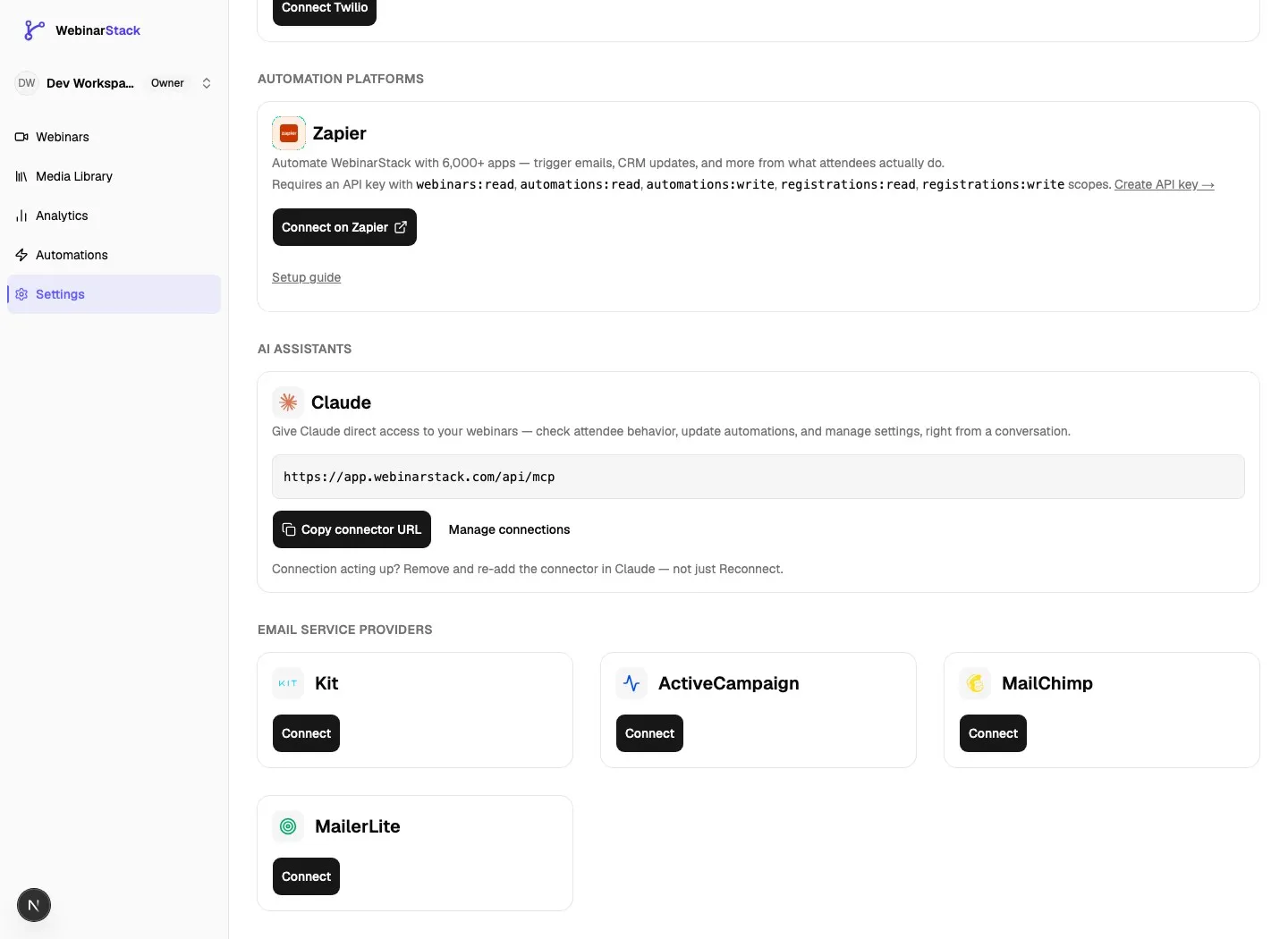
| Where to copy the URL | Settings > Integrations on the Claude card, or Settings > AI Tools. |
| Claude Web setup | Customize > Connectors > Add custom connector. |
| Team and Enterprise setup | An Owner adds the connector in Organization settings > Connectors, then members connect it individually. |
| Claude Desktop setup | Settings > Connectors. Use the remote connector flow, not claude_desktop_config.json. |
| Authentication | OAuth browser flow. Sign in to WebinarStack, choose an account, review permissions, and approve. |
| Where to revoke in WebinarStack | Settings > Connected Apps. |
| Where to remove in Claude | Claude connector settings. |
| Localhost support | Remote Claude connectors need a publicly reachable URL. Do not use localhost for Claude Web/Desktop remote connectors. |
The most important setup detail is the URL. Copy it from WebinarStack settings and paste that exact value into Claude. It should look like:
https://YOUR-WEBINARSTACK-HOST/api/mcpHow The Connector Works
Section titled “How The Connector Works”Claude and WebinarStack communicate through the Model Context Protocol, usually called MCP.
At a high level:
- You copy the WebinarStack MCP connector URL from settings.
- You add that URL as a custom connector in Claude.
- Claude contacts the WebinarStack MCP endpoint.
- WebinarStack tells Claude how to authenticate.
- Claude opens a browser authorization flow.
- You sign in to WebinarStack.
- You choose which WebinarStack account Claude should access.
- You review the permissions.
- You approve or deny the request.
- After approval, Claude can discover WebinarStack tools.
- You enable the connector in the Claude conversation where you want to use it.
- Claude can call WebinarStack tools when you ask it to and approve the relevant tool use.
You do not copy OAuth access tokens yourself. Claude handles the connector token after you approve access.
Where To Copy The WebinarStack URL
Section titled “Where To Copy The WebinarStack URL”There are two places users may see the MCP URL.
| Location | What You See | When To Use It |
|---|---|---|
| Settings > Integrations > Claude | A Claude card with a connector URL and copy button. | Best path for Claude Web/Desktop custom connector setup. |
| Settings > AI Tools | Hosted MCP endpoint plus generated configs for MCP clients. | Best path when you are also setting up Claude Code, Cursor, Windsurf, ChatGPT, or a generic MCP client. |
Both places point at the same hosted MCP endpoint for your WebinarStack environment. The URL must end in /api/mcp.
Do not use:
- The WebinarStack dashboard URL without
/api/mcp. - A registration page URL.
- A webinar watch or replay URL.
- The API docs URL.
- A stale preview deployment URL.
http://localhost:3000/api/mcpfor Claude Web or Claude Desktop remote connectors.
Claude Web Setup: Individual Account
Section titled “Claude Web Setup: Individual Account”Use this flow when you are setting up a connector for your own Claude account. Claude controls custom-connector availability by plan and workspace settings, so if the add action is not visible, check your Claude account’s connector settings or plan rules.
- Open WebinarStack.
- Go to Settings > Integrations.
- Find the Claude card.
- Copy the connector URL.
- Open Claude in your browser.
- Go to Customize > Connectors.
- Click +.
- Choose Add custom connector.
- Paste the WebinarStack URL ending in
/api/mcp. - Leave advanced OAuth client ID and client secret fields blank unless WebinarStack support specifically gives you different instructions.
- Click Add.
- Find the new WebinarStack connector in the connector list.
- Click Connect.
- Complete the WebinarStack sign-in and consent flow.
- Start or open a Claude chat.
- Use the + button and Connectors menu to enable WebinarStack for that conversation.
After that, ask a read-only test question:
Use the WebinarStack connector to list my webinars. Do not change anything.If Claude asks to use a tool, review the tool request before approving.
Claude Web Setup: Team Or Enterprise Organization
Section titled “Claude Web Setup: Team Or Enterprise Organization”Team and Enterprise accounts usually require an Owner or Primary Owner to add custom connectors for the organization.
Owner setup:
- Open WebinarStack.
- Go to Settings > Integrations.
- Copy the Claude connector URL.
- Open Claude.
- Go to Organization settings > Connectors.
- Click Add.
- Hover over Custom.
- Select Web.
- Paste the WebinarStack URL ending in
/api/mcp. - Leave advanced OAuth client ID and client secret fields blank unless your WebinarStack team gives you a custom configuration.
- Click Add.
Member setup after the owner adds the connector:
- Open Claude.
- Go to Customize > Connectors.
- Find the WebinarStack connector.
- Click Connect.
- Sign in to WebinarStack.
- Choose the WebinarStack account.
- Review and approve the permissions.
- Enable the connector from the chat + menu when you want to use it.
Each member authorizes their own WebinarStack access. A connector being available to the organization does not mean every member automatically has access to every WebinarStack account.
Claude Desktop Setup
Section titled “Claude Desktop Setup”Claude Desktop supports remote connectors through the connector settings tied to your Claude account.
Use this flow for WebinarStack:
- Open WebinarStack in a browser.
- Go to Settings > Integrations.
- Copy the Claude connector URL from the Claude card.
- Open Claude Desktop.
- Go to Settings > Connectors.
- Click Add custom connector or the equivalent add action in your Claude Desktop version.
- Paste the WebinarStack URL ending in
/api/mcp. - Add the connector.
- Click Connect.
- Complete the WebinarStack browser authorization flow.
- Return to Claude Desktop.
- Enable WebinarStack from the connector or tools menu in the conversation where you want to use it.
Do not configure the remote WebinarStack connector by editing claude_desktop_config.json. That file is for local MCP servers and desktop extensions. WebinarStack’s Claude Web/Desktop setup is a remote MCP connector and should be added through Settings > Connectors.
If you already added WebinarStack in Claude Web with the same Claude account, Claude Desktop may show the connector without re-adding the URL. You may still need to connect, authenticate, or enable it for a specific conversation.
What You Will See In WebinarStack During Authorization
Section titled “What You Will See In WebinarStack During Authorization”The WebinarStack authorization screen can ask you to:
- Sign in if you are not already signed in.
- Choose a WebinarStack account if you belong to more than one.
- Review the requester, such as Claude.
- Review the permissions Claude is requesting.
- Approve or deny access.
If you belong to exactly one WebinarStack account, the account may be shown directly instead of a multi-account picker.
If you do not belong to any WebinarStack account yet, WebinarStack cannot complete the connector authorization. Create or join an account, then add the connector again from Claude.
Permissions Shown During Consent
Section titled “Permissions Shown During Consent”Claude requests access through OAuth scopes. The exact consent screen can change as WebinarStack adds capabilities, but the current MCP scope families map to these resources.
| Scope Family | What It Allows Claude To Work With |
|---|---|
| Webinars | Webinar records, setup summaries, setup changes, branding, video provider settings, registration-page basics, replay settings, and offer/replay basics. |
| Sessions | Schedules and upcoming session previews. |
| Registrations | Test registrations, registration-related setup checks, and registration-based analytics inputs. |
| Automations | Automation rule reads, comparisons, updates, deletes, and automation-sequence workflows. |
| Interactions | Polls, CTA offers, matching checks, creation, updates, and deletes. |
| Offline access | Lets Claude refresh the connector authorization without asking you to sign in again every time. |
Review the consent screen before approving. If you are not comfortable with the requested access, deny the request and ask a WebinarStack owner or administrator which connector path your team should use.
What Claude Can Do After Setup
Section titled “What Claude Can Do After Setup”Claude can only use the tools exposed by the WebinarStack MCP server and enabled in the current Claude conversation.
Common capabilities:
| Capability | Examples |
|---|---|
| Read account context | Confirm the connection and account scope. |
| Find webinars | List webinars and locate a webinar by name or status. |
| Read webinar setup | Summarize title, host, schedule, registration setup, replay setup, offer setup, and readiness status. |
| Draft setup changes | Create a draft webinar, update core details, update schedule, update page basics, and create test registrations. |
| Audit launch readiness | Identify missing setup items before promoting a webinar. |
| Explain analytics | Summarize registration, attendance, engagement, offer, replay, and conversion data. |
| Work with automations | List, inspect, update, disable, or delete automation rules, depending on granted access and tool approval. |
| Work with interactions | List, inspect, create, update, or delete polls and CTA offers. |
| Run composite workflows | Set up a webinar end to end, clone a webinar with a new schedule, add replay with a new offer, configure an automation sequence, or register test attendees. |
Claude still needs your instruction. A good prompt should say whether it is allowed to change anything.
Safe Prompt Patterns
Section titled “Safe Prompt Patterns”Read-Only Connection Test
Section titled “Read-Only Connection Test”Use the WebinarStack connector to confirm you can access my account.
Do not change anything. List the webinars you can see and tell me which one looks most recently updated.Launch Readiness Review
Section titled “Launch Readiness Review”Use WebinarStack to audit "[webinar name]".
Check the title, host, schedule, registration page, video provider, offer, replay, automations, and test registration status.
Return:- Ready items- Missing items- Risky items- The next three changes I should make
Do not publish, delete, or send messages.Draft A New Webinar
Section titled “Draft A New Webinar”Create a draft WebinarStack webinar from this brief:
Product:Audience:Offer:Primary promise:Presenter:Target session date:
Create only a draft. After creating it, summarize every field you set and list what I need to review before launch.Improve An Existing Webinar
Section titled “Improve An Existing Webinar”Use WebinarStack analytics and setup data for "[webinar name]".
Explain:- Where registrations are coming from- Whether attendance is healthy- Where viewers drop off- Whether offers are getting clicks- What replay behavior suggests- The highest-leverage setup change to test next
Do not make changes yet.Ask For Approval Before Writes
Section titled “Ask For Approval Before Writes”Use WebinarStack to inspect the automations for "[webinar name]".
I want to add a reminder sequence, but before you change anything:1. List the current reminder rules.2. Identify possible duplicates.3. Propose the exact rule changes.4. Wait for my approval.Manage Connected Apps In WebinarStack
Section titled “Manage Connected Apps In WebinarStack”After Claude is authorized, WebinarStack shows the grant in Settings > Connected Apps.
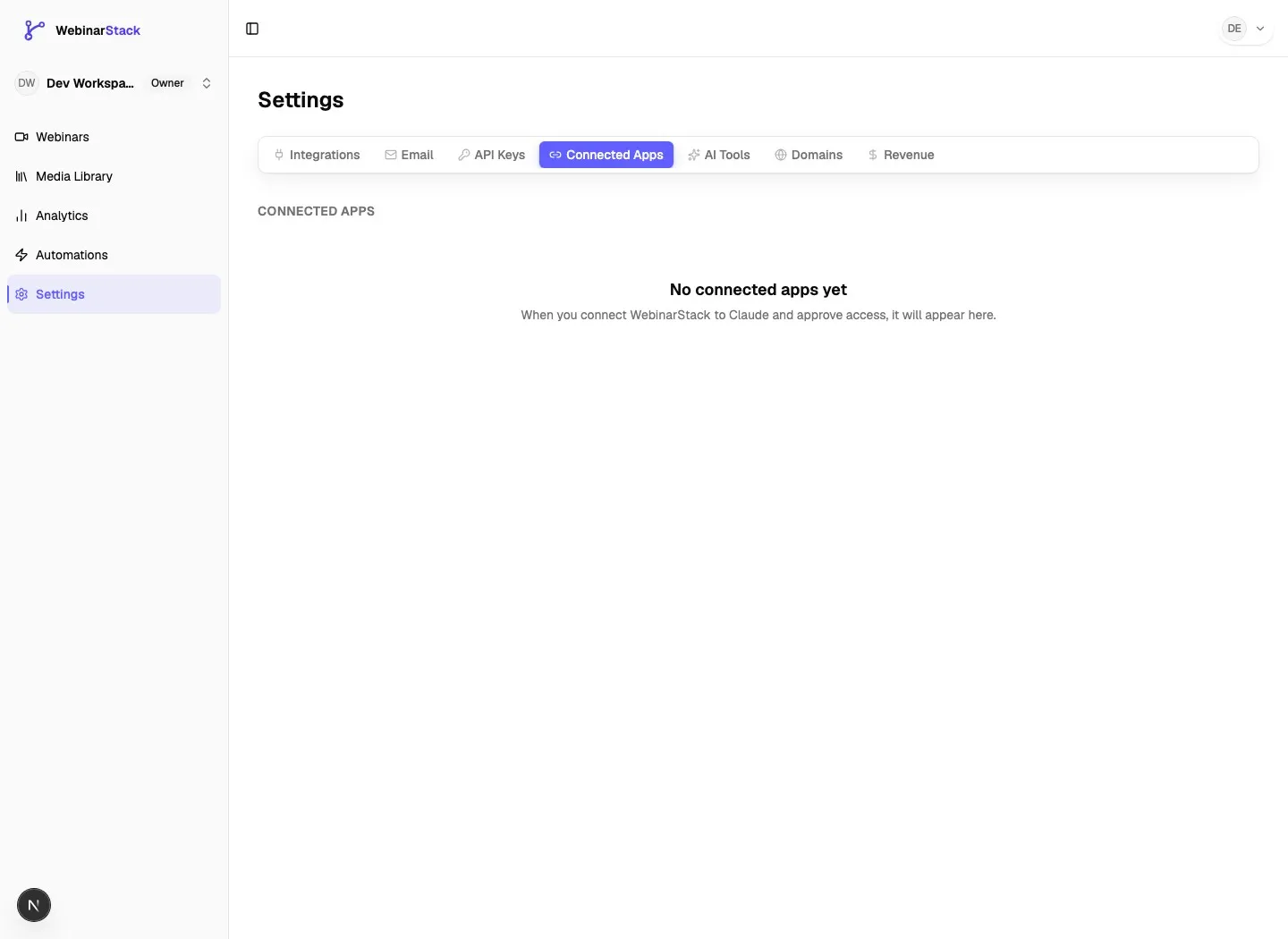
The Connected Apps page shows:
| Field | Meaning |
|---|---|
| Member | The workspace member who authorized the connector. Owners may see grants for multiple members. |
| Connector | Display name, such as Claude or Claude Code. |
| Scopes | Permission scopes granted to the connector. |
| Connected | When the grant was created. |
| Last used | When the connector last used the grant. |
| Revoke | Removes the grant so the connector can no longer call WebinarStack. |
Owners can review connected app access across the account. Non-owner members manage their own grants.
Revoking a connected app is immediate. Existing connector calls using that grant will fail on the next MCP request.
Remove Or Reconnect The Connector
Section titled “Remove Or Reconnect The Connector”There are two sides to removal.
| Place | Action | Result |
|---|---|---|
| Claude connector settings | Remove the custom connector. | Claude no longer offers that connector from your Claude account or organization. |
| WebinarStack Settings > Connected Apps | Revoke the grant. | The existing authorization token stops working. |
If the connection is acting up, remove and re-add the connector rather than only clicking a reconnect action. This forces Claude to re-read the server metadata and start a fresh authorization flow.
Recommended reset flow:
- In Claude, remove the WebinarStack connector.
- In WebinarStack, go to Settings > Connected Apps and revoke the old Claude grant if it is still listed.
- In WebinarStack, copy the current connector URL from settings.
- Add the connector again in Claude.
- Authenticate again.
- Run a read-only test.
Security Best Practices
Section titled “Security Best Practices”- Add only the official WebinarStack connector URL from your WebinarStack settings.
- Do not paste secrets into Claude prompts.
- Review permission screens before approving.
- Enable only the connector tools that are relevant to the current conversation.
- Ask Claude to inspect and propose changes before writing.
- Be extra careful with automation and interaction delete tools.
- Disable write-capable tools for research-heavy conversations unless you intend to take action.
- Revoke unused grants in Settings > Connected Apps.
- Remove stale connectors from Claude settings.
- Use a separate WebinarStack account membership model for teammates who need different access.
Remote connectors are cloud connections. Claude connects to the WebinarStack MCP server from Anthropic’s infrastructure, not from your laptop. That means the MCP endpoint must be public HTTPS and reachable from Claude.
Troubleshooting
Section titled “Troubleshooting”Claude Says The Connector URL Is Invalid
Section titled “Claude Says The Connector URL Is Invalid”Check:
- The URL ends in
/api/mcp. - The URL starts with
https://. - You copied the URL from WebinarStack settings.
- There are no spaces before or after the URL.
- You did not paste a dashboard page, API docs page, registration page, or replay page.
Claude Cannot Connect To A Local URL
Section titled “Claude Cannot Connect To A Local URL”Claude Web and Claude Desktop remote connectors cannot reach your private localhost server directly. Use the hosted WebinarStack URL from settings.
For development testing, use Claude Code with local stdio or expose a test environment through a secure public HTTPS tunnel.
The Connector Was Added But Is Not Available In Chat
Section titled “The Connector Was Added But Is Not Available In Chat”Check:
- The connector is connected, not just added.
- You completed WebinarStack authorization.
- The connector is enabled from the chat + menu or connector/tools menu.
- For Team and Enterprise accounts, the owner added the organization connector and you connected it as an individual user.
- Your Claude plan and workspace settings allow custom connectors.
The Consent Page Says You Need A WebinarStack Account
Section titled “The Consent Page Says You Need A WebinarStack Account”You are signed in to a WebinarStack user that does not belong to an account.
Fix:
- Create a WebinarStack account or ask an owner to invite you.
- Return to Claude.
- Add or connect the WebinarStack connector again.
The Consent Request Expired
Section titled “The Consent Request Expired”Go back to Claude and start the connector flow again. OAuth requests expire for safety and cannot always be resumed from an old tab.
Claude Gets 401 Or 403 After It Used To Work
Section titled “Claude Gets 401 Or 403 After It Used To Work”Possible causes:
- The connected app grant was revoked in WebinarStack.
- Your WebinarStack account membership changed.
- Claude’s stored connector token expired and refresh failed.
- The connector was removed and re-added in Claude without completing authorization.
- The server URL points at the wrong WebinarStack environment.
Fix:
- Remove the connector in Claude.
- Revoke old grants in WebinarStack Connected Apps.
- Copy the current URL from WebinarStack settings.
- Add and authenticate the connector again.
The Connector Appears In Claude Web But Not Claude Desktop
Section titled “The Connector Appears In Claude Web But Not Claude Desktop”Check:
- You are signed in to the same Claude account in Desktop.
- Desktop is updated.
- Settings > Connectors shows the connector.
- The connector is connected and enabled for the current chat.
Remote connectors are managed through Claude’s connector settings. Do not try to fix this by adding the remote URL to claude_desktop_config.json.
Claude Wants To Use A Tool You Did Not Expect
Section titled “Claude Wants To Use A Tool You Did Not Expect”Pause and review the tool request.
Safe responses:
- Deny the tool call.
- Ask Claude to explain why it needs that tool.
- Ask for a read-only alternative.
- Ask Claude to produce a plan first.
- Disable the connector or specific tools for the conversation.
Related Guides
Section titled “Related Guides”Official Claude references: