
Webinar Replay Tab
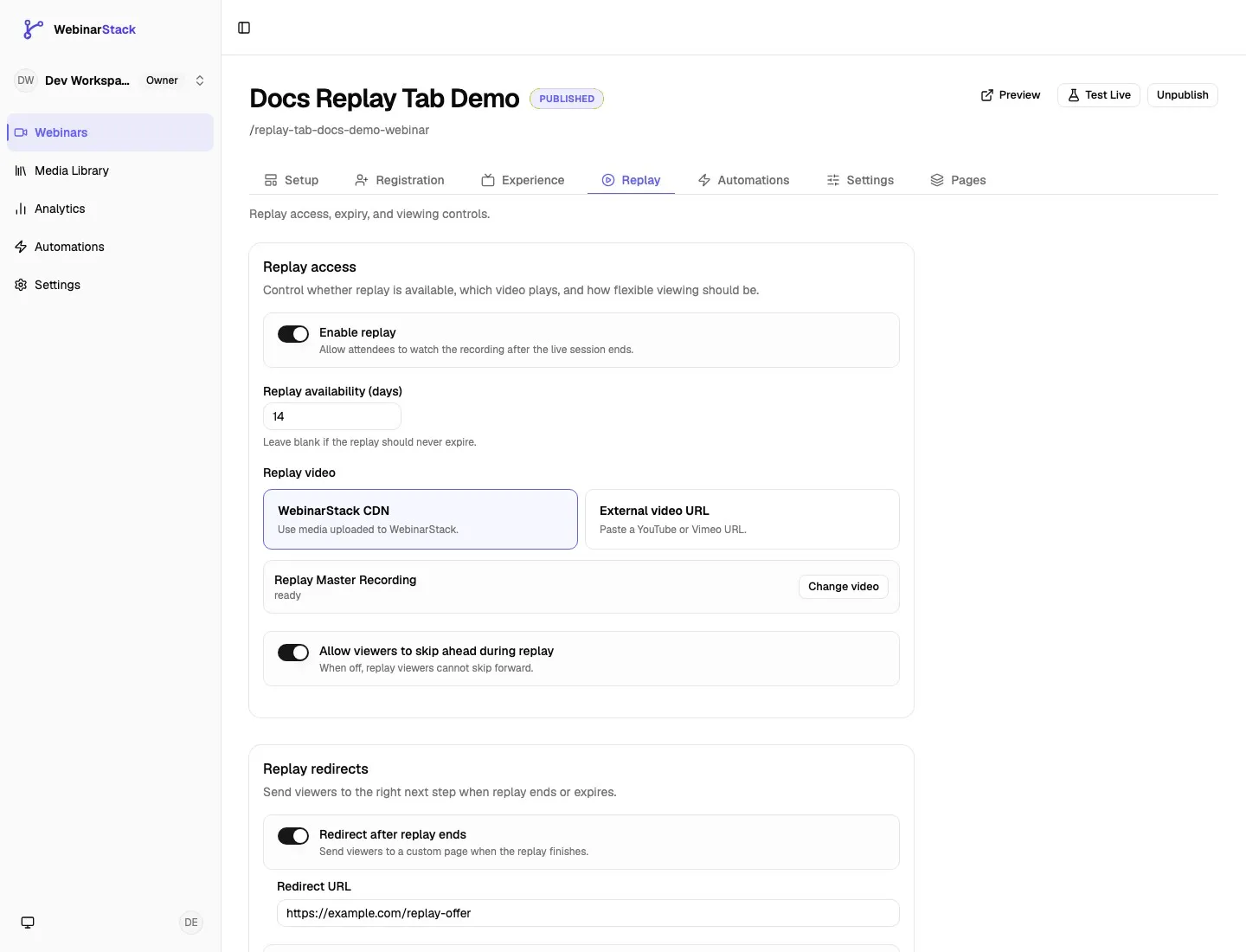
The Replay tab controls what happens after the live or simulated-live webinar session is over. Use it to decide whether attendees can watch a replay, how long replay access lasts, which video plays, whether viewers can skip ahead, where viewers go after replay completion, what happens when a replay link expires, and how chat behaves during replay playback.
Open it from Dashboard -> Webinars -> select a webinar -> Replay.
Previous tab: Webinar Experience Tab.
What The Replay Tab Controls
Section titled “What The Replay Tab Controls”The Replay tab is organized into three cards.
| Replay Section | What You Control | Save Behavior |
|---|---|---|
| Replay access | Whether replay is enabled, replay availability in days, replay video source, and replay skip-ahead behavior. | Uses the sticky Save changes bar. |
| Replay redirects | Redirect after replay completion and redirect when a replay link has expired. | Uses the sticky Save changes bar. |
| Replay chat | Replay chat mode, replay external embed code, and built-in replay chat heading. | Uses the sticky Save changes bar. |
The Replay tab does not create replay-specific offers, polls, or automated chat messages. Those live in the Experience tab, where Interactions and Chat each have Live Timeline and Replay Timeline controls. The Replay tab decides whether replay exists and how replay playback behaves.
Save Behavior
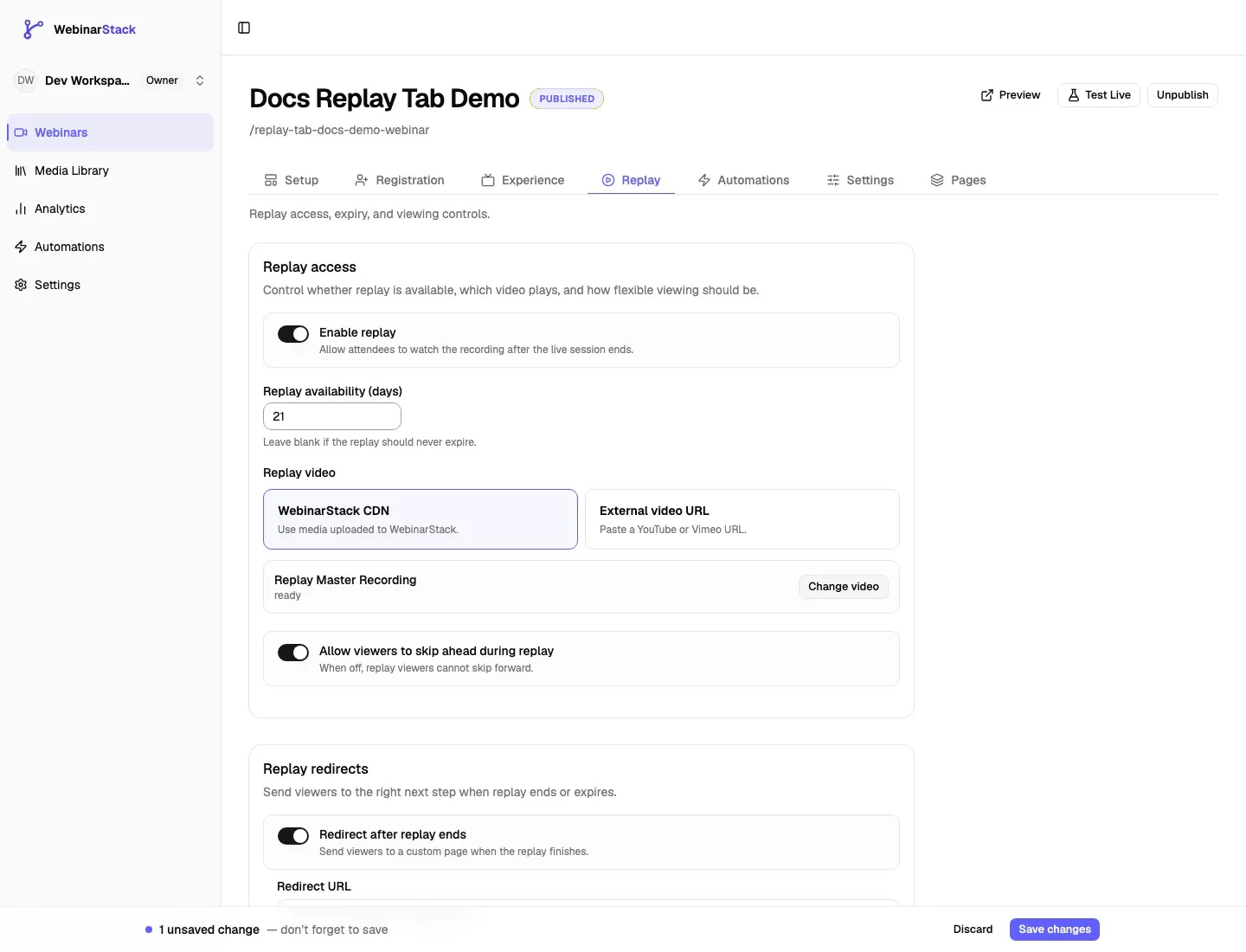
Section titled “Save Behavior”Replay tab fields use the editor’s sticky Save changes bar. When you change a replay field, WebinarStack shows the number of unsaved changes, plus Discard and Save changes actions.
| Change Type | How It Saves |
|---|---|
| Enable replay | Use Save changes. |
| Replay availability days | Use Save changes. |
| Replay video source | Use Save changes after choosing CDN or external URL. |
| Replay skip-ahead setting | Use Save changes. |
| Replay redirect toggles and URLs | Use Save changes. |
| Replay chat mode | Use Save changes. |
| Replay chat external embed code | Use Save changes. |
| Replay chat heading | Use Save changes. |
If the sticky save bar is visible, save before leaving the editor. Click Discard to return the Replay tab to the last saved values.
Replay Access
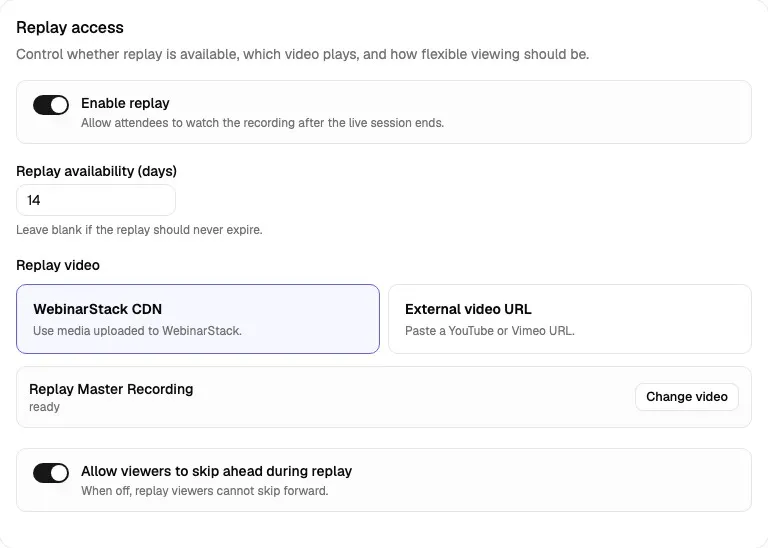
Section titled “Replay Access”The Replay access card controls whether replay is available and which video plays during replay.
Enable Replay
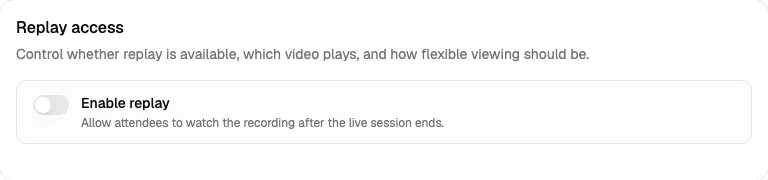
Section titled “Enable Replay”The Enable replay toggle determines whether the attendee can enter replay mode after the session ends.
Field behavior:
| Detail | Behavior |
|---|---|
| Field type | Toggle. |
| Default effect when on | Attendees can watch after the live session ends, subject to availability and expiry rules. |
| Default effect when off | Attendees do not receive replay playback after the session ends. |
| Save behavior | Uses the sticky Save changes bar. |
When replay is enabled and the attendee returns after the live session has ended, WebinarStack can place the watch page into replay mode. When replay is disabled, the ended-session experience is shown instead.
Use replay when:
- Attendees should be able to watch after missing the live session.
- You want evergreen sessions to keep converting after the initial scheduled time.
- You want replay-specific offers, polls, chat, or redirects.
- Your campaign promises access for a fixed number of days after registration.
Disable replay when:
- The webinar should only be available during scheduled live windows.
- Scarcity or deadline behavior is more important than replay viewing.
- Your content, offer, or compliance requirements should not remain available after the session.
Replay Availability
Section titled “Replay Availability”The Replay availability (days) field controls how long replay access remains available after the session starts.
Field behavior:
| Detail | Behavior |
|---|---|
| Required | No. |
| Minimum | 1 day. |
| Maximum | 365 days. |
| Blank value | Replay does not expire from this rolling day window. |
| Save behavior | Uses the sticky Save changes bar. |
Replay availability is calculated from the attendee’s selected session start time. For example, if a viewer registered for a session that started on September 1 and replay availability is 7, the replay remains available for seven days from that session start.
Use shorter windows when:
- The replay is tied to a limited-time offer.
- You want urgency after the live session.
- Follow-up automations should drive action within a few days.
Use longer windows when:
- The content is evergreen.
- Replay viewing is part of a nurture path.
- Attendees need more time to watch asynchronously.
Leave the field blank when the replay should not expire based on a day count.
Replay Video Source
Section titled “Replay Video Source”The Replay video section controls which video source is used when the attendee is in replay mode.
Replay video source options:
| Source | Meaning | Best Use |
|---|---|---|
| WebinarStack CDN | Use a hosted video uploaded to WebinarStack. | Production replay recordings, edited replays, or videos you want WebinarStack to host and stream. |
| External video URL | Paste an external video URL. | YouTube or Vimeo-hosted replay videos, or when you want to reuse the live video by leaving the field blank. |
Replay video resolution order:
- If a WebinarStack CDN replay video is selected, replay uses that hosted video.
- If no CDN replay video is selected and an external replay URL is filled, replay uses the external replay URL.
- If no replay-specific video is configured, replay falls back to the live webinar video from the Setup tab.
This lets you run a live webinar with one video and then use a cleaned-up, edited, or shorter video for replay without changing the original live setup.
WebinarStack CDN Replay Video
Section titled “WebinarStack CDN Replay Video”Choose WebinarStack CDN when the replay should use a video uploaded to WebinarStack.
CDN behavior:
| Detail | Behavior |
|---|---|
| Source | Hosted video from the WebinarStack media system. |
| Required when selected | You must choose a hosted video before saving. |
| Selected video summary | Shows the selected video title and processing status. |
| Change video | Opens the hosted video picker. |
| Save behavior | Uses the sticky Save changes bar. |
When you save a WebinarStack CDN replay video, WebinarStack stores the hosted media reference and clears the external replay URL for the replay video.
Use Change video to choose a different hosted replay recording.
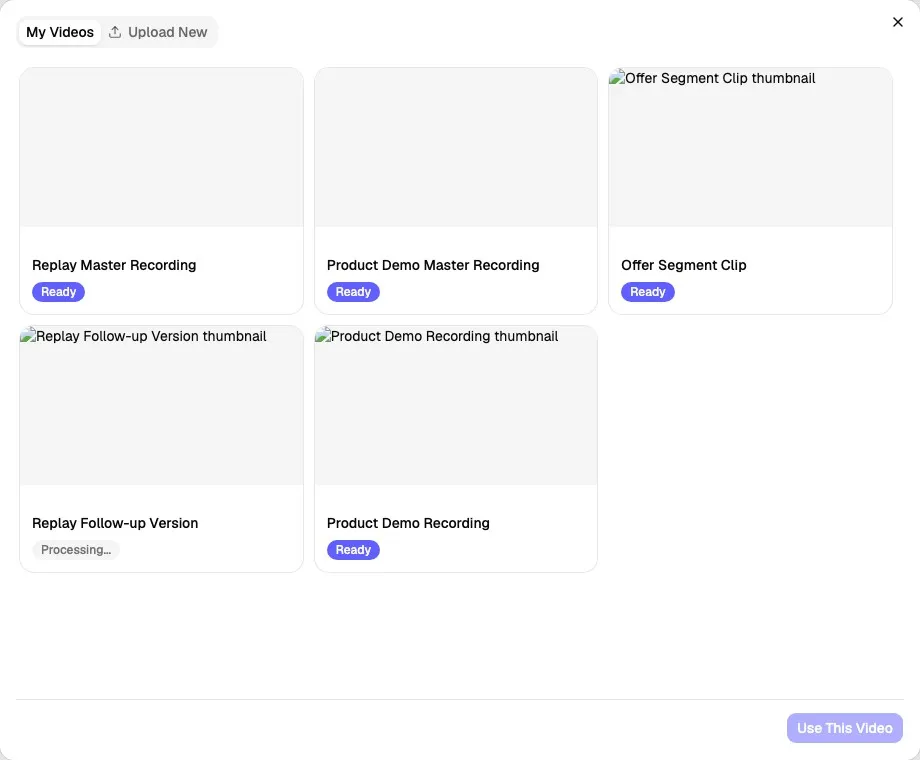
The picker shows videos from your Media Library. A ready video is ready to use. A video that is still uploading or processing can be selected, but it will not be playable until processing is complete.
External Replay Video URL
Section titled “External Replay Video URL”Choose External video URL when the replay should use an externally hosted video.
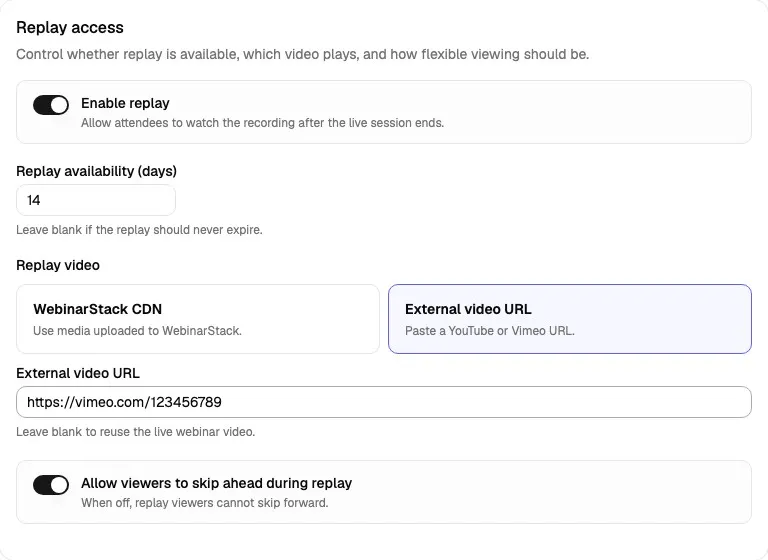
External URL behavior:
| Detail | Behavior |
|---|---|
| Field type | URL. |
| Good sources | YouTube or Vimeo replay URLs. |
| Blank value | Reuses the live webinar video. |
| Save behavior | Uses the sticky Save changes bar. |
Use an external replay URL when your replay recording already lives in YouTube or Vimeo, or when you want a different hosted replay recording without uploading it to WebinarStack.
Leave the external replay URL blank if the live webinar video should also be the replay video.
When you save an external replay URL, WebinarStack clears the replay CDN video reference for the replay video.
Allow Viewers To Skip Ahead
Section titled “Allow Viewers To Skip Ahead”The Allow viewers to skip ahead during replay toggle controls forward scrubbing during replay playback.
Field behavior:
| Detail | Behavior |
|---|---|
| Applies to | Replay mode only. |
| On | Replay viewers can skip ahead. |
| Off | Replay viewers cannot skip forward. |
| Live sessions | Live playback remains non-scrubbable. |
| Save behavior | Uses the sticky Save changes bar. |
Turn this on when replay should behave like an on-demand video. Turn it off when you want replay viewers to experience the content in order, preserve offer timing, or keep poll and CTA moments aligned with the video.
Replay Redirects
Section titled “Replay Redirects”The Replay redirects card controls where replay viewers go after replay completion or when a replay link has expired.
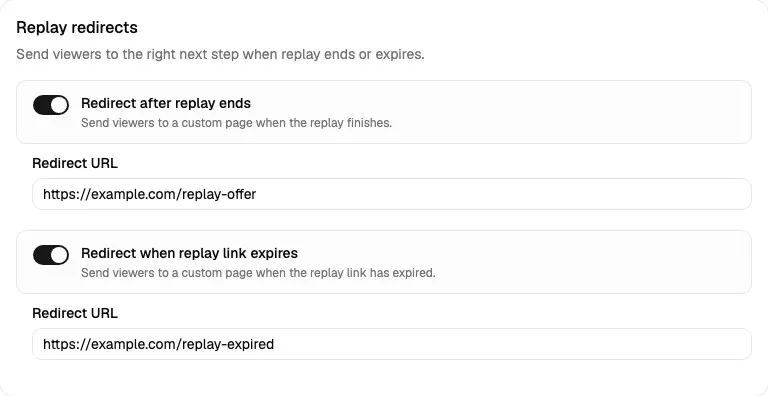
Redirect After Replay Ends
Section titled “Redirect After Replay Ends”The Redirect after replay ends toggle sends viewers to a custom URL when the replay video finishes.
Field behavior:
| Detail | Behavior |
|---|---|
| Field type | Toggle plus URL field. |
| URL requirement | Must be a valid URL when the toggle is on. |
| Trigger | Replay playback completes. |
| Applies to | Linear replay completion and adaptive replay completion. |
| Save behavior | Uses the sticky Save changes bar. |
Use this redirect for:
- Booking pages.
- Offer checkout pages.
- Application forms.
- Next-step pages.
- Survey pages.
- Replay-specific thank-you pages.
This redirect is different from the general post-webinar redirect in the Settings tab. The Replay tab redirect is specifically for viewers who complete replay playback.
Redirect When Replay Link Expires
Section titled “Redirect When Replay Link Expires”The Redirect when replay link expires toggle sends viewers to a custom URL when the replay link is no longer valid.
Field behavior:
| Detail | Behavior |
|---|---|
| Field type | Toggle plus URL field. |
| URL requirement | Must be a valid URL when the toggle is on. |
| Trigger | The attendee opens a replay link after replay access has expired. |
| Redirect timing | Server-side before the watch page renders. |
| Save behavior | Uses the sticky Save changes bar. |
If replay access expires and no expired redirect URL is configured, WebinarStack shows a simple expired replay message.
Use this redirect for:
- A replay-expired page.
- A page asking the attendee to register for another session.
- A deadline-expired offer page.
- A support or contact page.
- A evergreen registration page for the next available session.
Replay Chat
Section titled “Replay Chat”The Replay chat card controls the chat experience during replay playback.
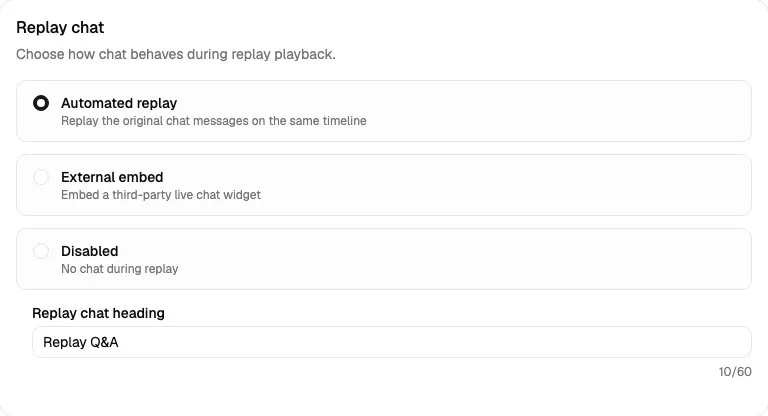
Replay chat is separate from live chat. The live chat mode is configured in the Experience tab. The Replay tab decides what happens to chat during replay.
Replay chat modes:
| Mode | Meaning | When To Use It |
|---|---|---|
| Automated replay | Shows built-in replay chat with automated replay messages. | Use when replay should include a guided, native chat panel. |
| External embed | Renders a third-party chat widget during replay. | Use when replay viewers should go into another chat or support system. |
| Disabled | Shows no replay chat panel. | Use when replay should focus on video only or when chat is not supported for replay. |
Automated Replay
Section titled “Automated Replay”Choose Automated replay to use WebinarStack’s built-in chat panel during replay.
Built-in replay chat behavior:
| Detail | Behavior |
|---|---|
| Chat source | Replay Timeline automated messages configured in the Experience tab. |
| Attendee surface | Built-in chat panel on the replay watch page. |
| Heading | Uses Replay chat heading. |
| Default heading | Ask a question. |
| Save behavior | Uses the sticky Save changes bar. |
The replay timeline is separate from the live timeline. To create or copy replay chat messages, open Experience -> Chat -> Replay Timeline.
Replay Chat Heading
Section titled “Replay Chat Heading”The Replay chat heading is shown at the top of the built-in replay chat panel.
Field behavior:
| Detail | Behavior |
|---|---|
| Appears when | Replay chat mode is Automated replay. |
| Required | No. |
| Default | Ask a question. |
| Maximum length | 60 characters. |
| Save behavior | Uses the sticky Save changes bar. |
Good replay chat headings:
Ask a questionReplay Q&AQuestions for our teamSend us your follow-up
Use a short heading that fits comfortably in the replay chat panel.
External Embed
Section titled “External Embed”Choose External embed to render a third-party chat widget during replay.
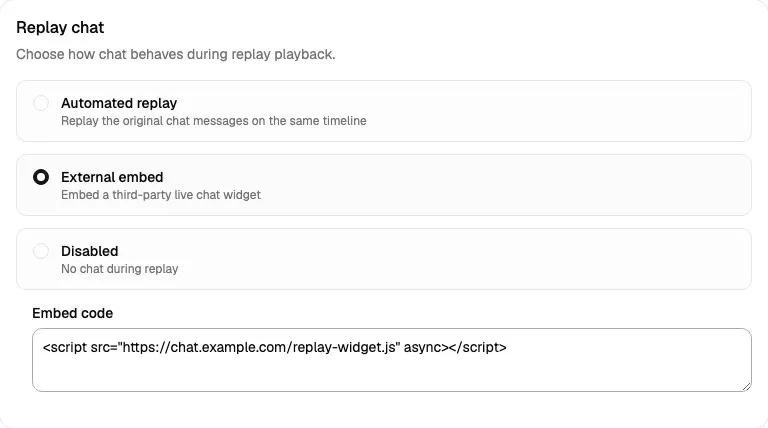
External embed behavior:
| Detail | Behavior |
|---|---|
| Field | Embed code. |
| Content | Third-party widget HTML or script snippet. |
| Render location | Replay chat panel area. |
| Save behavior | Uses the sticky Save changes bar. |
Use this mode when your team handles replay questions through another system, such as a support widget, sales chat, or customer messaging platform.
Paste the full embed code provided by your chat platform. Test the replay page after saving because some third-party scripts behave differently in embedded contexts.
Disabled Replay Chat
Section titled “Disabled Replay Chat”Choose Disabled when replay should not include a chat panel.
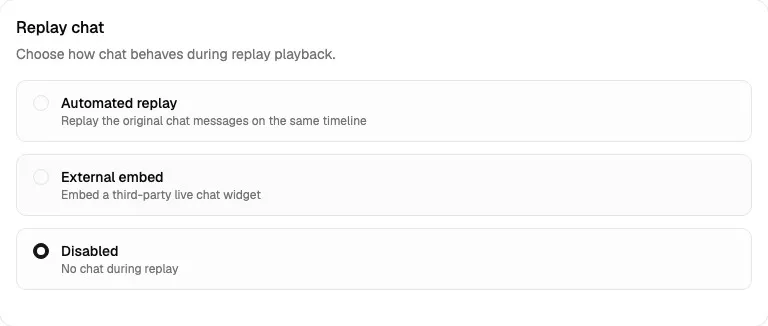
When replay chat is disabled, the replay watch page does not render the chat column for replay. Use this when the replay is meant to be passive viewing, when follow-up should happen through offers or automations instead of chat, or when your team is not staffing replay questions.
How This Tab Connects To Other Tabs
Section titled “How This Tab Connects To Other Tabs”| Related Area | Connection |
|---|---|
| Setup tab | The live webinar video can be reused as the replay video when no replay-specific video is configured. |
| Experience tab | Replay interactions and replay automated chat messages are configured from the Replay Timeline in Experience. |
| Registration tab | Registrants receive the watch access that later becomes replay access when replay is enabled. |
| Settings tab | General post-webinar and session-expired redirects are separate from replay-specific redirects. |
| Automations tab | Replay viewing, offer clicks, poll responses, and completion behavior can feed automation strategies. |
| Analytics | Replay watch time, completion, engagement, and replay behavior are part of post-session analysis. |
| Media Library | WebinarStack CDN replay videos come from hosted media assets. |
Recommended Replay Setup Flow
Section titled “Recommended Replay Setup Flow”Use this sequence when setting up replay for a production webinar:
- Enable replay.
- Decide whether replay should expire.
- Choose whether replay should use the live video, a hosted WebinarStack CDN video, or an external replay URL.
- Decide whether replay viewers can skip ahead.
- Configure the replay completion redirect if replay should drive a next step.
- Configure the expired replay redirect if replay access is time-limited.
- Choose the replay chat mode.
- If using built-in replay chat, set the replay chat heading and configure replay messages in Experience.
- If using replay interactions, configure replay offers and polls in Experience.
- Save changes.
- Use Preview or Test Live to verify the replay path.
Replay Tab Checklist
Section titled “Replay Tab Checklist”Before sending replay traffic, review this checklist:
- Replay is intentionally enabled or disabled.
- Replay availability days match the offer deadline or access promise.
- The replay video source is correct.
- WebinarStack CDN replay video is ready if selected.
- External replay URL opens correctly if selected.
- Blank external replay URL is intentional if reusing the live video.
- Skip-ahead behavior matches the replay strategy.
- Replay completion redirect points to the correct next step.
- Expired replay redirect points to the right expired-access page.
- Replay chat mode matches your support and sales process.
- Replay chat heading is short and saved.
- Replay Timeline messages, offers, and polls are configured in Experience if needed.
- Sticky Save changes bar is cleared.
- A test attendee can access the intended replay experience.
Troubleshooting
Section titled “Troubleshooting”| Issue | Likely Cause | What To Do |
|---|---|---|
| Replay is not available after the session | Replay is disabled, the session is not yet ended, or replay access has expired. | Enable replay, check the session time and video duration, and review Replay availability days. |
| Replay expires too soon | Replay availability days are too low for the campaign. | Increase the day count or leave it blank for no rolling expiry. |
| Expired replay link shows a plain expired message | Expired redirect is off or no expired redirect URL is saved. | Turn on Redirect when replay link expires, enter a valid URL, and save. |
| Replay plays the live video | No replay-specific CDN video or external replay URL is saved. | Select a WebinarStack CDN replay video or enter an external replay URL. |
| Replay CDN video does not play | The hosted video is still processing or the wrong hosted video is selected. | Choose a ready video from the picker or wait for processing to finish. |
| External replay URL will not save | The field is not a valid URL. | Use a full URL such as https://vimeo.com/123456789. |
| Viewers can skip ahead when they should not | Skip-ahead is enabled. | Turn off Allow viewers to skip ahead during replay and save. |
| Replay does not redirect after completion | Redirect after replay ends is off, the URL is blank, or the viewer has not completed playback. | Enable the redirect, save a valid URL, and test to the end of replay playback. |
| Replay chat messages do not appear | Replay chat is not Automated replay, or no replay timeline messages exist. | Set Replay chat to Automated replay and add/copy messages in Experience -> Chat -> Replay Timeline. |
| Replay chat heading is rejected | The heading is longer than 60 characters. | Shorten the heading and save again. |
| External replay chat does not render | The embed code is incomplete or the third-party script blocks embedded rendering. | Paste the full provider snippet and test the replay watch page after saving. |
| Replay chat column is missing | Replay chat mode is Disabled. | Choose Automated replay or External embed and save. |
Next tab: Webinar Automations Tab.