
ActiveCampaign Integration
The ActiveCampaign integration lets WebinarStack update your ActiveCampaign account when webinar automation rules fire. Use it to add or update contacts, apply tags, remove tags, subscribe contacts to lists, and write contact custom fields based on registration, attendance, watch behavior, offer clicks, polls, chat, and timing rules.
This guide explains what the integration does, how to connect it, what every field means, how each ActiveCampaign action behaves, how delivery works in the background, and how to troubleshoot common setup issues.
Quick Reference
Section titled “Quick Reference”| Item | Details |
|---|---|
| Integration type | Native email service provider integration. |
| Direction | WebinarStack updates ActiveCampaign. ActiveCampaign does not push contacts into WebinarStack through this integration. |
| Where to connect it | Settings > Integrations > Email Service Providers > ActiveCampaign. |
| Credentials | ActiveCampaign API URL and API key. |
| Authentication method | Api-Token header against the ActiveCampaign API v3 base URL. |
| Validation endpoint | WebinarStack validates the connection with GET /api/3/users/me. |
| Main workflow | Create a webinar automation with Action Type set to Integration, Provider set to ActiveCampaign, and an ActiveCampaign action selected. |
| Supported actions | Add/upsert contact, apply tag, remove tag, add to list, set custom field. |
| Default attendee data | WebinarStack sends the attendee email address and, when available, the attendee registration name as the ActiveCampaign firstName. |
| Tags | Tag lookup is case-insensitive. Apply-tag delivery can create a missing contact tag before applying it. |
| Lists | Lists must already exist in ActiveCampaign. List names must match exactly. |
| Custom fields | Contact custom fields must already exist. WebinarStack matches by field title. |
| Delivery model | ActiveCampaign actions run asynchronously after the automation trigger and conditions pass. |
| Disconnect behavior | Disconnecting ActiveCampaign deletes the stored credential and disables ActiveCampaign automation rules. |
The biggest setup difference from Kit is that ActiveCampaign requires two values: the account API URL and the API key. The biggest workflow difference from Mailchimp is that ActiveCampaign list selection happens per automation rule, not during connection.
What You Can Do With ActiveCampaign
Section titled “What You Can Do With ActiveCampaign”ActiveCampaign is useful when webinar behavior should become contact, list, tag, or field data in your marketing automation system.
| Capability | Available? | How It Works |
|---|---|---|
| Connect an ActiveCampaign account | Yes. | Paste the ActiveCampaign API URL and API key in Settings > Integrations. |
| Add or update a contact | Yes. | Use an automation action that upserts the attendee by email address. |
| Apply tags | Yes. | Select one or more tags. WebinarStack upserts the contact, resolves or creates the tag, then associates the tag with the contact. |
| Remove tags | Yes. | Select one or more tags. WebinarStack removes only the contact-tag association. |
| Add to a list | Yes. | Select one or more existing ActiveCampaign lists. WebinarStack upserts the contact and subscribes the contact to each selected list. |
| Set contact custom fields | Yes. | Select one or more existing contact custom fields and enter values to write. |
| Trigger from webinar behavior | Yes. | Pair ActiveCampaign actions with registration, join, no-show, watch-time, completion, offer-click, poll, chat, time-based, or adaptive webinar triggers. |
| Use conditions | Yes. | Add automation conditions so only matching attendees update ActiveCampaign. |
| Run multiple ActiveCampaign updates | Yes. | Create multiple rules for the same trigger, such as one rule to apply a tag and another to set a field. |
| Retry temporary provider failures | Yes. | WebinarStack runs delivery in the background and retries transient failures. |
Common use cases:
- Add every registrant as an ActiveCampaign contact.
- Apply a
webinar-registeredtag when someone registers. - Apply a
webinar-attended-livetag when someone joins. - Apply a
webinar-no-showtag when someone registers but does not attend. - Apply a
webinar-watched-75tag when someone watches most of the webinar. - Add offer clickers to a sales follow-up list.
- Remove a low-intent or nurture tag when someone clicks the offer.
- Set a
Lead Sourcecustom field toWebinarStack. - Set a
Last Webinarcustom field to the current webinar name. - Trigger an ActiveCampaign automation from tags or list subscriptions inside ActiveCampaign.
What ActiveCampaign Does In WebinarStack
Section titled “What ActiveCampaign Does In WebinarStack”ActiveCampaign is part of WebinarStack’s Email Service Providers integration section. It is not the same thing as Email Delivery.
| System | Purpose |
|---|---|
| Email Delivery | Sends WebinarStack emails through providers such as SendGrid or Postmark. |
| ActiveCampaign integration | Updates ActiveCampaign contacts, tags, lists, and contact custom fields through automation rules. |
| Webhooks and Zapier | Send richer event payloads to custom systems or no-code workflows. |
Use ActiveCampaign when you want WebinarStack to update your ActiveCampaign marketing database.
Use Email Delivery when you want WebinarStack to send its own confirmation, reminder, and follow-up emails through a sending provider.
Use Webhooks or Zapier when you need a custom payload, a CRM workflow, data enrichment, or routing beyond the built-in ActiveCampaign actions.
Connecting ActiveCampaign does not make ActiveCampaign the sender for WebinarStack emails. If you want WebinarStack email automations to send from your own verified domain, set up Email Delivery.
What ActiveCampaign Does Not Do
Section titled “What ActiveCampaign Does Not Do”The integration is intentionally focused on WebinarStack-to-ActiveCampaign automation updates.
| Not Included | Use This Instead |
|---|---|
| Sending WebinarStack emails through ActiveCampaign | Use Email Delivery with SendGrid or Postmark. |
| Importing ActiveCampaign contacts into WebinarStack | Register attendees through WebinarStack, the REST API, an embed, Zapier, or your own registration flow. |
| Creating ActiveCampaign lists from WebinarStack | Create lists in ActiveCampaign first, then select them in WebinarStack. |
| Creating contact custom fields from the automation picker | Create fields in ActiveCampaign first, then select them in WebinarStack. |
| Creating ActiveCampaign campaigns, email templates, forms, deals, or pipelines | Build and manage those inside ActiveCampaign. |
| Managing ActiveCampaign automations directly | Use tags, list membership, or field values from WebinarStack to trigger automations inside ActiveCampaign. |
| Bidirectional contact sync | Use API, webhooks, or a dedicated sync process if you need two-way state. |
| Replacing ActiveCampaign unsubscribe handling | Respect ActiveCampaign list status, consent, unsubscribe, and compliance behavior. |
| Showing a stored API key after setup | Reset or create a new key in ActiveCampaign, then reconnect WebinarStack. |
How The Pieces Fit Together
Section titled “How The Pieces Fit Together”The ActiveCampaign integration has three layers.
| Layer | What It Stores Or Does | Why It Matters |
|---|---|---|
| Account connection | ActiveCampaign API URL and encrypted API key for the current WebinarStack workspace. | Gives WebinarStack permission to call the correct ActiveCampaign account. |
| Webinar automation rule | Trigger, conditions, Integration action type, ActiveCampaign provider, ActiveCampaign action, and parameters. | Decides when WebinarStack should update ActiveCampaign. |
| Background delivery | Worker decrypts the key, calls ActiveCampaign, records the result, and retries transient failures. | Keeps the attendee experience fast and gives you an audit trail. |
The normal flow is:
- You locate the API URL and API key in ActiveCampaign.
- You connect ActiveCampaign in WebinarStack Settings.
- WebinarStack validates and stores the connection.
- You create one or more automation rules for a webinar.
- An attendee registers, joins, watches, clicks, responds, or otherwise matches a trigger.
- WebinarStack checks the rule conditions.
- If the rule matches, WebinarStack sends the ActiveCampaign action to a background worker.
- The worker updates ActiveCampaign and records success or failure.
Before You Start
Section titled “Before You Start”Prepare these items before connecting ActiveCampaign.
| Requirement | Why It Matters |
|---|---|
| ActiveCampaign account | WebinarStack needs an account to update. |
| ActiveCampaign API URL | This tells WebinarStack which ActiveCampaign account host to call. |
| ActiveCampaign API key | This is the credential WebinarStack stores and uses. |
| Existing lists | Add-to-list actions search and subscribe contacts to lists that already exist. |
| Existing contact custom fields | Field actions set values for fields that already exist. |
| Planned tags | Dashboard tag selection works best when tags already exist, even though apply-tag delivery can create a missing tag. |
| Clear consent model | Adding contacts to lists or reactivating a list subscription should match the permission you collected. |
| WebinarStack account access | Account members can connect providers. Owners manage disconnects. |
Treat the ActiveCampaign API key like a password. Do not paste it into public docs, support tickets, screenshots, issue trackers, browser recordings, or AI chats.
Step 1: Find Your ActiveCampaign API URL And API Key
Section titled “Step 1: Find Your ActiveCampaign API URL And API Key”In ActiveCampaign, the API URL and API key live in the Developer settings area. ActiveCampaign’s help center states that each user in an ActiveCampaign account has their own API URL and key.
Recommended setup:
- Open ActiveCampaign.
- Go to Settings.
- Open Developer.
- Copy the API URL.
- Copy the API Key.
- Store the key in your password manager.
- Paste the URL and key into WebinarStack only when you are ready to connect.
The API URL normally looks like this:
https://youraccountname.api-us1.comUse the API URL from ActiveCampaign Developer settings, not the normal app login URL. WebinarStack stores the URL origin and calls API v3 paths under it, such as /api/3/users/me and /api/3/contact/sync.
Important credential notes:
- ActiveCampaign API keys are user-specific.
- If the ActiveCampaign user whose key you used is deleted, integrations using that user’s key can break.
- If a key is exposed, reset it in ActiveCampaign and reconnect WebinarStack.
- After resetting the key in ActiveCampaign, update every third-party application that used the old key.
Step 2: Connect ActiveCampaign In WebinarStack
Section titled “Step 2: Connect ActiveCampaign In WebinarStack”Connect ActiveCampaign from the account settings area.
- Open WebinarStack.
- Go to Settings.
- Select Integrations.
- Scroll to Email Service Providers.
- Find the ActiveCampaign card.
- Click Connect.
- Paste the ActiveCampaign API URL.
- Paste the ActiveCampaign API key.
- Click Connect.
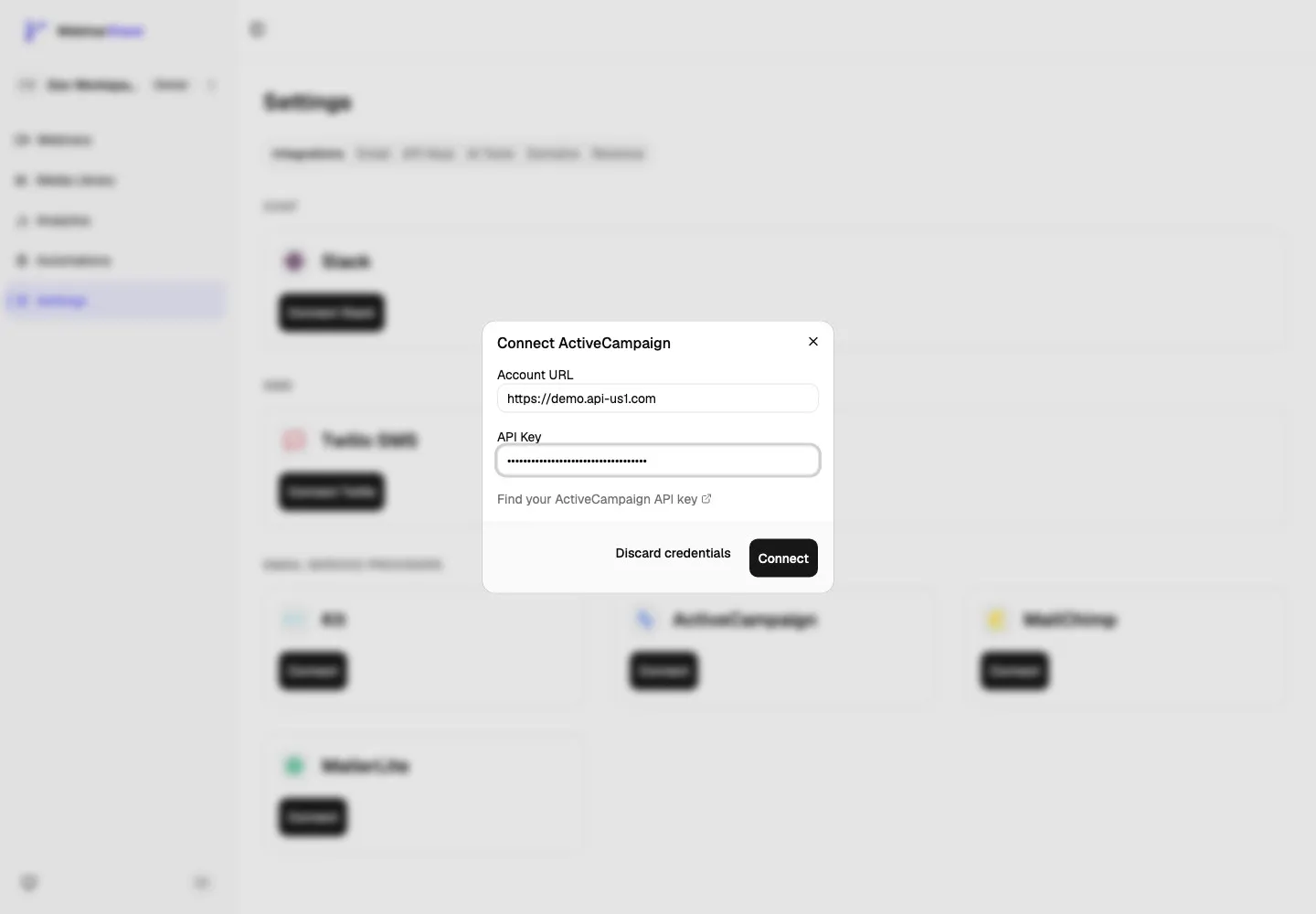
WebinarStack requires the Account URL to start with https://. A trailing slash is fine. If you paste a longer API URL that includes a path, WebinarStack stores the origin portion.
Connection Fields
Section titled “Connection Fields”The ActiveCampaign connection dialog has two required fields.
| Field Or Control | What It Means | How To Use It |
|---|---|---|
| Account URL | The ActiveCampaign API URL for your account. | Paste the API URL from ActiveCampaign Developer settings, such as https://youraccountname.api-us1.com. |
| API Key | The ActiveCampaign API key WebinarStack will use for this workspace. | Paste the full key from ActiveCampaign Developer settings. |
| Find your ActiveCampaign API key | Opens ActiveCampaign’s API setup help page. | Use this if you need to locate the API URL and key. |
| Discard credentials | Closes the dialog without saving anything. | Use it if you pasted the wrong values or are not ready to connect. |
| Connect | Validates the URL/key pair and stores the encrypted credential. | Click after entering both fields. If validation fails, check both values in ActiveCampaign and try again. |
There is no default audience picker during ActiveCampaign connection. Lists are selected later inside individual automation rules.
Step 3: Confirm ActiveCampaign Is Connected
Section titled “Step 3: Confirm ActiveCampaign Is Connected”After connection, the ActiveCampaign card shows a Connected badge and a Disconnect button.
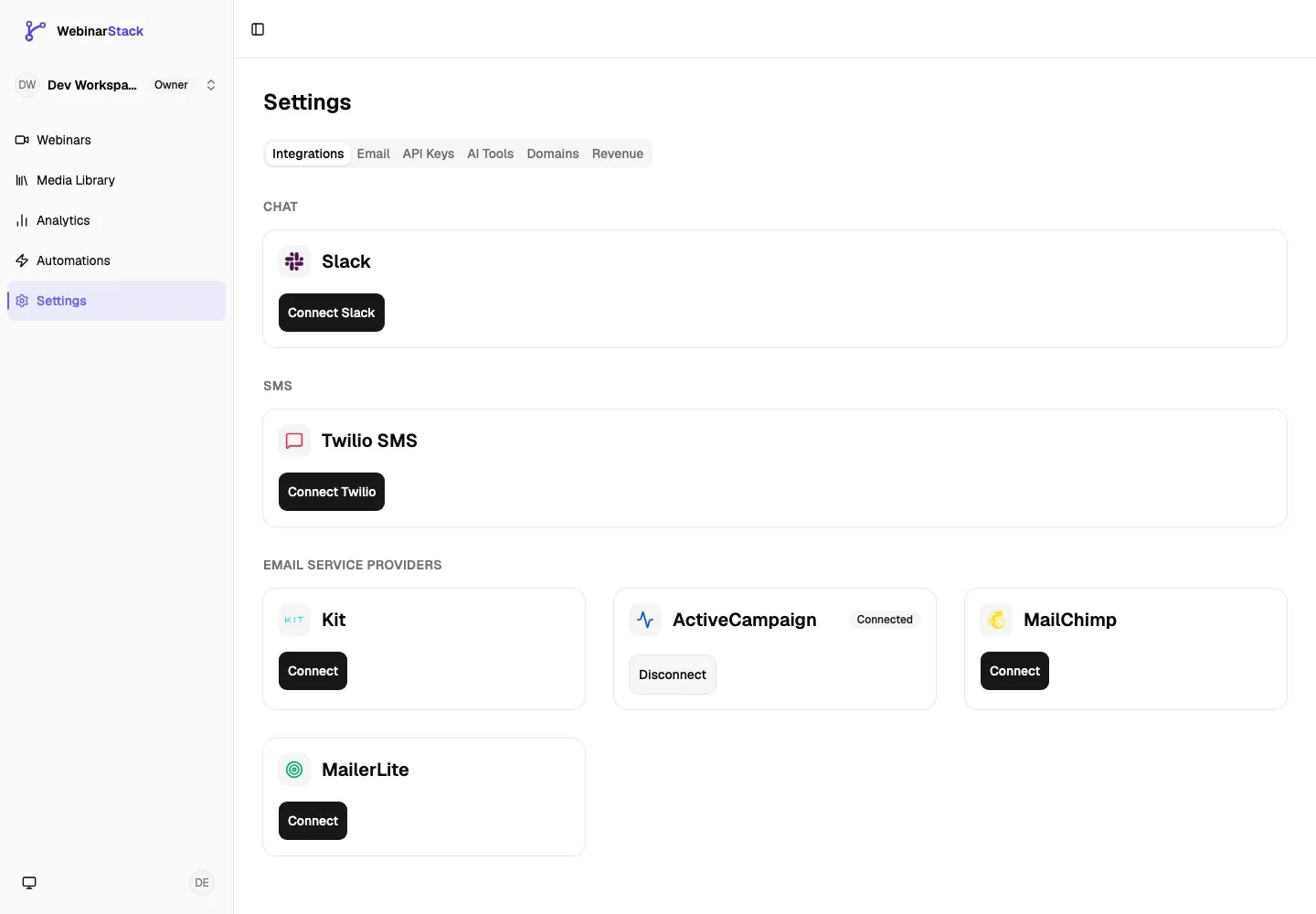
The connected card does not show the plaintext API key. It also does not show the stored API URL. If you lose the key or change the URL, reset or copy the values in ActiveCampaign and reconnect WebinarStack.
Connection states:
| State | Meaning | What To Do |
|---|---|---|
| Not connected | No usable ActiveCampaign credential is stored. | Click Connect and paste the API URL and API key. |
| Connected | WebinarStack has a validated URL/key pair. | Create automation rules that use ActiveCampaign. |
| Error | ActiveCampaign rejected the key, the URL is unreachable, or delivery failed due to credential permissions. | Reconnect with a valid URL/key pair. |
| Disconnected | The credential is absent or unusable. | Reconnect if future ActiveCampaign updates should continue. |
ActiveCampaign Contacts, Tags, Lists, And Fields
Section titled “ActiveCampaign Contacts, Tags, Lists, And Fields”Understanding ActiveCampaign’s data model helps you build cleaner automations.
Contacts
Section titled “Contacts”A contact is a person in ActiveCampaign. WebinarStack identifies the contact by attendee email address.
For contact upserts, WebinarStack sends:
| ActiveCampaign Field | WebinarStack Source |
|---|---|
email |
Attendee email address. |
firstName |
Attendee registration name when available. |
ActiveCampaign’s contact sync endpoint upserts by email address. If the email matches an existing contact, ActiveCampaign updates that contact. If no matching email exists, ActiveCampaign creates a new contact.
Tags are labels on contacts. WebinarStack uses tags for behavior and lifecycle markers.
Good tag names are specific, consistent, and action-oriented:
| Tag | Meaning |
|---|---|
webinar-registered |
Contact registered for a webinar. |
webinar-attended-live |
Contact joined the webinar. |
webinar-no-show |
Contact registered but did not attend. |
webinar-watched-75 |
Contact watched at least 75 percent. |
offer-clicked-demo |
Contact clicked a demo or offer CTA. |
webinar-replay-viewed |
Contact watched the replay. |
ActiveCampaign recommends treating tags as case-insensitive and avoiding tags that differ only by capitalization. The WebinarStack adapter also resolves tags case-insensitively.
Lists represent email subscription containers in ActiveCampaign. WebinarStack can add a contact to one or more existing lists.
Use lists carefully. Adding a contact to a list uses ActiveCampaign’s list status update endpoint with active status. ActiveCampaign warns that changing a contact from unsubscribed to active can re-subscribe that contact to a list they manually unsubscribed from.
Use add-to-list rules only when:
- The attendee gave the required consent.
- The selected list is the right subscription list for the webinar.
- Your team understands how ActiveCampaign handles unsubscribed, bounced, or compliance states.
For many segmentation workflows, tags or fields are safer than list changes.
Contact Custom Fields
Section titled “Contact Custom Fields”Contact custom fields store values on the ActiveCampaign contact.
Use fields for data that has a value:
| Field Title | Example Value | Why It Is A Field |
|---|---|---|
Lead Source |
WebinarStack |
Source is a value, not just a yes/no marker. |
Last Webinar |
Product Demo Webinar |
The value can change over time. |
Webinar Offer |
Annual plan demo |
Useful for personalization and segmentation. |
Engagement Score |
High |
More descriptive than many overlapping tags. |
WebinarStack matches ActiveCampaign contact custom fields by field title. For API-created automation rules, put the ActiveCampaign field title in params.fields[].key, such as Lead Source, not the field ID and not the personalization tag.
Supported ActiveCampaign Actions
Section titled “Supported ActiveCampaign Actions”ActiveCampaign supports five provider actions in WebinarStack.
| Dashboard Action | Internal Action | What It Does | Parameters |
|---|---|---|---|
| Add/upsert contact | add_contact |
Creates or updates the ActiveCampaign contact by attendee email. | None. |
| Apply tag | tag_contact |
Upserts the contact, resolves or creates each tag, and applies the tags to the contact. | tags string array. |
| Remove tag | remove_tag |
Upserts the contact, finds existing tag associations, and removes selected tags from the contact. | tags string array. |
| Add to list | add_to_list |
Upserts the contact and subscribes the contact to selected lists. | lists string array. |
| Set custom field | set_field |
Upserts the contact and writes selected contact custom field values. | fields array with key and value. |
Choose the smallest action that expresses what you want:
| Goal | Recommended Action |
|---|---|
| Make sure every registrant exists in ActiveCampaign | Add/upsert contact. |
| Mark behavior or lifecycle stage | Apply tag. |
| Remove an outdated lifecycle marker | Remove tag. |
| Subscribe a consenting contact to a specific list | Add to list. |
| Store campaign, source, preference, or score values | Set custom field. |
Create An ActiveCampaign Automation
Section titled “Create An ActiveCampaign Automation”After ActiveCampaign is connected, create an automation rule from a webinar.
- Open the webinar.
- Select the Automations tab.
- Click Add automation.
- Give the rule a clear name.
- Choose the trigger.
- Add conditions if only some attendees should update ActiveCampaign.
- Set Action Type to Integration.
- Set Provider to ActiveCampaign.
- Choose the ActiveCampaign action.
- Fill in the action parameters.
- Save the automation.
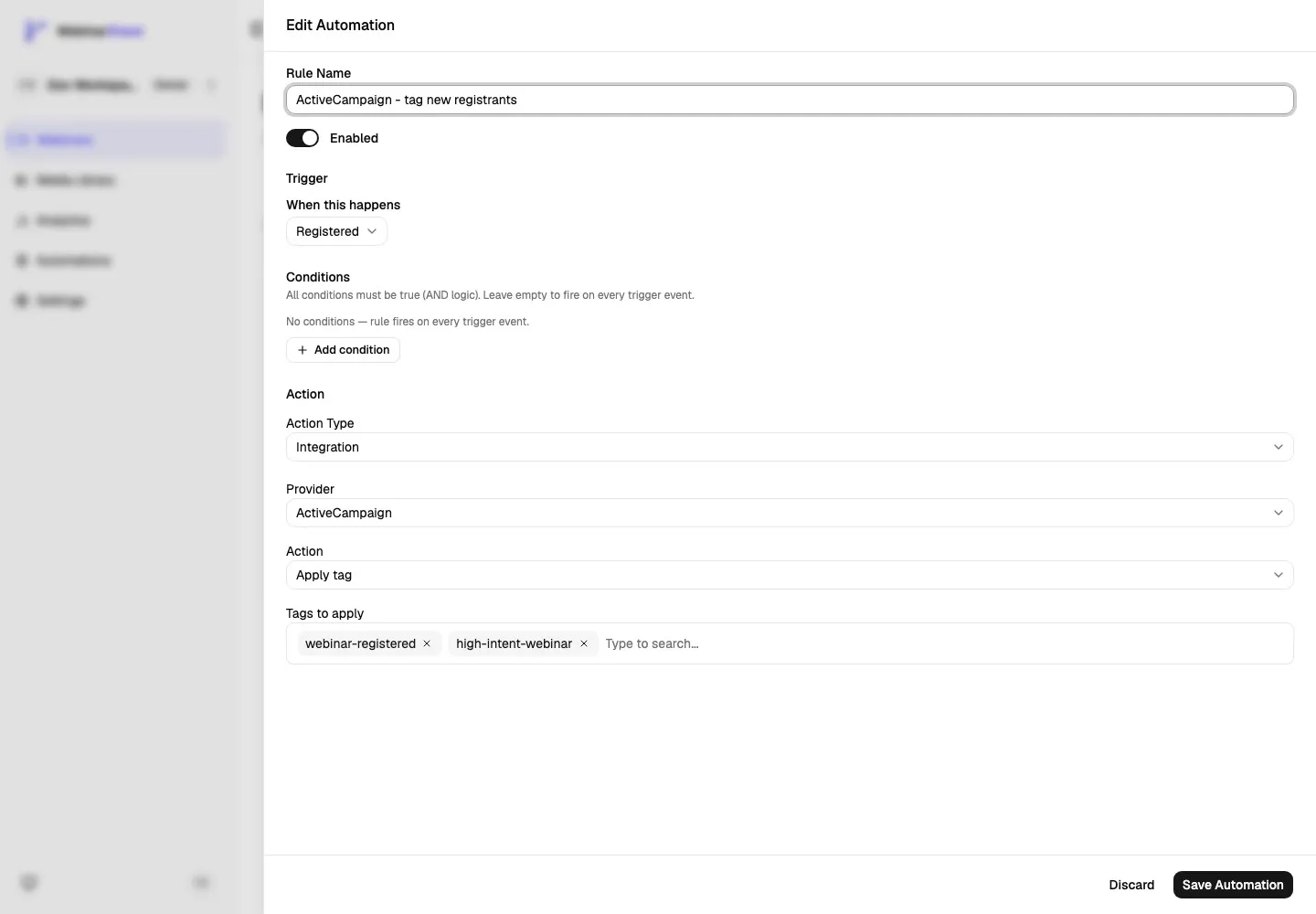
If no providers are connected, the Provider field shows an empty state and links back to Settings > Integrations.
Automation Fields
Section titled “Automation Fields”| Field | What It Means | ActiveCampaign Guidance |
|---|---|---|
| Rule Name | Internal name for the automation rule. | Use a name such as ActiveCampaign - tag new registrants or ActiveCampaign - add offer clickers to list. |
| Enabled | Whether the rule can run. | Keep disabled while drafting a complex setup, then enable after testing. |
| Trigger | The event that starts rule evaluation. | Pick the attendee behavior you want ActiveCampaign to remember. |
| Trigger-specific fields | Extra selector or threshold for triggers like offer click, poll response, watch percentage, or time elapsed. | Leave optional selectors blank when the rule should match any offer, poll, or eligible event. |
| Conditions | Optional filters that must all pass. | Use conditions to avoid over-tagging or over-subscribing contacts. |
| Action Type | The kind of action the rule performs. | Choose Integration for ActiveCampaign. |
| Provider | The connected external provider. | Choose ActiveCampaign. |
| Action | The specific ActiveCampaign operation. | Choose add/upsert contact, apply tag, remove tag, add to list, or set custom field. |
| Parameters | Action-specific tags, lists, or fields. | Lists and fields must exist in ActiveCampaign. Tags should usually exist first for easier dashboard selection. |
ActiveCampaign Trigger Examples
Section titled “ActiveCampaign Trigger Examples”| Webinar Goal | Trigger | Conditions | ActiveCampaign Action |
|---|---|---|---|
| Add every registrant as a contact | Registered | None | Add/upsert contact. |
| Tag live attendees | Joined webinar | None | Apply webinar-attended-live. |
| Tag no-shows | Did not show up | None | Apply webinar-no-show. |
| Tag high-intent viewers | Watched at least X% | Minimum percentage watched is 75. | Apply webinar-watched-75. |
| Add offer clickers to a follow-up list | Clicked an offer | Optional offer selector. | Add to list Webinar Follow-up. |
| Store campaign source | Registered | None | Set Lead Source to WebinarStack. |
| Store last webinar | Completed the video | None | Set Last Webinar to the webinar name. |
| Remove generic nurture tag | Clicked an offer | None | Remove webinar-nurture. |
You can create several rules from the same trigger. For example, a Registered trigger can add the contact, apply a webinar registration tag, and set a lead-source field.
Apply Tags
Section titled “Apply Tags”Use Apply tag when a webinar event should add a label to the ActiveCampaign contact.
In the dashboard:
- Set Action Type to Integration.
- Set Provider to ActiveCampaign.
- Set Action to Apply tag.
- Search for an ActiveCampaign tag.
- Select one or more tags.
- Save the rule.
Behavior details:
- WebinarStack upserts the contact by attendee email before applying tags.
- WebinarStack fetches ActiveCampaign tags and matches tag names case-insensitively.
- If a selected or API-provided tag name does not exist, the delivery can create it as a contact tag before applying it.
- WebinarStack then creates the contact-tag association in ActiveCampaign.
- Applying a tag does not subscribe the contact to an ActiveCampaign list by itself.
- The dashboard picker is designed around existing tags, so create planned tags in ActiveCampaign first for the cleanest setup.
Good tag hygiene:
- Use a consistent prefix, such as
webinar-. - Avoid tags that differ only by capitalization.
- Do not use commas in tag names.
- Do not create a new tag for every tiny event if a field would be clearer.
- Keep launch-specific tags separate from evergreen lifecycle tags.
Remove Tags
Section titled “Remove Tags”Use Remove tag when a contact should leave a stage or segment after a webinar behavior.
Examples:
| Trigger | Remove Tag | Why |
|---|---|---|
| Joined webinar | webinar-no-show |
The attendee is no longer a no-show. |
| Clicked an offer | cold-lead |
The attendee has shown higher intent. |
| Completed the video | needs-replay-reminder |
They no longer need replay nudges. |
Behavior details:
- WebinarStack upserts the contact by attendee email.
- WebinarStack resolves each selected tag name case-insensitively.
- WebinarStack fetches the contact’s tag associations.
- ActiveCampaign removes tags by deleting the association ID, not by deleting the global tag.
- If the tag does not exist, the action skips that tag.
- If the contact does not have the tag, the action is a no-op for that tag.
- Removing one tag does not remove other tags or delete the contact.
Because remove-tag delivery upserts the contact first, do not use it as a pure “only if contact already exists” check. Use conditions and testing to make sure the rule expresses the desired lifecycle change.
Add Or Upsert A Contact
Section titled “Add Or Upsert A Contact”Use Add/upsert contact when the main goal is to make sure the attendee exists in ActiveCampaign.
This action has no parameters. It sends the attendee email address and attendee registration name when available.
Recommended uses:
- Add every new registrant to ActiveCampaign.
- Add replay viewers to ActiveCampaign.
- Make sure a contact exists before external ActiveCampaign automations rely on it.
For many workflows, Apply tag is more useful than a bare add/upsert because the tag gives you segmentation data. ActiveCampaign tag, list, and field actions already upsert the contact before applying their specific update, so a separate add/upsert rule is usually only needed when contact creation is the whole goal or when you want the behavior managed independently.
Add To List
Section titled “Add To List”Use Add to list when a consenting contact should be subscribed to one or more specific ActiveCampaign lists.
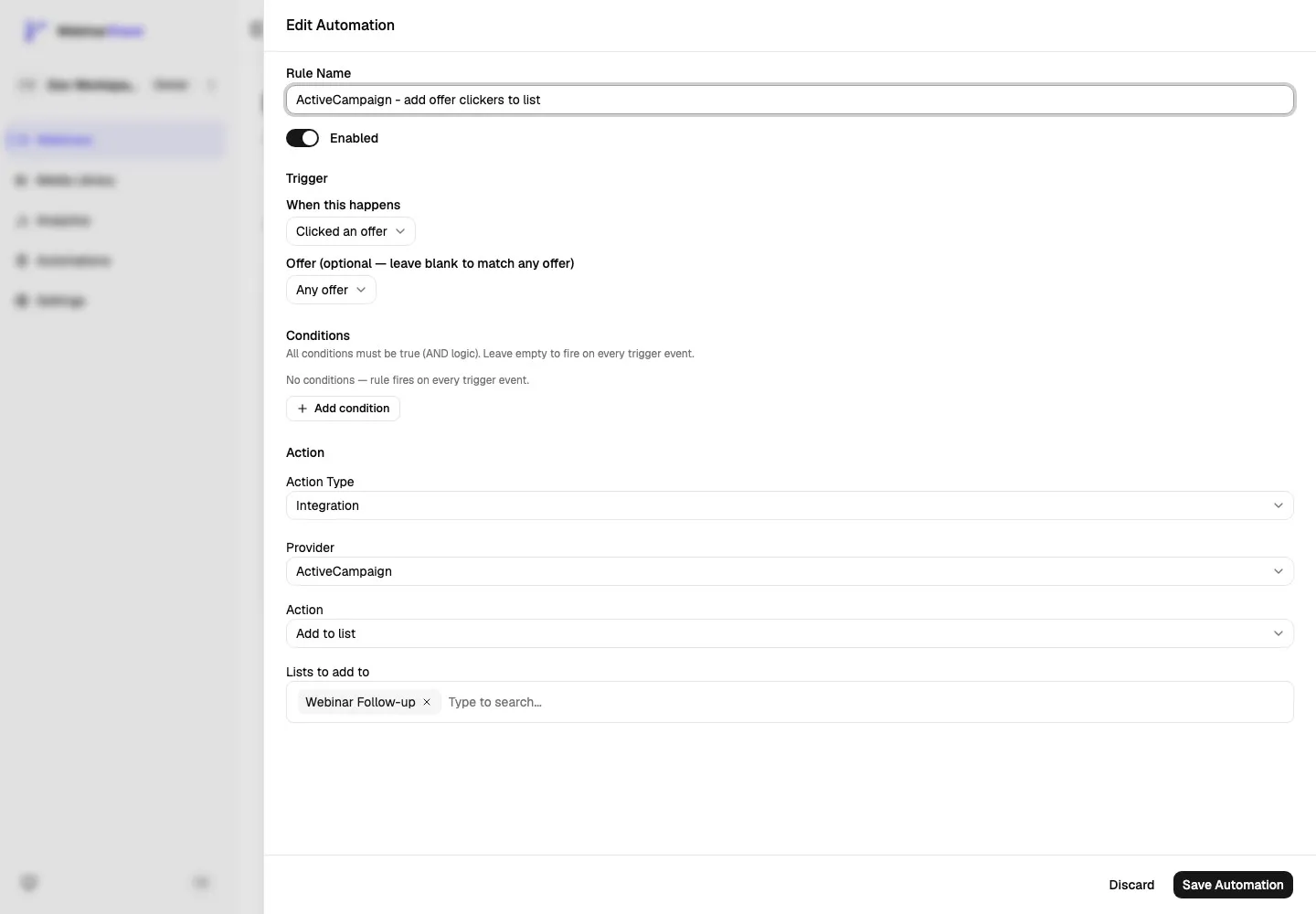
In the dashboard:
- Set Action Type to Integration.
- Set Provider to ActiveCampaign.
- Set Action to Add to list.
- Search for an existing ActiveCampaign list.
- Select one or more lists.
- Save the rule.
Behavior details:
- ActiveCampaign lists must already exist.
- WebinarStack matches list names exactly.
- WebinarStack upserts the contact by email.
- WebinarStack adds the contact to each selected list with active list status.
- This action can resubscribe a contact to a list if ActiveCampaign accepts the status change.
Use list actions with care. If your goal is internal segmentation or triggering an ActiveCampaign automation, a tag is often safer than adding a contact to a subscription list. If your goal is list membership, make sure the webinar registration form, privacy copy, and attendee consent support that list update.
Set Custom Fields
Section titled “Set Custom Fields”Use Set custom field when you need to write values onto the ActiveCampaign contact.
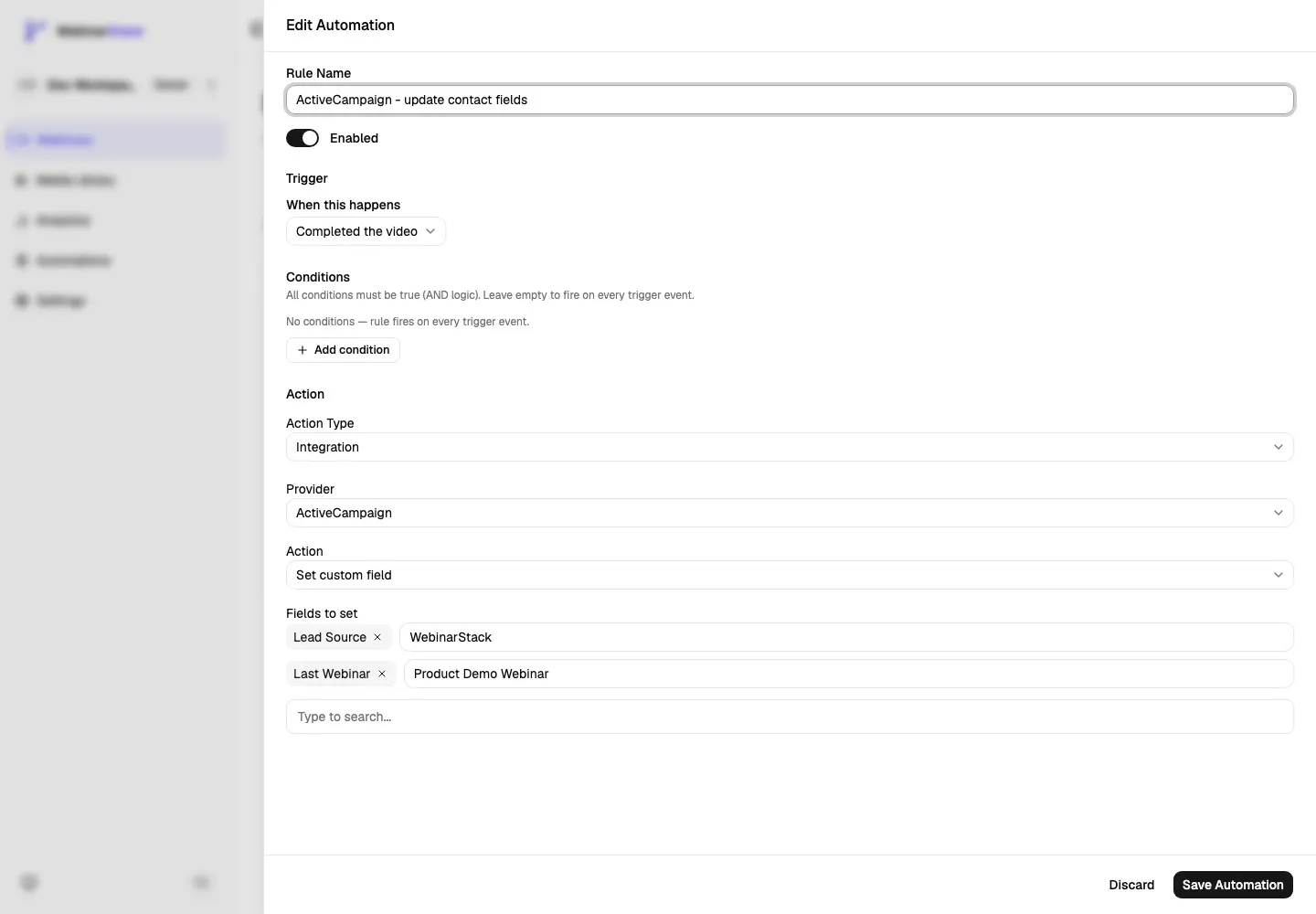
In the dashboard:
- Set Action Type to Integration.
- Set Provider to ActiveCampaign.
- Set Action to Set custom field.
- Search for an existing contact custom field.
- Add the field.
- Enter the value.
- Save the rule.
Field behavior:
- Contact custom fields must already exist in ActiveCampaign.
- WebinarStack fetches contact custom fields from
/api/3/fields. - WebinarStack matches by field title, case-insensitively.
- WebinarStack sends the attendee email address, upserts the contact, and then posts field values to
/api/3/fieldValues. - ActiveCampaign field values must fit the field’s type and allowed options.
- Date, datetime, dropdown, radio, checkbox, and multiselect fields may require provider-specific value formats.
Examples:
| Field Title | Value | When To Set It |
|---|---|---|
Lead Source |
WebinarStack |
On registration. |
Last Webinar |
Product Demo Webinar |
On registration or video completion. |
Engagement Score |
High |
After a high watch percentage or offer click. |
Preferred Topic |
Automation |
After a poll response or branch choice. |
For API-created rules, key means the ActiveCampaign contact custom field title:
{ "key": "Lead Source", "value": "WebinarStack" }Do not use the ActiveCampaign field ID, account custom field ID, or personalization tag unless your WebinarStack integration implementation has been changed to resolve those values.
Plan Your ActiveCampaign Data Model
Section titled “Plan Your ActiveCampaign Data Model”Before creating many automations, decide what belongs in tags, lists, and fields.
Use tags for:
- Yes/no membership.
- Lifecycle states.
- Campaign participation.
- Event completion.
- Triggering ActiveCampaign automations.
- Segmenting contacts without changing subscription lists.
Use lists for:
- Real subscription membership.
- Audience-level consent containers.
- Cases where ActiveCampaign campaigns or automations are explicitly list-based.
- Contacts who should receive email under that list’s consent and unsubscribe model.
Use fields for:
- Values that can change.
- Source, topic, product, webinar, or campaign names.
- Scores or classifications.
- Values you want to merge into ActiveCampaign email copy.
- Data where many tag variants would become messy.
Good starting structure:
| Type | Examples |
|---|---|
| Registration tags | webinar-registered, webinar-demo-registered. |
| Attendance tags | webinar-attended-live, webinar-no-show, webinar-replay-viewed. |
| Engagement tags | webinar-watched-50, webinar-watched-75, offer-clicked-demo. |
| Follow-up lists | Webinar Follow-up, Product Demo Leads, Newsletter. |
| Source fields | Lead Source, Last Webinar, Webinar Campaign. |
| Preference fields | Preferred Topic, Product Interest, Persona. |
Avoid creating too many overlapping tags. For example, instead of creating tags for every webinar title forever, use a stable webinar-registered tag plus a Last Webinar custom field.
API-Created ActiveCampaign Automations
Section titled “API-Created ActiveCampaign Automations”If you create automation rules through the WebinarStack REST API, MCP tools, or another internal process, use the ActiveCampaign provider slug and action IDs shown below.
Provider slug:
"activecampaign"Add Or Upsert Contact
Section titled “Add Or Upsert Contact”{ "actionType": "integration", "actionConfig": { "provider": "activecampaign", "action": "add_contact", "params": {} }}Apply Tags
Section titled “Apply Tags”{ "actionType": "integration", "actionConfig": { "provider": "activecampaign", "action": "tag_contact", "params": { "tags": ["webinar-registered", "webinar-watched-75"] } }}Remove Tags
Section titled “Remove Tags”{ "actionType": "integration", "actionConfig": { "provider": "activecampaign", "action": "remove_tag", "params": { "tags": ["webinar-no-show"] } }}Add To Lists
Section titled “Add To Lists”{ "actionType": "integration", "actionConfig": { "provider": "activecampaign", "action": "add_to_list", "params": { "lists": ["Webinar Follow-up"] } }}List names must match ActiveCampaign list names exactly.
Set Custom Fields
Section titled “Set Custom Fields”{ "actionType": "integration", "actionConfig": { "provider": "activecampaign", "action": "set_field", "params": { "fields": [ { "key": "Lead Source", "value": "WebinarStack" }, { "key": "Last Webinar", "value": "Product Demo Webinar" } ] } }}For API-created rules, the key values should match ActiveCampaign contact custom field titles. You can retrieve field titles from ActiveCampaign’s List all custom fields API.
Delivery And Reliability
Section titled “Delivery And Reliability”ActiveCampaign actions run in the background.
- A webinar event happens.
- WebinarStack evaluates matching automation rules.
- If an ActiveCampaign rule matches, WebinarStack creates or updates an automation execution record.
- The integration worker loads the rule, registration, and ActiveCampaign credential.
- The worker decrypts the API key only for the delivery step.
- The worker calls ActiveCampaign.
- WebinarStack records success or failure.
- Temporary failures can be retried.
Important delivery behavior:
| Behavior | Meaning |
|---|---|
| Async delivery | Attendees do not wait for ActiveCampaign to respond. |
| Encrypted credential storage | ActiveCampaign API keys are encrypted at rest. |
| Scoped decryption | The key is decrypted only inside the background dispatch step. |
| Stored URL metadata | The ActiveCampaign API URL origin is stored as connection metadata so the worker calls the correct account. |
| Provider throttling | WebinarStack throttles integration delivery per provider and account. |
| Retries | Temporary provider failures can be retried. |
| Idempotency | Duplicate delivery attempts are guarded by the automation execution and delivery ledger. |
| Credential errors | If ActiveCampaign returns an auth or permission error, WebinarStack marks the integration as errored so it can be reconnected. |
| Recipient-level issues | A problem with one contact does not automatically mean the whole ActiveCampaign connection is broken. |
Error handling:
| ActiveCampaign Response | WebinarStack Behavior |
|---|---|
401 |
Marks the credential as rejected. Reconnect with a valid API key. |
403 |
Marks the credential as lacking permission. Check the ActiveCampaign user/key. |
429 |
Treats the provider as rate limited and retries after the provider’s retry window. |
400, 404, 422 |
Treats the request as non-transient. Fix the rule, list, tag, field, value, or contact state. |
| Other non-OK responses | Treats as provider failure and retries according to background job policy. |
If ActiveCampaign is slow or temporarily unavailable, the attendee-facing webinar flow continues. The ActiveCampaign update may complete later or fail after retries.
Disconnect Or Reconnect ActiveCampaign
Section titled “Disconnect Or Reconnect ActiveCampaign”To disconnect ActiveCampaign:
- Open Settings.
- Select Integrations.
- Find the ActiveCampaign card.
- Click Disconnect.
- Confirm the disconnect.
Disconnecting ActiveCampaign:
- Deletes the stored ActiveCampaign credential from WebinarStack.
- Disables automation rules that use ActiveCampaign.
- Adds a disabled reason to affected rules.
- Stops future ActiveCampaign deliveries until ActiveCampaign is reconnected and rules are reviewed.
Reconnect ActiveCampaign when:
- The API key was reset in ActiveCampaign.
- The key was deleted in ActiveCampaign.
- The ActiveCampaign user whose key was used was removed or lost permissions.
- WebinarStack shows the ActiveCampaign card in an error state.
- You want WebinarStack to use a different ActiveCampaign account URL.
After reconnecting, review disabled ActiveCampaign rules before turning them back on.
Testing Checklist
Section titled “Testing Checklist”Use this checklist before relying on ActiveCampaign automations for a launch.
- Confirm the ActiveCampaign card is connected in Settings > Integrations.
- Confirm the API URL is the API URL from ActiveCampaign Developer settings.
- Confirm the API key belongs to an ActiveCampaign user who should own the integration.
- Confirm the tags you need already exist in ActiveCampaign when using dashboard-created rules.
- Confirm the lists you need already exist in ActiveCampaign.
- Confirm the contact custom fields you need already exist in ActiveCampaign.
- Create a simple internal automation, such as Registered > Integration > ActiveCampaign > Apply tag.
- Register for the webinar with a real internal email address.
- Wait for background delivery.
- Open ActiveCampaign and search for the contact.
- Confirm the contact exists.
- Confirm the expected tags were applied or removed.
- Confirm list membership changed only when intended.
- Confirm custom field values were written exactly as expected.
- Test no-show, watch-time, offer-click, or replay rules separately if you use them.
- Disable or remove test-only tags after testing.
Use a real internal email address for testing. Fake domains, previously unsubscribed contacts, or unusual recipient states can make provider behavior harder to interpret.
Troubleshooting
Section titled “Troubleshooting”ActiveCampaign Says The API Key Is Invalid
Section titled “ActiveCampaign Says The API Key Is Invalid”Check:
- The key was copied from ActiveCampaign Developer settings.
- The full key was pasted.
- The API URL and key belong to the same ActiveCampaign account.
- The key was not reset or deleted.
- The ActiveCampaign user still exists.
- The user has permission for API access.
If the key was lost or exposed, reset it in ActiveCampaign and reconnect WebinarStack.
The Account URL Fails Validation
Section titled “The Account URL Fails Validation”Check:
- The URL starts with
https://. - The URL is the API URL from ActiveCampaign Developer settings.
- The URL is not the normal ActiveCampaign login URL.
- The URL is not missing the account host.
- The URL is reachable from the internet.
Good:
https://youraccountname.api-us1.comNot recommended:
http://youraccountname.api-us1.comhttps://youraccountname.activehosted.comyouraccountname.api-us1.comTags Do Not Appear In The Picker
Section titled “Tags Do Not Appear In The Picker”Check:
- The ActiveCampaign card is connected.
- The tag exists in ActiveCampaign.
- You are searching for a tag, not a list, automation, segment, or field.
- The tag name is not separated only by capitalization from another tag.
- The account does not have a very large tag catalog.
The current dashboard picker fetches provider tag results from ActiveCampaign and filters them for the automation editor. Create planned webinar tags in ActiveCampaign first, then return to WebinarStack.
A Tag Automation Failed
Section titled “A Tag Automation Failed”Check:
- The automation rule is enabled.
- The provider is ActiveCampaign.
- The action is Apply tag or Remove tag.
- The attendee email address is valid.
- The attendee actually matched the trigger and conditions.
- ActiveCampaign did not reject the API key or permissions.
- ActiveCampaign did not reject tag creation, tag association, or tag removal.
For apply-tag actions, WebinarStack upserts the contact and can create a missing tag before association. For remove-tag actions, missing tags or missing associations are skipped.
A List Automation Failed
Section titled “A List Automation Failed”Check:
- The list exists in ActiveCampaign.
- The list name in the rule matches the ActiveCampaign list name exactly.
- The attendee gave consent for that list subscription.
- ActiveCampaign accepts the contact’s list status change.
- The contact is not blocked by a compliance or unsubscribe state.
If you only need segmentation, consider using a tag instead of list membership.
A Custom Field Was Not Updated
Section titled “A Custom Field Was Not Updated”Check:
- The contact custom field exists in ActiveCampaign.
- The rule uses the field title, not the field ID or personalization tag.
- The attendee email address is valid.
- The value fits the field type.
- Dropdown, radio, checkbox, or multiselect values match ActiveCampaign’s expected option format.
- The ActiveCampaign connection is still healthy.
- The automation trigger and conditions actually matched.
If you are creating rules through API or MCP, retrieve field titles from ActiveCampaign’s List all custom fields endpoint and use those exact titles in params.fields.
You Have A Large ActiveCampaign Account
Section titled “You Have A Large ActiveCampaign Account”The current integration lookup helpers request up to 100 tags, lists, or fields from ActiveCampaign for dashboard selection and delivery-time resolution.
If your ActiveCampaign account has a very large catalog:
- Use clear, searchable names for webinar tags, lists, and fields.
- Create webinar-specific tags and fields before building rules.
- Test every rule with an internal registration before launch.
- Watch for list-not-found or field-not-found delivery errors.
- Contact support if an expected ActiveCampaign item is not visible or not being resolved.
The Provider Field Says No Providers Connected
Section titled “The Provider Field Says No Providers Connected”This means the automation editor cannot see a connected email service provider.
Check:
- Open Settings > Integrations.
- Confirm ActiveCampaign shows Connected.
- If ActiveCampaign is disconnected or in error, reconnect it.
- Return to the webinar editor and reopen the automation rule.
Disconnecting ActiveCampaign Disabled Rules
Section titled “Disconnecting ActiveCampaign Disabled Rules”Disconnecting a provider disables dependent automation rules so they do not silently fail later. Reconnect ActiveCampaign, review each disabled rule, and re-enable only the rules you still want to run.
Best Practices
Section titled “Best Practices”- Create a dedicated ActiveCampaign API key for WebinarStack.
- Use an ActiveCampaign user that will not be deleted casually.
- Create lists and contact custom fields in ActiveCampaign before building rules.
- Create planned webinar tags in ActiveCampaign before dashboard setup, even though apply-tag delivery can create missing tags.
- Use tags for lifecycle and behavior states.
- Use lists only for subscription membership and consent-based routing.
- Use fields for values that can change or personalize email copy.
- Keep tag names consistent and readable.
- Avoid case-only tag differences.
- Test every ActiveCampaign automation with an internal registration before launch.
- Do not paste real ActiveCampaign API keys into AI tools or public tickets.
- Reconnect ActiveCampaign after resetting the API key.
- Review ActiveCampaign automations after changing your webinar offer, funnel, or follow-up strategy.
- Use Webhooks or Zapier for payloads that are richer than tags, lists, and fields.
- Keep Email Delivery separate from ActiveCampaign list updates in your mental model.
Prompts You Can Ask An AI
Section titled “Prompts You Can Ask An AI”AI can help you plan ActiveCampaign tags, lists, fields, and WebinarStack automation rules. Do not paste real API keys, private attendee data, or customer lists into AI tools.
Prompt: Plan ActiveCampaign Tags, Lists, And Fields
Section titled “Prompt: Plan ActiveCampaign Tags, Lists, And Fields”I am using WebinarStack with ActiveCampaign.
My webinar goal is:[describe the webinar and offer]
Attendee behaviors I care about:- Registered- Attended live- No-show- Watched at least 75 percent- Clicked offer- Completed replay
Help me design a clean ActiveCampaign data model.Recommend which values should be tags, which should be lists, and which should be contact custom fields.Use simple tag names, avoid duplication, and explain any consent risks around list membership.Include a testing checklist.Do not ask me for real API keys or attendee data.Prompt: Design An ActiveCampaign Automation Rule
Section titled “Prompt: Design An ActiveCampaign Automation Rule”Help me design a WebinarStack automation rule that updates ActiveCampaign.
Goal:[example: add high-intent leads who clicked the webinar offer to a sales follow-up workflow]
Available WebinarStack triggers:- Registered- Joined webinar- No-show- Watched at least X minutes- Watched at least X percent- Completed video- Clicked offer- Responded to poll- Sent chat message- Time elapsed
Available ActiveCampaign actions:- Add/upsert contact- Apply tag- Remove tag- Add to list- Set custom field
Please recommend:- Trigger- Conditions- ActiveCampaign action- Tags, lists, or custom fields to use- Rule name- Consent/compliance checks before launch- Test steps before launchPrompt: Write API Action Config JSON
Section titled “Prompt: Write API Action Config JSON”Help me write the actionConfig JSON for a WebinarStack automation that updates ActiveCampaign.
Provider slug must be "activecampaign".
I want to:[apply tags / remove tags / add contact / add to list / set custom fields]
Known ActiveCampaign tag names:[list tags]
Known ActiveCampaign list names:[list names]
Known ActiveCampaign contact custom field titles:[list field titles, not IDs]
Return only valid JSON for actionConfig and explain any assumptions after the JSON.Do not include API keys or private attendee data.Prompt: Troubleshoot ActiveCampaign Delivery
Section titled “Prompt: Troubleshoot ActiveCampaign Delivery”I am troubleshooting a WebinarStack to ActiveCampaign automation.
Automation:- Trigger: [trigger]- Conditions: [conditions]- ActiveCampaign action: [action]- Tags, lists, or fields: [values]- Expected result: [what should happen]- Actual result: [what happened]
Give me a checklist that covers WebinarStack rule setup, ActiveCampaign connection state, API URL, API key, tags, lists, custom fields, contact email validity, permissions, unsubscribe/list status risks, and provider rate limits.Do not ask me for real API keys.Prompt: Review List Subscription Risk
Section titled “Prompt: Review List Subscription Risk”I use WebinarStack automations to update ActiveCampaign.
I am considering this rule:[describe trigger and ActiveCampaign add-to-list action]
Review whether this should be an ActiveCampaign list update, tag update, or custom field update.Call out consent and unsubscribe risks.Recommend a safer alternative if list membership is not necessary.Do not ask me for real attendee data.Official ActiveCampaign Resources
Section titled “Official ActiveCampaign Resources”These ActiveCampaign resources are useful when you are setting up or troubleshooting the WebinarStack integration:
- Getting started with the API
- Authentication
- Sync a contact’s data
- Tags
- List all tags
- Create a tag
- Add a tag to contact
- Remove a tag from a contact
- Retrieve all lists
- Update list status for a contact
- List all custom fields
- Create a custom field value