
Webinar Automations Tab
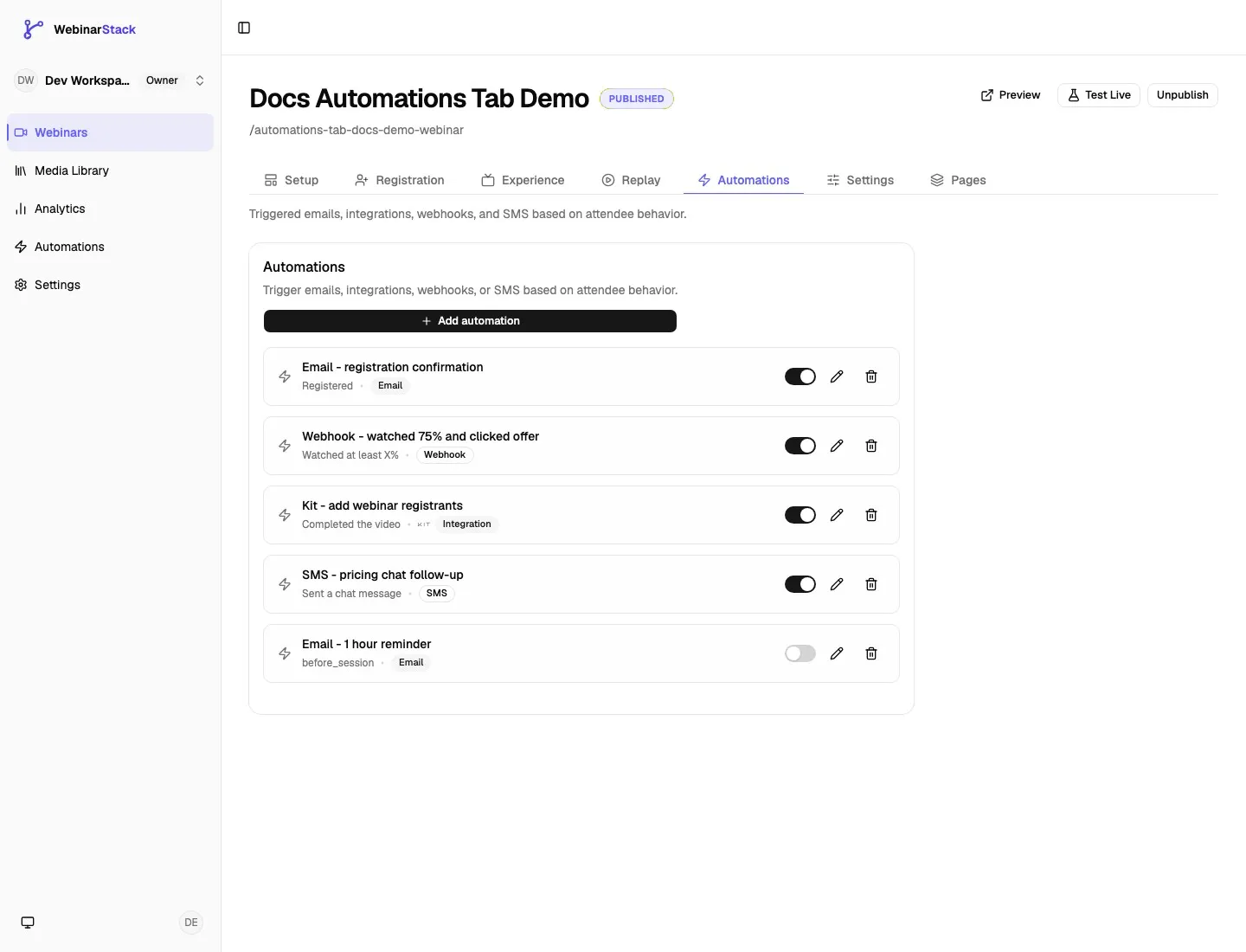
The Automations tab is where you create webinar-specific rules that react to attendee behavior, scheduled webinar timing, replay behavior, chat messages, offers, polls, and connected integrations.
Open it from Dashboard -> Webinars -> select a webinar -> Automations.
Previous tab: Webinar Replay Tab.
For the broader automation strategy guide, see Automations. This page focuses on the editor tab itself: what every visible control does, how the rule sheet works, what saves immediately, and how to use each action type.
What The Automations Tab Controls
Section titled “What The Automations Tab Controls”The Automations tab controls automation rules for the selected webinar.
| Area | What You Control | Where It Saves |
|---|---|---|
| Rule list | Existing rules, enabled state, action type, edit controls, and delete controls. | Toggle saves immediately. Delete is confirmed before removal. |
| New Automation sheet | Creates a new rule. | Uses Save Automation in the sheet footer. |
| Edit Automation sheet | Updates an existing rule. | Uses Save Automation in the sheet footer. |
| Trigger settings | The attendee behavior, schedule moment, chat event, offer, poll, branch, segment, threshold, or delay that starts the rule. | Saved with the rule. |
| Conditions | Optional AND-only filters that must all pass before the action runs. | Saved with the rule. |
| Action settings | Email, webhook, integration, or SMS action configuration. | Saved with the rule. |
| Delivery history | Webhook and SMS delivery logs for existing rules. | Read-only except re-fire controls on eligible failed rows. |
The Automations tab does not control account-level provider connections. Connect email delivery, SMS, and ESP integrations from Settings first, then use them inside rules.
Save Behavior
Section titled “Save Behavior”Automations do not use the webinar editor’s sticky Save changes bar. Automation rules save through their own rule controls.
| Control | Save Behavior |
|---|---|
| Add automation | Opens the New Automation sheet. The rule is not created until you click Save Automation. |
| Edit automation | Opens the Edit Automation sheet. Changes are not saved until you click Save Automation. |
| Discard | Closes the sheet without saving changes made in that sheet session. |
| Enabled toggle in the rule list | Saves immediately for that rule. |
| Enabled toggle inside the sheet | Saves when you click Save Automation. |
| Delete automation | Shows a browser confirmation, then permanently deletes the rule if confirmed. |
| Webhook secret copy | Copies the saved secret only. It does not change the rule. |
| Re-fire delivery | Sends a new delivery attempt for an eligible failed webhook or SMS delivery. It does not change the rule definition. |
Saving an automation requires an active account subscription. If an account is inactive, saving a new or edited rule is blocked and the app prompts you to choose a plan.
Rule List
Section titled “Rule List”The rule list is the first thing you see on the tab.
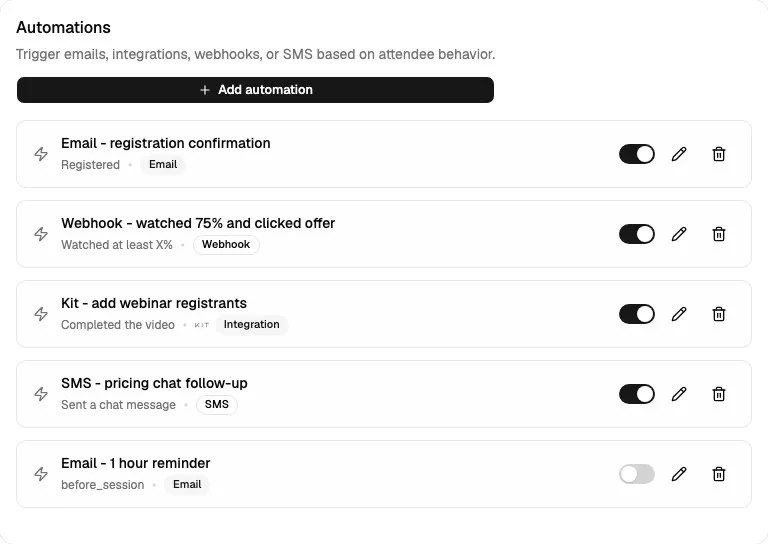
Each row shows:
| Row Element | Meaning |
|---|---|
| Rule name | Internal name for your team. Attendees do not see it. |
| Trigger label | The trigger that starts the rule, such as Registered, Watched at least X%, Completed the video, or Sent a chat message. |
| Provider indicator | Integration rules can show the connected provider, such as Kit. |
| Action badge | The action type: Email, Webhook, Integration, or SMS. |
| Enabled toggle | Turns the rule on or off immediately. |
| Edit button | Opens the Edit Automation sheet. |
| Delete button | Starts permanent deletion after confirmation. |
| Disabled reason badge | Appears when a rule has been disabled by a dependency problem, such as a disconnected provider. |
The list is sorted in webinar lifecycle order rather than simple creation order. Registration rules appear first, then in-session behavior rules, time-based rules, branch and segment rules, chat rules, before-session rules, after-session rules, and no-show rules.
Use the list to quickly answer:
- Which automations are active?
- What does each rule react to?
- What channel does each rule use?
- Which provider does an integration rule update?
- Which rules are paused or disabled?
Empty State
Section titled “Empty State”If the webinar has no automation rules, the Automations card shows an empty state and an Add automation button.
Use this state to create the first rule for the webinar. A common first rule is a registration confirmation email.
New Automation Sheet
Section titled “New Automation Sheet”Click Add automation to open the New Automation sheet.
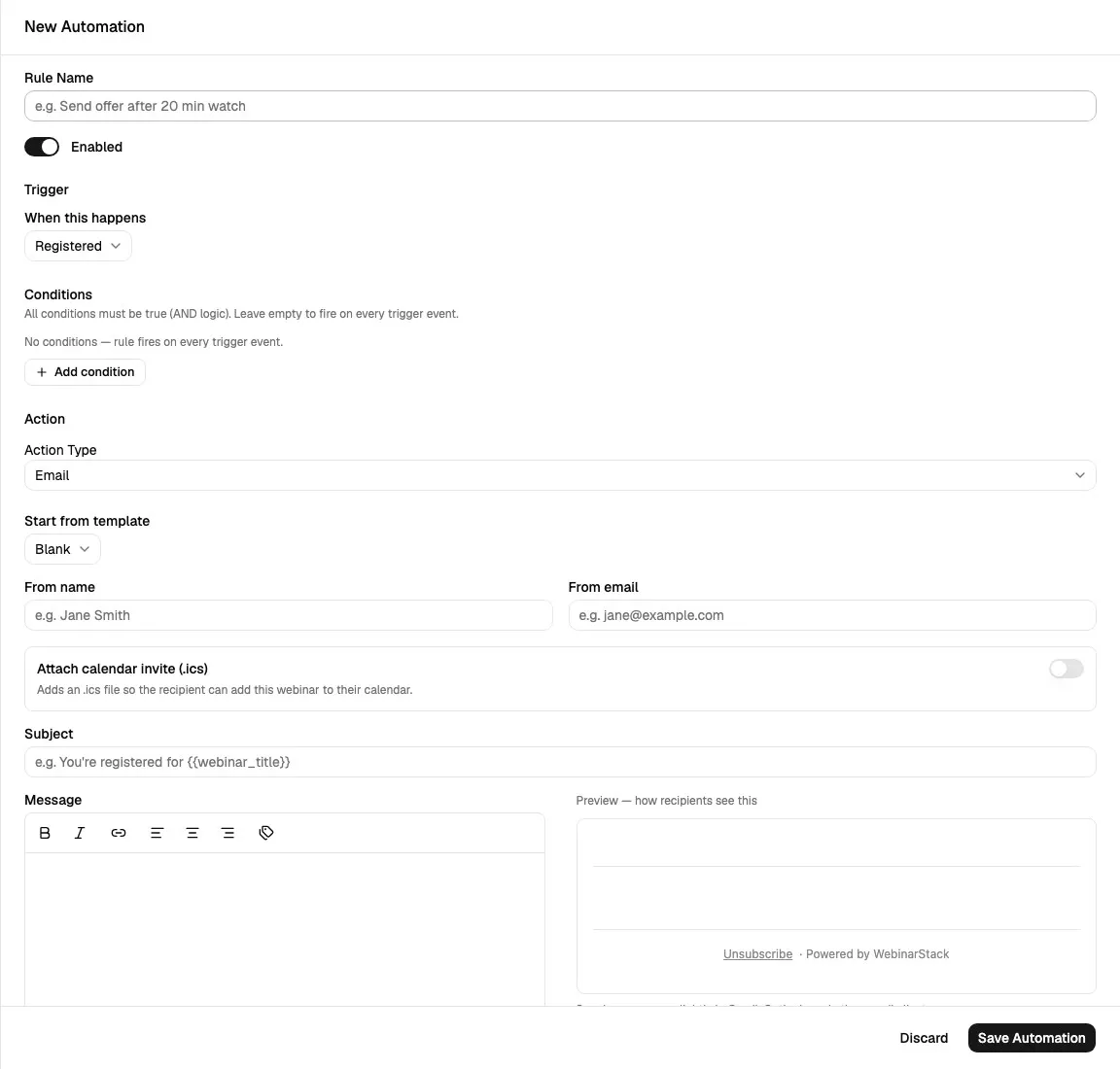
A new rule starts with:
| Default Field | Default Value |
|---|---|
| Rule Name | Blank. |
| Enabled | On. |
| Trigger | Registered. |
| Conditions | Empty. |
| Action Type | Email. |
| Email template | Blank. |
| Email delay | 0 minutes for event-driven email rules. |
The rule does not exist until you click Save Automation. If you close the sheet or click Discard, no rule is created.
Edit Automation Sheet
Section titled “Edit Automation Sheet”Click the pencil icon on an existing row to open the Edit Automation sheet.
The Edit Automation sheet uses the same layout as the New Automation sheet, but it loads the saved rule fields:
| Section | What You Can Change |
|---|---|
| Rule Name | Rename the internal label. |
| Enabled | Enable or disable the rule after saving. |
| Trigger | Change when the rule fires. |
| Trigger-specific settings | Change thresholds, offer selection, poll selection, keyword, timing, branch, or segment settings. |
| Conditions | Add, remove, or change AND-only filters. |
| Action Type | Switch between Email, Webhook, Integration, or SMS. |
| Action fields | Update the selected action configuration. |
| Delivery History | Review webhook or SMS delivery attempts on existing rules. |
Changing an existing rule does not rewrite past delivery history. The new definition applies to future trigger evaluations and future scheduled work.
Rule Name
Section titled “Rule Name”Rule Name is the internal name for the automation.
| Detail | Behavior |
|---|---|
| Required | Yes. |
| Maximum length | 200 characters. |
| Visible to attendees | No. |
| Best use | Describe the audience, trigger, and outcome. |
Good names:
Email - registration confirmationSMS - 1 hour reminderWebhook - watched 75% and clicked offerKit - add webinar registrantsEmail - no-show follow-up
Avoid vague names such as Automation 1, Follow up, or Test.
Enabled State
Section titled “Enabled State”The Enabled toggle controls whether the rule is active.
| Location | Behavior |
|---|---|
| Rule list toggle | Saves immediately. |
| Sheet toggle | Saves only when you click Save Automation. |
| Enabled rule | Can run when the trigger happens and conditions pass. |
| Disabled rule | Is skipped by future trigger evaluation. |
Disable a rule when:
- You are drafting copy.
- The destination webhook is not ready.
- A provider connection is being tested.
- You want to pause a rule without deleting it.
- You want to keep the rule as a template for later.
Disabling a rule is not always a retroactive cancel button for work that has already been queued. For scheduled reminders and delayed follow-up, disable rules before launch when possible.
Trigger
Section titled “Trigger”The Trigger section answers: “When should WebinarStack consider this rule?”
Triggers are grouped in the picker.
| Trigger Group | Options |
|---|---|
| Attendee behavior | Registered, Joined webinar, Left webinar, Didn’t show up, Watched at least X minutes, Watched at least X%, Completed the video, Clicked an offer, Responded to a poll, Sent a chat message. |
| Time-based | Before session, After session, Time elapsed after event. |
| Branch triggers | Branch taken, Segment completed. These appear for adaptive webinars. |
The trigger only starts evaluation. Conditions can still prevent the action from running.
Behavior Triggers
Section titled “Behavior Triggers”Behavior triggers fire from attendee activity.
| Trigger | Meaning | Common Uses |
|---|---|---|
| Registered | The attendee registers for the webinar. | Confirmation email, calendar invite, CRM add, SMS opt-in reminder. |
| Joined webinar | The attendee enters the watch experience. | Attendance tag, internal alert, engagement scoring. |
| Left webinar | The attendee exits or stops watching. | Recovery follow-up, abandoned-session webhook. |
| Didn’t show up | The attendee misses the session. | No-show follow-up, replay link, no-show tag. |
| Watched at least X minutes | The attendee reaches a minimum watch duration. | Mid-webinar engagement follow-up. |
| Watched at least X% | The attendee reaches a percentage of the video. | High-intent tagging, completion-based follow-up. |
| Completed the video | The attendee reaches video completion. | Completion email, sales handoff, integration update. |
| Clicked an offer | The attendee clicks a CTA/offer interaction. | Sales webhook, offer-click tag, checkout follow-up. |
| Responded to a poll | The attendee answers a poll. | Segmenting by poll response. |
| Sent a chat message | The attendee sends a chat message. | Keyword follow-up, sales alert, SMS callback. |
Watch Thresholds
Section titled “Watch Thresholds”For Watched at least X minutes and Watched at least X%, the sheet shows a threshold field.
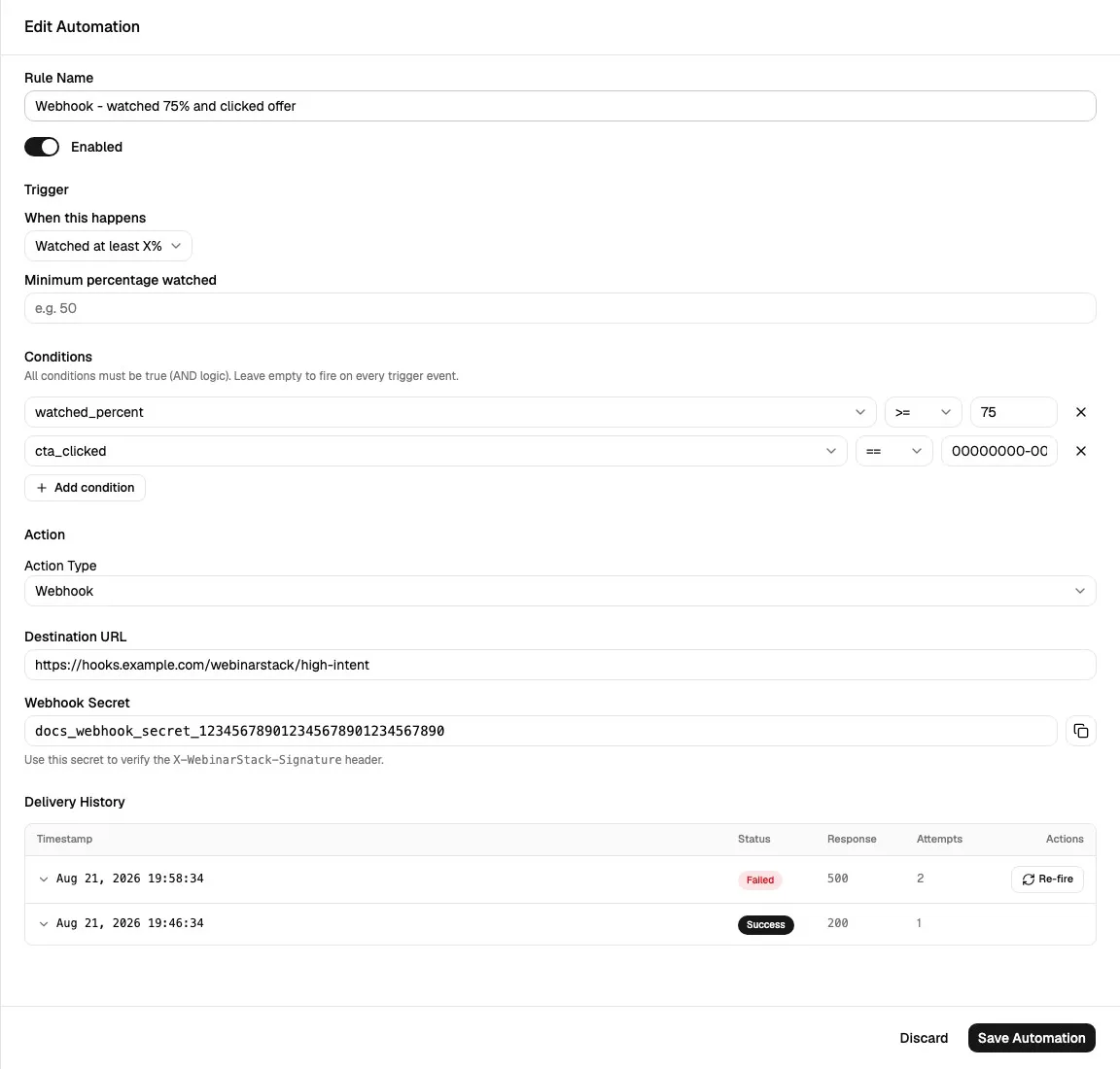
| Trigger | Extra Field | Meaning |
|---|---|---|
| Watched at least X minutes | Minimum minutes watched | The attendee must reach at least this many minutes of watch time. |
| Watched at least X% | Minimum percentage watched | The attendee must reach at least this percentage of the webinar video. |
When the rule is saved, WebinarStack stores the threshold as a condition using the corresponding watch field.
Use watched-percentage rules when video length can change or when the completion ratio matters more than exact minutes. Use watched-minutes rules when a specific content moment matters.
Offer Trigger
Section titled “Offer Trigger”For Clicked an offer, the sheet shows an Offer picker.
| Option | Meaning |
|---|---|
| Any offer | The rule can match any CTA/offer click in the webinar. |
| Specific offer | The rule only matches clicks for the selected offer. |
The picker uses offer names from the Experience tab. When available, internal names make automation setup easier because your team can identify the right offer without relying only on attendee-facing copy.
Poll Trigger
Section titled “Poll Trigger”For Responded to a poll, the sheet shows a Poll picker.
| Option | Meaning |
|---|---|
| Any poll | The rule can match any poll response in the webinar. |
| Specific poll | The rule only matches responses for the selected poll. |
Use a poll trigger by itself when any answer should start the action. Add a condition for Poll answer value when only a specific answer should qualify.
Chat Trigger
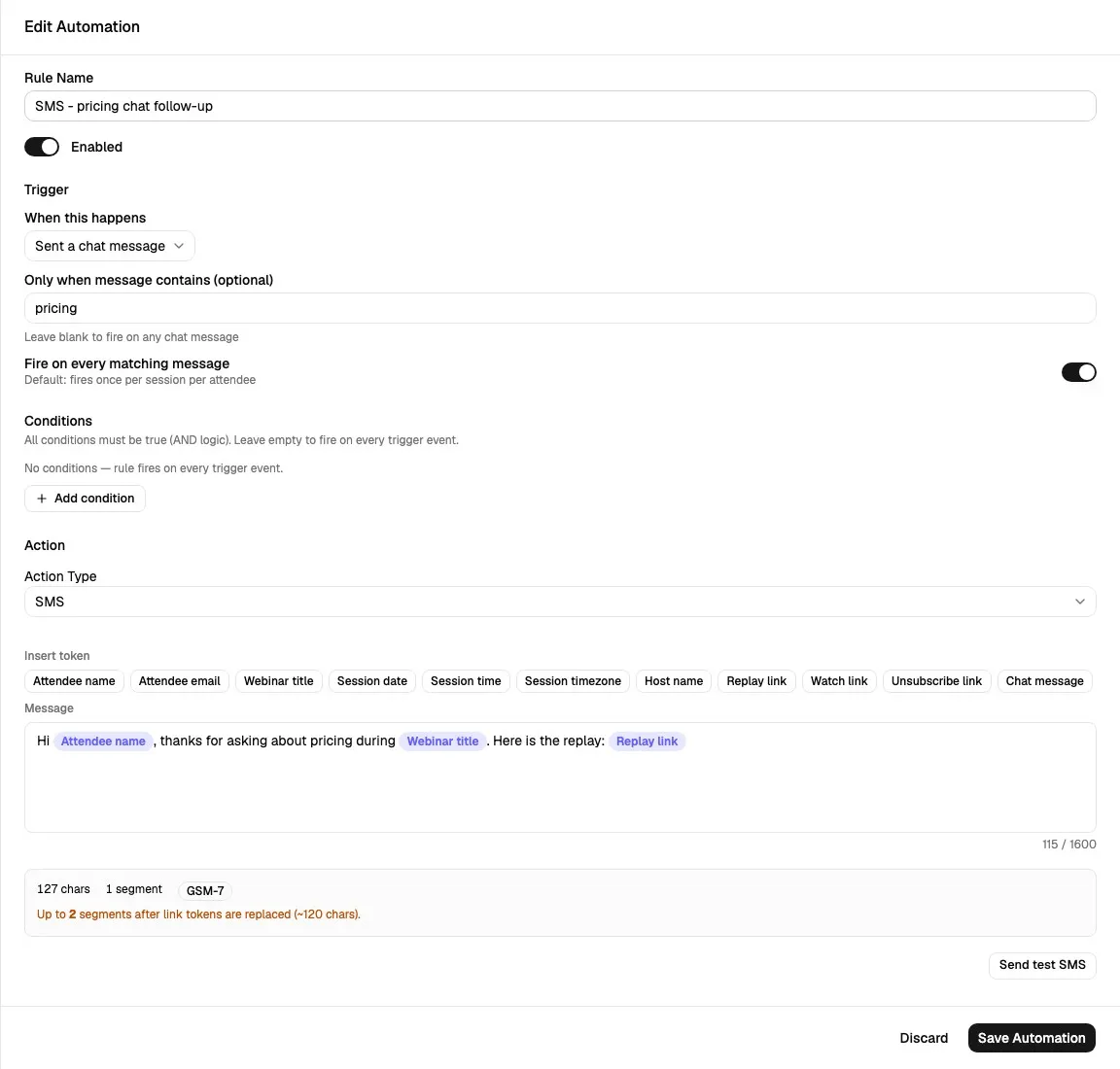
Section titled “Chat Trigger”For Sent a chat message, the sheet shows chat-specific fields.
| Field | Meaning |
|---|---|
| Only when message contains | Optional keyword or phrase. Leave blank to match any chat message. |
| Fire on every matching message | When off, the rule fires once per attendee per session. When on, the rule can fire for every matching message event. |
Keyword matching is case-insensitive. Use this for focused actions, such as:
- Send a sales webhook when a chat message contains
pricing. - Send an SMS follow-up when a viewer asks for
replay. - Trigger a CRM task when someone mentions
demo.
Be careful with Fire on every matching message. It is useful for true per-message workflows, but it can send multiple actions for a talkative attendee.
Time-Based Triggers
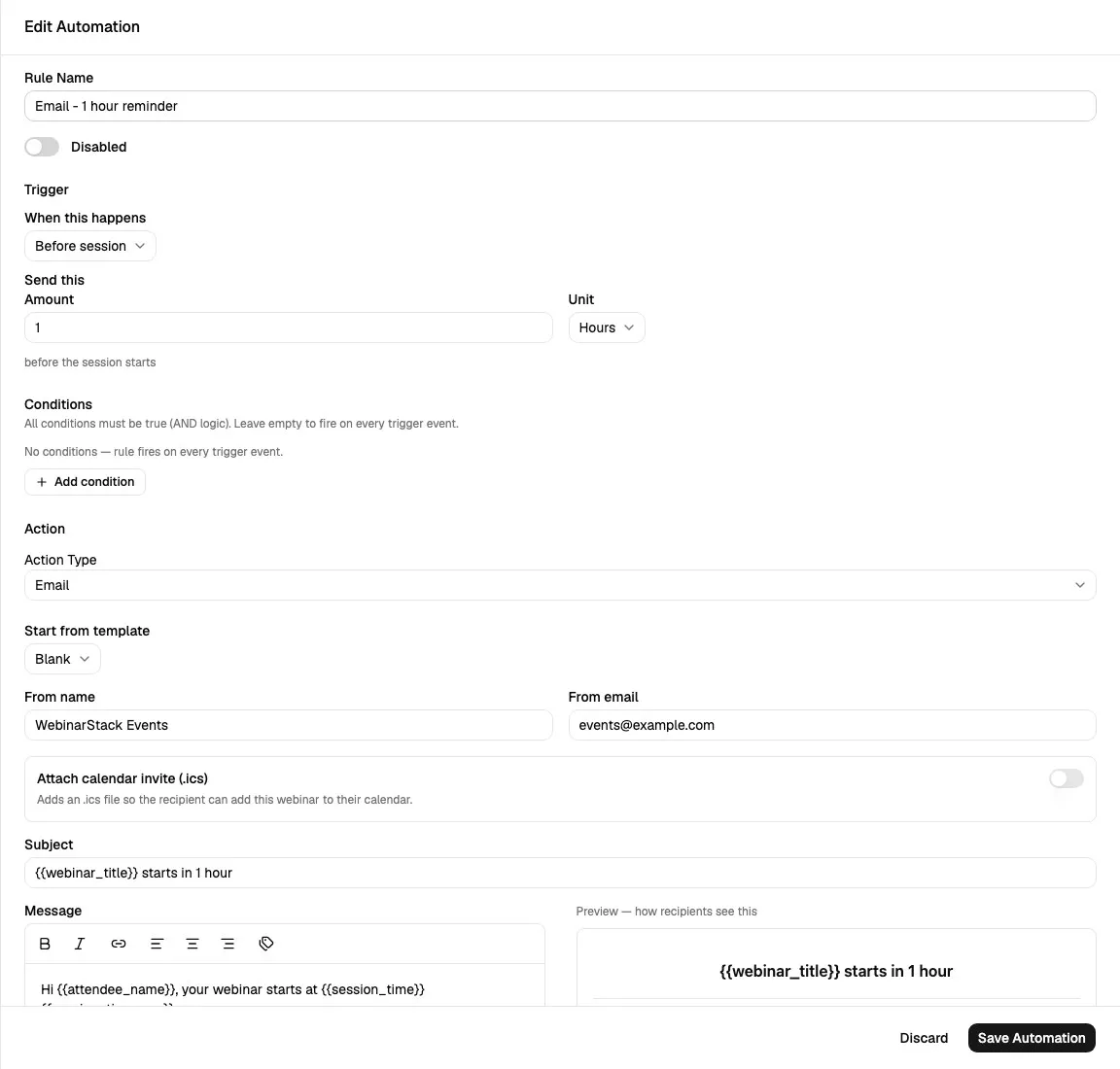
Section titled “Time-Based Triggers”Time-based triggers use schedule or delay fields.
| Trigger | Timing Field | How It Works |
|---|---|---|
| Before session | Amount plus unit | Fires before the scheduled session starts. |
| After session | Amount plus unit | Fires after the webinar content ends. |
| Time elapsed after event | Delay in minutes plus After field | Fires after registration or after session end. |
Before Session
Section titled “Before Session”Use Before session for reminders.
Examples:
- 24 hours before the session.
- 1 hour before the session.
- 15 minutes before the session.
The sheet shows:
| Field | Meaning |
|---|---|
| Amount | Number of minutes or hours. |
| Unit | Minutes or Hours. |
Before-session triggers require scheduled sessions. If a webinar only uses just-in-time scheduling, the app warns that before-session triggers do not fire for JIT registrations.
After Session
Section titled “After Session”Use After session for post-webinar follow-up.
Examples:
- 30 minutes after the webinar content ends.
- 2 hours after the webinar content ends.
- 1 day after the webinar content ends, expressed in hours.
After-session timing is based on the session start plus the webinar video duration, then the configured delay.
Time Elapsed After Event
Section titled “Time Elapsed After Event”Use Time elapsed after event when the delay should be relative to registration or session end.
Fields:
| Field | Meaning |
|---|---|
| Delay (minutes) | How long to wait. |
| After | Whether the delay starts after Registration or Session end. |
Use this when you want a general timed sequence that is not tied to a fixed “before session” or “after session” reminder format.
Adaptive Triggers
Section titled “Adaptive Triggers”Adaptive webinars can show branch-specific trigger options.
| Trigger | Meaning |
|---|---|
| Branch taken | The attendee followed a selected branch in the adaptive webinar flow. |
| Segment completed | The attendee completed a selected adaptive segment. |
These triggers depend on adaptive webinar setup from the Flow tab. Rules with branch or segment scoping may require a plan that includes adaptive webinar capabilities.
Conditions
Section titled “Conditions”Conditions answer: “Even if the trigger happened, should this rule actually run for this attendee?”
Conditions are optional. If no conditions are added, the rule runs for every matching trigger event.
All conditions use AND logic. Every condition must pass.
Available condition fields:
| Condition Field | Value Type | Meaning |
|---|---|---|
| Watch time (minutes) | Number | Current accumulated watch time in minutes. |
| Watch percentage | Number | Current accumulated watch percentage. |
| Clicked Offer (ID) | Text | Whether the attendee clicked a specific offer interaction ID. |
| Answered poll (ID) | Text | Whether the attendee answered a specific poll interaction ID. |
| Poll answer value | Text | The answer value from the triggering poll event. |
| Joined | Boolean | Whether the attendee joined the webinar. |
| Left | Boolean | Whether the attendee left the webinar. |
| No show | Boolean | Whether the attendee is considered a no-show. |
| Completed video | Boolean | Whether the attendee completed the video. |
Operators:
| Field Type | Operators |
|---|---|
| Number | =, !=, >=, <=, >, < |
| Text | =, !=, >=, <=, >, < in the generic builder; use equality for IDs and answer values. |
| Boolean | is, is not |
| Chat keyword | Uses a case-insensitive contains condition created from the chat trigger keyword field. |
Examples:
| Goal | Trigger | Conditions |
|---|---|---|
| Follow up with high-intent viewers | Watched at least X% | Watch percentage >= 75 and Clicked Offer equals the offer ID. |
| Tag attendees who answered a poll a certain way | Responded to a poll | Poll answer value equals the target answer. |
| Send no-show replay email | Didn’t show up | No conditions needed, or No show is true. |
| Send offer follow-up only to people who stayed long enough | Clicked an offer | Watch percentage >= 50. |
Keep conditions as simple as possible. If you need OR logic, create multiple rules.
Action Type
Section titled “Action Type”The Action Type field decides what WebinarStack does after the trigger and conditions pass.
| Action Type | What It Does | Typical Use |
|---|---|---|
| Sends a personalized automation email to the attendee. | Confirmations, reminders, replay links, no-show follow-up, sales follow-up. | |
| Webhook | Sends signed JSON to a destination URL. | Backend workflows, CRM routing, Zapier Catch Hook workflows, internal lead scoring. |
| Integration | Updates a connected ESP/marketing provider. | Apply tags, add contacts, update fields, move subscribers into lists or groups. |
| SMS | Sends a personalized SMS through Twilio. | Opt-in reminders, urgent follow-up, short callback messages. |
Each action type shows different fields.
Email Action
Section titled “Email Action”Email actions send personalized email to the attendee.
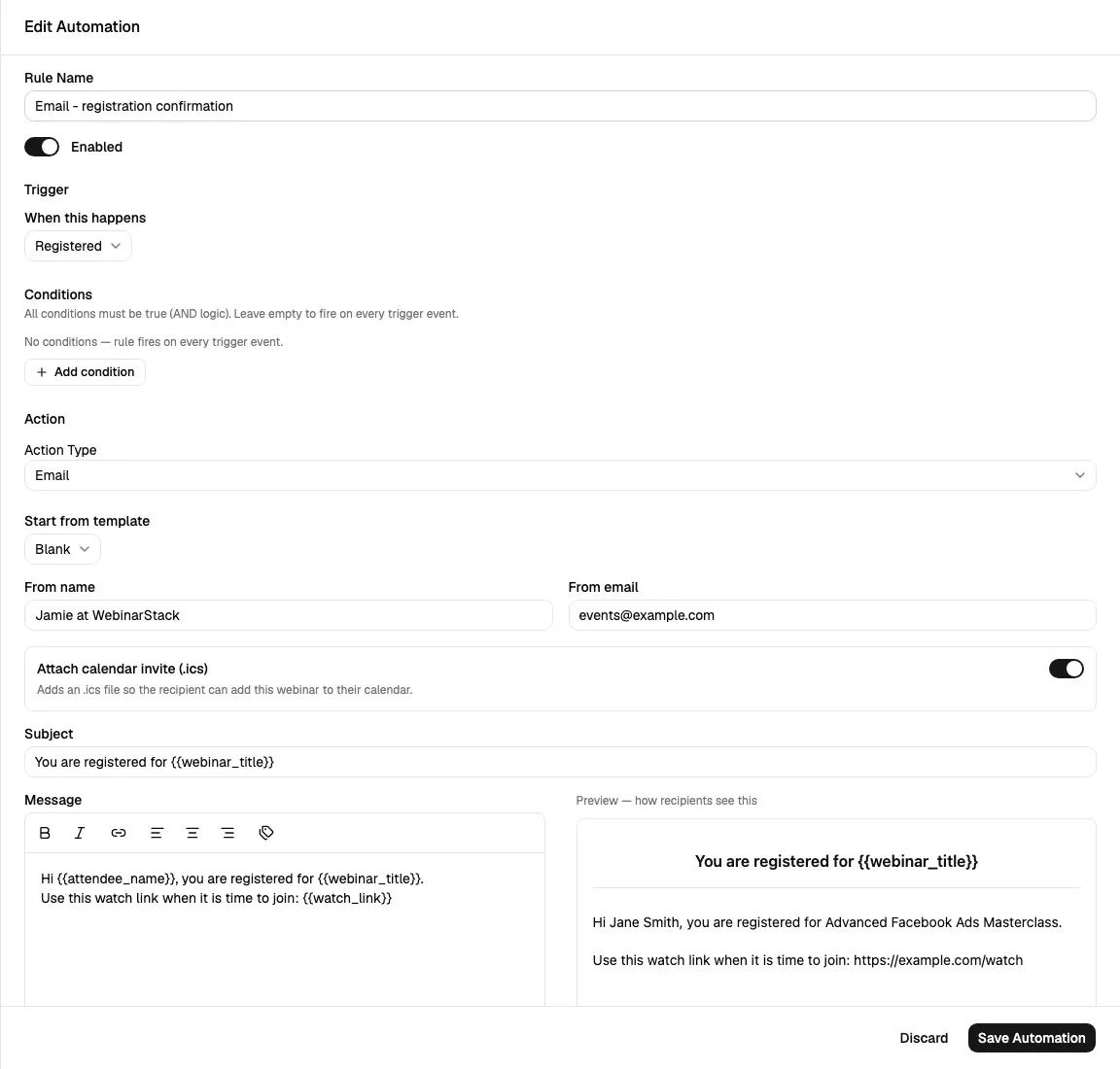
Email fields:
| Field | Meaning |
|---|---|
| Start from template | Inserts starter content into the subject and body. Use Blank to write from scratch. |
| From name | Optional sender name for this rule. |
| From email | Optional sender email for this rule. Must be a valid email address. |
| Attach calendar invite (.ics) | Adds an .ics calendar invite to the automation email. |
| Subject | Email subject line. Supports personalization tokens. |
| Message | Rich text email body. Supports formatting, links, alignment, and token chips. |
| Preview | Shows how recipients will see the email with sample token values. |
| Test email | Sends a test email to the entered address. |
| Delay after trigger (minutes) | For event-driven email rules, waits this many minutes after the trigger before sending. 0 sends immediately. |
The delay field is hidden for Before session, After session, and Time elapsed after event triggers because those triggers already define their own timing.
Email Tokens
Section titled “Email Tokens”Automation emails support personalization tokens, including:
| Token | Meaning |
|---|---|
{{attendee_name}} |
Attendee name. |
{{attendee_email}} |
Attendee email. |
{{webinar_title}} |
Webinar title. |
{{session_date}} |
Session date. |
{{session_time}} |
Session time. |
{{session_timezone}} |
Session timezone. |
{{host_name}} |
Host name. |
{{replay_link}} |
Attendee replay link. |
{{watch_link}} |
Attendee watch link. |
{{unsubscribe_link}} |
Email unsubscribe link. |
{{chat_message}} |
Chat message that triggered a chat automation. |
Use Email Delivery to connect SendGrid or Postmark so automation emails send through your own configured provider.
Webhook Action
Section titled “Webhook Action”Webhook actions send signed JSON to a destination URL.
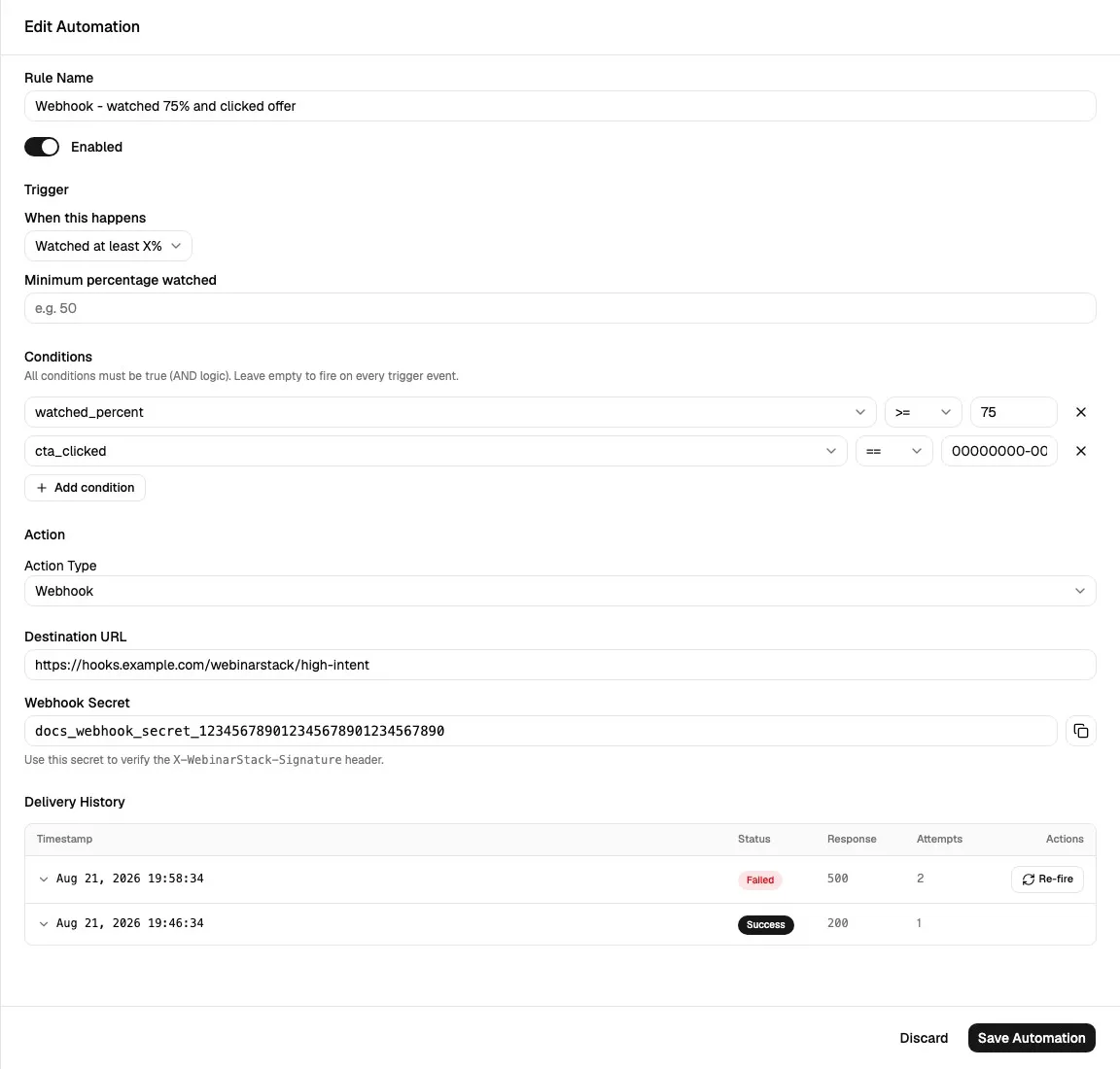
Webhook fields:
| Field | Meaning |
|---|---|
| Destination URL | The endpoint WebinarStack should call. Must be a valid URL. |
| Webhook Secret | Generated after the rule is saved. Use it to verify the X-WebinarStack-Signature header. |
| Copy secret | Copies the saved secret to your clipboard. |
| Delivery History | Shows recent delivery attempts for the rule. |
| Re-fire | Appears for failed deliveries and sends a new delivery attempt. |
For a new webhook rule, the secret is not shown until after you save and reopen the rule.
Webhook delivery history shows:
| Column | Meaning |
|---|---|
| Timestamp | When the delivery attempt was created. |
| Status | Pending, Success, or Failed. |
| Response | HTTP response code when available. |
| Attempts | Number of delivery attempts represented by that row. |
| Actions | Re-fire button for eligible failed rows. |
Use Webhooks for the full setup guide, payload guidance, signature verification, Zapier ideas, and AI prompts for building receivers.
Integration Action
Section titled “Integration Action”Integration actions update a connected marketing provider when the automation fires.
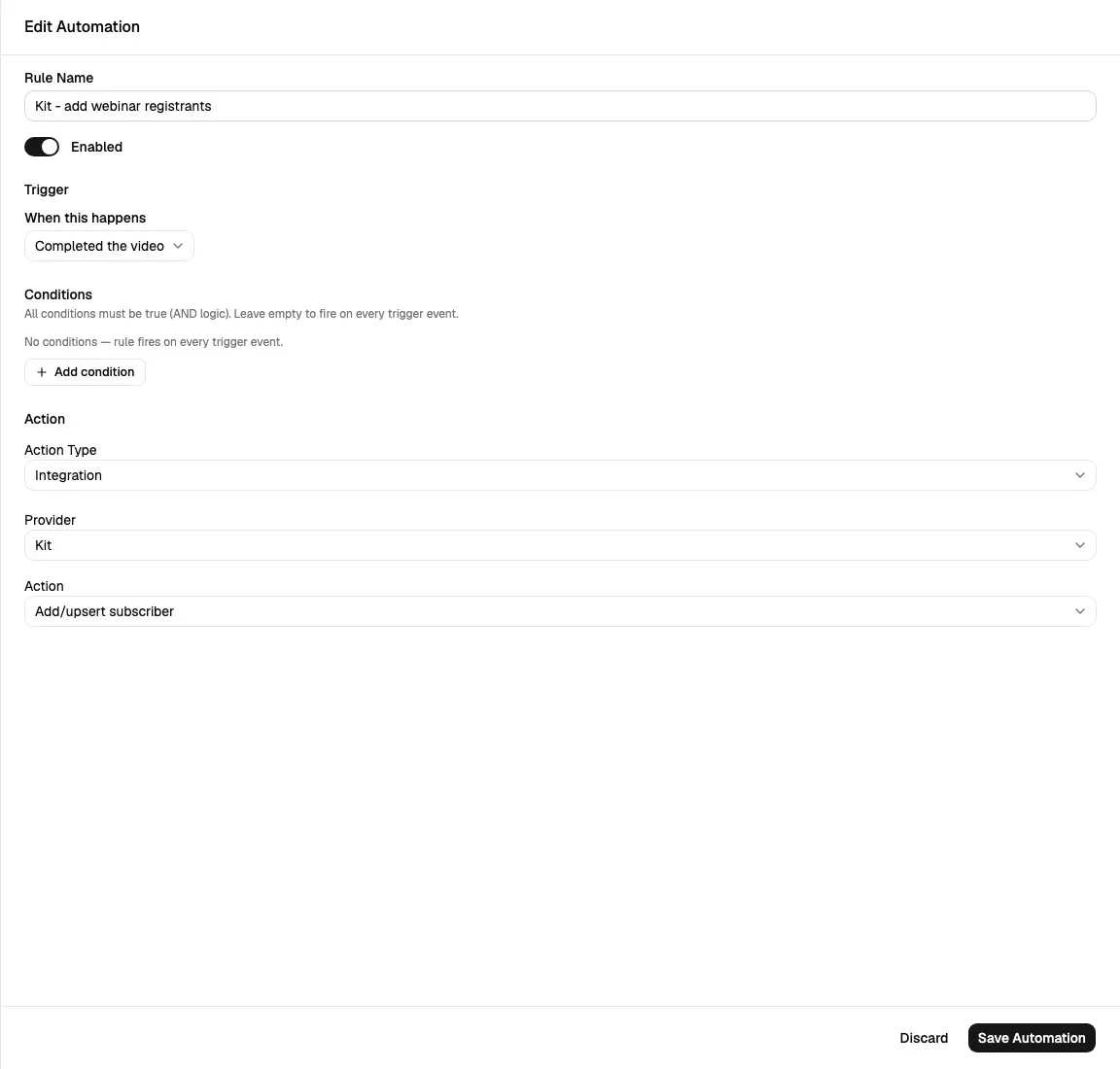
Integration fields:
| Field | Meaning |
|---|---|
| Provider | Connected provider to update. |
| Action | Provider-specific operation. |
| Parameters | Tags, lists, groups, or fields required by the selected operation. |
If no providers are connected, the sheet shows a link to Settings -> Integrations.
Supported providers in the automation editor:
| Provider | Example Actions |
|---|---|
| Kit | Apply tag, Remove tag, Add/upsert subscriber, Set custom field. |
| ActiveCampaign | Apply tag, Remove tag, Add/upsert contact, Add to list, Set custom field. |
| Mailchimp | Add/update member, Apply tag, Remove tag, Add to audience, Set merge field. |
| MailerLite | Add/upsert subscriber, Add to group, Remove from group, Set custom field. |
Parameter fields depend on the action:
| Parameter Type | How It Works |
|---|---|
| Tags | Search and select tags from the provider. |
| Lists | Search and select lists or audiences when the provider supports them. |
| Groups | Search and select MailerLite groups. |
| Fields | Choose provider fields and enter values. |
| No parameters | Some upsert actions need no extra fields. |
Provider resources usually need to exist in the provider first. For example, create the tag, list, group, or custom field in the provider, then select it in WebinarStack.
Provider-specific guides:
SMS Action
Section titled “SMS Action”SMS actions send personalized text messages through the account’s connected Twilio setup.
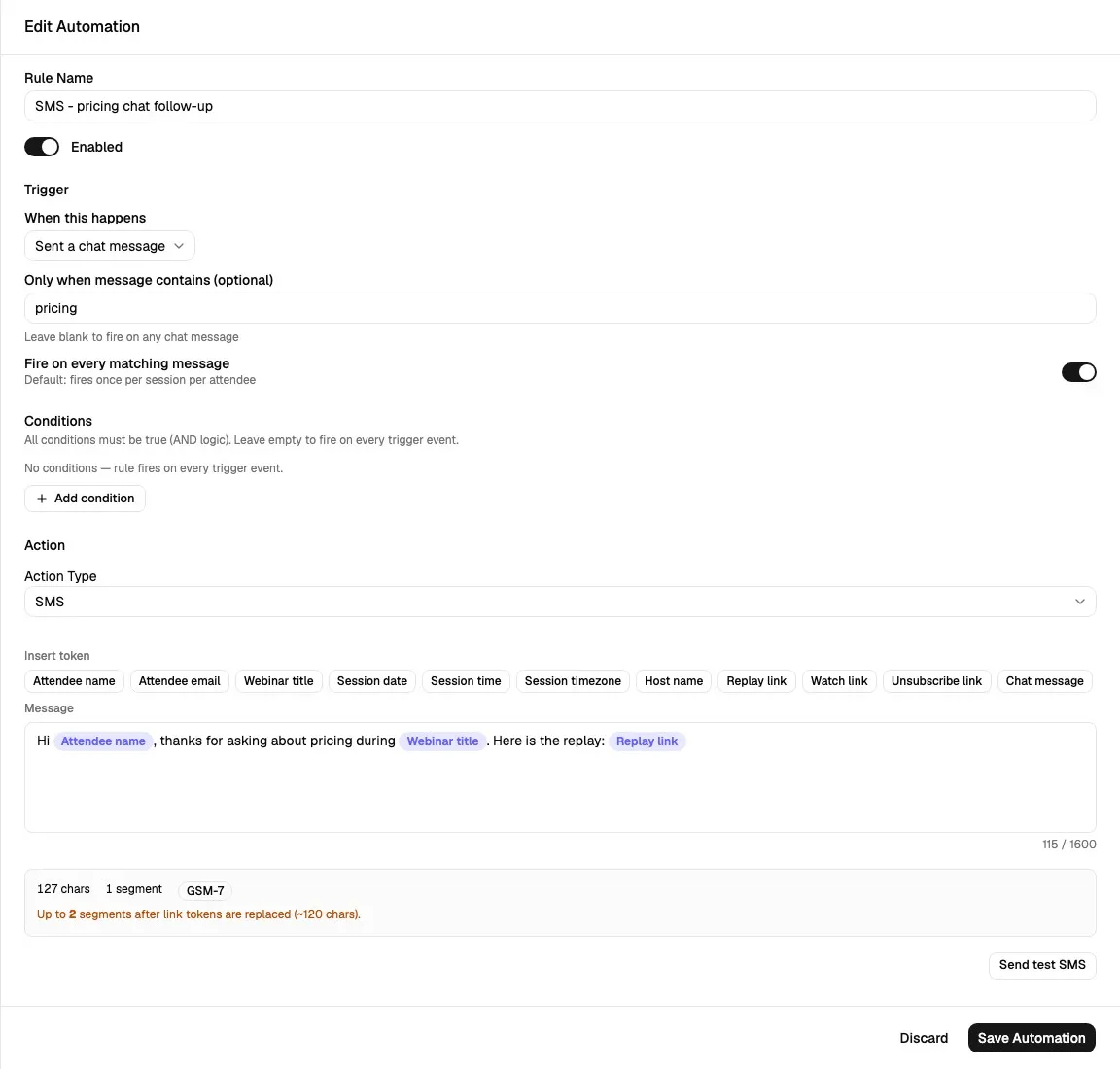
SMS fields:
| Field | Meaning |
|---|---|
| Insert token | Adds a personalization token to the SMS body. |
| Message | Plain-text SMS body. |
| Character count | Shows current message length. |
| Segment count | Estimates SMS segment usage. |
| Encoding badge | Shows GSM-7 or UCS-2 encoding. |
| Worst-case token warning | Warns when replaced link tokens could increase segment count. |
| Send test SMS | Sends a test SMS to an E.164 phone number. |
| Delivery History | Shows SMS delivery attempts for existing SMS rules. |
SMS body limit:
| Detail | Behavior |
|---|---|
| Maximum body length | 1600 characters. |
| Formatting | Plain text only. |
| Token support | Uses the same personalization token catalog as automation emails. |
| Twilio requirement | Twilio must be connected before production SMS sends can succeed. |
SMS delivery history shows masked phone numbers, status, attempts, and re-fire controls for eligible failed rows. Permanent Twilio failures cannot be re-fired.
Use Twilio SMS Integration for full setup, consent, opt-out, delivery, and compliance guidance.
Delivery And Execution Model
Section titled “Delivery And Execution Model”The Automations tab creates the rule definition. The background automation system runs the rule when attendee activity or timing events occur.
For behavior triggers, the flow is:
- An attendee event is recorded.
- WebinarStack loads enabled automation rules for that webinar and trigger type.
- WebinarStack loads the attendee’s current engagement state.
- Conditions are evaluated with AND logic.
- If the rule passes, WebinarStack writes an execution ledger row.
- The action event is dispatched to the correct worker: email, webhook, integration, or SMS.
- The action worker sends the message or external request.
- Delivery status is logged where that channel has a visible delivery history.
Time-based triggers use dedicated scheduled paths:
| Trigger | Scheduling Model |
|---|---|
| Before session | Runs relative to the scheduled session start. |
| After session | Runs relative to session start plus video duration. |
| Time elapsed after registration | Runs after the configured delay from registration. |
| Time elapsed after session end | Runs after the configured delay from session end. |
The execution ledger prevents duplicate sends when background jobs retry. Chat automations can opt into per-message behavior with Fire on every matching message.
How This Tab Connects To Other Tabs
Section titled “How This Tab Connects To Other Tabs”| Related Area | Connection |
|---|---|
| Setup tab | Video duration and schedule setup affect watched thresholds, after-session timing, and before-session reminders. |
| Registration tab | Registration events start confirmation, reminder, CRM, and SMS opt-in workflows. |
| Experience tab | Offers, polls, chat messages, and adaptive transitions create the behavior automations can react to. |
| Replay tab | Replay viewing, replay offer clicks, replay poll responses, and replay completion can inform follow-up strategy. |
| Settings | Email delivery, Twilio, and ESP provider connections are configured at the account level. |
| Analytics | Automation history appears in attendee analytics and helps validate whether rules are firing. |
| Developer & AI | REST API and MCP tools can list, create, update, or delete automation rules. |
Recommended Automation Setup Flow
Section titled “Recommended Automation Setup Flow”Use this sequence when building automations for a launch:
- Decide the automation goal: confirmation, reminder, high-intent follow-up, no-show recovery, CRM update, SMS reminder, or webhook routing.
- Confirm the required account connection exists: Email Delivery, Twilio, or ESP integration.
- Create any provider resources first, such as tags, lists, groups, or custom fields.
- Open the webinar editor and go to Automations.
- Click Add automation.
- Name the rule clearly.
- Choose the trigger.
- Fill any trigger-specific fields.
- Add conditions only when the rule should apply to a narrower audience.
- Choose the action type.
- Fill the action fields.
- Use preview or test send controls when available.
- Save the automation.
- Trigger a test registration or test event.
- Review delivery history, analytics, or provider updates.
- Leave only production-ready rules enabled.
Common Recipes
Section titled “Common Recipes”Registration Confirmation Email
Section titled “Registration Confirmation Email”Use this when every registrant should receive a confirmation email.
| Field | Recommended Value |
|---|---|
| Trigger | Registered. |
| Conditions | Empty. |
| Action Type | Email. |
| Attach calendar invite | On when the session has a scheduled time. |
| Delay after trigger | 0. |
Include {{watch_link}}, {{session_date}}, {{session_time}}, and {{session_timezone}}.
High-Intent Sales Webhook
Section titled “High-Intent Sales Webhook”Use this when your sales system should receive only strong buying-intent signals.
| Field | Recommended Value |
|---|---|
| Trigger | Watched at least X%. |
| Threshold | 75. |
| Conditions | Clicked Offer equals the relevant offer ID. |
| Action Type | Webhook. |
| Destination URL | Your CRM, backend, or no-code workflow endpoint. |
After saving, reopen the rule and copy the generated webhook secret.
Add Completers To Kit
Section titled “Add Completers To Kit”Use this when attendees who complete the webinar should be added or updated in Kit.
| Field | Recommended Value |
|---|---|
| Trigger | Completed the video. |
| Conditions | Empty, or add offer/poll conditions for a narrower audience. |
| Action Type | Integration. |
| Provider | Kit. |
| Action | Add/upsert subscriber or Apply tag. |
Connect Kit in Settings before creating the rule.
SMS Chat Follow-Up
Section titled “SMS Chat Follow-Up”Use this when someone asks a targeted question in chat.
| Field | Recommended Value |
|---|---|
| Trigger | Sent a chat message. |
| Only when message contains | A keyword such as pricing, demo, or replay. |
| Fire on every matching message | Off unless every matching message should send a separate SMS. |
| Action Type | SMS. |
| Message | Short, personalized message with a useful next step. |
Make sure registration pages collect SMS consent before relying on SMS automations.
Troubleshooting
Section titled “Troubleshooting”| Issue | Likely Cause | What To Do |
|---|---|---|
| Rule does not fire | Rule is disabled, trigger did not occur, or conditions did not pass. | Check the rule list toggle, trigger choice, and conditions. |
| Rule fires for too many people | Conditions are empty or too broad. | Add conditions, or split broad rules into narrower ones. |
| Rule never saves | Required fields are missing or the account subscription is inactive. | Fill rule name, action fields, valid URLs/emails, then check billing status. |
| Webhook secret is missing | The webhook rule has not been saved yet. | Save the rule, reopen it, then copy the generated secret. |
| Webhook delivery failed | Endpoint returned an error, timed out, or rejected the signature. | Open Delivery History, inspect the response code/body, fix the endpoint, and re-fire if appropriate. |
| Integration provider is not listed | Provider is not connected. | Connect it from Settings -> Integrations. |
| Integration tag/list/group/field is missing | Resource does not exist in the provider or the provider lookup failed. | Create it in the provider, refresh the editor, and check the provider connection. |
| SMS action shows a Twilio warning | Twilio is not connected or has an error state. | Set up Twilio from Settings -> Integrations. |
| SMS sends are skipped | Recipient lacks SMS opt-in, phone is missing, quiet hours apply, or Twilio rejected the destination. | Check registration phone/consent collection and SMS delivery history. |
| Before-session rule does not run for JIT | Before-session triggers require scheduled sessions. | Use fixed/recurring sessions or use a time-elapsed trigger instead. |
| Chat automation sends more than expected | Fire-on-every-message is enabled or the keyword is too broad. | Turn off fire-on-every-message or use a more specific keyword. |
| Disabled provider rules appear | Disconnecting a provider can disable rules that depend on it. | Reconnect the provider, review each rule, and re-enable only the rules you want active. |
Automations Tab Checklist
Section titled “Automations Tab Checklist”Before launch, confirm:
- Every rule name is clear.
- Only production-ready rules are enabled.
- Registration confirmation exists if attendees should receive one.
- Reminder timing matches the webinar schedule.
- Before-session rules are not relying on JIT-only sessions.
- Email Delivery is connected if email should send through SendGrid or Postmark.
- Twilio is connected before SMS rules are enabled.
- SMS consent is collected before SMS follow-up is used.
- ESP integrations are connected and provider resources exist.
- Webhook endpoints are reachable and verify signatures.
- Conditions are intentionally broad or narrow.
- Chat keyword rules use specific terms.
- Test emails and test SMS messages have been sent where relevant.
- Webhook or SMS delivery history has been reviewed after testing.
- Analytics confirms automation activity during test registrations.
Next tab: Webinar Settings Tab.