
Slack Chat Integration
The Slack integration connects WebinarStack’s built-in chat system to a Slack workspace. It lets your team handle attendee questions from Slack while attendees stay inside the WebinarStack watch page.
This is different from a simple Slack notification. WebinarStack creates a two-way workflow:
- An attendee sends a message in the WebinarStack chat panel.
- WebinarStack forwards that message into the Slack channel selected for the webinar.
- Your team replies in the Slack thread.
- WebinarStack sends that reply back to the attendee’s chat panel.
Use this guide to understand how Slack works with WebinarStack chat, how to configure live chat through Slack, what the attendee and host experience looks like, and how to troubleshoot the integration.
The Short Version
Section titled “The Short Version”| Concept | What It Means |
|---|---|
| Integration type | Account-level Slack workspace connection plus per-webinar Slack channel selection. |
| Main use | Live attendee chat handled from Slack threads. |
| Required chat mode | Built-in Chat. External chat widgets do not use the Slack integration. |
| Slack connection location | Settings > Integrations > Chat > Slack. |
| Webinar channel location | Webinar editor > Experience > Chat > Live Timeline > Slack Integration. |
| Channel model | One selected Slack channel per webinar. |
| Conversation model | Each attendee message becomes a Slack message; host replies should be made in that message’s thread. |
| Attendee view | Attendees see WebinarStack chat, not Slack. They do not need Slack accounts. |
| Team view | Hosts and teammates reply from Slack. |
| Plan access | Available on plans that include the Slack integration. |
The most important practical rule is this: to use Slack for live chatting, set the webinar’s live chat mode to Built-in Chat, connect Slack in Settings, then choose a Slack channel on the webinar.
What Slack Does In WebinarStack
Section titled “What Slack Does In WebinarStack”Slack turns WebinarStack chat into a shared team inbox for webinar questions.
Without Slack:
- Attendees can use the built-in chat panel.
- Their messages are recorded as webinar chat events.
- Chat-triggered automations can still evaluate the message.
- Optional chat forwarding email can notify a host inbox.
With Slack:
- Attendee messages are also posted to a selected Slack channel.
- Teammates can discuss and answer in the Slack thread.
- Human replies in that thread are routed back to the attendee.
- The attendee sees replies as host messages inside WebinarStack.
This lets your sales, success, support, or event team work from Slack without asking attendees to leave the webinar page.
What Slack Does Not Do
Section titled “What Slack Does Not Do”The Slack integration has clear boundaries.
| It Does | It Does Not Do |
|---|---|
| Forward attendee built-in chat messages to Slack. | Embed Slack into the attendee page. |
| Let hosts reply from Slack threads. | Require attendees to have Slack accounts. |
| Route threaded Slack replies back to the original attendee. | Broadcast every Slack channel message to every attendee. |
| Connect one Slack workspace to the WebinarStack account. | Connect multiple Slack workspaces to one account at the same time. |
| Save one selected Slack channel per webinar. | Automatically choose a channel for every webinar. |
| Work with the built-in WebinarStack chat path. | Capture messages typed into an external chat widget such as Intercom or Crisp. |
Think of Slack as the host-side operator console. WebinarStack remains the attendee-facing chat system.
Slack Versus Other Chat Options
Section titled “Slack Versus Other Chat Options”WebinarStack has several chat-related options.
| Option | Where It Appears | Best For |
|---|---|---|
| Built-in Chat | Webinar editor > Experience > Chat. | WebinarStack-native chat, automated host messages, chat automations, and Slack forwarding. |
| Slack Integration | Built-in Chat settings. | Letting your team answer attendee messages from Slack. |
| Chat forwarding email | Built-in Chat settings. | Sending chat notifications to an inbox. |
| External Chat Widget | Chat mode option. | Embedding a third-party chat product instead of using WebinarStack chat. |
| Replay chat | Replay settings plus replay timeline messages. | Showing replay chat or an external replay chat widget. |
Use Built-in Chat when you want WebinarStack to understand chat messages, trigger chat-response automations, forward to Slack, and show host replies in the webinar UI.
Use External Chat Widget only when you want a separate third-party chat product to own the chat experience. External widget messages do not go through the WebinarStack chat pipeline, so they do not forward through the Slack integration.
How The Slack Chat Flow Works
Section titled “How The Slack Chat Flow Works”Attendee To Slack
Section titled “Attendee To Slack”When an attendee sends a built-in chat message:
- The attendee types into the WebinarStack chat panel.
- The message appears immediately in their local chat feed.
- WebinarStack stores the message as a
chat_messageevent. - WebinarStack queues a chat-received job.
- The Slack forwarding worker checks whether the account has Slack connected.
- The worker checks whether the webinar has a Slack channel selected.
- The worker posts the attendee message to Slack.
- Slack returns a message timestamp.
- WebinarStack stores that timestamp as the routing key for future thread replies.
If Slack is not connected or the webinar has no selected Slack channel, the message is still recorded in WebinarStack, but it is not forwarded to Slack.
Slack To Attendee
Section titled “Slack To Attendee”When a host replies in Slack:
- A teammate opens the Slack message that came from WebinarStack.
- The teammate replies in the Slack thread.
- Slack sends an event to WebinarStack.
- WebinarStack verifies the Slack request signature.
- WebinarStack ignores bot messages and non-thread messages.
- WebinarStack looks up the original attendee using the Slack thread timestamp.
- WebinarStack writes the reply to the chat replies table.
- The attendee chat panel polls for new replies.
- The reply appears in the attendee chat as a host message.
The thread is the important part. To answer an attendee, reply in the thread under the forwarded Slack message. A new top-level Slack message in the channel is ignored by the attendee chat system.
The Data Model In Plain English
Section titled “The Data Model In Plain English”You do not need to know database details to use Slack, but the model helps explain the behavior.
| Data | Scope | Meaning |
|---|---|---|
| Slack workspace connection | Account | The Slack workspace, bot token, team id, team name, and bot user id connected to your WebinarStack account. |
| Slack channel id | Webinar | The Slack channel selected for one webinar’s chat messages. |
| Chat message event | Attendee registration | A message the attendee sent from the built-in chat panel. |
| Slack thread timestamp | Attendee message | The Slack thread that maps a Slack reply back to the original attendee. |
| Chat reply | Attendee registration | A host reply that should appear in that attendee’s chat panel. |
The account can have one connected Slack workspace. Each webinar can choose its own channel within that workspace.
Setup Requirements
Section titled “Setup Requirements”Before setting up live Slack chat, confirm:
- Your account plan includes the Slack integration.
- Your billing status allows account writes.
- You are an account owner if you need to connect or disconnect Slack.
- Your Slack workspace allows installing the WebinarStack Slack app.
- You know which public Slack channel should receive webinar chat messages.
- The webinar uses Built-in Chat for live chat.
If your Slack workspace requires admin approval for app installs, complete that approval in Slack before relying on the integration for a launch.
Connect Slack
Section titled “Connect Slack”Slack is connected at the account level.
- Open Settings.
- Select Integrations.
- Find the Chat section.
- Click Connect Slack.
- Approve the Slack authorization screen.
- Return to WebinarStack.
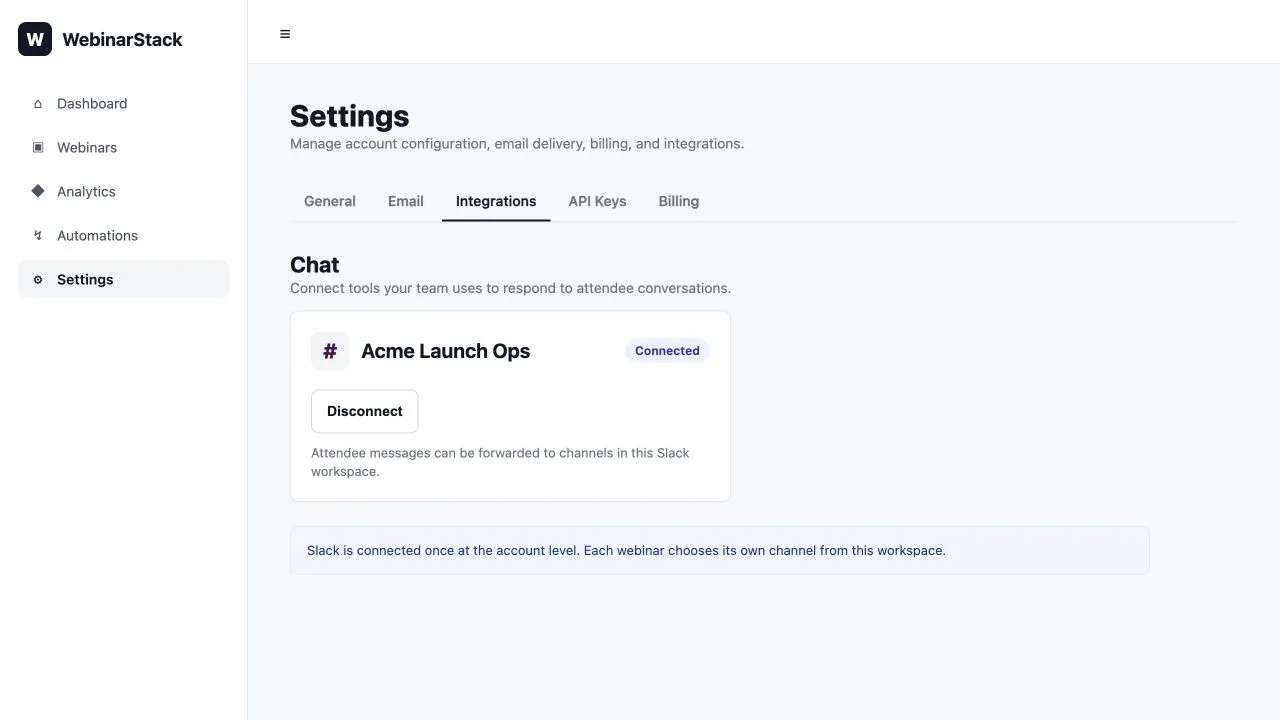
- Confirm the Slack card shows the connected workspace.
Only account owners can connect Slack. Connecting Slack authorizes a workspace-level bot, so it is treated as an owner-level integration action.
When Slack is connected, the Settings card shows the connected workspace name and a Connected badge.
Slack Permissions
Section titled “Slack Permissions”During authorization, Slack asks for the permissions WebinarStack needs to power the chat workflow.
| Permission Purpose | Why WebinarStack Needs It |
|---|---|
| Read channels | Show available Slack channels in the webinar channel picker. |
| Join channels | Add the bot to the selected public channel before saving it. |
| Post messages | Forward attendee chat messages into Slack. |
| Receive Slack events | Detect threaded host replies and send them back to WebinarStack chat. |
WebinarStack stores the resulting bot token encrypted and does not display it in the dashboard.
Replace A Slack Connection
Section titled “Replace A Slack Connection”If a Slack workspace is already connected and you start the connection flow again, WebinarStack asks whether to replace the existing connection.
Choose Keep Current when the existing workspace is correct.
Choose Replace Connection when:
- You connected the wrong Slack workspace.
- Your company migrated to a new Slack workspace.
- The Slack app was removed and needs a clean authorization.
- The bot token needs to be rotated.
After replacing the workspace, review each webinar’s selected Slack channel. Channel ids belong to a workspace, so a channel saved from the old workspace may not be valid in the new one.
Disconnect Slack
Section titled “Disconnect Slack”To disconnect:
- Open Settings.
- Select Integrations.
- Find the Slack card.
- Click Disconnect.
- Confirm Disconnect Workspace.
Disconnecting Slack removes the workspace connection. Future attendee chat messages will no longer forward to Slack.
Disconnecting does not remove your webinar chat messages, existing attendee events, or past replies already shown in WebinarStack chat. It only removes the account’s active Slack connection.
If Slack authorization revoke fails on Slack’s side, WebinarStack still deletes the local connection so the account is not left holding a stale token.
Configure A Webinar For Slack Live Chat
Section titled “Configure A Webinar For Slack Live Chat”After Slack is connected, configure each webinar that should forward chat to Slack.
- Open the webinar.
- Go to Experience.
- Open Chat.
- Make sure Live Timeline is selected.
- Set Chat Mode to Built-in Chat.
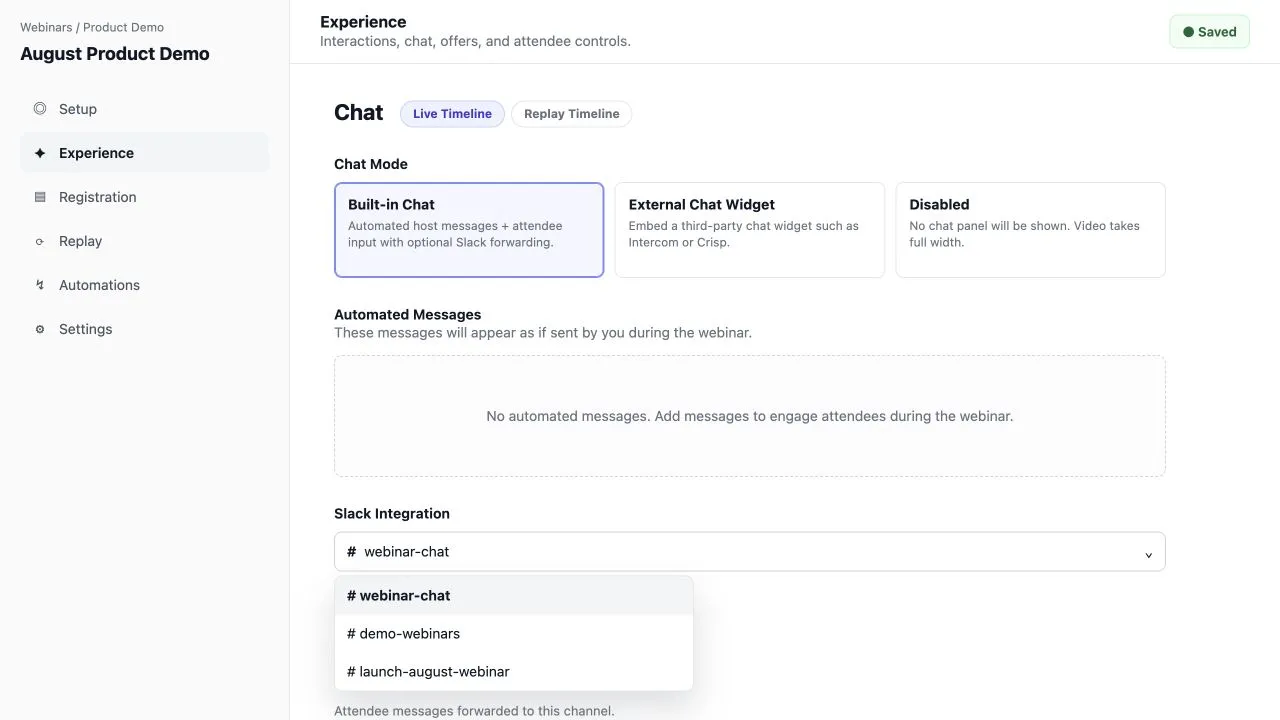
- In Slack Integration, choose the Slack channel.
- Wait for the “Slack channel updated” confirmation.
The Slack Integration section appears only for live Built-in Chat. If chat is disabled or set to External Chat Widget, the Slack channel picker is not shown.
Channel Selection
Section titled “Channel Selection”The channel picker lists available Slack channels from the connected workspace.
Important behavior:
- The list is loaded only after Slack is connected.
- The normal picker shows non-archived public channels.
- The list is capped and cached briefly, so a brand-new channel may not appear immediately.
- Selecting a channel auto-saves the webinar setting.
- WebinarStack attempts to join the selected channel before saving it.
- Each webinar can use a different Slack channel.
Good channel patterns:
| Pattern | Example | Use It When |
|---|---|---|
| One shared webinar channel | #webinar-chat |
A small team handles all webinars in one place. |
| Channel per program | #demo-webinars, #training-webinars |
Teams own different webinar types. |
| Channel per launch | #launch-august-webinar |
A high-value campaign needs close monitoring. |
| Channel per team | #sales-webinar-questions |
Sales or success owns attendee response. |
For production launches, create the channel ahead of time, connect it in WebinarStack, and send a test attendee message before the event.
Live Chat Workflow For Hosts
Section titled “Live Chat Workflow For Hosts”Once Slack is connected and the webinar channel is selected, your team can answer from Slack.
- An attendee sends a message in the webinar chat.
- A message appears in the selected Slack channel.
- The Slack message includes the attendee name and message.
- Open the Slack thread for that message.
- Reply in the thread.
- The attendee sees your reply in their WebinarStack chat panel.
Use Slack threads as one-on-one attendee conversations. Do not reply as a new top-level channel message if you want the attendee to see it.
What Hosts See In Slack
Section titled “What Hosts See In Slack”The forwarded Slack message is formatted around the attendee question.
It includes:
- The attendee name.
- The attendee message.
- Internal metadata that links the Slack thread to the WebinarStack attendee registration.
The internal metadata is not something hosts need to manage. It lets WebinarStack know which attendee should receive replies in that thread.
What Attendees See
Section titled “What Attendees See”Attendees see the built-in WebinarStack chat panel.
They can see:
- Automated host messages that were scheduled on the webinar timeline.
- Their own sent messages.
- Replies from Slack, shown as host messages.
They do not see:
- The Slack channel.
- Slack usernames.
- Slack internal discussion outside the thread replies routed back by WebinarStack.
- Top-level Slack messages that were not replies to their forwarded chat message.
The host display name and host avatar come from the webinar’s branding settings.
Timing And Polling
Section titled “Timing And Polling”Attendee messages appear locally as soon as the attendee sends them.
Slack delivery is asynchronous. WebinarStack queues the forwarding work and posts to Slack in the background.
Host replies from Slack are also asynchronous. The attendee chat panel checks for new replies about every 15 seconds. In practice, a Slack reply may take a short moment to appear for the attendee.
Automated Chat Messages And Slack
Section titled “Automated Chat Messages And Slack”Automated chat messages are different from attendee messages.
| Message Type | Where It Comes From | Goes To Slack? |
|---|---|---|
| Automated host message | Webinar timeline. | No. It appears in attendee chat based on timestamp. |
| Attendee message | Built-in chat input. | Yes, when Slack is connected and a channel is selected. |
| Slack thread reply | Host reply in Slack thread. | It comes from Slack and appears in attendee chat. |
| Top-level Slack channel message | Slack channel. | No. It is ignored by WebinarStack attendee chat. |
Use automated messages to create the feel of a guided webinar. Use Slack replies for real attendee questions.
Slack And Chat Automations
Section titled “Slack And Chat Automations”Slack forwarding and chat automations can run from the same attendee message.
When an attendee sends a built-in chat message, WebinarStack records the chat event and also evaluates chat-response automations. This means you can:
- Forward the message to Slack for live team response.
- Trigger an automation when the message contains a keyword.
- Send a webhook to a CRM or support queue.
- Send an email or SMS follow-up using attendee context from the chat workflow.
- Add the attendee to an external marketing segment.
Example:
| Workflow | Configuration |
|---|---|
| Live response | Slack channel selected on the webinar. |
| Sales alert | Automation trigger: Sent a chat message, keyword: pricing, action: webhook. |
| Follow-up | Automation trigger: Sent a chat message, keyword: demo, action: email. |
Slack handles the human conversation. Automations handle routing, tagging, follow-up, and downstream systems.
Slack Versus Webhook Slack Alerts
Section titled “Slack Versus Webhook Slack Alerts”There are two ways to involve Slack.
| Approach | Use It For |
|---|---|
| Slack Chat Integration | Two-way host replies from Slack into WebinarStack chat. |
| Webhook to Slack or a workflow tool | One-way alerts for high-signal events. |
Use the Slack Chat Integration when your team needs to answer attendee questions.
Use webhooks when you want one-way alerts such as:
- Offer clicked.
- Watched at least 80 percent.
- Asked a pricing question.
- Reached a sales-ready score.
The webhook approach does not automatically route Slack replies back to the attendee. For live chatting, use the Slack Chat Integration.
Slack And Chat Forwarding Email
Section titled “Slack And Chat Forwarding Email”Chat forwarding email is separate from Slack.
When Built-in Chat is enabled, you can enter a Chat forwarding email for the webinar. That sends chat notifications to an email inbox. Slack can also be connected for the same webinar.
Use both when:
- Slack is the live response console, but an inbox should keep a copy.
- A teammate outside Slack needs to monitor webinar questions.
- You want a backup notification path.
Leave the forwarding email blank when Slack is enough for your team.
Slack And Replay Chat
Section titled “Slack And Replay Chat”Live chat and replay chat have separate configuration areas.
Slack channel selection lives in the live Built-in Chat settings. Replay chat mode is controlled from Replay settings and can be built-in, external, or disabled.
For launch planning, treat Slack as your live-response workflow:
- Use live Built-in Chat for Slack-powered live Q&A.
- Use replay chat settings for the replay experience.
- Test replay questions separately if your replay setup expects hosts to respond after the live session.
Recommended Team Workflow
Section titled “Recommended Team Workflow”For a smooth live webinar:
- Create a Slack channel before launch.
- Connect Slack in WebinarStack.
- Select the channel on the webinar.
- Add the response team to the Slack channel.
- Decide who owns first response.
- Decide which questions should be answered live in chat, escalated to sales, or moved to support.
- Create chat-response automations for high-intent keywords.
- Send a test attendee message.
- Reply in the Slack thread.
- Confirm the reply appears in the attendee chat panel.
During the webinar:
- Keep the Slack channel open.
- Reply in threads.
- Use short, direct answers.
- Avoid internal discussion in attendee-facing reply threads unless you are clear about what should be sent back.
- Use emoji reactions or internal comments carefully; only actual text replies in the thread become attendee replies.
- Use automations for structured follow-up rather than relying on a host to remember every next step.
After the webinar:
- Review high-intent chat messages.
- Check related automation outcomes.
- Add follow-up notes to your CRM if needed.
- Keep the Slack channel for audit/history or archive it according to your team’s process.
Testing The Integration
Section titled “Testing The Integration”Test Slack chat before every important launch.
Setup Test
Section titled “Setup Test”- Connect Slack in Settings.
- Open the webinar.
- Set live Chat Mode to Built-in Chat.
- Select the Slack channel.
- Open the attendee watch page with a test registration.
- Send a message from the attendee chat panel.
- Confirm the message appears in Slack.
- Reply in the Slack thread.
- Confirm the reply appears in the attendee chat panel.
What To Verify
Section titled “What To Verify”| Check | Expected Result |
|---|---|
| Slack card | Shows the correct connected workspace. |
| Channel picker | Shows the channel you want to use. |
| Channel save | Shows a success confirmation after selecting the channel. |
| Attendee send | Message appears in the attendee chat immediately. |
| Slack forward | Message appears in the selected Slack channel. |
| Thread reply | Reply in the Slack thread appears back in attendee chat. |
| Automation | Chat-response automations fire only when their trigger and conditions match. |
Troubleshooting
Section titled “Troubleshooting”Slack Card Does Not Show Connected
Section titled “Slack Card Does Not Show Connected”Check:
- You completed the Slack authorization flow.
- You are looking at the correct WebinarStack account.
- Your Slack admin approved the app if approval is required.
- The account plan includes Slack integration.
- The account is active.
If you denied Slack authorization, start the connection again.
Connect Slack Redirects To Billing
Section titled “Connect Slack Redirects To Billing”Slack is capability-gated. If the account plan does not include Slack integration, WebinarStack redirects to billing.
Upgrade to a plan that includes Slack, then start the connection again.
Only An Owner Can Connect Or Disconnect
Section titled “Only An Owner Can Connect Or Disconnect”Connecting and disconnecting Slack are owner-level actions because they authorize or revoke a workspace-level bot connection.
Ask an account owner to connect Slack if you do not see or cannot complete the connection action.
Channel List Is Empty
Section titled “Channel List Is Empty”Check:
- Slack is connected.
- The workspace has public channels available.
- The WebinarStack Slack app has permission to read channels.
- The channel is not archived.
- The channel was created more than a few minutes ago.
The channel list is cached briefly. If you just created a channel, wait a few minutes and try again.
Channel Selection Fails
Section titled “Channel Selection Fails”When you select a channel, WebinarStack tries to join the channel before saving it.
Check:
- The selected channel still exists.
- The selected channel is public.
- The Slack app is allowed to join the channel.
- Slack has not restricted app activity in that workspace.
- Your WebinarStack account still has Slack integration access.
Attendee Messages Do Not Reach Slack
Section titled “Attendee Messages Do Not Reach Slack”Check:
- The webinar live chat mode is Built-in Chat.
- Slack is connected in Settings.
- A Slack channel is selected for the webinar.
- The Slack app is still installed in the workspace.
- The bot is a member of the selected channel.
- The attendee is using the WebinarStack built-in chat panel, not an external widget.
- Background jobs are running.
If no channel is selected, WebinarStack records the chat message but does not forward it to Slack.
Slack Replies Do Not Appear For Attendees
Section titled “Slack Replies Do Not Appear For Attendees”Check:
- The host replied in the Slack thread under the forwarded attendee message.
- The host did not post a new top-level message in the channel.
- The reply was sent by a human user, not by the bot itself.
- The attendee kept the watch page open long enough for polling.
- The Slack Events connection is healthy.
- The original attendee message was forwarded successfully, which creates the thread mapping.
Replies usually appear after the attendee chat panel checks for updates. Wait a short moment before assuming the reply failed.
The Bot Says It Is Not In The Channel
Section titled “The Bot Says It Is Not In The Channel”WebinarStack attempts to join the selected public channel when you save the channel. If the bot still is not in the channel:
- Re-select the channel in WebinarStack.
- Invite the WebinarStack Slack app to the channel from Slack.
- Confirm the channel has not been converted, archived, or restricted.
- Select a different public channel and test again.
Messages Appear In WebinarStack But Not Slack
Section titled “Messages Appear In WebinarStack But Not Slack”The attendee UI can show a message immediately before the background Slack forwarding completes. If the Slack send fails later, the attendee may still see their own local message.
Check the Slack connection and channel selection, then send another test message.
External Chat Widget Is Enabled
Section titled “External Chat Widget Is Enabled”External chat widgets do not send messages through WebinarStack built-in chat. That means:
- Slack forwarding will not receive those external messages.
- Chat-response automations will not evaluate those external messages.
- Slack thread replies cannot appear back inside the external widget.
Switch live Chat Mode to Built-in Chat if you want Slack-powered live chatting.
Security And Privacy
Section titled “Security And Privacy”Slack chat touches attendee data, so the integration has several protections.
| Protection | Meaning |
|---|---|
| Owner-only connection | Only account owners can connect or disconnect Slack. |
| Plan gate | Slack actions require an account plan that includes Slack integration. |
| Encrypted token storage | Slack bot tokens are stored encrypted. |
| Account scoping | Slack connection data is scoped to the current WebinarStack account. |
| CSRF-protected OAuth | The Slack connection flow uses signed state and a matching cookie. |
| Slack request signing | Incoming Slack events are verified before processing. |
| Replay protection | Old Slack requests are rejected based on timestamp. |
| Bot-message filter | The system ignores the bot’s own Slack messages to avoid loops. |
| Thread mapping | Replies route only when the Slack thread matches a known attendee message. |
Operational best practices:
- Use a dedicated Slack channel for webinar questions.
- Limit channel membership to teammates who should see attendee messages.
- Do not paste sensitive attendee data into Slack unless your internal policy allows it.
- Reply with customer-facing language in Slack threads because replies are shown to attendees.
- Reconnect Slack if the workspace app permissions change.
- Disconnect Slack when the integration is no longer needed.
Privacy Expectations For Teams
Section titled “Privacy Expectations For Teams”Attendee chat messages may contain names, emails, questions, business details, or support concerns. When Slack is connected, those messages are copied into your selected Slack channel.
Before launch:
- Choose a channel with the right audience.
- Avoid broad company-wide channels for private attendee questions.
- Make sure your team understands that thread replies can become attendee-visible.
- Use internal notes outside the attendee thread when teammates need to discuss strategy before replying.
Common Use Cases
Section titled “Common Use Cases”Live Sales Q&A
Section titled “Live Sales Q&A”Use Slack to let sales respond to high-intent questions during a webinar.
Suggested setup:
- Channel:
#webinar-sales. - Built-in Chat enabled.
- Slack channel selected.
- Automation for chat messages containing
pricing,demo, orcontract. - Webhook or CRM integration for high-intent follow-up.
Customer Training Support
Section titled “Customer Training Support”Use Slack to let success or support answer questions during training webinars.
Suggested setup:
- Channel:
#training-support. - Automated chat messages for common prompts.
- Slack replies for individual questions.
- Follow-up automation for questions containing
help,setup, orerror.
Launch Room
Section titled “Launch Room”Use Slack as the live operations room for a product launch webinar.
Suggested setup:
- Channel:
#launch-webinar-live. - Sales, support, and marketing in the same Slack channel.
- One person triages incoming questions.
- One person replies to attendees.
- Automations capture high-intent behavior and post to downstream systems.
AI Prompts For Planning Slack Chat
Section titled “AI Prompts For Planning Slack Chat”You can ask an AI assistant to help plan your Slack live-chat workflow. Do not paste attendee data, Slack tokens, or private workspace credentials into an AI tool.
Plan The Team Workflow
Section titled “Plan The Team Workflow”I am running a live webinar and want my team to answer attendee questions through Slack.Create a runbook for the Slack channel.Include roles for triage, first response, sales escalation, support escalation, and post-webinar follow-up.Assume attendee replies must be written in customer-facing language because Slack thread replies may appear back in the webinar chat.Write Response Templates
Section titled “Write Response Templates”Create short Slack-thread reply templates for webinar attendee questions.The host team will paste these replies into Slack, and attendees will see them inside WebinarStack chat.Write templates for pricing, demo requests, technical issues, replay access, and "can I get the slides?"Keep each reply friendly, concise, and attendee-facing.Design Keyword Automations Around Chat
Section titled “Design Keyword Automations Around Chat”Help me design WebinarStack chat-response automations for a webinar.I will also use Slack for live replies.Suggest keywords that should trigger sales follow-up, support follow-up, and educational follow-up.For each keyword group, suggest the automation action: email, webhook, integration update, or SMS.Create A Pre-Launch Test Plan
Section titled “Create A Pre-Launch Test Plan”Create a pre-launch QA checklist for WebinarStack built-in chat connected to Slack.Include tests for Slack connection, selected channel, attendee message forwarding, Slack thread replies, chat-response automations, replay behavior, and fallback if Slack is unavailable.Do not ask for Slack tokens or private credentials.Launch Checklist
Section titled “Launch Checklist”Before using Slack for a real webinar:
- Confirm the account plan includes Slack integration.
- Confirm an account owner connected the correct Slack workspace.
- Create or choose the Slack channel.
- Add the response team to the channel.
- Set live Chat Mode to Built-in Chat.
- Select the Slack channel on the webinar.
- Add any automated chat messages.
- Configure chat-response automations for high-intent keywords.
- Send a test attendee message.
- Reply in the Slack thread.
- Confirm the attendee sees the reply.
- Confirm the team understands that thread replies are attendee-facing.
- Keep the Slack channel open during the webinar.
After those checks pass, Slack is ready to act as the live response console for WebinarStack chat.