
Webinar Settings Tab
The Settings tab controls the global presentation and routing preferences for a specific webinar. Use it to decide how attendees see dates and times, which language context the webinar uses, how session times are displayed across timezones, where attendees go after the webinar or when a session link expires, and which email delivery provider is currently connected for webinar emails.
Open it from Dashboard -> Webinars -> select a webinar -> Settings.
Previous tab: Webinar Automations Tab.
This page focuses on the editor tab itself. For account-level email provider setup, see Email Delivery.
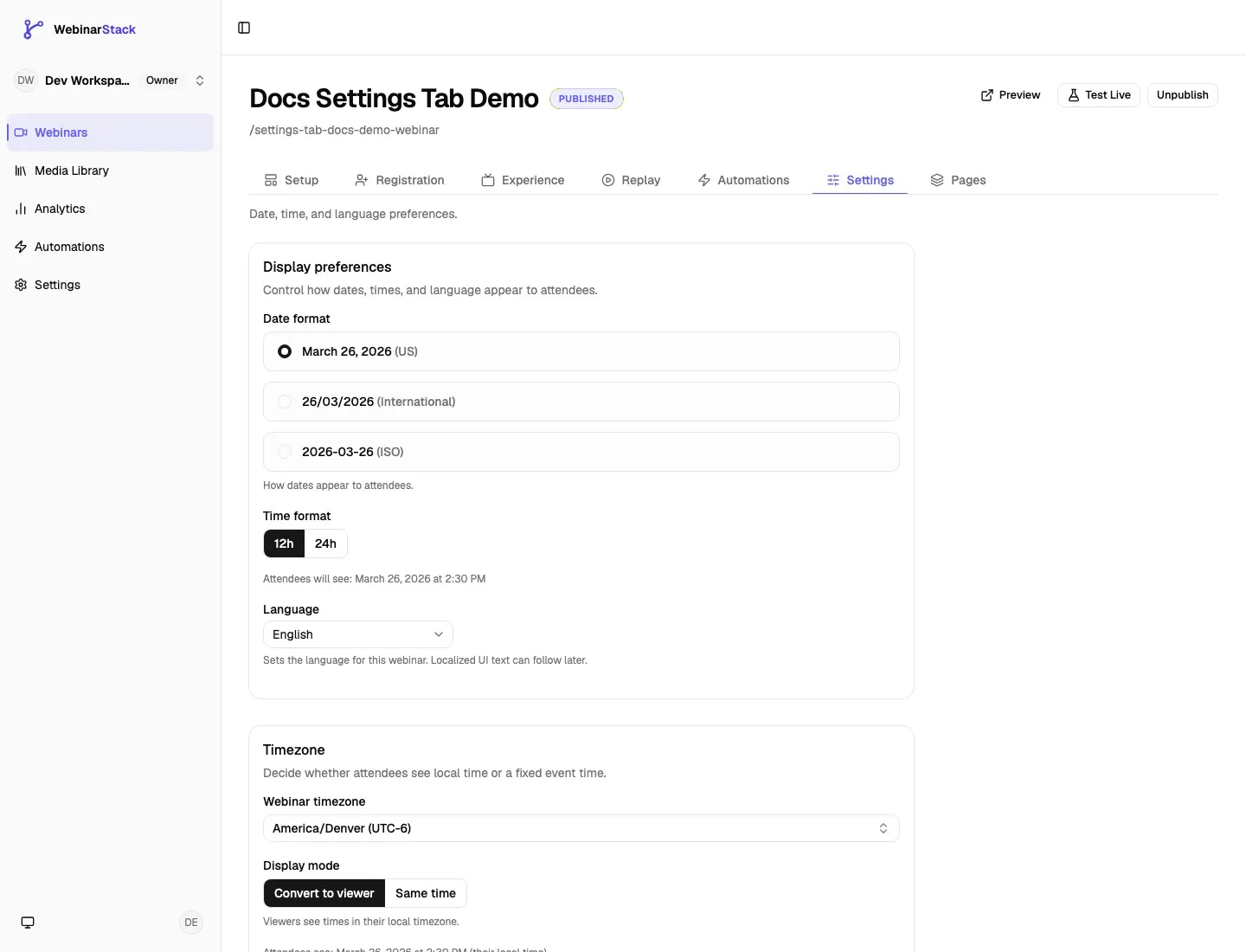
What The Settings Tab Controls
Section titled “What The Settings Tab Controls”The Settings tab is organized into four cards.
| Section | What You Control | Save Behavior |
|---|---|---|
| Display preferences | Date format, time format, and webinar language. | Uses the sticky Save changes bar. |
| Timezone | Webinar timezone and whether times convert to each viewer or stay as the same clock time. | Uses the sticky Save changes bar. |
| Redirects | Post-webinar redirect and session-expired redirect. | Uses the sticky Save changes bar. |
| Email delivery | Current account-level email delivery provider and sender status. | Read-only in this tab. Manage from account Settings. |
The Settings tab is webinar-specific. Changes here affect this webinar, not every webinar in the workspace.
The Settings tab does not control:
- The webinar schedule itself. Schedule rules live in the Setup tab.
- Replay completion redirects or expired replay redirects. Those live in the Replay tab.
- Registration thank-you URL behavior. That is part of setup and registration flow configuration.
- Automation rules, email copy, SMS copy, webhooks, or ESP actions. Those live in the Automations tab.
- Account-level provider setup for SendGrid, Postmark, Twilio, Slack, Kit, ActiveCampaign, Mailchimp, or MailerLite. Those live in workspace Settings.
Save Behavior
Section titled “Save Behavior”Most Settings tab fields use the webinar editor’s sticky Save changes bar. When you change a field, WebinarStack shows the number of unsaved changes at the bottom of the screen.
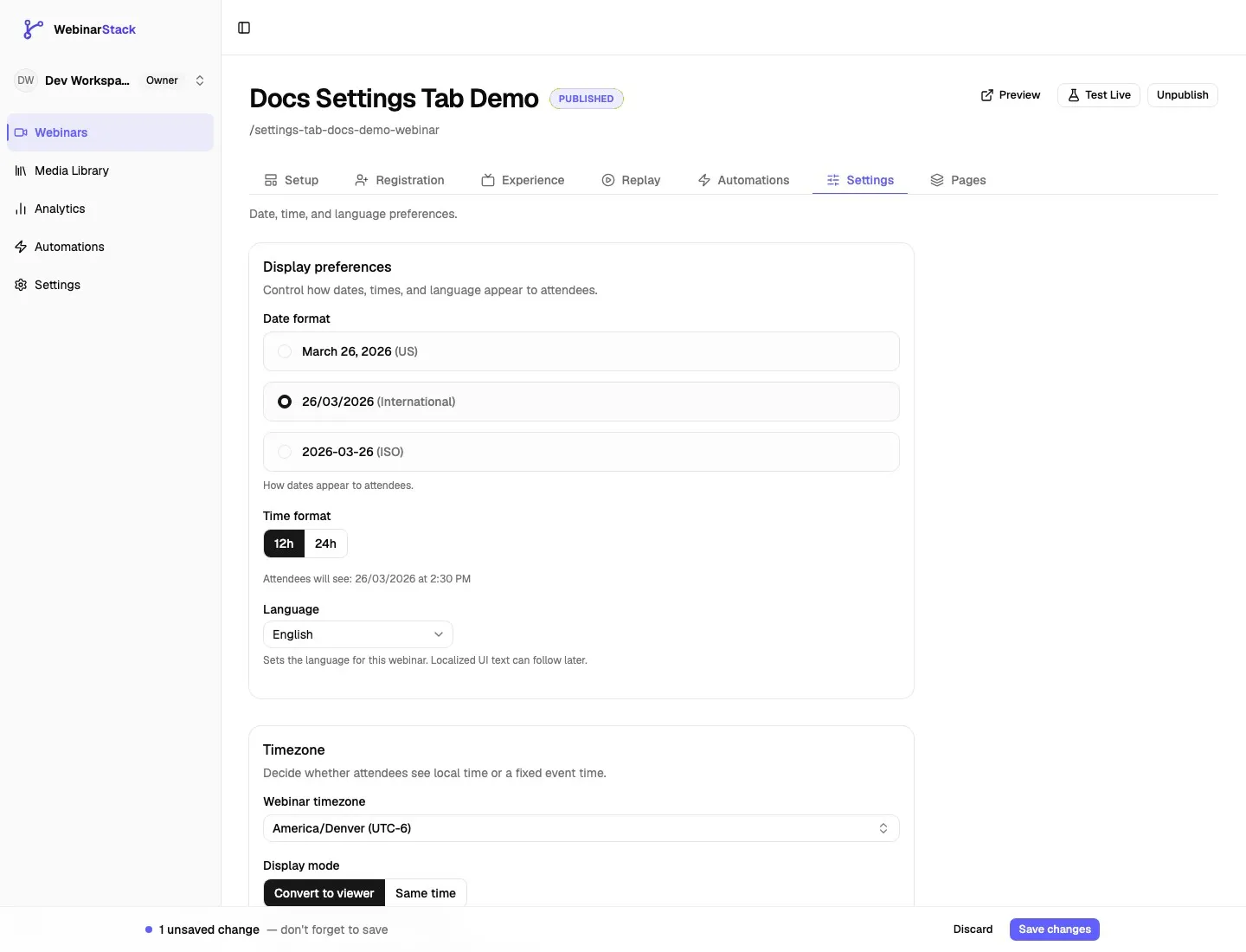
| Action | Behavior |
|---|---|
| Change date format | Marks the webinar as dirty until saved. |
| Change time format | Marks the webinar as dirty until saved. |
| Change language | Marks the webinar as dirty until saved. |
| Change timezone | Marks the webinar as dirty until saved. |
| Change timezone display mode | Marks the webinar as dirty until saved. |
| Toggle a redirect | Marks the webinar as dirty until saved. |
| Edit a redirect URL | Validates the URL and marks the webinar as dirty until saved. |
| Click Discard | Reverts unsaved Settings tab edits back to the last saved values. |
| Click Save changes | Persists the changed webinar fields. |
| Click Manage email delivery | Opens account Settings. It does not save webinar edits. |
If the sticky save bar is visible, save before leaving the editor. If the account subscription is inactive, saving editor changes can be blocked and the app routes the user toward billing recovery.
Display Preferences
Section titled “Display Preferences”The Display preferences card controls attendee-facing date, time, and language formatting.
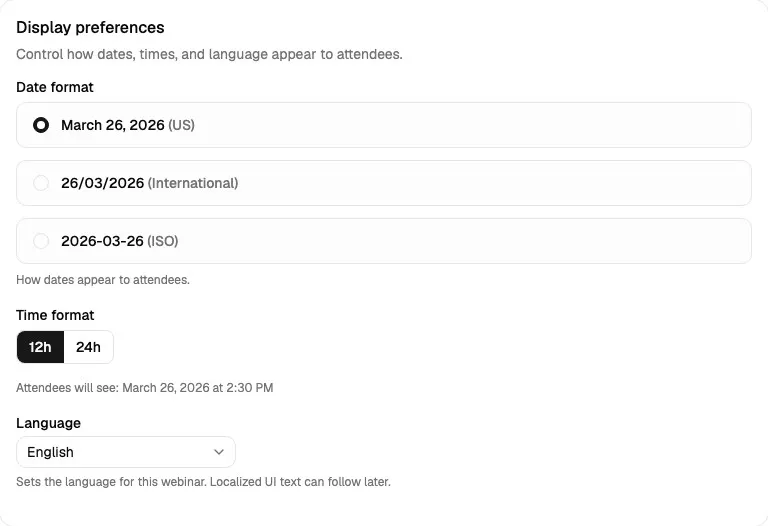
These preferences are used anywhere WebinarStack formats a session date or time for the webinar, including attendee session displays and automation session tokens.
Date Format
Section titled “Date Format”Date format controls the order and shape of displayed dates.
| Option | Example | Best Use |
|---|---|---|
MDY |
March 26, 2026 | US audiences or campaigns where month-first wording is expected. |
DMY |
26/03/2026 | International audiences where day-first numeric dates are expected. |
YMD |
2026-03-26 | ISO-style, operational, technical, or unambiguous date display. |
Changing the date format updates the preview text immediately. The change is not stored until you click Save changes.
Use MDY when the audience is mainly in the United States. Use DMY when the audience is mostly outside the United States. Use YMD when clarity is more important than regional convention, or when internal teams prefer an ISO-style date.
Time Format
Section titled “Time Format”Time format controls whether attendee-facing times use a 12-hour or 24-hour clock.
| Option | Example | Best Use |
|---|---|---|
12h |
2:30 PM | US audiences and campaigns where AM/PM is expected. |
24h |
14:30 | International audiences, B2B operations, technical audiences, and regions where 24-hour time is standard. |
The preview line combines the selected date format and time format, so users can see how the pair will look before saving.
Language
Section titled “Language”Language sets the language context for the webinar.
Available language options:
| Option | Stored Value |
|---|---|
| English | en |
| Espanol | es |
| Portugues | pt |
| Francais | fr |
| Deutsch | de |
| Italiano | it |
| Nederlands | nl |
| Polski | pl |
| Russian | ru |
| Arabic | ar |
| Hindi | hi |
| Japanese | ja |
| Korean | ko |
| Chinese | zh |
| Bahasa Indonesia | id |
| Turkish | tr |
| Swedish | sv |
| Danish | da |
The language setting is not the same as translating every visible word in the application. In the current editor, it sets the webinar’s language context and supports localized date/time formatting where those formatted values are generated. The UI note in the app says localized UI text can follow later.
Choose the language that matches the webinar audience and registration campaign. If the webinar is promoted in Spanish, for example, set the language to Spanish even if the host team manages the webinar from an English workspace.
Timezone
Section titled “Timezone”The Timezone card controls the webinar timezone and how session times are displayed to attendees.
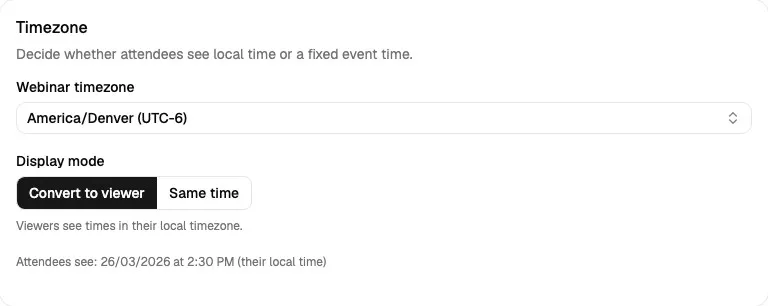
Timezone settings are especially important for:
- Global registration pages.
- Reminder emails.
- SMS reminder tokens.
- Calendar expectations.
- Teams running webinars across multiple regions.
- Automated webinars where session availability is generated from rules.
Webinar Timezone
Section titled “Webinar Timezone”Webinar timezone stores the webinar’s IANA timezone, such as America/Denver, America/New_York, Europe/London, or Asia/Tokyo.
Click the timezone field to open a searchable picker.
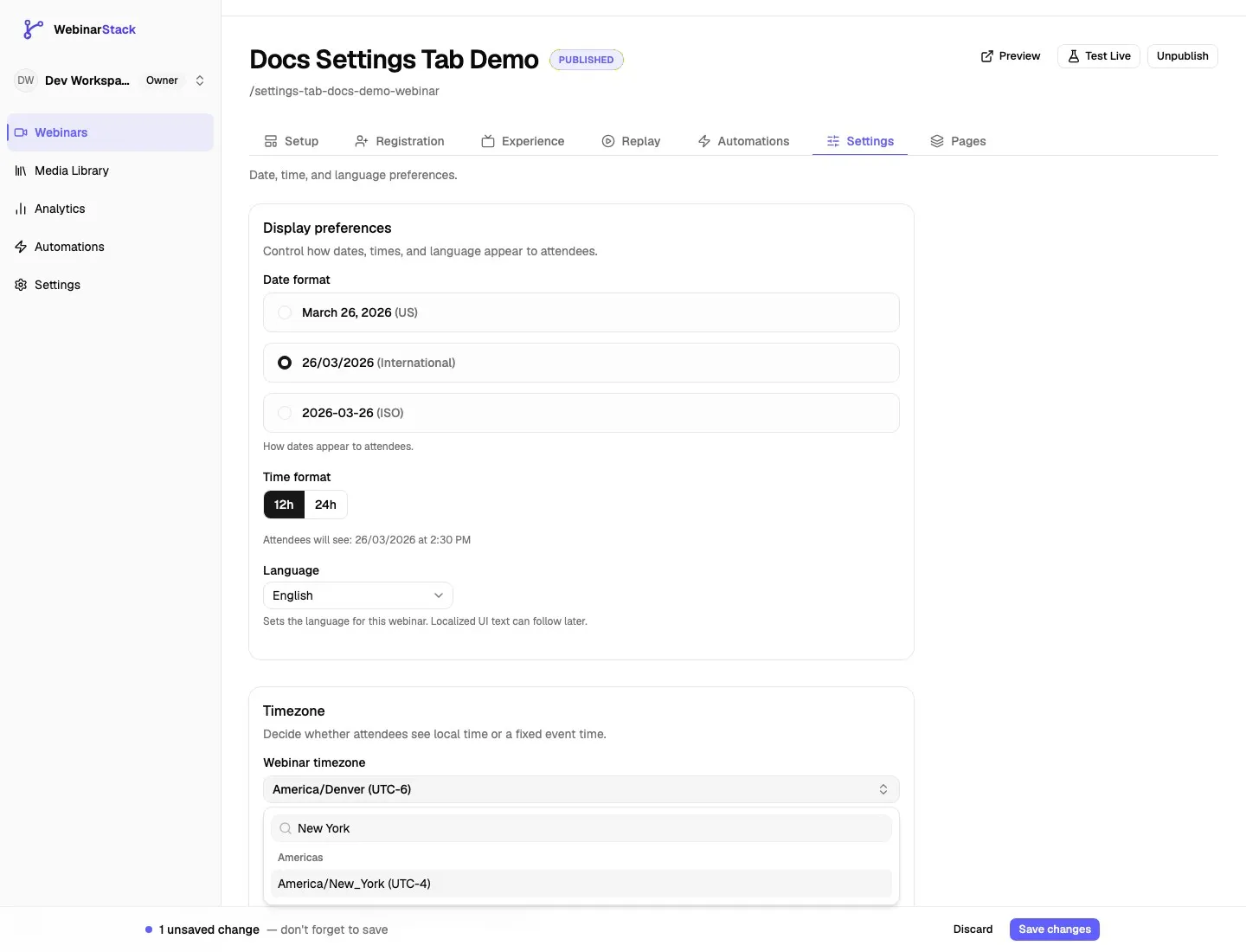
Picker behavior:
| Feature | Behavior |
|---|---|
| Search by region/city | Search values such as New York, Denver, London, or Tokyo. |
| Search by timezone abbreviation | Common abbreviations such as EST, PST, GMT, CET, IST, JST, and AEST can match representative zones. |
| Grouped list | Zones are grouped by Americas, Europe, Asia, Africa, Pacific, Atlantic, and Other. |
| UTC offset | Each zone displays its current UTC offset. |
| Saved value | The stored value is the IANA timezone string. |
Use the timezone where the webinar is anchored operationally. For example, a US Mountain Time webinar should use America/Denver, not a generic offset, because offsets change with daylight saving time.
Display Mode
Section titled “Display Mode”Display mode controls whether attendees see times converted to their local timezone or the same clock time for everyone.
| Mode | What Attendees See | Best Use |
|---|---|---|
| Convert to viewer | Viewers see times in their own local timezone. | Global audiences, remote attendees, evergreen funnels, and most webinars promoted across regions. |
| Same time | Everyone sees the same clock time in the webinar timezone. | Local events, region-specific campaigns, or situations where the advertised clock time should remain fixed for everyone. |
Convert To Viewer
Section titled “Convert To Viewer”In Convert to viewer mode, WebinarStack treats the webinar time as a real moment and displays that moment in the viewer’s timezone.
Example:
| Webinar Time | Viewer Location | Viewer Sees |
|---|---|---|
| March 26, 2026 at 2:30 PM America/Denver | New York | 4:30 PM Eastern time |
| March 26, 2026 at 2:30 PM America/Denver | Los Angeles | 1:30 PM Pacific time |
| March 26, 2026 at 2:30 PM America/Denver | London | A local London time based on the same instant |
Use this mode when a session should happen at one shared moment, and each attendee should see the equivalent local time.
Same Time
Section titled “Same Time”In Same time mode, all viewers see the same clock time no matter where they are.
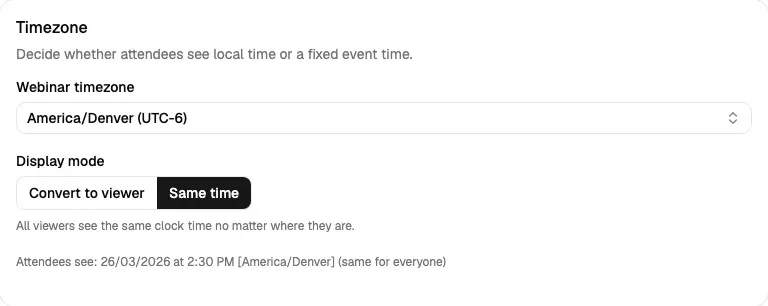
Example:
| Webinar Setting | Viewer Location | Viewer Sees |
|---|---|---|
| March 26, 2026 at 2:30 PM America/Denver | New York | March 26, 2026 at 2:30 PM America/Denver |
| March 26, 2026 at 2:30 PM America/Denver | Los Angeles | March 26, 2026 at 2:30 PM America/Denver |
| March 26, 2026 at 2:30 PM America/Denver | London | March 26, 2026 at 2:30 PM America/Denver |
Use this mode carefully. It is useful when the displayed clock time is part of the offer or event expectation. It is not usually the best choice for global audiences that expect automatic local conversion.
Redirects
Section titled “Redirects”The Redirects card controls two general webinar redirects.
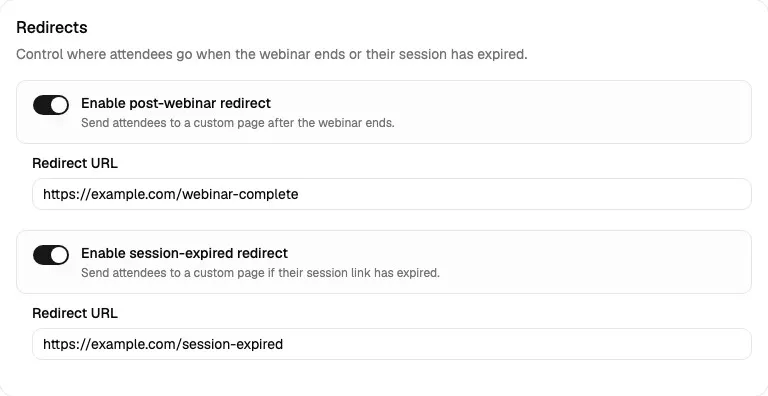
Redirect settings are separate from replay-specific redirects in the Replay tab.
| Redirect | When It Applies | Typical Destination |
|---|---|---|
| Post-webinar redirect | After a non-replay webinar session ends, when a URL is configured. | Offer page, booking page, survey, application, or thank-you page. |
| Session-expired redirect | When an attendee opens a session link that is no longer valid, when a URL is configured. | Expired-access page, registration page, support page, or replay availability page. |
Post-Webinar Redirect
Section titled “Post-Webinar Redirect”Turn on Enable post-webinar redirect to send attendees to a custom page after the webinar ends.
Field behavior:
| Detail | Behavior |
|---|---|
| Field type | Toggle plus URL field. |
| Applies to | Non-replay webinar completion. |
| URL validation | If a URL is entered, it must be a valid URL. |
| Save behavior | Uses the sticky Save changes bar. |
Good destinations:
- Offer checkout page.
- Sales booking page.
- Application form.
- Survey.
- Thank-you page.
- Next-step resource page.
This is not the replay completion redirect. If the destination should only apply to replay viewers, configure Redirect after replay ends in the Replay tab instead.
Session-Expired Redirect
Section titled “Session-Expired Redirect”Turn on Enable session-expired redirect to send attendees to a custom page when their session link has expired.
Field behavior:
| Detail | Behavior |
|---|---|
| Field type | Toggle plus URL field. |
| Applies to | Expired or invalid session access. |
| URL validation | If a URL is entered, it must be a valid URL. |
| Save behavior | Uses the sticky Save changes bar. |
Good destinations:
- A fresh registration page.
- A replay request page.
- A support article.
- A campaign-expired landing page.
- A page explaining that the webinar window has closed.
If replay is available, make sure this redirect does not accidentally send legitimate replay viewers away from the replay experience. Use the Replay tab’s replay availability and expired replay redirect settings for replay-specific behavior.
Redirect URL Validation
Section titled “Redirect URL Validation”Redirect URL fields validate URL format.
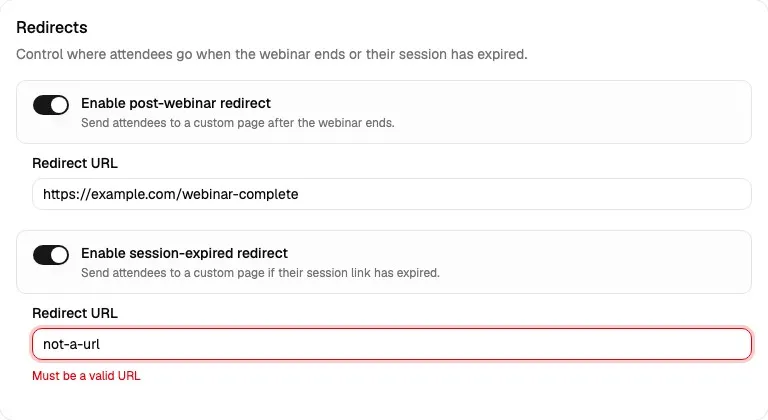
Validation behavior:
| Input | Result |
|---|---|
https://example.com/complete |
Valid. |
http://example.com/complete |
Valid. |
/thank-you |
Invalid in this field because it is not a full URL. |
example.com/complete |
Invalid because the protocol is missing. |
not-a-url |
Invalid. |
Use full URLs with https:// whenever possible.
Email Delivery
Section titled “Email Delivery”The Email delivery card shows the current account-level sending provider for webinar emails.
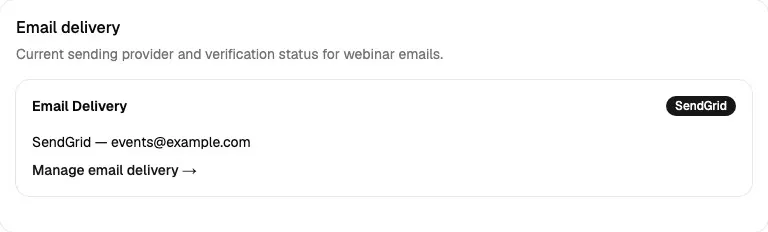
This card is informational inside the webinar editor. It helps users understand which provider will be used for webinar emails without leaving the editor.
Possible states:
| State | Meaning |
|---|---|
| Platform default | No custom account-level provider is connected. WebinarStack uses the platform default email delivery path. |
| SendGrid | SendGrid is connected for the account. The card shows the configured sender email. |
| Postmark | Postmark is connected for the account. The card shows the configured sender email. |
| Domain unverified | A provider exists, but the sending domain verification is not complete or the provider status is not connected. |
Click Manage email delivery to open workspace Settings, where SendGrid or Postmark can be configured. This link does not save unsaved webinar settings, so save the webinar first if the sticky save bar is visible.
Email delivery affects webinar emails such as:
- Automation emails.
- Registration confirmation emails created through automations.
- Reminder emails created through automations.
- Replay or no-show emails created through automations.
- Test emails sent from automation email actions.
Email delivery does not control SMS, Slack chat, webhooks, or ESP contact updates. Those use their own integrations and automation action types.
How Settings Connect To Other Tabs
Section titled “How Settings Connect To Other Tabs”| Related Area | Connection |
|---|---|
| Setup tab | Schedule and video setup decide when the webinar exists. Settings decide how attendees see the resulting date/time and timezone. |
| Registration tab | Registration pages and session pickers can use the webinar’s display preferences and timezone behavior. |
| Experience tab | In-webinar offers, polls, and chat are independent from Settings, but their timing is easier to understand when timezone settings are correct. |
| Replay tab | Replay redirects are separate from general post-webinar and session-expired redirects. |
| Automations tab | Email/SMS session tokens use the webinar’s date, time, and timezone settings. Email actions use the account email delivery provider shown in this tab. |
| Pages tab | Registration and thank-you pages can surface session choices that are formatted according to these settings. |
Recommended Setup Flow
Section titled “Recommended Setup Flow”Use this order when configuring Settings for a new webinar:
- Choose the Webinar timezone first.
- Decide whether the audience should use Convert to viewer or Same time.
- Choose the date format that matches the audience.
- Choose the time format that matches the audience.
- Set the webinar language.
- Add a post-webinar redirect only if there is a clear next step after the live webinar ends.
- Add a session-expired redirect only if expired links should land somewhere specific.
- Check the Email delivery card.
- If the email card shows the wrong provider or sender, manage email delivery from workspace Settings.
- Click Save changes.
Common Recipes
Section titled “Common Recipes”US Webinar With Local Time Conversion
Section titled “US Webinar With Local Time Conversion”Use this setup when most attendees are in the US, but may be across multiple US timezones.
| Field | Recommended Value |
|---|---|
| Date format | MDY |
| Time format | 12h |
| Language | English |
| Webinar timezone | The host or campaign timezone, such as America/Denver. |
| Display mode | Convert to viewer |
| Post-webinar redirect | Offer, booking, or survey URL. |
| Session-expired redirect | Registration or expired-access page. |
International Webinar
Section titled “International Webinar”Use this setup when attendees are spread across regions.
| Field | Recommended Value |
|---|---|
| Date format | DMY or YMD |
| Time format | 24h |
| Language | Audience language. |
| Webinar timezone | The operational host timezone. |
| Display mode | Convert to viewer |
| Post-webinar redirect | Global offer or next-step page. |
| Session-expired redirect | Localized registration or support page. |
Region-Specific Campaign
Section titled “Region-Specific Campaign”Use this setup when the campaign is meant for one region and the advertised clock time should stay fixed.
| Field | Recommended Value |
|---|---|
| Date format | Regional convention. |
| Time format | Regional convention. |
| Language | Campaign language. |
| Webinar timezone | Region timezone. |
| Display mode | Same time |
| Post-webinar redirect | Region-specific offer page. |
| Session-expired redirect | Region-specific expired-access page. |
Automation-Heavy Webinar
Section titled “Automation-Heavy Webinar”Use this setup when automation emails and SMS reminders are important.
| Field | Recommended Value |
|---|---|
| Date format | Match the email/SMS audience. |
| Time format | Match the email/SMS audience. |
| Language | Match email/SMS copy language. |
| Webinar timezone | The timezone you want reminder tokens to anchor to. |
| Display mode | Usually Convert to viewer. |
| Email delivery | Confirm SendGrid or Postmark is connected before launch. |
Troubleshooting
Section titled “Troubleshooting”| Issue | Likely Cause | What To Do |
|---|---|---|
| The save bar appears after changing a setting | The field has changed but has not been saved. | Click Save changes or Discard. |
| The date preview looks wrong | The wrong date format is selected for the audience. | Switch between MDY, DMY, and YMD and review the preview line. |
| Times show AM/PM but should not | 12h is selected. |
Change Time format to 24h. |
| Attendees see converted times but should see the same clock time | Display mode is set to Convert to viewer. | Change Display mode to Same time and save. |
| Attendees see the same clock time but should see local time | Display mode is set to Same time. | Change Display mode to Convert to viewer and save. |
| A timezone is hard to find | Search by city, IANA name, or common abbreviation. | Try values such as New York, Denver, London, EST, or GMT. |
| Redirect URL will not save | The URL is not a full valid URL. | Use a full URL such as https://example.com/page. |
| Attendees do not redirect after the webinar | The toggle is off, the URL is blank, or replay behavior is being used instead. | Confirm the post-webinar redirect toggle and URL, then check Replay tab redirects separately. |
| Expired sessions do not redirect | The session-expired redirect toggle is off or no URL is configured. | Turn on the redirect and enter a full URL. |
| Email provider is not what you expected | Email delivery is account-level, not webinar-specific. | Click Manage email delivery and check workspace Settings. |
| Email provider shows domain unverified | Provider credentials exist, but domain verification is incomplete or provider status is not connected. | Complete provider verification in SendGrid or Postmark, then re-check account Settings. |
Settings Tab Checklist
Section titled “Settings Tab Checklist”Before launch, confirm:
- Date format matches the primary audience.
- Time format matches the primary audience.
- Language matches the webinar and campaign copy.
- Webinar timezone is an IANA timezone tied to the host or campaign region.
- Display mode is intentional.
- Global audiences normally use Convert to viewer.
- Same time mode is used only when the same displayed clock time is intentional.
- Post-webinar redirect points to the correct next step.
- Session-expired redirect points to a helpful fallback page.
- Redirect URLs include
https://. - Email delivery shows the expected provider and sender.
- SendGrid or Postmark is configured before relying on automation emails.
- The sticky save bar is clear before leaving the editor.
Next tab: Webinar Pages Tab And Page Editor.