
Twilio SMS Integration
The Twilio SMS integration lets WebinarStack send text messages from your Twilio account when automation rules fire. It is built for attendee reminders, registration confirmations, replay nudges, no-show follow-ups, and behavior-based messages that should reach opted-in attendees outside email.
Use this guide to understand how the integration works end to end: what you connect in Settings, what registration data WebinarStack needs, how SMS automation rules are authored, how the delivery worker decides whether to send, and how to read the delivery history when something does not send.
The Short Version
Section titled “The Short Version”| Concept | What It Means |
|---|---|
| Integration provider | Twilio SMS. |
| Where to connect it | Settings > Integrations > SMS > Twilio SMS. |
| Main use | Sending SMS automation actions from webinars. |
| Connection scope | One Twilio connection per WebinarStack account. |
| Sender model | Choose exactly one sending identity: a Twilio phone number or a Twilio Messaging Service SID. |
| Required attendee data | A normalized phone number and SMS opt-in for that attendee. |
| Real-send guardrails | Twilio connection, SMS opt-in, phone number, quiet hours, staleness checks, and Twilio error classification. |
| Test sends | Available from the SMS automation editor when Twilio is connected. Test sends do not create delivery history rows. |
| Delivery history | Available on saved SMS automation rules. Shows masked phone numbers, status, attempts, message preview, errors, and re-fire controls. |
| Disconnect behavior | Disconnecting removes stored Twilio credentials and disables SMS automation rules for the account. |
The most important practical rule is this: connecting Twilio only gives WebinarStack permission to send through your Twilio account. A real attendee SMS also requires that the registration captured a valid phone number and that the attendee opted in to SMS.
How The System Fits Together
Section titled “How The System Fits Together”WebinarStack SMS has three layers.
| Layer | What It Does | Where You Manage It |
|---|---|---|
| Twilio account connection | Stores the account-level Twilio credential and sender identity. | Settings > Integrations > SMS. |
| Registration phone and consent | Captures the attendee’s phone number and SMS opt-in record. | Registration page or widget Registration Form block. |
| SMS automation action | Decides when to send, builds the message, and records delivery outcome. | Webinar editor > Automations. |
All three layers must be in place for production SMS.
- Connect Twilio in account settings.
- Enable phone capture on the registration form.
- Add SMS consent text so attendees can opt in.
- Create an SMS automation rule.
- Test the message with an internal phone number.
- Publish the webinar and monitor SMS delivery history.
If any layer is missing, WebinarStack errs on the side of not sending.
What Twilio Does In WebinarStack
Section titled “What Twilio Does In WebinarStack”Twilio is the external SMS transport provider. WebinarStack uses Twilio when it needs to send a text message for an automation rule.
When an SMS automation fires, WebinarStack:
- Loads the automation rule, attendee registration, webinar, and Twilio credentials.
- Confirms the Twilio credentials are connected.
- Confirms the attendee has a phone number and SMS opt-in.
- Applies recipient-local quiet hours.
- Checks whether a delayed live-session message is still relevant.
- Resolves message tokens such as attendee name, session time, and watch link.
- Sends the message through Twilio.
- Records the delivery outcome in SMS delivery history.
Twilio handles the actual SMS API call. WebinarStack handles rule evaluation, consent gating, quiet-hour deferral, idempotency, logging, retry classification, and rule-level delivery history.
What Twilio Does Not Do
Section titled “What Twilio Does Not Do”The Twilio integration has specific boundaries.
| It Does | It Does Not Do |
|---|---|
| Let WebinarStack send automation SMS through your Twilio account. | Automatically register your Twilio number for A2P 10DLC. |
| Store one account-level Twilio credential set securely. | Let each webinar use a different Twilio account. |
| Use either a Twilio phone number or a Twilio Messaging Service SID. | Use both a phone number and a Messaging Service SID at the same time. |
| Respect WebinarStack attendee opt-in before real automation sends. | Treat phone capture alone as SMS consent. |
| Log WebinarStack SMS delivery attempts. | Guarantee carrier or handset delivery after Twilio accepts the message. |
| Detect Twilio opted-out send failures and mark the attendee opted out. | Replace your legal, carrier-compliance, or Twilio account obligations. |
Treat WebinarStack as the automation and consent-aware sending layer. Treat Twilio as the carrier transport and sender-management layer.
Prerequisites
Section titled “Prerequisites”Before setting up SMS in WebinarStack, prepare:
| Requirement | Why It Matters |
|---|---|
| Twilio account | WebinarStack sends through your Twilio account, not a shared WebinarStack SMS account. |
| Twilio Account SID | Used with the Auth Token to authenticate to Twilio. It starts with AC. |
| Twilio Auth Token | The secret paired with the Account SID. WebinarStack never shows it back after saving. |
| Sending identity | A Twilio phone number or Messaging Service SID. |
| A2P 10DLC readiness | The connect form requires you to acknowledge that the sender is registered for A2P 10DLC. |
| Registration phone field | WebinarStack needs a phone number to send to. |
| SMS consent text | WebinarStack needs an attendee opt-in record before automation SMS sends. |
| SMS automation plan | Know which trigger should send the message and why the message is useful. |
Do not paste your Twilio Auth Token into AI tools, support chats, screenshots, public issue trackers, or documentation. If you need help troubleshooting, share the error message and masked identifiers instead.
Connect Twilio
Section titled “Connect Twilio”Manage Twilio from Settings:
- Open Settings.
- Go to Integrations.
- Find the SMS section.
- Open the Twilio SMS card.
- Click Connect Twilio.
- Enter your Twilio credentials.
- Choose a sending identity.
- Confirm the A2P 10DLC acknowledgement.
- Click Connect Twilio.
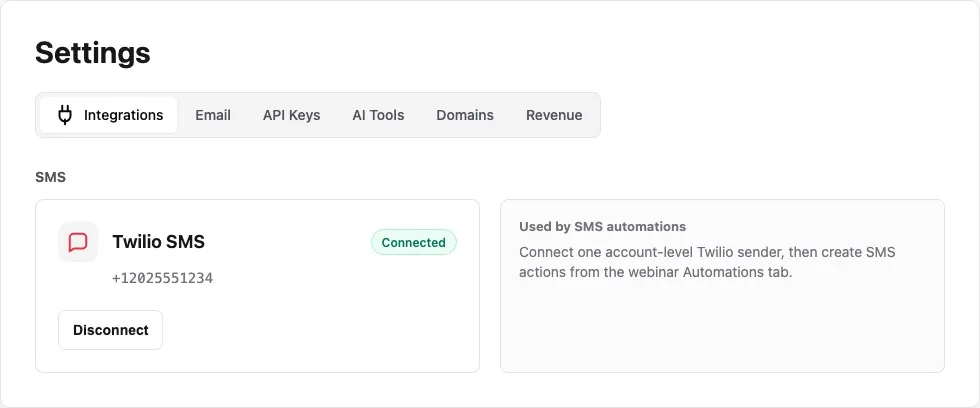
The Twilio card has three main states.
| State | What You See | What It Means |
|---|---|---|
| Not connected | Connect Twilio button. | No Twilio credential is available for SMS sends. |
| Connected | Connected badge and the configured sender value. | SMS automation actions can attempt to send if the attendee has phone and opt-in. |
| Error | Error badge, error message, and Reconnect button. | Twilio rejected the credentials during a send. Reconnect with valid credentials. |
The card only shows safe connection metadata such as status and sender identity. It does not show the Account SID, Auth Token, or encrypted credential values.
Twilio Connect Fields
Section titled “Twilio Connect Fields”The connect dialog asks for a small set of fields. Each field matters.
| Field | Meaning | How to Use It |
|---|---|---|
| Account SID | Your Twilio account identifier. | Enter the SID from Twilio Console. It should start with AC and be 34 characters long. Do not enter an API Key SID that starts with SK. |
| Auth Token | The secret paired with your Twilio Account SID. | Paste the Auth Token from Twilio Console. It is entered as a password field and is never shown back after saving. |
| Sending Identity | Whether WebinarStack sends from a phone number or Messaging Service. | Choose exactly one sender type. The system rejects connections that provide both or neither. |
| Phone Number | A Twilio phone number in E.164 format. | Use this when you want SMS to come from one owned Twilio number, such as +12025551234. |
| Messaging Service SID | A Twilio Messaging Service identifier. | Use this when your Twilio setup routes SMS through a Messaging Service. It starts with MG. |
| A2P 10DLC acknowledgement | Confirmation that you have registered this number or Messaging Service for A2P 10DLC. | Check the box only when your Twilio sender is ready. WebinarStack records the acknowledgement time but does not register A2P for you. |
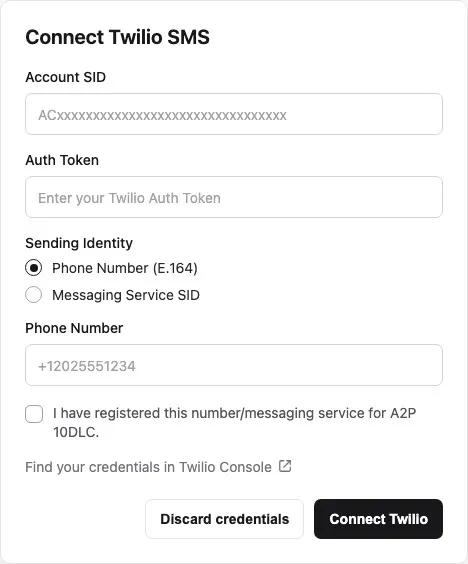
The dialog includes a link to Twilio Console so you can find your credentials.
Phone Number Versus Messaging Service
Section titled “Phone Number Versus Messaging Service”You must choose one sender identity.
Use A Phone Number When
Section titled “Use A Phone Number When”- You have one Twilio number that should send webinar SMS.
- Your SMS program is simple and does not need Twilio Messaging Service routing.
- You want the sender shown in WebinarStack to be the E.164 phone number.
When you choose a phone number, WebinarStack validates that the number belongs to the Twilio account before saving.
Use A Messaging Service SID When
Section titled “Use A Messaging Service SID When”- Your Twilio account already uses a Messaging Service for SMS routing.
- You manage multiple senders in Twilio.
- Your compliance, number pool, or routing setup lives inside Twilio Messaging Services.
When you choose a Messaging Service SID, WebinarStack validates that the SID belongs to the Twilio account before saving.
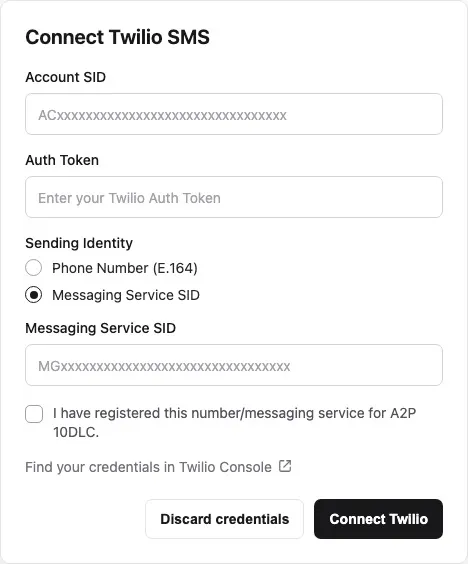
Exactly One Sender Is Required
Section titled “Exactly One Sender Is Required”The integration rejects these setups:
- Account SID and Auth Token with no sender.
- Phone number and Messaging Service SID both supplied.
- Phone number that Twilio does not show in the account.
- Messaging Service SID that Twilio does not find for the account.
This validation happens before WebinarStack saves the credentials, so a connected Twilio card should represent a sender that can actually be used.
What Happens During Connection
Section titled “What Happens During Connection”When you submit the connect form, WebinarStack validates before it stores anything.
- WebinarStack trims surrounding whitespace from the Account SID and Auth Token.
- WebinarStack calls Twilio to verify the Account SID and Auth Token.
- WebinarStack validates the selected sender identity.
- If validation fails, the form shows an inline error on the relevant field.
- If validation succeeds, WebinarStack encrypts the Account SID and Auth Token separately.
- WebinarStack saves or replaces the account’s Twilio connection.
- The Twilio card shows the connected sender identity.
Validation errors are intentionally narrow. They tell you whether the issue is credentials, phone-number ownership, Messaging Service ownership, or network access to Twilio. They do not expose secret values.
Reconnect Twilio
Section titled “Reconnect Twilio”Use reconnect when:
- Twilio credentials changed.
- The Auth Token was rotated.
- A send marked the Twilio connection as error.
- You want to switch from a phone number to a Messaging Service SID.
- You want to switch from a Messaging Service SID to a phone number.
Reconnect opens a blank credential form. Enter the current Twilio values again. WebinarStack validates the new credential and updates the account connection if validation succeeds.
Disconnect Twilio
Section titled “Disconnect Twilio”Disconnecting is a credential teardown, not just a visual toggle.
When you disconnect Twilio:
- WebinarStack removes the stored Twilio credential row.
- WebinarStack disables SMS automation rules for the account.
- Future SMS automation sends stop until Twilio is reconnected.
After reconnecting Twilio, review your SMS automation rules before assuming they are active again. Any rules disabled during disconnect should be intentionally re-enabled.
Prepare Registration For SMS
Section titled “Prepare Registration For SMS”Twilio connection is only the sending side. WebinarStack also needs attendee-level permission.
On your registration page or registration widget:
- Open the page editor.
- Select the Registration Form block.
- Set Phone number field to On.
- Choose whether Phone is Optional or Required.
- Add or review SMS consent text.
- Publish the registration page or widget.
The SMS consent text field only makes sense when phone capture is on. If phone capture is off, attendees cannot provide an SMS destination. If consent text is empty, the registration form can collect a phone number but will not collect a valid SMS opt-in.
Registration Form Fields For SMS
Section titled “Registration Form Fields For SMS”| Field | What It Controls | SMS Impact |
|---|---|---|
| Phone number field | Whether the form asks for a phone number. | Must be on for attendee SMS sends. |
| Phone is | Whether phone is optional or required. | Required increases SMS coverage but can reduce registration conversion. Optional lets attendees register without SMS. |
| SMS consent text | The text shown beside the SMS opt-in checkbox. | Must be non-empty for WebinarStack to record SMS consent. |
The consent checkbox is never pre-checked. The attendee must actively opt in.
The consent checkbox appears only after the attendee enters a phone number and the form has non-empty SMS consent text. If the attendee clears the phone number, the SMS consent checkbox resets.
What WebinarStack Stores On Registration
Section titled “What WebinarStack Stores On Registration”When an attendee submits the form, WebinarStack normalizes and stores the SMS-related data server-side.
| Stored Data | Meaning |
|---|---|
| Phone | The phone value entered on the form. |
| E.164 phone | A normalized SMS-ready phone number when validation succeeds. |
| SMS consent given | Whether the attendee opted in and had a phone number. |
| SMS consent text | The exact consent text stored for the opt-in record, with the business name resolved. |
| SMS consent time | When the opt-in was recorded. |
| SMS consent IP | Server-stamped IP from the request path. |
| SMS opted in | The active sending flag used by the SMS delivery worker. |
The active SMS opted in flag starts equal to the recorded consent value. If Twilio later reports that the recipient opted out, WebinarStack turns that flag off so future SMS automations skip that attendee.
Consent Text
Section titled “Consent Text”WebinarStack includes a default SMS consent template on the Registration Form block. You should review it with your own legal or compliance process before using it in production.
The default template is designed to cover the usual operational pieces:
- It names the sending business.
- It mentions automated marketing text messages.
- It says consent is not a condition of purchase.
- It notes that message frequency varies.
- It includes message and data rate language.
- It includes STOP and HELP instructions.
The template supports a {business} placeholder. WebinarStack replaces that placeholder with the account business name when rendering and storing consent. If the business name is unavailable, WebinarStack falls back to a generic business label instead of storing the literal placeholder.
Do not treat this guide as legal advice. SMS rules vary by jurisdiction, carrier program, audience, and message type. Use the platform guardrails as a baseline, then validate your consent language and sending practices.
Create An SMS Automation
Section titled “Create An SMS Automation”SMS sends are created as automation actions.
- Open the webinar editor.
- Go to Automations.
- Click Add automation.
- Enter a clear rule name, such as
SMS reminder 1 hour before session. - Choose the trigger.
- Add conditions if the message should only send to a narrower audience.
- Set Action Type to SMS.
- Write the SMS message.
- Insert personalization tokens where useful.
- Check the segment counter.
- Send a test SMS to an internal number.
- Save the automation.
If Twilio is not connected, the SMS action editor shows a warning. The rule can be saved, but real delivery attempts are skipped until Twilio is connected.
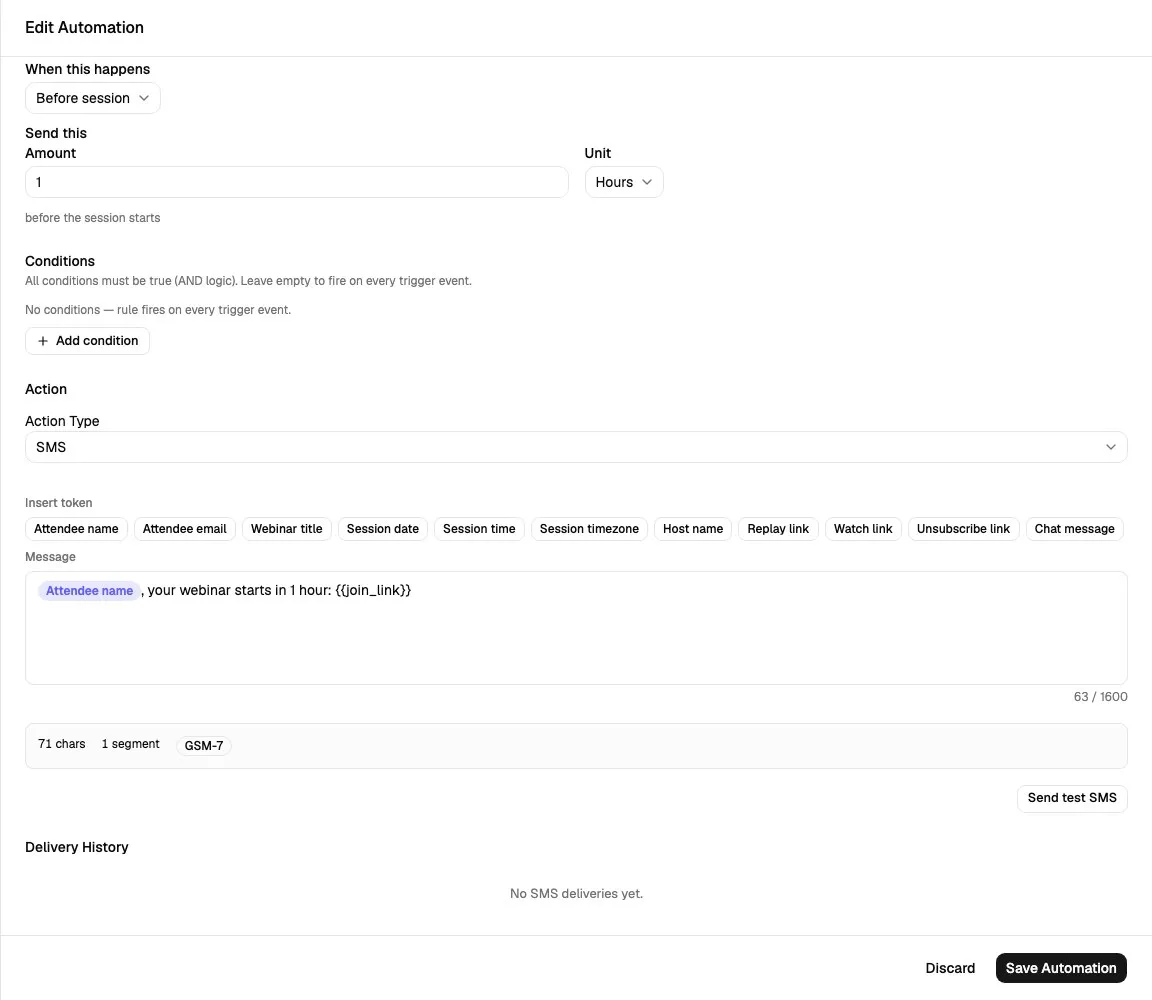
SMS Automation Fields
Section titled “SMS Automation Fields”| Field | Meaning | Notes |
|---|---|---|
| Rule Name | Internal label for the automation. | Use a specific name that explains the audience and timing. |
| Enabled | Whether the rule can fire. | Keep disabled while drafting if you do not want it to send yet. |
| Trigger | The event or schedule that starts evaluation. | Examples: Registered, Before session, No-show, CTA click, Chat response. |
| Conditions | Extra filters that must pass. | Conditions use AND logic. |
| Action Type | The automation action to run. | Choose SMS for Twilio SMS sends. |
| Message | Plain-text SMS body. | Supports token chips and line breaks. No rich formatting. |
| Segment counter | Estimate of character count, segment count, encoding, and worst-case link expansion. | Use this before saving long messages. |
| Send test SMS | Sends the current message to an ad-hoc phone number. | Requires connected Twilio credentials. Does not write SMS delivery history. |
| Delivery History | Recent real delivery attempts for the saved SMS rule. | Visible when editing a saved SMS rule. |
Message Body Rules
Section titled “Message Body Rules”SMS messages are plain text.
| Rule | Behavior |
|---|---|
| Maximum length | 1,600 characters. |
| Rich formatting | Not supported. SMS does not include bold, italic, headings, lists, or HTML links. |
| Line breaks | Supported. |
| Tokens | Supported with {{token_name}} syntax through token chips. |
| Links | Use link tokens such as {{watch_link}}, {{replay_link}}, or {{unsubscribe_link}}. |
Keep SMS short. Long messages may still send, but they can split into multiple SMS segments after Twilio processes the body.
Personalization Tokens
Section titled “Personalization Tokens”The SMS editor exposes token chips so you do not need to type placeholders manually.
| Token | Meaning |
|---|---|
{{attendee_name}} |
Attendee name from the registration. |
{{attendee_email}} |
Attendee email from the registration. |
{{webinar_title}} |
Public webinar title. |
{{session_date}} |
Attendee-specific session date. |
{{session_time}} |
Attendee-specific session time. |
{{session_timezone}} |
Session timezone label. |
{{host_name}} |
Host or presenter display name when configured. |
{{watch_link}} |
Attendee watch link. |
{{replay_link}} |
Replay link using the attendee registration token. |
{{unsubscribe_link}} |
Unsubscribe link using the attendee registration token. |
{{chat_message}} |
Chat-message token shown in the editor for chat-triggered authoring. Verify this in an internal run before relying on it for production SMS. |
For production SMS, the safest tokens are attendee, webinar, session, host, and link tokens. Token values are resolved at send time, so the final character count can be longer than the text you see in the editor.
Segment Counter
Section titled “Segment Counter”The segment counter helps you understand how Twilio may split a message.
It shows:
- Character count.
- Estimated segment count.
- Encoding, either GSM-7 or UCS-2.
- A warning when link tokens may expand the final message into more segments.
SMS segment behavior depends on the characters in the message.
| Encoding | What Causes It | Why It Matters |
|---|---|---|
| GSM-7 | Standard SMS character set. | Higher segment capacity. |
| UCS-2 | Characters outside the GSM-7 set, such as many emoji or special symbols. | Lower segment capacity. A message can split sooner. |
The counter also estimates worst-case URL expansion. Link tokens are short while editing, but real watch, replay, and unsubscribe links are longer. WebinarStack estimates URL token expansion so you can catch messages that look short but may send as multiple segments.
Send A Test SMS
Section titled “Send A Test SMS”Use test sends before publishing or enabling an SMS rule.
- Open the SMS automation rule.
- Write the message.
- Click Send test SMS.
- Enter an internal phone number in E.164 format, such as
+15550001234. - Click Send test.
Test sends:
- Require Twilio to be connected.
- Use the current draft message body.
- Send to the ad-hoc phone number you enter.
- Use sample values for common preview tokens.
- Do not require attendee opt-in because they are manually initiated by an account user.
- Do not apply quiet hours.
- Do not write
sms_deliveriesrows. - Do not update attendee registration records.
Test sends are for creator verification. They are not proof that a specific attendee has opted in or that a production automation will send to every registrant.
Real Delivery Flow
Section titled “Real Delivery Flow”Real automation sends use a stricter flow than test sends.
- A webinar event or schedule causes an automation rule to evaluate.
- WebinarStack checks whether the rule is enabled and whether its conditions pass.
- WebinarStack queues an SMS action job.
- The SMS worker loads the rule, attendee registration, webinar, and Twilio credentials.
- If Twilio is missing or in an error state, the delivery is logged as skipped.
- If the attendee has no phone number or no SMS opt-in, the delivery is logged as skipped.
- WebinarStack calculates whether the send is inside recipient-local quiet hours.
- WebinarStack creates a pending SMS delivery ledger row before any wait or Twilio call.
- If the send is outside quiet hours, the job sleeps until the next allowed window.
- If the message was tied to a live-session moment and became stale during the wait, it is skipped.
- WebinarStack validates the SMS action body.
- WebinarStack decrypts the Twilio credential inside the send step.
- WebinarStack resolves personalization tokens.
- WebinarStack calls Twilio.
- WebinarStack records the final outcome: sent to Twilio, failed, opted out, skipped, or still pending.
This flow is intentionally conservative. It protects attendees from unconsented texts, protects accounts from obvious compliance mistakes, and protects the system from duplicate sends during retries.
Quiet Hours
Section titled “Quiet Hours”Real automation SMS sends respect recipient-local quiet hours.
| Rule | Behavior |
|---|---|
| Allowed window | 8am through before 9pm in the attendee’s local timezone. |
| Outside the window | The send is deferred to the next 8am local time. |
| Unknown or invalid timezone | WebinarStack uses a conservative Pacific/Honolulu fallback. |
| User setting | Quiet hours are not a per-rule toggle. |
Quiet hours delay messages; they do not automatically cancel them. Cancellation only happens when the delayed message no longer makes sense for a live-session moment.
Stale Live-Session Protection
Section titled “Stale Live-Session Protection”Some automation triggers are tied to a live session moment. Examples include before-session reminders, joined, watched minutes, watched percent, video complete, CTA click, poll response, chat response, branch taken, and segment completed.
If a message from one of those triggers is delayed by quiet hours until after the session is over, WebinarStack skips it instead of sending a confusing late message.
Evergreen triggers are different. Registered, left, no-show, after-session, and time-elapsed style follow-ups can still make sense after the session, so they are not skipped by the live-session staleness guard.
Delivery History
Section titled “Delivery History”Saved SMS automation rules show delivery history in the rule editor.
Delivery history includes:
- Timestamp.
- Masked phone number.
- Status.
- Attempt count.
- Error code and plain-English reason when available.
- Expandable message preview for delivered messages.
- Re-fire button when a failed delivery can be safely retried.
Full phone numbers are not rendered in the delivery history table.
SMS Delivery Statuses
Section titled “SMS Delivery Statuses”| Status In UI | Stored Status | Meaning |
|---|---|---|
| Scheduled around 8am | pending |
The row has not reached a terminal outcome. This commonly means quiet-hours deferral or retry in progress. |
| Sent to Twilio | delivered |
Twilio accepted the message API request. This is not the same as a carrier delivery receipt. |
| Failed | failed |
The send failed. Some failures can be re-fired; permanent failures cannot. |
| Opted out (STOP) | opted_out |
Twilio reported the recipient opted out. WebinarStack marks the registration as no longer SMS opted-in. |
| Skipped | skipped |
WebinarStack intentionally did not send, usually because credentials, phone, consent, or timing made the send invalid. |
Use delivery history to understand WebinarStack’s send decision. For carrier-level analytics, message filtering, or Twilio account-level details, check Twilio as well.
Re-fire Behavior
Section titled “Re-fire Behavior”Re-fire is only available for certain failed rows.
When you click Re-fire:
- WebinarStack verifies the delivery row belongs to the account.
- WebinarStack verifies the row is
failed. - WebinarStack blocks re-fire for known permanent errors.
- WebinarStack queues a fresh SMS action event.
- The new event goes through the normal SMS delivery flow.
Re-fire is not available for:
- Successful sends.
- Skipped sends.
- Opted-out rows.
- Permanent recipient failures.
Known permanent failures include invalid phone number, non-mobile number, disabled region, carrier filtering, and unknown permanent delivery failure. Retrying those without changing the underlying data is unlikely to help.
Twilio Error Handling
Section titled “Twilio Error Handling”WebinarStack classifies Twilio responses so retry behavior matches the failure type.
| Failure Type | Example | WebinarStack Behavior |
|---|---|---|
| Auth rejected | Twilio returns 401 or 403. | Marks the SMS delivery failed, marks the Twilio connection error, and stops retrying that send. |
| Rate limited | Twilio returns 429. | Keeps the delivery pending and retries after the retry window. |
| Invalid recipient | Twilio error 21211. |
Marks failed and treats as permanent. |
| Recipient not mobile | Twilio error 21614. |
Marks failed and treats as permanent. |
| Region not enabled | Twilio error 21408. |
Marks failed and treats as permanent. |
| Carrier filtered | Twilio error 30007. |
Marks failed and treats as permanent. |
| Permanent delivery failure | Twilio error 30008. |
Marks failed and treats as permanent. |
| Recipient opted out | Twilio error 21610. |
Marks opted out and turns off SMS opt-in for that registration. |
| Twilio/server transient error | 5xx or retryable network issue. | Keeps pending and lets the background worker retry. |
If credentials are rejected during a production send, reconnect Twilio before expecting future SMS automations to work.
Idempotency And Duplicate Prevention
Section titled “Idempotency And Duplicate Prevention”SMS sends are asynchronous, which means background jobs can retry. WebinarStack uses a delivery ledger to avoid duplicate sends from the same automation execution.
The ledger row is created before quiet-hour sleep and before the Twilio call. If the same job retries, WebinarStack sees the existing execution row and avoids creating duplicate Twilio sends for a delivery that already succeeded or opted out.
This matters most for:
- Quiet-hour deferrals.
- Worker restarts.
- Twilio retry windows.
- Temporary Twilio or network failures.
- Replaying background steps after partial success.
Re-fire is different. Re-fire intentionally creates a new event because a user has explicitly asked the system to try again.
Security Model
Section titled “Security Model”WebinarStack treats Twilio credentials as account secrets.
| Area | Behavior |
|---|---|
| Credential storage | Account SID and Auth Token are encrypted before storage. |
| Credential display | The UI never renders saved credential values. Reconnect uses blank fields. |
| Credential validation | Credentials are validated against Twilio before save. |
| Runtime use | Credentials are decrypted only inside the send step that calls Twilio. |
| Error messages | Credential values are not included in thrown errors or UI status messages. |
| Account isolation | SMS delivery rows and Twilio credentials are account-scoped. |
| Delivery history | Phone numbers are masked in the UI. |
Anyone helping you troubleshoot should be able to work from the sender type, status, masked phone, Twilio error code, and general configuration. They should not need your Auth Token.
Compliance Guardrails
Section titled “Compliance Guardrails”WebinarStack includes operational guardrails, but your team remains responsible for your SMS program.
Built-in guardrails include:
- A2P 10DLC acknowledgement during connection.
- Phone number normalization.
- Consent checkbox that is not pre-checked.
- Consent text storage.
- SMS opt-in gate before real automation sends.
- STOP/opt-out detection from Twilio send failures.
- Recipient-local quiet hours.
- Stale-session skip logic.
- Permanent error classification.
- Masked phone display in delivery history.
You should still review:
- Whether your Twilio sender is properly registered and approved.
- Whether your consent language matches your message type and audience.
- Whether your SMS content matches what attendees opted into.
- Whether your reminder schedule is appropriate.
- Whether your Twilio account, carrier, and regional permissions support the recipients you target.
- Whether internal team members understand not to paste secrets or attendee PII into outside tools.
Recommended SMS Automation Patterns
Section titled “Recommended SMS Automation Patterns”Start with a small number of high-value messages.
Registration Confirmation
Section titled “Registration Confirmation”Use this when attendees benefit from an immediate short confirmation.
| Setting | Recommendation |
|---|---|
| Trigger | Registered. |
| Conditions | None at first. |
| Message | Confirm registration and include {{watch_link}}. |
| Risk | Can become noisy if you also send a detailed email confirmation. |
Example:
You're registered for {{webinar_title}} on {{session_date}} at {{session_time}}. Watch here: {{watch_link}}One-Hour Reminder
Section titled “One-Hour Reminder”Use this for scheduled sessions.
| Setting | Recommendation |
|---|---|
| Trigger | Before session. |
| Timing | 1 hour before session. |
| Conditions | None at first. |
| Message | Keep short, direct, and link to the watch page. |
Example:
Reminder: {{webinar_title}} starts at {{session_time}}. Join here: {{watch_link}}No-Show Replay Nudge
Section titled “No-Show Replay Nudge”Use this when replay follow-up matters.
| Setting | Recommendation |
|---|---|
| Trigger | Didn’t show up. |
| Timing | After no-show detection. |
| Conditions | Optional, such as source or segment filters. |
| Message | Acknowledge they missed it and offer replay. |
Example:
Sorry we missed you at {{webinar_title}}. You can still watch the replay here: {{replay_link}}High-Intent CTA Follow-Up
Section titled “High-Intent CTA Follow-Up”Use this only when the attendee action clearly supports a prompt follow-up.
| Setting | Recommendation |
|---|---|
| Trigger | Clicked an offer. |
| Conditions | Filter to the relevant offer or CTA. |
| Message | Make the next step clear. Avoid sounding automated or invasive. |
Example:
Thanks for checking out the offer from {{webinar_title}}. Here's your next step: {{watch_link}}Troubleshooting
Section titled “Troubleshooting”Twilio Will Not Connect
Section titled “Twilio Will Not Connect”Check:
- The Account SID starts with
AC, notSK. - The Auth Token belongs to the same Twilio account.
- You chose exactly one sender identity.
- The phone number is owned by that Twilio account.
- The Messaging Service SID starts with
MGand belongs to that Twilio account. - The A2P acknowledgement checkbox is checked.
- Twilio Console is reachable and your credentials are current.
SMS Rule Is Saved But Nothing Sends
Section titled “SMS Rule Is Saved But Nothing Sends”Check:
- Twilio is connected and not in error state.
- The SMS rule is enabled.
- The trigger actually fired.
- The rule conditions passed.
- The attendee has a valid phone number.
- The attendee opted in to SMS.
- The send is not waiting for quiet hours.
- The send was not skipped as stale after a quiet-hours delay.
Attendees Have Phone Numbers But SMS Is Skipped
Section titled “Attendees Have Phone Numbers But SMS Is Skipped”Phone number and SMS opt-in are separate.
Check:
- The Registration Form block has SMS consent text.
- The attendee checked the SMS consent box.
- The attendee did not later opt out.
- The phone number normalized to E.164.
- The delivery row’s skipped reason in history.
Delivery Shows Sent To Twilio But Attendee Did Not Receive It
Section titled “Delivery Shows Sent To Twilio But Attendee Did Not Receive It”Sent to Twilio means Twilio accepted WebinarStack’s API request. It does not prove the carrier delivered the message to the handset.
Check:
- Twilio message logs for carrier status.
- Whether the recipient number can receive SMS.
- Whether the sender is approved and configured correctly in Twilio.
- Whether carrier filtering applies.
- Whether the content, links, or sender profile need changes.
Delivery Failed And Re-fire Is Disabled
Section titled “Delivery Failed And Re-fire Is Disabled”Re-fire is disabled for permanent failures. Fix the underlying issue before trying a new send.
Common examples:
- Invalid phone number.
- Non-mobile recipient.
- Region not enabled in Twilio.
- Carrier filtering.
- Recipient opt-out.
Test SMS Works But Automation SMS Does Not
Section titled “Test SMS Works But Automation SMS Does Not”Test sends and real sends have different gates.
Test sends only require connected Twilio and a phone number you enter manually. Real automation sends also require:
- A real attendee registration.
- E.164 phone on that registration.
- SMS opt-in on that registration.
- Trigger and conditions passing.
- Quiet-hours handling.
- Staleness guard.
Use test sends to verify Twilio and message composition. Use delivery history to verify production automation behavior.
Asking AI For Help
Section titled “Asking AI For Help”AI tools can be useful for planning SMS messages, debugging non-secret configuration, and shortening copy. They should not receive secrets or private attendee data.
Do not share:
- Twilio Auth Token.
- Full Account SID if avoidable.
- Full attendee phone numbers.
- Full attendee exports.
- Private webinar attendee data.
- Screenshots that show secrets or unmasked phone numbers.
Share instead:
- Sender type: phone number or Messaging Service.
- Whether Twilio is connected or error.
- Masked phone examples.
- Twilio error code.
- The automation trigger.
- The message template with fake names and links.
- Your desired outcome.
Prompt: Plan My SMS Reminder Sequence
Section titled “Prompt: Plan My SMS Reminder Sequence”I am setting up SMS automations for a webinar platform. Help me design a short SMS sequence for opted-in attendees.
Webinar type: [describe the webinar]Audience: [describe audience]Available triggers: registered, before session, no-show, clicked offer, watched percentageAvailable tokens: {{attendee_name}}, {{webinar_title}}, {{session_date}}, {{session_time}}, {{watch_link}}, {{replay_link}}, {{unsubscribe_link}}Constraints:- Keep each SMS concise.- Do not imply consent was required for purchase.- Include links only when useful.- Avoid hype and spammy wording.
Return a table with trigger, timing, message draft, and why it should be sent.Prompt: Shorten An SMS To Reduce Segments
Section titled “Prompt: Shorten An SMS To Reduce Segments”Please shorten this webinar SMS while keeping the main call to action clear.
Original SMS:[paste message template, but use fake names and example links]
Constraints:- Keep {{webinar_title}}, {{session_time}}, and {{watch_link}} if possible.- Avoid emoji and special characters that may force UCS-2 encoding.- Target one SMS segment if realistic.- Keep the tone professional and direct.
Give me 5 shorter alternatives and explain what changed.Prompt: Troubleshoot A Twilio Error Without Sharing Secrets
Section titled “Prompt: Troubleshoot A Twilio Error Without Sharing Secrets”Help me understand this Twilio SMS failure in WebinarStack.
Context:- Sender type: [Phone number or Messaging Service SID]- Twilio connection status in WebinarStack: [Connected/Error]- Automation trigger: [trigger]- WebinarStack delivery status: [Failed/Skipped/Opted out/Pending]- Twilio error code, if any: [code]- Error reason shown: [reason]- Attendee phone is masked: [masked phone only]
Do not ask for my Auth Token or full phone numbers.Explain likely causes, what to check in Twilio Console, and what to check in WebinarStack.Prompt: Review SMS Consent Copy
Section titled “Prompt: Review SMS Consent Copy”Review this SMS consent checkbox copy for clarity and completeness. This is not legal advice; I will have counsel review final language.
Business name: [business]Message type: webinar reminders and follow-upsConsent copy:[paste consent text]
Check whether it clearly names the sender, describes automated texts, notes that consent is not required for purchase, mentions message frequency, mentions message/data rates, and includes STOP/HELP instructions.Suggest clearer wording while keeping it concise.Prompt: Convert An Email Reminder Into SMS
Section titled “Prompt: Convert An Email Reminder Into SMS”Turn this webinar email reminder into an SMS for opted-in attendees.
Email reminder:[paste non-sensitive email copy]
Available SMS tokens:{{attendee_name}}, {{webinar_title}}, {{session_date}}, {{session_time}}, {{watch_link}}, {{replay_link}}, {{unsubscribe_link}}
Constraints:- Keep it under 320 characters.- Use one link maximum.- Keep the tone helpful, not salesy.- Do not include sensitive attendee data.
Return 3 SMS options and tell me which one is best.Operational Checklist
Section titled “Operational Checklist”Use this checklist before relying on SMS for a live webinar.
| Area | Check |
|---|---|
| Twilio | Account SID/Auth Token work, sender identity validates, A2P acknowledgement complete. |
| Registration | Phone field is on, consent text is present, form is published. |
| Automation | SMS rule is enabled, trigger is correct, conditions are intentional. |
| Message | Body is concise, tokens are correct, segment counter is acceptable. |
| Test | Internal test SMS sends successfully. |
| Timing | Quiet hours and stale-session behavior are acceptable for the trigger. |
| Monitoring | Delivery history is reviewed after internal registrations and after launch. |
| Compliance | Consent language, sender registration, and message content have been reviewed. |