
Webinar Pages Tab And Page Editor
The Pages tab is where you design the attendee-facing pages that surround a webinar. It is different from the Setup, Registration, Experience, Replay, Automations, and Settings tabs because it does not edit webinar configuration fields directly. Instead, it opens the full-screen page editor, where you build page layouts with templates, content blocks, webinar-specific components, draft previews, and publishing controls.
Open it from Dashboard -> Webinars -> select a webinar -> Pages.
Previous tab: Webinar Settings Tab.
The most important practical rule is this: the page editor saves drafts automatically, but attendees only see the published version of a page.
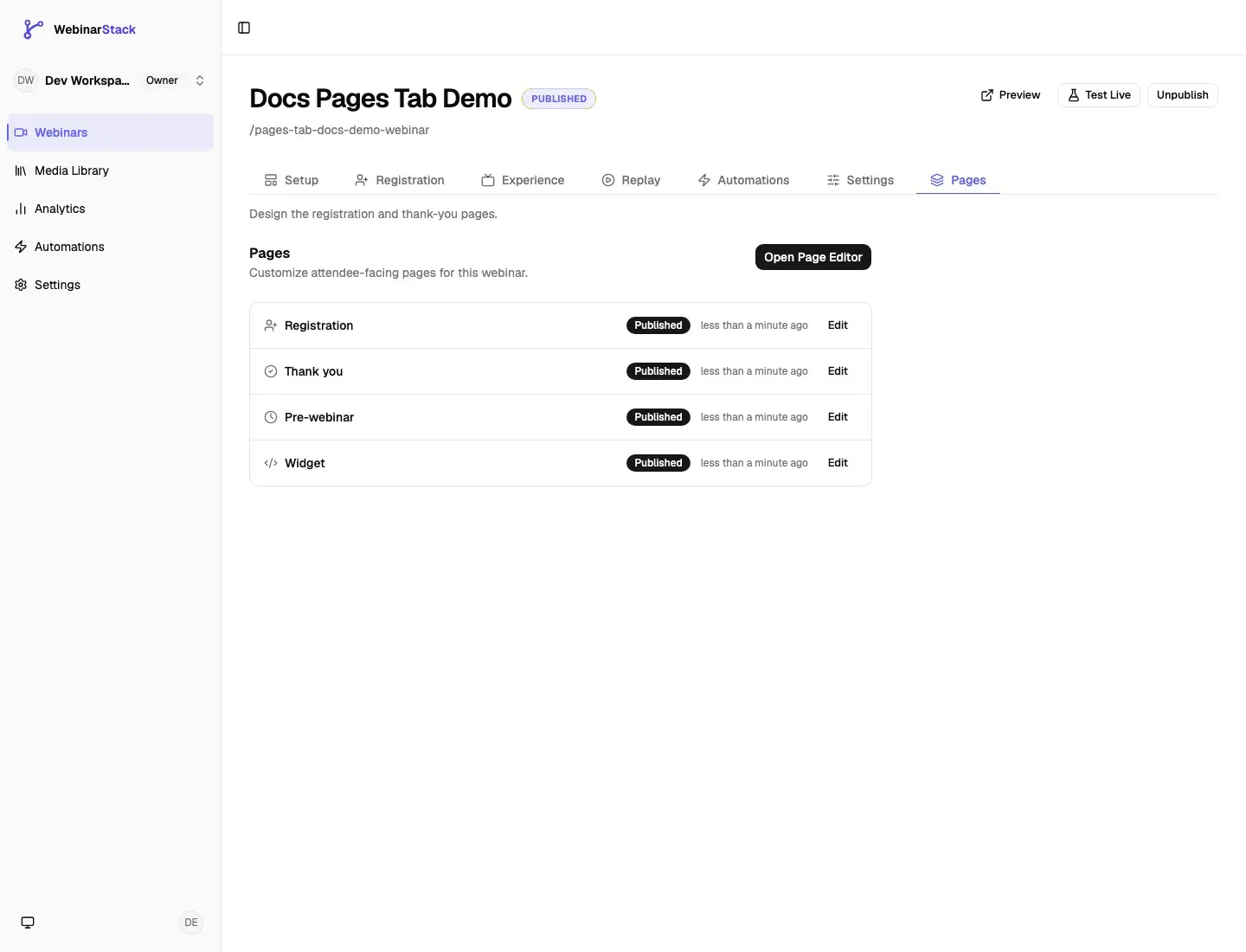
What The Pages Tab Controls
Section titled “What The Pages Tab Controls”Every webinar has four editable page surfaces in the Pages tab.
| Page | What It Is Used For | Where It Appears |
|---|---|---|
| Registration | The public page where visitors choose a session and register. | Public registration URL. |
| Thank you | The confirmation page after someone registers, unless the webinar uses an external thank-you URL. | Public thank-you URL. |
| Pre-webinar | The waiting or countdown page an attendee sees before the session begins. | Watch link before the session is live. |
| Widget | The embedded registration experience used inside an iframe or external site embed. | Embed/widget URL. |
The Pages tab does not control:
- The webinar schedule itself. Schedule rules live in the Setup Tab.
- Registration sharing links, embed snippets, registration limits, or session availability windows. Those live in the Registration Tab.
- In-room chat, offers, polls, host branding, replay messaging, or live-room behavior. Those live in the Experience Tab.
- Replay access, replay video source, replay redirects, or replay chat settings. Those live in the Replay Tab.
- Automation rules, webhooks, email actions, SMS actions, or integration actions. Those live in the Automations Tab.
- Date format, time format, language, timezone, general redirects, and email delivery status. Those live in the Settings Tab.
Watch-theme and replay-theme page builders are not shown in the current Pages tab. The current page editor focuses on the four editable attendee page surfaces: Registration, Thank you, Pre-webinar, and Widget.
Pages Tab Rows
Section titled “Pages Tab Rows”The Pages tab is a launch panel for the page editor. It gives you one row for each page surface.
| Row Element | Meaning |
|---|---|
| Page name | The page surface you are editing: Registration, Thank you, Pre-webinar, or Widget. |
| Status badge | Shows whether the saved page layout is currently marked Published or Draft. |
| Last edited time | Shows how recently that page layout was updated. |
| Edit | Opens that specific page in the full-screen page editor. |
| Open Page Editor | Opens the Registration page editor by default. You can switch page types inside the editor. |
Use Open Page Editor when you want to start from the registration page and move between page types from inside the editor. Use a row-level Edit link when you know exactly which page you want to change.
The Four Page Types
Section titled “The Four Page Types”Registration Page
Section titled “Registration Page”The Registration page is the main public landing page for a webinar. It is normally where visitors:
- Read the offer or webinar promise.
- See urgency or session timing.
- Choose a session.
- Enter their name and email.
- Optionally enter a phone number, SMS consent, or GDPR consent if the form block is configured that way.
The live public registration page is rendered from the published page layout. Draft edits are visible in the editor and preview route, but not on the public attendee URL until you publish the page.
Use the Registration page for:
- The main headline and positioning.
- A teaser video.
- Social proof or outcome statements.
- Session selection.
- Registration form settings.
- Final privacy or disclaimer text.
Thank-You Page
Section titled “Thank-You Page”The Thank-you page is the built-in confirmation page after registration.
Use it to:
- Confirm that the attendee is registered.
- Tell the attendee to check their email.
- Link to a workbook, bonus, community, onboarding page, or calendar instructions.
- Promote the next step after registration.
There is one important routing detail: if the webinar has an external thank-you URL configured, the live public thank-you route redirects to that external URL. The page editor preview still renders the built WebinarStack thank-you layout so you can design or test it, but the live attendee flow follows the configured redirect.
Pre-Webinar Page
Section titled “Pre-Webinar Page”The Pre-webinar page is the waiting-room style page shown before a session starts. It is commonly used to build anticipation and keep early attendees oriented.
Use it to:
- Show a countdown.
- Remind attendees what they registered for.
- Display the session date and time.
- Link to a workbook or prep material.
- Give simple joining instructions.
In the editor canvas, WebinarStack uses real upcoming sessions when they exist. If the webinar has no real upcoming sessions, the editor injects sample session data so countdown and date/time blocks still render in a useful way. That sample data is only for the editor preview and is never written into the saved page layout.
Widget Page
Section titled “Widget Page”The Widget page is the embedded registration surface. It is designed for iframe and external-site contexts, so it uses a narrower starting canvas and a more compact component palette.
Use it to:
- Embed a registration form on another site.
- Collect registrations without sending visitors to the full registration page.
- Keep the form compact enough for sidebars, landing-page sections, or modal embeds.
The widget editor intentionally does not show the Preview button. Widget output is tested through the embed/widget flow rather than the full-page draft preview route.
Open The Page Editor
Section titled “Open The Page Editor”Click Open Page Editor or any row’s Edit link to enter the full-screen page editor.
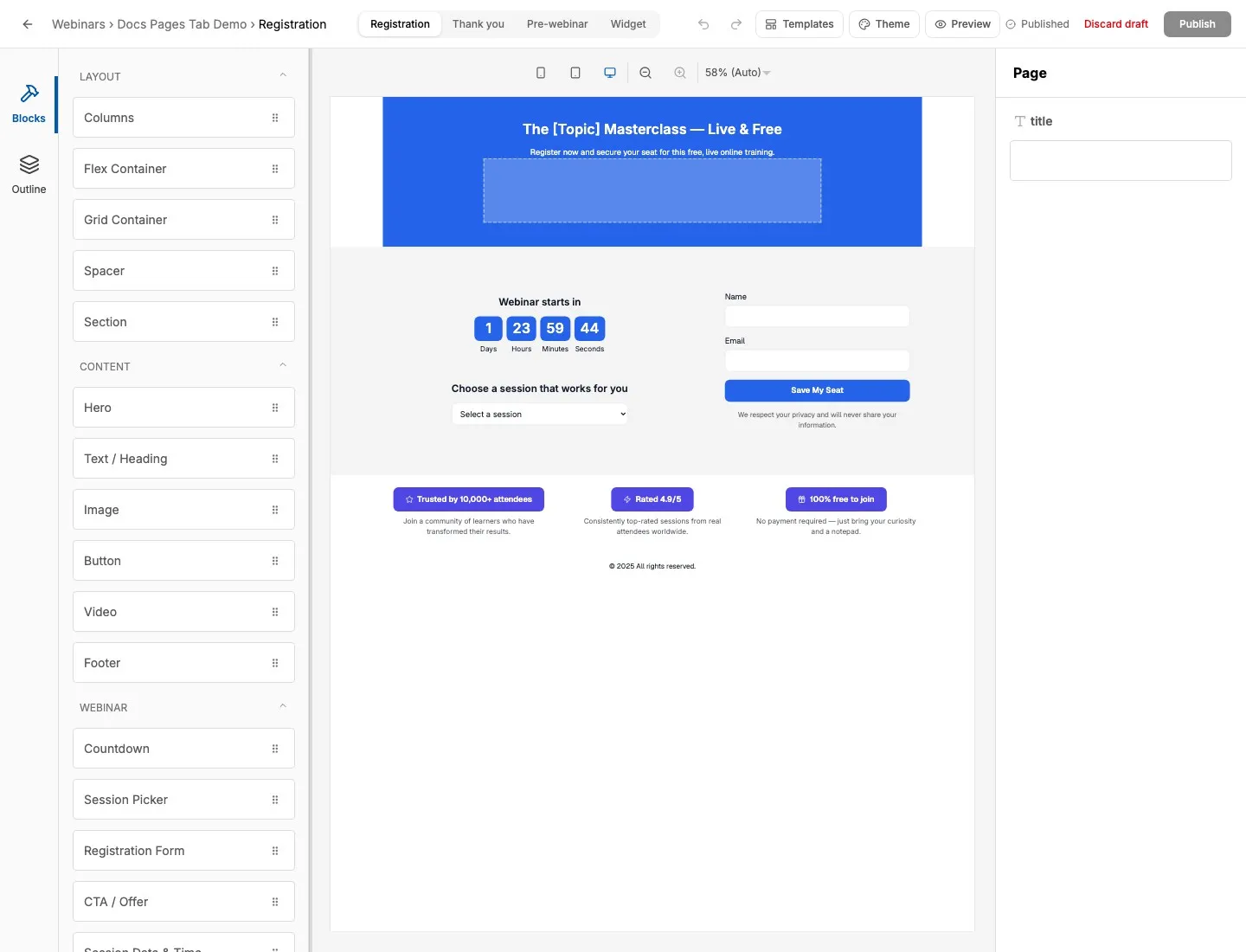
The page editor has four major areas.
| Area | What It Does |
|---|---|
| Header | Back navigation, breadcrumb, page-type switcher, undo/redo, templates, theme, preview, status, discard, and publish controls. |
| Left sidebar | The block palette and outline view. Blocks are grouped into Layout, Content, and Webinar categories. |
| Canvas | The editable page preview. Drag blocks into the canvas, select blocks, and preview the layout at different viewport widths. |
| Right sidebar | Page or selected-block settings. When no block is selected, it shows page-level properties. When a block is selected, it shows that block’s fields. |
The full-screen editor is separate from the normal dashboard chrome. This gives the page editor more horizontal space and avoids mixing page-builder controls with the standard webinar settings form.
Header Controls
Section titled “Header Controls”| Control | What It Does | Notes |
|---|---|---|
| Back arrow | Returns to the webinar editor Pages tab. | The destination is the webinar editor with the Pages tab active. |
| Breadcrumb | Shows Webinars -> webinar name -> current page type. | Use it to confirm which webinar and page you are editing. |
| Page switcher | Switches between Registration, Thank you, Pre-webinar, and Widget. | WebinarStack flushes the latest draft before navigating to another page type. |
| Undo | Reverts the last canvas edit. | Keyboard shortcut: Cmd/Ctrl+Z. |
| Redo | Re-applies an undone edit. | Keyboard shortcut: Cmd/Ctrl+Shift+Z or Ctrl+Y. |
| Templates | Opens the template gallery for the current page type. | Templates are scoped to the page type you are editing. |
| Theme | Opens the webinar-level theme panel. | Theme changes can affect all page surfaces for that webinar. |
| Preview | Opens the draft preview for Registration, Thank you, or Pre-webinar. | Hidden on the Widget page. |
| Status pill | Shows Saving…, Published, or Draft. | Draft means the current canvas differs from the published version. |
| Discard draft | Reverts unpublished edits back to the published version. | Disabled when there is no published version to restore. |
| Publish | Copies the current draft into the published version. | Disabled when nothing changed, while saving, or when already published. |
Pressing Escape in the editor returns to the Pages tab unless a dialog is open.
Drafts, Autosave, And Publishing
Section titled “Drafts, Autosave, And Publishing”The page editor has its own draft/publish flow. It does not use the standard webinar editor sticky Save changes bar.
| State Or Action | What Happens |
|---|---|
| Open editor | WebinarStack loads the stored draft if one exists. If there is no draft, it falls back to the published version. |
| Edit the canvas | WebinarStack updates the local canvas immediately. |
| Wait briefly after editing | The editor auto-saves the draft after a short debounce. |
| Status shows Saving… | A draft save is in progress. |
| Status shows Draft | The current draft has unpublished changes. |
| Click Publish | The editor flushes pending draft changes, then copies the draft to the published version. |
| Status shows Published | The draft and published page match. |
| Click Discard draft | The draft is reset back to the current published version. |
| Switch page types | The editor tries to flush the latest draft before navigating. If saving fails, it stays on the current page. |
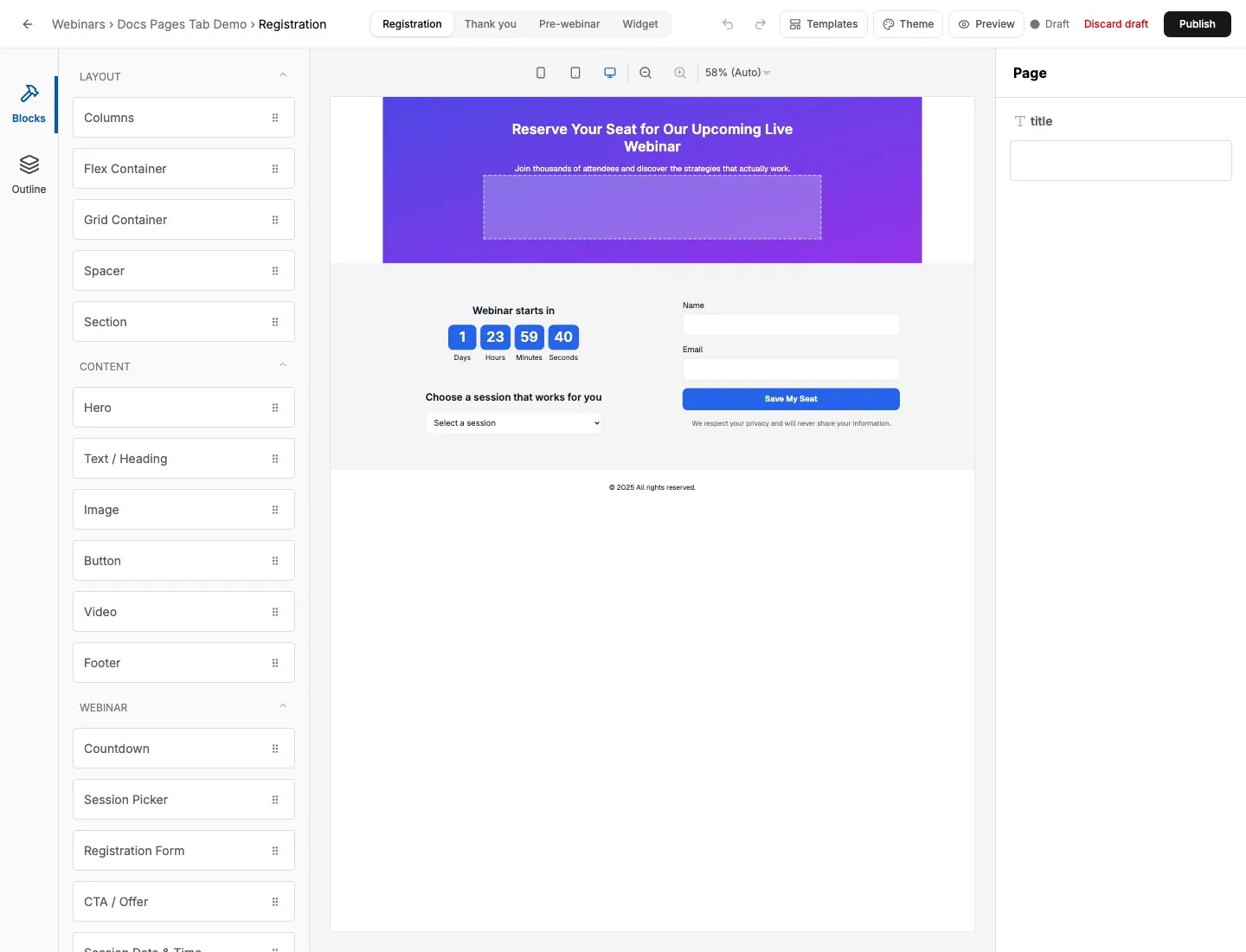
What Attendees See
Section titled “What Attendees See”| Surface | Data Source |
|---|---|
| Public registration page | Published Registration layout. |
| Public thank-you page | Published Thank-you layout, unless an external thank-you URL redirects the attendee. |
| Pre-webinar waiting state | Published Pre-webinar layout. |
| Embed/widget iframe | Published Widget layout. |
| Operator preview route | Current draft layout. |
| Editor canvas | Current in-memory layout, with drafts auto-saved after edits. |
This is why publishing is important. A page can look correct in the editor and preview route while the live attendee page still shows the last published version.
Preview Behavior
Section titled “Preview Behavior”The Preview button opens a draft preview in a new tab for Registration, Thank you, and Pre-webinar pages.
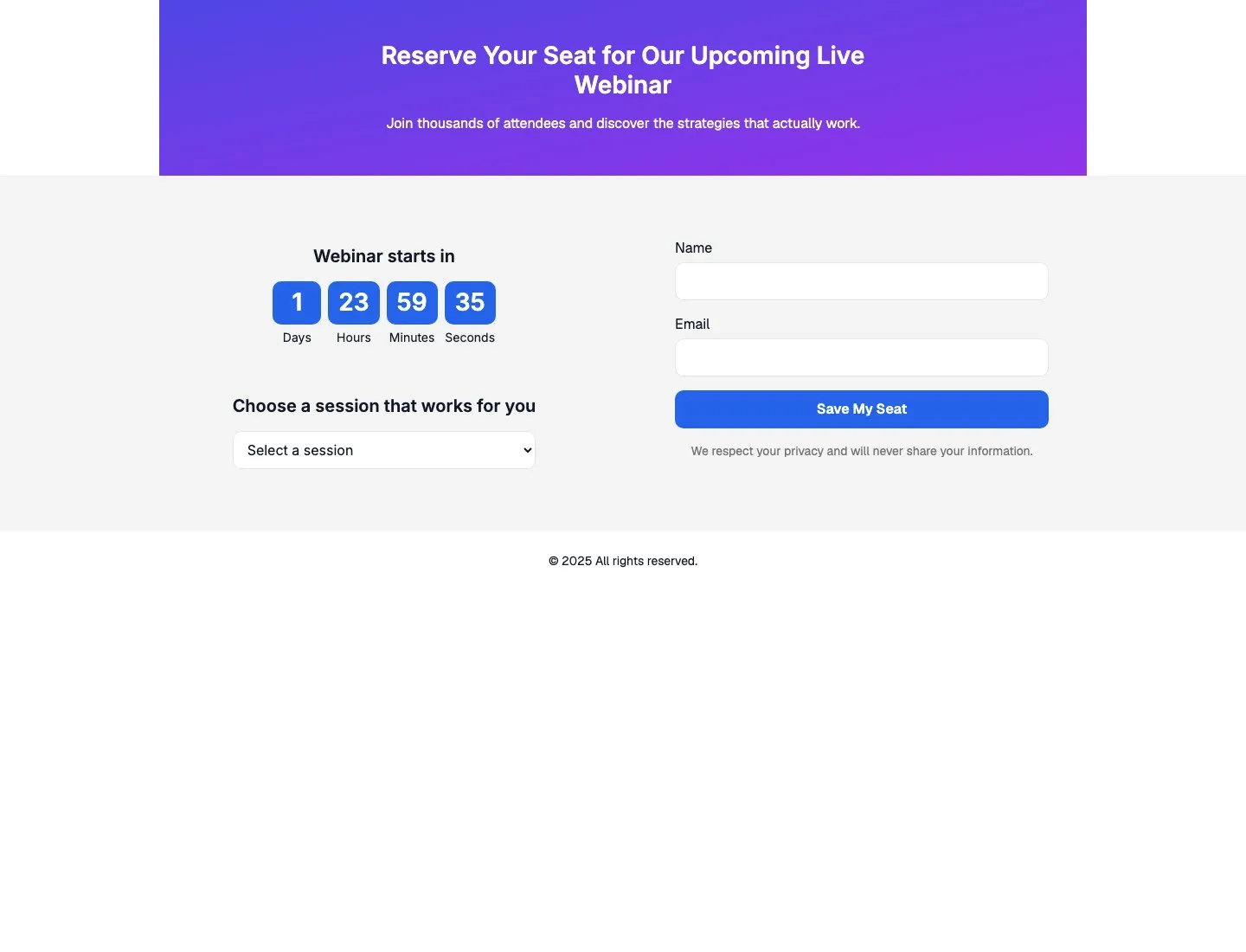
Preview behavior by page type:
| Page Type | Preview Behavior |
|---|---|
| Registration | Renders the draft layout with upcoming sessions and registration form context. |
| Thank you | Renders the draft thank-you layout even if the live public route would redirect to an external thank-you URL. |
| Pre-webinar | Renders the draft layout with a generated future session so countdown blocks show a meaningful preview. |
| Widget | No page-editor Preview button. Test widget behavior from the embed flow. |
Use preview before publishing whenever the page includes:
- Session Picker.
- Registration Form.
- Countdown.
- Session Date & Time.
- Image backgrounds.
- Long headlines.
- Mobile-sensitive layouts.
Templates
Section titled “Templates”Click Templates to open a gallery scoped to the current page type.
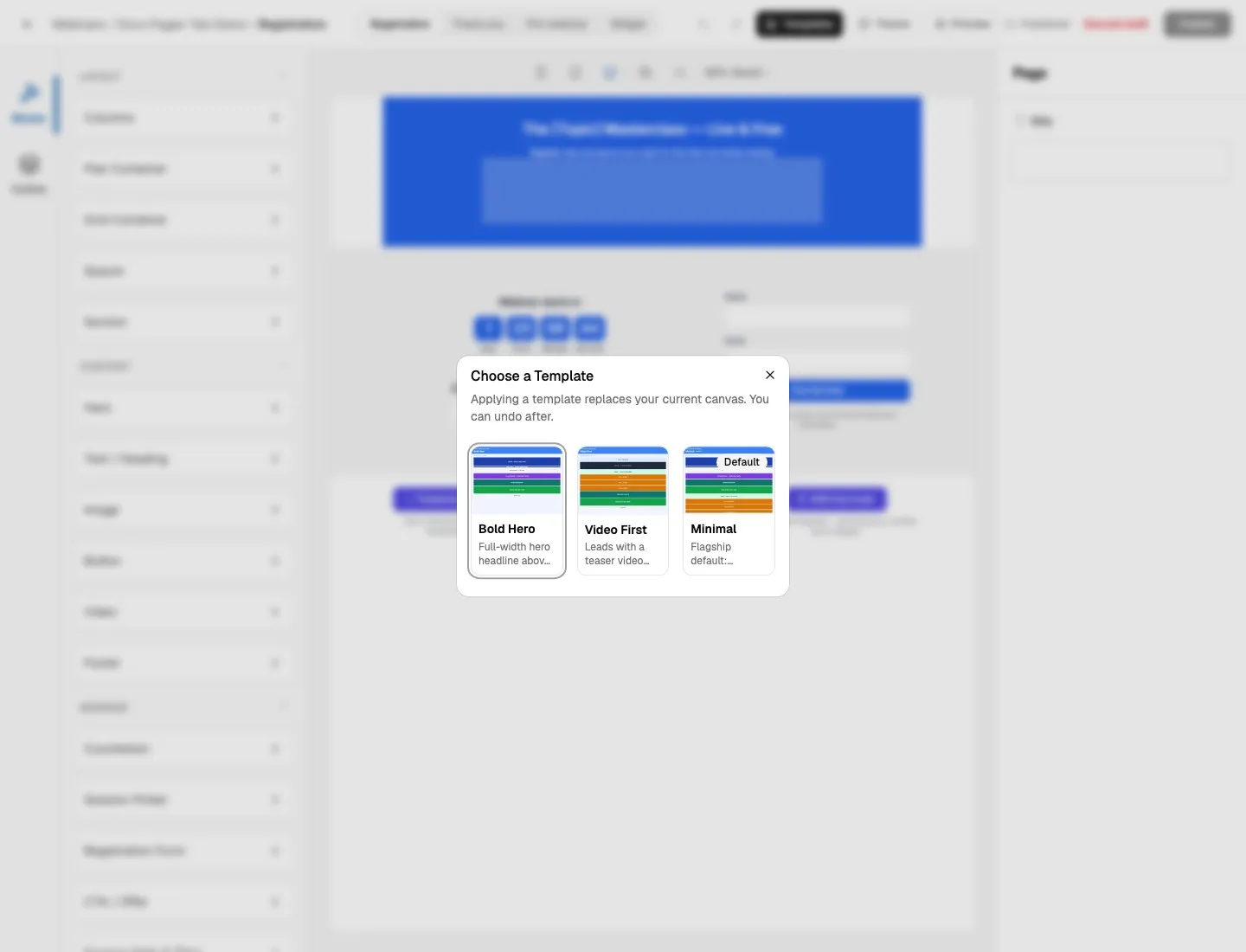
Templates replace the current canvas with a prebuilt layout. They are useful when you want a stronger starting point than a blank page or when you want to reset a page to a known pattern.
| Page Type | Available Templates |
|---|---|
| Registration | Bold Hero, Video First, Minimal. |
| Thank you | Confirmation Card, Minimal Thanks. |
| Pre-webinar | Countdown Focus, Reminder Card, Welcome & Countdown. |
| Widget | Compact Form, Minimal Widget, Split Layout. |
Each page type has one default template. The default badge in the gallery marks it.
Applying A Template
Section titled “Applying A Template”If the canvas already has content, WebinarStack asks for confirmation before replacing it.
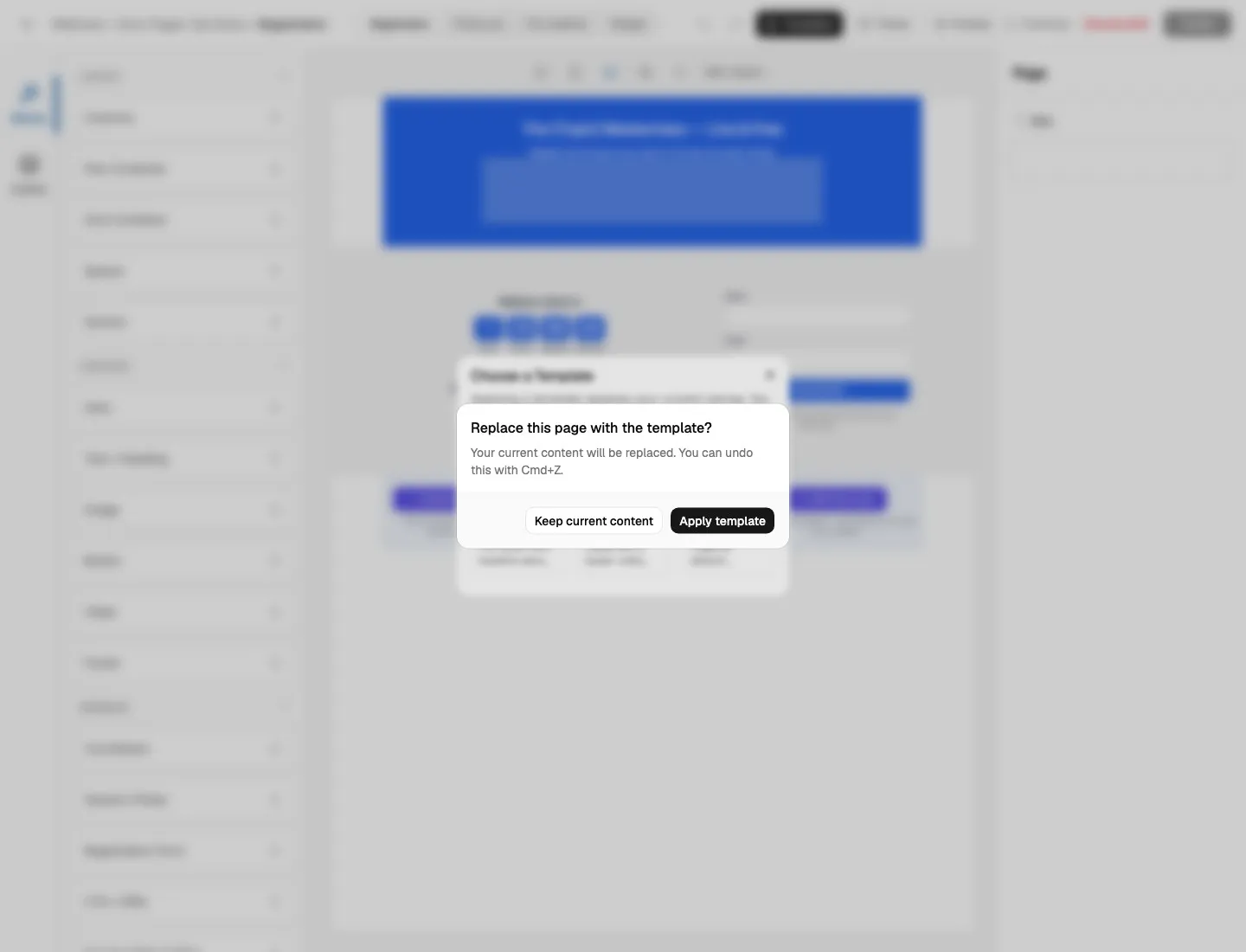
The confirmation exists because a template replaces the current page content. The action is still reversible through Undo immediately after applying the template.
Use templates when:
- You are creating a page for the first time.
- A page has drifted too far from the desired structure.
- You want to compare layout patterns quickly.
- You need a page-specific structure, such as a compact widget or countdown-first pre-webinar page.
Avoid applying a template right before launch unless you have time to preview and publish after the change.
Theme Panel
Section titled “Theme Panel”Click Theme to open the webinar-level theme panel.
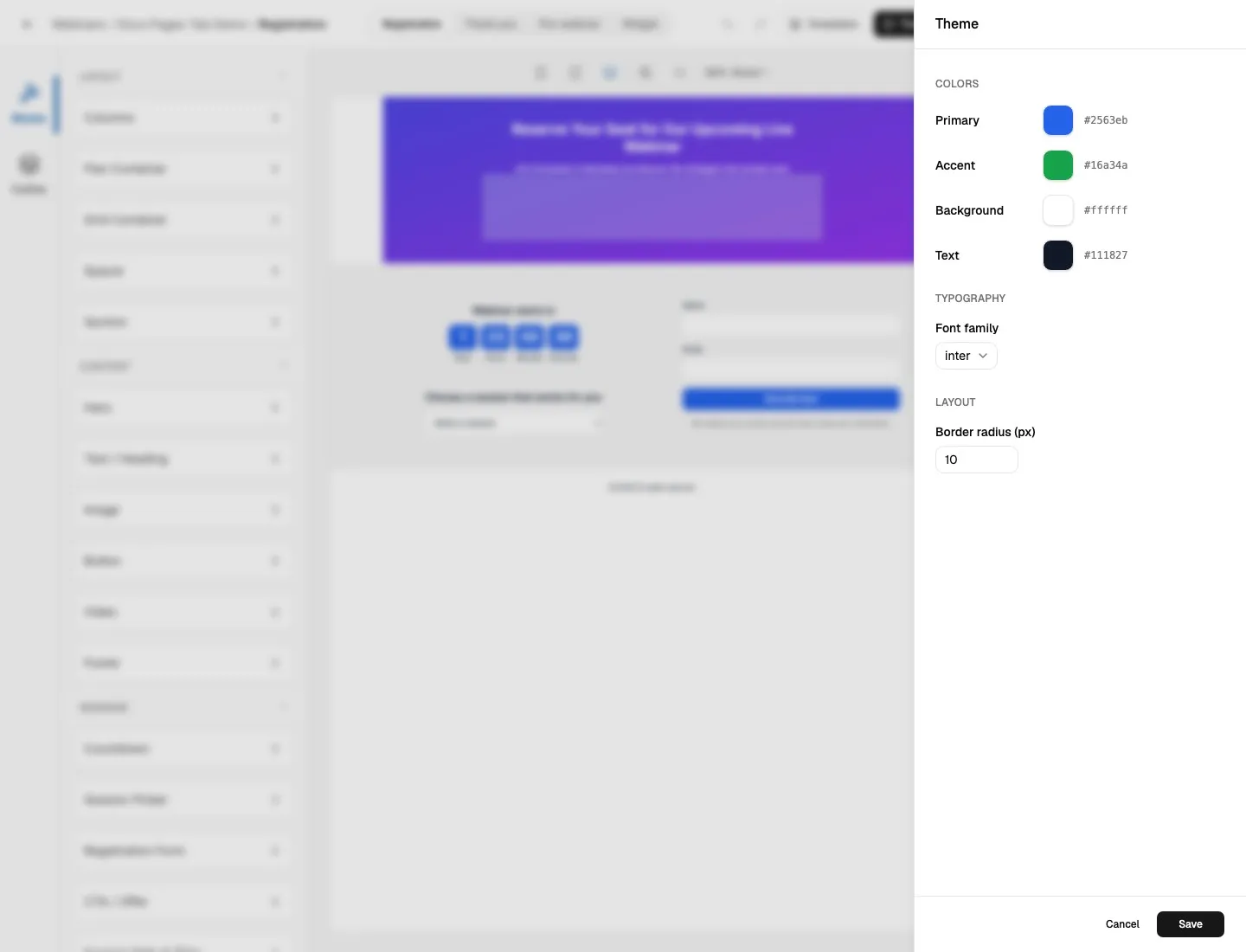
Theme settings are shared visual settings for the webinar’s page surfaces. They are not per-block settings.
| Theme Field | What It Controls | How To Use It |
|---|---|---|
| Primary | Main brand color used by buttons, hero backgrounds, and other primary accents. | Use the campaign’s main action color. |
| Accent | Secondary brand color used for emphasis. | Use a supporting color that contrasts with Primary. |
| Background | Page background color. | Keep it readable with the Text color. |
| Text | Default attendee-facing text color. | Use a dark color on light backgrounds or a light color on dark backgrounds. |
| Font family | Body and heading font choice from the curated font list. | Choose a font that matches the webinar brand and remains readable. |
| Border radius | Rounded corner size in pixels. | Use lower values for sharper enterprise pages and higher values for softer consumer pages. |
Theme changes preview live on the canvas while the panel is open. They are not persisted until you click Save. Click Cancel to discard theme edits and return the canvas to the last saved theme.
Page-Type-Specific Block Palettes
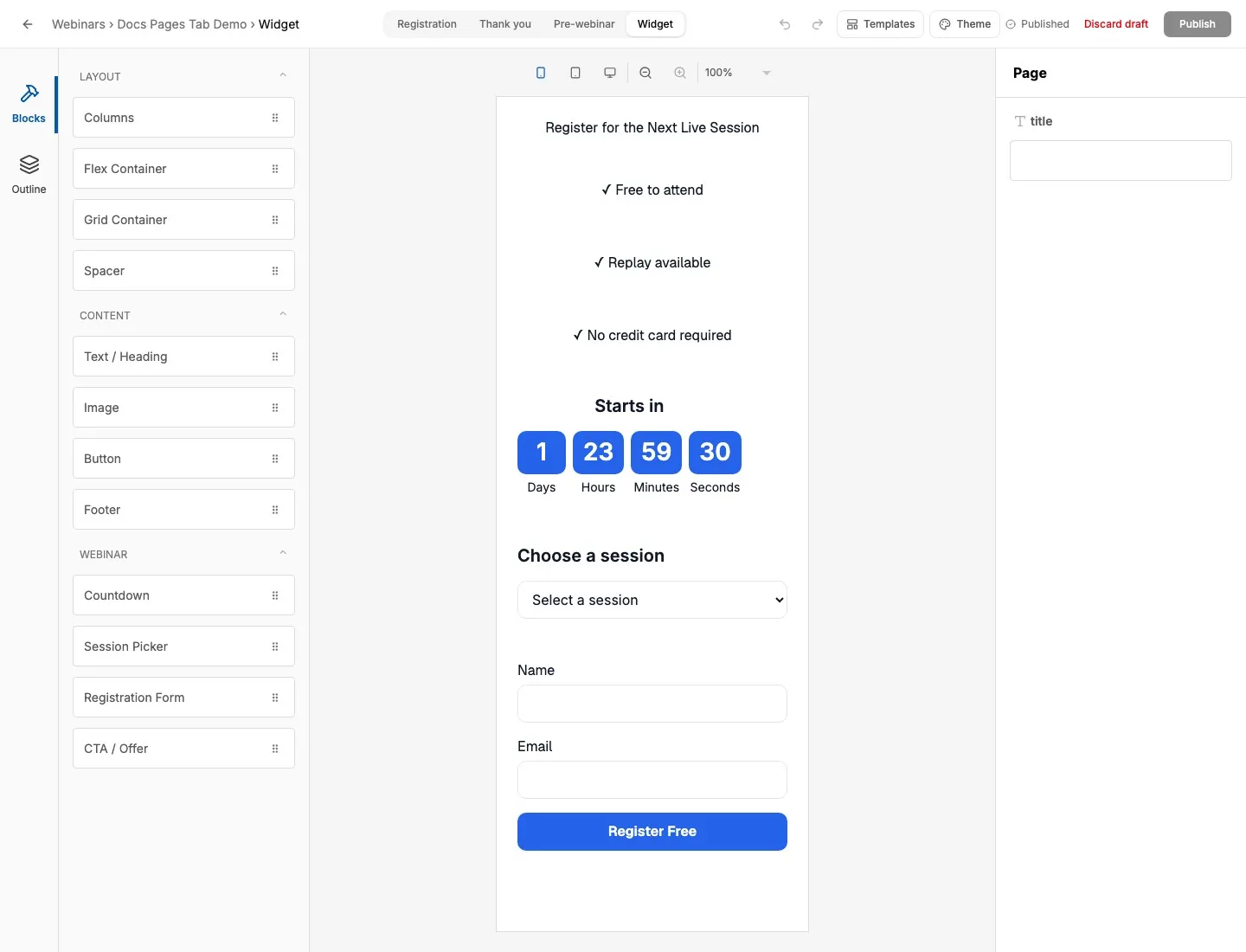
Section titled “Page-Type-Specific Block Palettes”The editor does not show the same block palette on every page. The palette is reduced when a block would not make sense for that page type.
| Component | Registration | Thank You | Pre-Webinar | Widget |
|---|---|---|---|---|
| Hero | Yes | Yes | Yes | No |
| Text / Heading | Yes | Yes | Yes | Yes |
| Image | Yes | Yes | Yes | Yes |
| Button | Yes | Yes | Yes | Yes |
| Columns | Yes | Yes | Yes | Yes |
| Flex Container | Yes | Yes | Yes | Yes |
| Grid Container | Yes | Yes | Yes | Yes |
| Section | Yes | Yes | Yes | No |
| Spacer | Yes | Yes | Yes | Yes |
| Video | Yes | Yes | Yes | No |
| Footer | Yes | Yes | Yes | Yes |
| Countdown | Yes | No | Yes | Yes |
| Session Picker | Yes | No | No | Yes |
| Registration Form | Yes | No | No | Yes |
| CTA / Offer | Yes | Yes | Yes | Yes |
| Session Date & Time | Yes | No | Yes | No |
The Registration page has the full palette because it commonly needs content, scheduling, and form blocks. The Widget page is narrower and more constrained because it is meant to be embedded.
Layout Blocks
Section titled “Layout Blocks”Layout blocks define page structure.
| Block | Main Fields | What The Fields Mean | Common Use |
|---|---|---|---|
| Columns | Layout, gap, justify columns, column slots. | Choose 50/50, 60/40, or equal thirds; control spacing and horizontal alignment; place child blocks inside each column. | Hero/form splits, content plus image, benefits beside registration form. |
| Flex Container | Direction, justify, align items, wrap, gap, mobile behavior, border, background, border color, items slot. | Arrange child blocks in a row or column with alignment and wrapping controls. | Trust-signal rows, stacked CTA groups, compact widget sections. |
| Grid Container | Columns, gap, mobile behavior, border, background, border color, items slot. | Arrange child blocks in a grid from one to four columns. | Feature lists, social proof cards, bonus/resource grids. |
| Section | Background, gradient direction, vertical padding, children slot. | Create a full-width page band with no background, a solid background, or a gradient. | Separating hero, proof, offer, and footer sections. |
| Spacer | Height. | Adds vertical space at a fixed size. | Breathing room between blocks without adding visible content. |
Use layout blocks before content blocks when the page needs structure. For example, place a Columns block first, then put copy in one column and the Registration Form in the other.
Content Blocks
Section titled “Content Blocks”Content blocks add copy, images, videos, buttons, and footer content.
| Block | Main Fields | What The Fields Mean | Common Use |
|---|---|---|---|
| Hero | Headline, subheadline, background type, background image, overlay, slot content, background color, border, gradient colors, gradient direction. | Creates a prominent top section with copy and optional nested content. Background can use the webinar theme color, an image, or a gradient. | Top-of-page positioning and first impression. |
| Text / Heading | Content, heading level, alignment. | Rich text for headings or paragraphs. Heading level controls semantic size and importance. | Section titles, body copy, instructions, reminders. |
| Image | Source, alt text, aspect ratio, max width, block alignment. | Source can be an external URL or a WebinarStack CDN image from the Media Library. Alt text describes the image for accessibility. | Speaker photos, diagrams, logos, workbook previews. |
| Button | Label, href, variant, size, full width, block alignment, label color, background, border, border color. | Adds a linked call-to-action button with visual style controls. | Workbook downloads, booking pages, community links. |
| Video | URL, aspect ratio, max width. | Embeds a video URL in a responsive frame. | Registration-page teaser videos or pre-webinar context videos. |
| Footer | Copyright text, links. | Adds simple footer text and up to six links. | Legal links, privacy links, copyright, terms. |
Image fields use two source modes:
| Image Source | What It Means |
|---|---|
| External URL | Paste an existing image URL. WebinarStack stores the URL in the page layout, but the image remains hosted externally. |
| WebinarStack CDN | Choose an uploaded image from the Media Library. The page layout stores the final CDN URL. |
For accessibility, add meaningful alt text unless the image is purely decorative. For decorative images, leaving alt text blank is acceptable.
Webinar Blocks
Section titled “Webinar Blocks”Webinar blocks connect the page layout to webinar data.
| Block | Main Fields | What The Fields Mean | Common Use |
|---|---|---|---|
| Countdown | Countdown heading, expired message, block alignment. | Counts down to the relevant session time. Expired message appears when the countdown has passed. | Registration urgency, pre-webinar waiting pages, widget urgency. |
| Session Picker | Section heading, show timezone, timezone display, time format, presentation, block alignment. | Lets visitors choose an upcoming session. Presentation can be a choice picker or dropdown. | Registration pages and widgets. |
| Registration Form | Button label, privacy note, phone field, phone required/optional, GDPR checkbox, consent text, privacy policy URL, SMS consent text. | Collects attendee name and email, and optionally phone/GDPR/SMS consent fields. | Main registration form or embedded widget form. |
| CTA / Offer | Button label, destination URL, open in new tab, description, button color, icon, block alignment, label color, background, border. | Adds a rich call-to-action block with optional description and icon. | Bonuses, book-a-call links, community links, workbook downloads. |
| Session Date & Time | Optional label, block alignment. | Displays the selected or upcoming session date/time. | Pre-webinar reminders or registration confirmation context. |
Use webinar blocks carefully because they depend on live webinar data. If a Session Picker shows no useful options, check the Setup schedule and Registration availability settings before editing the page layout.
Registration Form Field Details
Section titled “Registration Form Field Details”The Registration Form block is one of the most important blocks in the page editor.
| Field | Meaning |
|---|---|
| Button label | Text on the form submit button, such as Save My Seat or Register Free. |
| Privacy note | Optional helper text below the button. |
| Phone number field | Turns phone collection on or off. |
| Phone is | Controls whether phone is optional or required. This appears only when phone collection is on. |
| GDPR consent checkbox | Turns a consent checkbox on or off. |
| Consent text | Label shown next to the GDPR consent checkbox. |
| Privacy policy URL | Link used with the GDPR consent text. |
| SMS consent text | Optional SMS opt-in copy. This appears only when phone collection is on. |
Turn on phone collection only when you need phone numbers. Turn on SMS consent text only when you intend to send SMS messages through automations. For more on SMS setup, see the Twilio SMS Integration guide.
Discarding Drafts
Section titled “Discarding Drafts”Click Discard draft when you want to abandon unpublished changes and restore the page to the last published version.
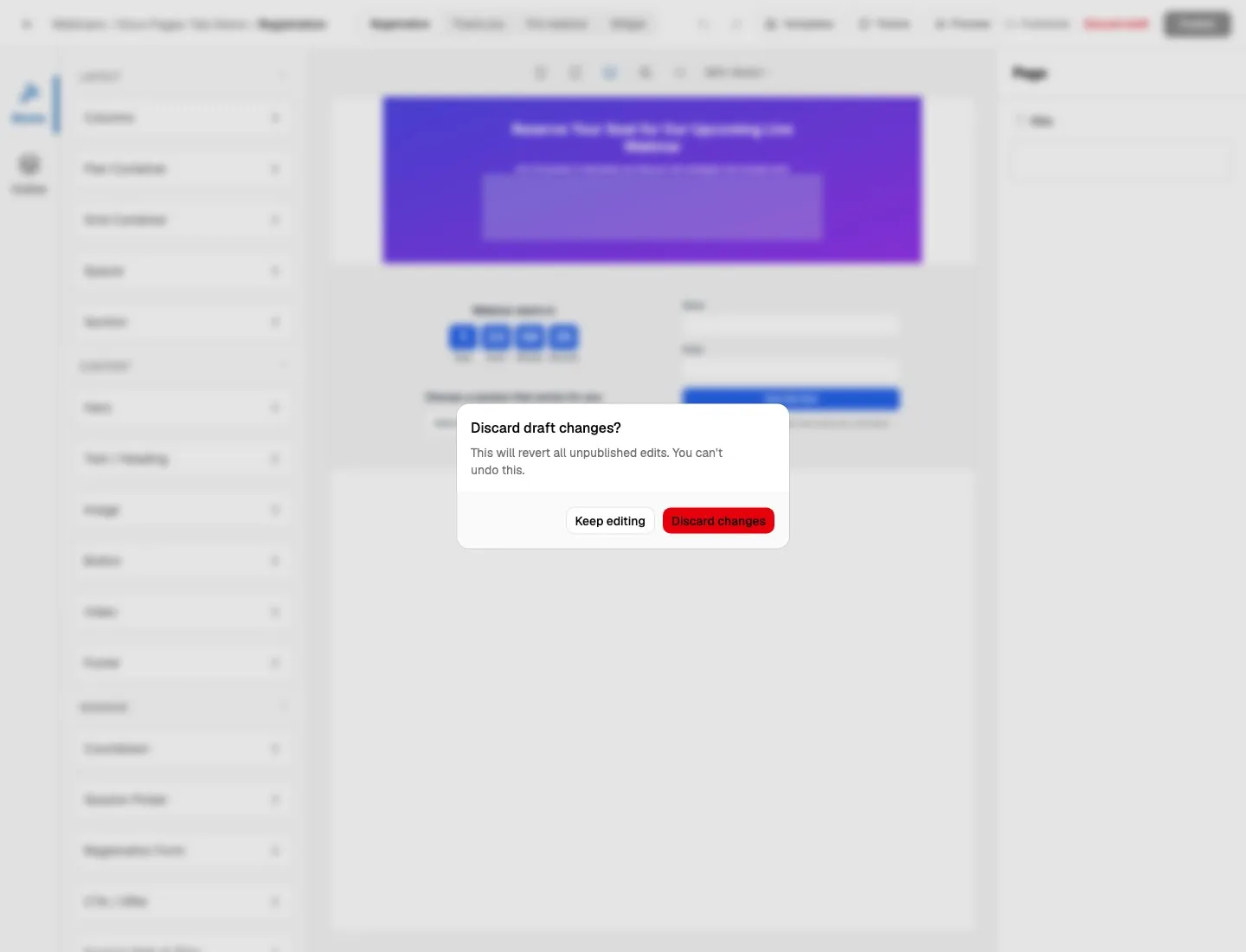
Discarding a draft cannot be undone from the confirmation dialog. If you might need the current draft, preview it first or publish it before replacing it.
Recommended Workflows
Section titled “Recommended Workflows”Build A New Registration Page
Section titled “Build A New Registration Page”- Open Pages.
- Click Open Page Editor.
- Start on the Registration page.
- Open Templates and choose a starting layout.
- Edit the Hero headline and subheadline.
- Confirm the Session Picker has useful session options.
- Edit the Registration Form button label and consent settings.
- Add proof, image, or video sections as needed.
- Click Preview.
- Check desktop and smaller viewport controls.
- Click Publish.
Build A Thank-You Page
Section titled “Build A Thank-You Page”- Switch to Thank you in the page switcher.
- Choose a confirmation-oriented template.
- Confirm the page explains what happens next.
- Add a CTA / Offer block only if there is a clear next step.
- Preview the page.
- Confirm whether the webinar has an external thank-you URL configured.
- Publish the page if it should be used by WebinarStack.
Build A Pre-Webinar Waiting Page
Section titled “Build A Pre-Webinar Waiting Page”- Switch to Pre-webinar.
- Start with a countdown-focused template.
- Keep the page simple and useful.
- Add Session Date & Time if attendees need clarity.
- Add prep instructions or a workbook link if needed.
- Preview the page.
- Publish before launch.
Build A Widget
Section titled “Build A Widget”- Switch to Widget.
- Use a compact template.
- Keep the copy short.
- Confirm the Session Picker and Registration Form fit the narrow canvas.
- Avoid large hero-style structures.
- Publish the widget layout.
- Test the embed from the Registration tab or external page where the widget is installed.
Troubleshooting
Section titled “Troubleshooting”| Issue | Likely Cause | What To Do |
|---|---|---|
| The public page did not change | The draft was saved but not published. | Return to the page editor and click Publish. |
| Preview shows changes but the public URL does not | Preview reads the draft; the public URL reads the published layout. | Publish the page after previewing. |
| The Publish button is disabled | There are no local edits, saving is in progress, or the page is already published. | Make an edit, wait for Saving… to finish, then publish. |
| Discard draft is disabled | There is no published version to restore or no discardable draft state. | Publish a stable version before relying on discard. |
| The Thank-you page preview looks right but registrants go elsewhere | The webinar has an external thank-you URL configured. | Check the Setup/registration redirect settings and remove the external URL if you want the built page to show. |
| Widget has no Preview button | Widget pages do not use the draft preview route. | Test the widget through the embed flow after publishing. |
| Countdown has no useful time | The webinar has no upcoming session data for that surface. | Check the schedule in Setup and availability in Registration. |
| Session Picker is empty | There are no upcoming sessions or registration availability filters hide them. | Review schedule rules, fixed sessions, blackout dates, and registration availability. |
| Image does not show | External URL is invalid, CDN image was removed, or the image source is blank. | Re-select the image source and add alt text. |
| Page looks good on desktop but cramped on mobile | Layout blocks are too wide or mobile stacking is disabled. | Use viewport controls and set Flex/Grid mobile behavior to stack when appropriate. |
| Theme edits disappeared | Theme panel edits were canceled or not saved. | Reopen Theme, make changes, and click Save. |
| Page switch feels delayed | The editor is flushing the current draft before navigating. | Wait for the switch overlay to complete. |
Pages Tab Checklist
Section titled “Pages Tab Checklist”Before launch, confirm:
- Registration page is published.
- Thank-you page is published or the external thank-you URL is intentional.
- Pre-webinar page is published.
- Widget page is published if you use embeds.
- Registration Form copy, consent fields, and SMS/GDPR settings are correct.
- Session Picker shows the expected sessions.
- Countdown and Session Date & Time blocks render useful values.
- Images use valid external URLs or WebinarStack CDN images.
- Image alt text is meaningful unless the image is decorative.
- Theme colors have readable contrast.
- Desktop and smaller viewport previews are checked.
- Template changes have been previewed after applying.
- The page status is Published before relying on the live attendee surface.
Next step: preview the public registration URL and run a test registration from the Registration Tab.