
Webinar Experience Tab
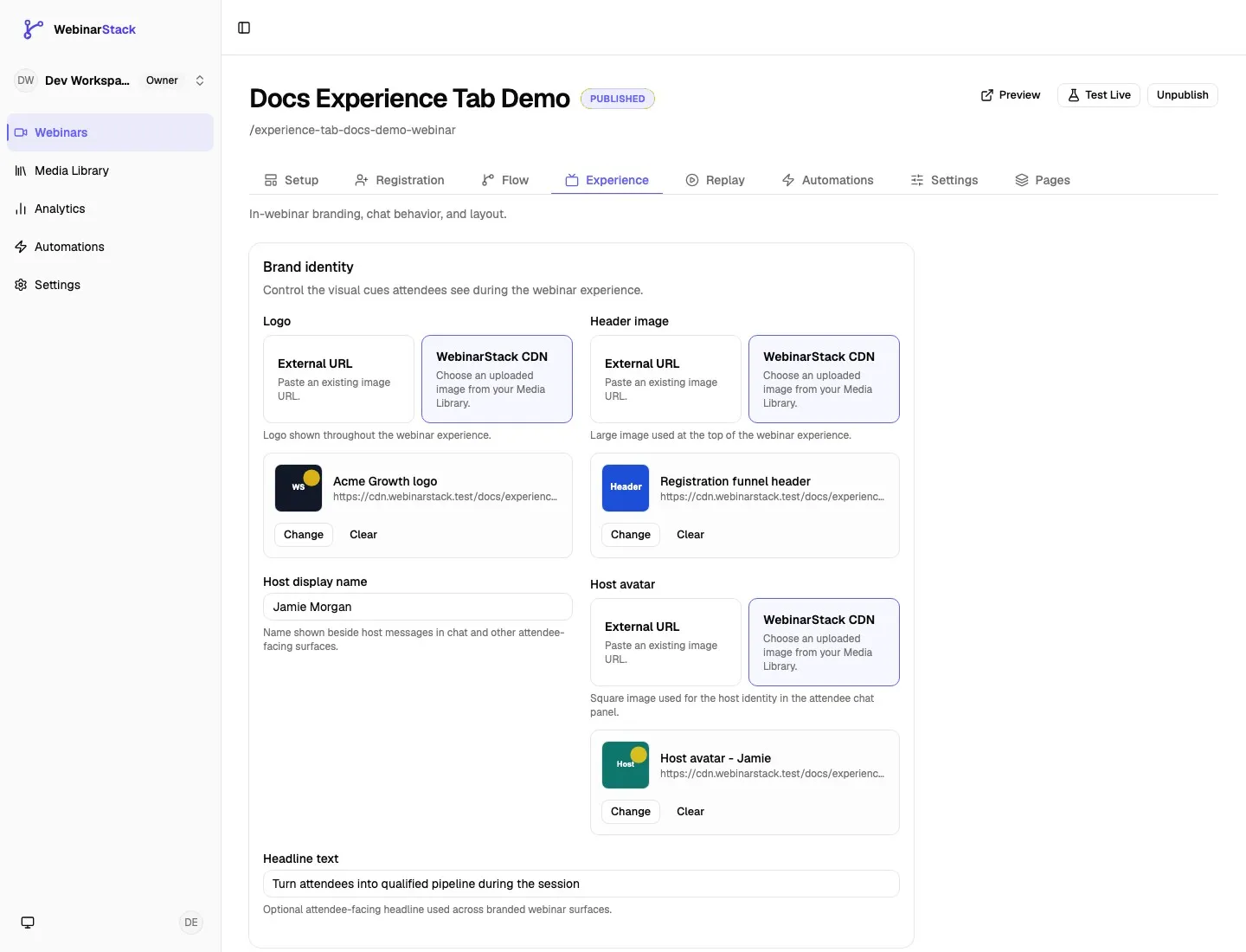
The Experience tab controls what attendees see and interact with during the webinar itself. Use it to set webinar branding, host identity, timed offers, polls, automated chat messages, live chat behavior, replay chat content, and adaptive transition defaults.
Open it from Dashboard -> Webinars -> select a webinar -> Experience.
Previous tab: Webinar Registration Tab.
What The Experience Tab Controls
Section titled “What The Experience Tab Controls”The Experience tab is organized around the attendee-facing webinar experience.
| Experience Section | What You Control | Save Behavior |
|---|---|---|
| Brand identity | Logo, header image, host display name, host avatar, and attendee-facing headline. | Uses the sticky Save changes bar. |
| Interactions | Timed offers and polls for the live timeline and replay timeline. | Saves from the interaction sheet. |
| Chat | Live chat mode, automated host messages, Slack forwarding, chat forwarding email, external chat scripts, and replay chat messages. | Saves through chat-specific actions. |
| Branch Transitions | Default adaptive webinar transition at branch points. | Uses the sticky Save changes bar. |
The Experience tab does not edit the registration page layout. Registration page design lives under the Pages tab. The Experience tab focuses on what happens after the attendee reaches the webinar room or replay.
Save Behavior
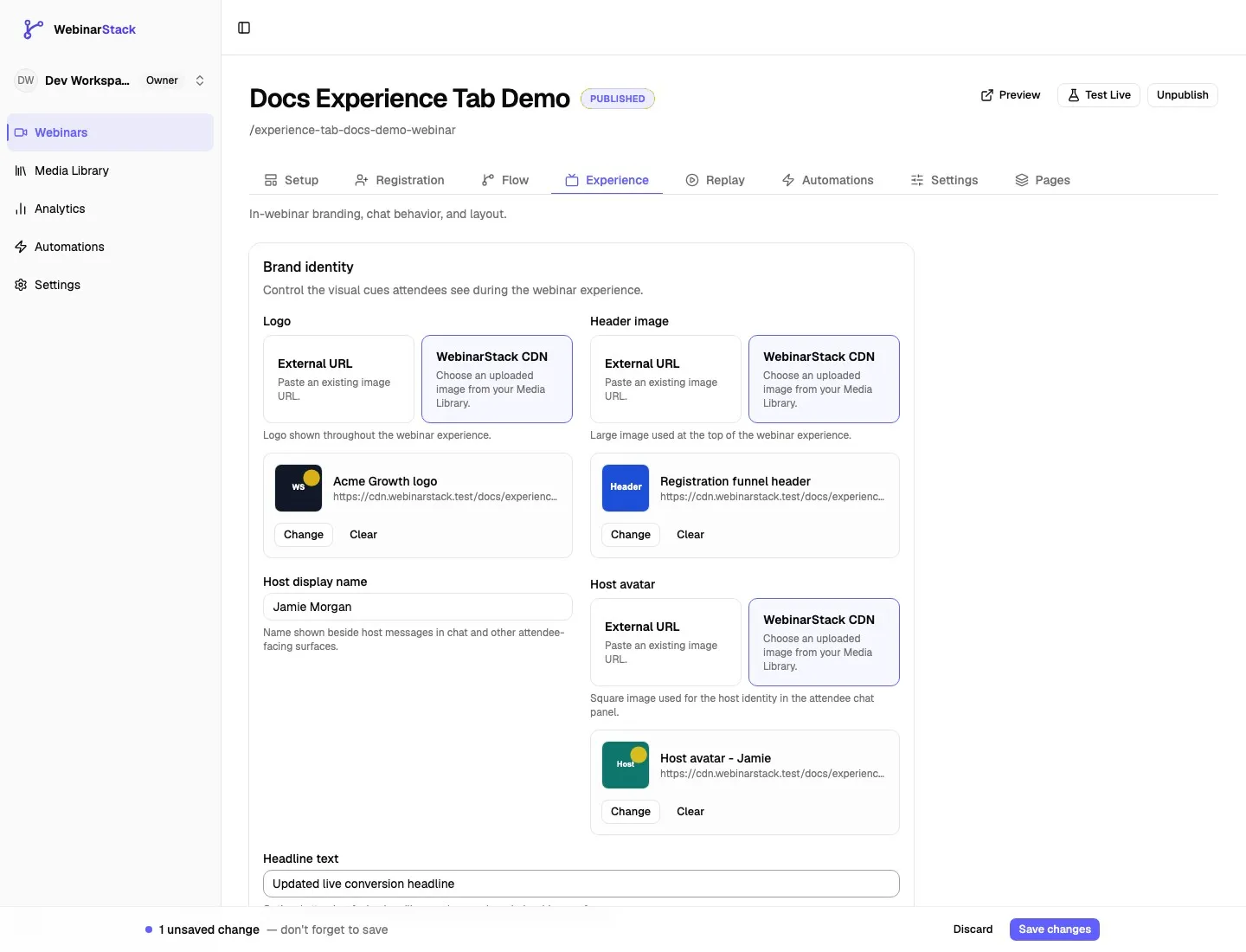
Section titled “Save Behavior”Experience tab settings do not all save the same way.
| Change Type | How It Saves |
|---|---|
| Logo, header image, host display name, host avatar, and headline text | Use the sticky Save changes bar. |
| Adaptive default transition | Use the sticky Save changes bar. |
| Adding or editing an offer or poll | Click Add Interaction or Save Changes inside the interaction sheet. |
| Deleting an interaction | Confirms and deletes immediately. |
| Copying live interactions to replay | Runs immediately from the replay timeline. |
| Live chat mode | Saves when you select a mode. |
| Automated chat messages | Save from the message dialog. |
| Slack channel | Saves when you select a channel. |
| Chat forwarding email | Saves when the field loses focus, as long as the email is valid. |
| External chat script | Saves when you click Save Script. |
| Copying live chat messages to replay | Runs immediately from the replay timeline. |
If the sticky save bar is visible, save or discard before leaving the editor. Interaction and chat dialogs save independently from that bar.
Brand Identity
Section titled “Brand Identity”The Brand identity card controls the visual identity and host identity used across attendee-facing webinar surfaces.
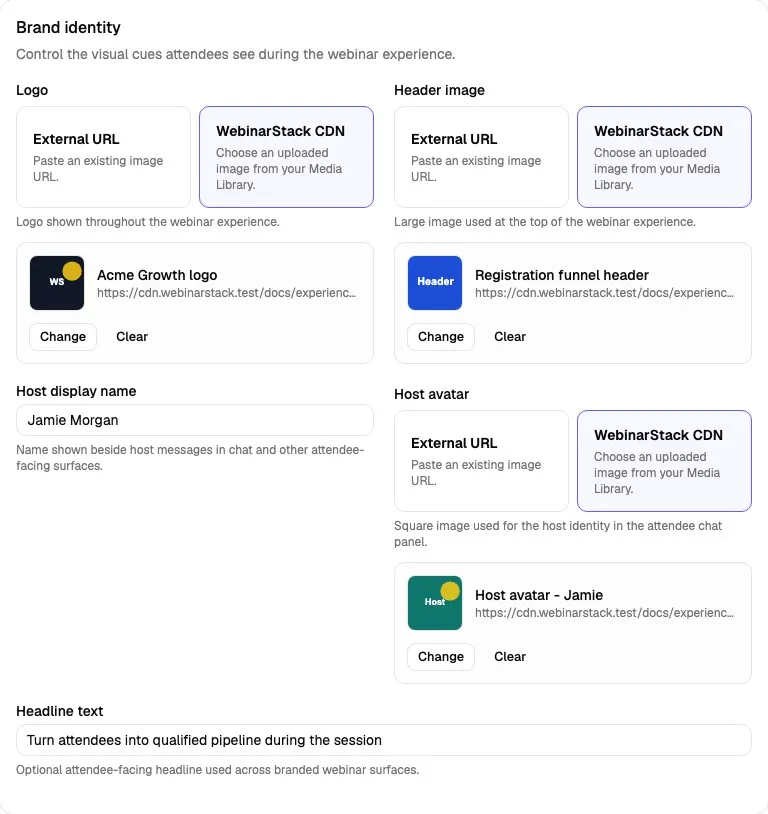
Image Sources
Section titled “Image Sources”The Logo, Header image, and Host avatar fields all use the same image source picker.
| Source | Meaning | When To Use It |
|---|---|---|
| External URL | Paste a direct URL for an existing image. | Use this when the image is already hosted on your own site, CDN, DAM, or another trusted source. |
| WebinarStack CDN | Choose an uploaded image from the Media Library. | Use this when you want WebinarStack to host the image asset and keep it organized with the webinar media. |
When you choose WebinarStack CDN, WebinarStack stores the selected asset’s CDN URL on the webinar. If you later replace the image in the Media Library, choose the new asset here so the webinar points to the correct file.
Use the Media Library guide for a deeper explanation of hosted image uploads and CDN-hosted media.
The Logo is shown throughout the webinar experience where a compact brand mark is needed.
Field behavior:
| Detail | Behavior |
|---|---|
| Required | No. |
| Source options | External URL or WebinarStack CDN image. |
| Validation | Must resolve to a valid URL when filled. |
| Save behavior | Uses the sticky Save changes bar. |
| Good use | Company logo, product logo, event logo, or campaign logo. |
Use a simple image that remains legible at small sizes. A square or horizontal logo with good contrast usually works best.
Header Image
Section titled “Header Image”The Header image is the large brand image used at the top of the webinar experience.
Field behavior:
| Detail | Behavior |
|---|---|
| Required | No. |
| Source options | External URL or WebinarStack CDN image. |
| Validation | Must resolve to a valid URL when filled. |
| Save behavior | Uses the sticky Save changes bar. |
| Good use | Event banner, webinar hero image, branded campaign graphic, or topic-specific visual. |
Use the header image to reinforce the webinar topic, campaign, or host brand. Avoid text-heavy images that will be hard to read on smaller screens.
Host Display Name
Section titled “Host Display Name”The Host display name is the name shown beside host messages and host identity surfaces.
Field behavior:
| Detail | Behavior |
|---|---|
| Required | No. |
| Maximum length | 100 characters. |
| Save behavior | Uses the sticky Save changes bar. |
| Used by | Built-in chat host messages and other attendee-facing host identity areas. |
Use the name attendees expect to see. This can be a person, team, brand, or event host.
Examples:
Jamie MorganThe WebinarStack TeamAcme Growth Lab
If this is blank, host-facing attendee surfaces can fall back to a generic host name.
Host Avatar
Section titled “Host Avatar”The Host avatar is the square image used for the host identity in the attendee chat panel.
Field behavior:
| Detail | Behavior |
|---|---|
| Required | No. |
| Source options | External URL or WebinarStack CDN image. |
| Validation | Must resolve to a valid URL when filled. |
| Save behavior | Uses the sticky Save changes bar. |
| Good use | Speaker headshot, team avatar, product mark, or support identity. |
Use a square image with the host face or mark centered. This is especially helpful when automated messages are intended to feel like they are coming from the host.
Headline Text
Section titled “Headline Text”The Headline text is optional attendee-facing copy used across branded webinar surfaces.
Field behavior:
| Detail | Behavior |
|---|---|
| Required | No. |
| Maximum length | 200 characters. |
| Save behavior | Uses the sticky Save changes bar. |
| Good use | A short promise, positioning line, or campaign message. |
Examples:
Turn attendees into qualified pipeline during the sessionLearn the framework behind high-converting evergreen webinarsBuild a launch-ready webinar funnel in one afternoon
Keep this short. The public webinar title from the Setup tab should identify the webinar; the headline can support the experience with a stronger promise or theme.
Interactions
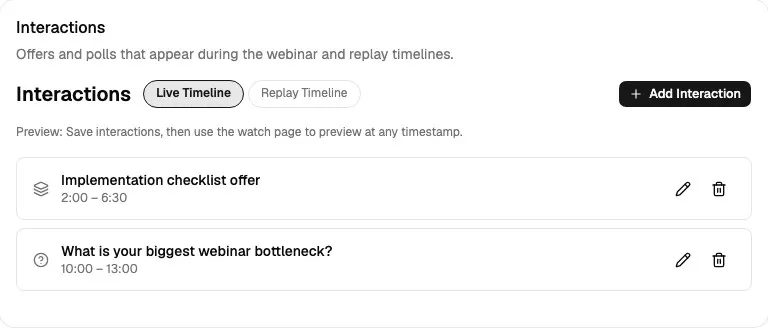
Section titled “Interactions”The Interactions card controls timed offers and polls that appear during the webinar or replay.
Timelines
Section titled “Timelines”Interactions are separated into two timelines.
| Timeline | Meaning |
|---|---|
| Live Timeline | Offers and polls shown during the live or simulated-live webinar experience. |
| Replay Timeline | Offers and polls shown during replay sessions. |
Use the Live Timeline for the primary webinar run. Use the Replay Timeline when replay viewers should see different offers, different timing, or replay-specific polls.
If replay is disabled, you can still prepare replay interactions, but attendees will not see them until replay is enabled from the Replay tab.
Interaction List
Section titled “Interaction List”Each saved interaction appears with:
| List Detail | Meaning |
|---|---|
| Icon | Offer or poll type. |
| Label | Internal name for offers when set, otherwise the attendee headline. Polls show the poll headline. |
| Timestamp range | When the interaction appears and disappears. |
| Edit action | Opens the interaction sheet. |
| Delete action | Confirms and removes the interaction. |
The list is sorted by the interaction’s start time.
Copy Live To Replay
Section titled “Copy Live To Replay”On the Replay Timeline, WebinarStack can copy live interactions into replay.
Copy behavior:
| Detail | Behavior |
|---|---|
| Source | Live Timeline interactions. |
| Destination | Replay Timeline. |
| Existing replay items | If the replay timeline already has items, copying does not duplicate over them. |
| Best use | Start replay setup from the live experience, then adjust replay-specific timing or copy. |
Use this when your replay should mostly match the live experience.
Interaction Timing
Section titled “Interaction Timing”Every interaction has timing fields.
| Field | Meaning | Rules |
|---|---|---|
| Appears at | When the offer or poll starts showing. | Use MM:SS or HH:MM:SS. Must be zero or greater. |
| Ends at | When the offer or poll stops showing. | Use MM:SS or HH:MM:SS. Must be after Appears at. |
| Headline | Main attendee-facing text. | Required, up to 200 characters. |
| Image | Optional visual for the offer or poll. | External URL or WebinarStack CDN image. |
Timing is based on elapsed webinar time, not the attendee’s local clock. For example, 5:30 means five minutes and thirty seconds into the webinar playback.
Offer Interactions
Section titled “Offer Interactions”An Offer is a timed call-to-action card. Use it for downloads, bookings, checkout pages, applications, consultations, product trials, limited-time bonuses, or any other next step.
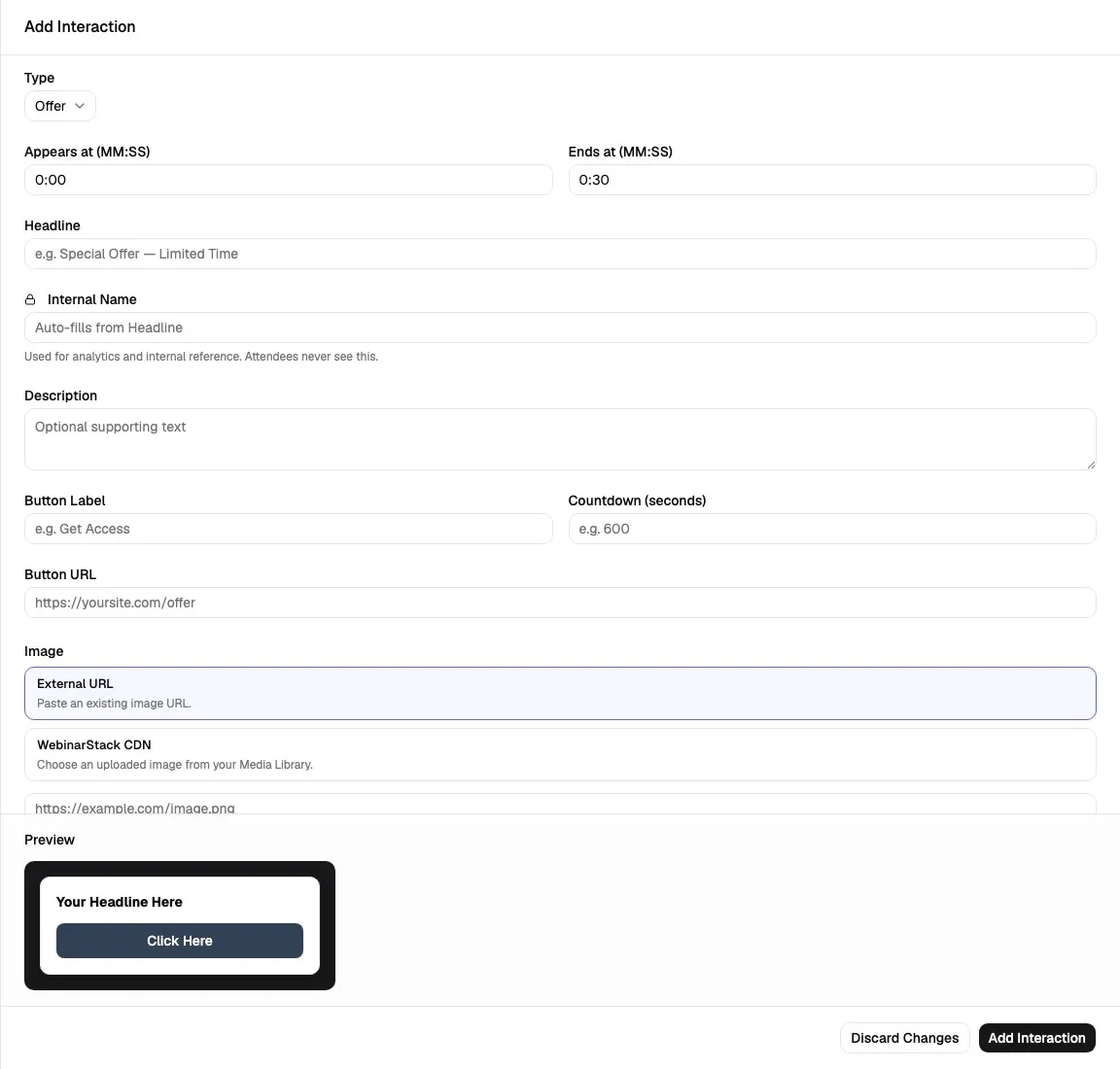
Offer fields:
| Field | Meaning | Rules |
|---|---|---|
| Internal Name | Admin and analytics label. | Up to 200 characters. Attendees do not see it. |
| Description | Supporting copy on the offer card. | Optional, up to 500 characters. |
| Button Label | Text on the CTA button. | Optional, up to 80 characters. |
| Countdown (seconds) | Timer shown with the offer. | Optional, whole number, zero or greater. |
| Button URL | Destination for the CTA button. | Optional, must be a valid URL when filled. |
| Image | Visual shown with the offer. | Optional external URL or WebinarStack CDN image. |
| Button Color | CTA button color. | Use a palette swatch or a six-digit hex value. |
| Button Icon | Optional icon inside the CTA button. | None, ShoppingCart, Zap, Gift, ArrowRight, or Star. |
Internal Name
Section titled “Internal Name”The Internal Name helps your team identify offers in the editor and analytics. It is not returned to attendee-facing interaction data.
When you create a new offer, WebinarStack mirrors the headline into the internal name until you edit the internal name manually. After you customize it, future headline edits do not overwrite your internal label.
Good internal names:
Main checklist offerDemo booking CTA - midpointAnnual plan bonus - close
Offer Preview
Section titled “Offer Preview”The offer sheet includes a live preview for offer cards. Use it to check button copy, headline length, color, icon choice, and overall readability before saving.
The preview is only a design preview. To test exact timing in context, save the interaction and use the webinar preview/watch page.
Poll Interactions
Section titled “Poll Interactions”A Poll collects attendee responses during the webinar or replay.
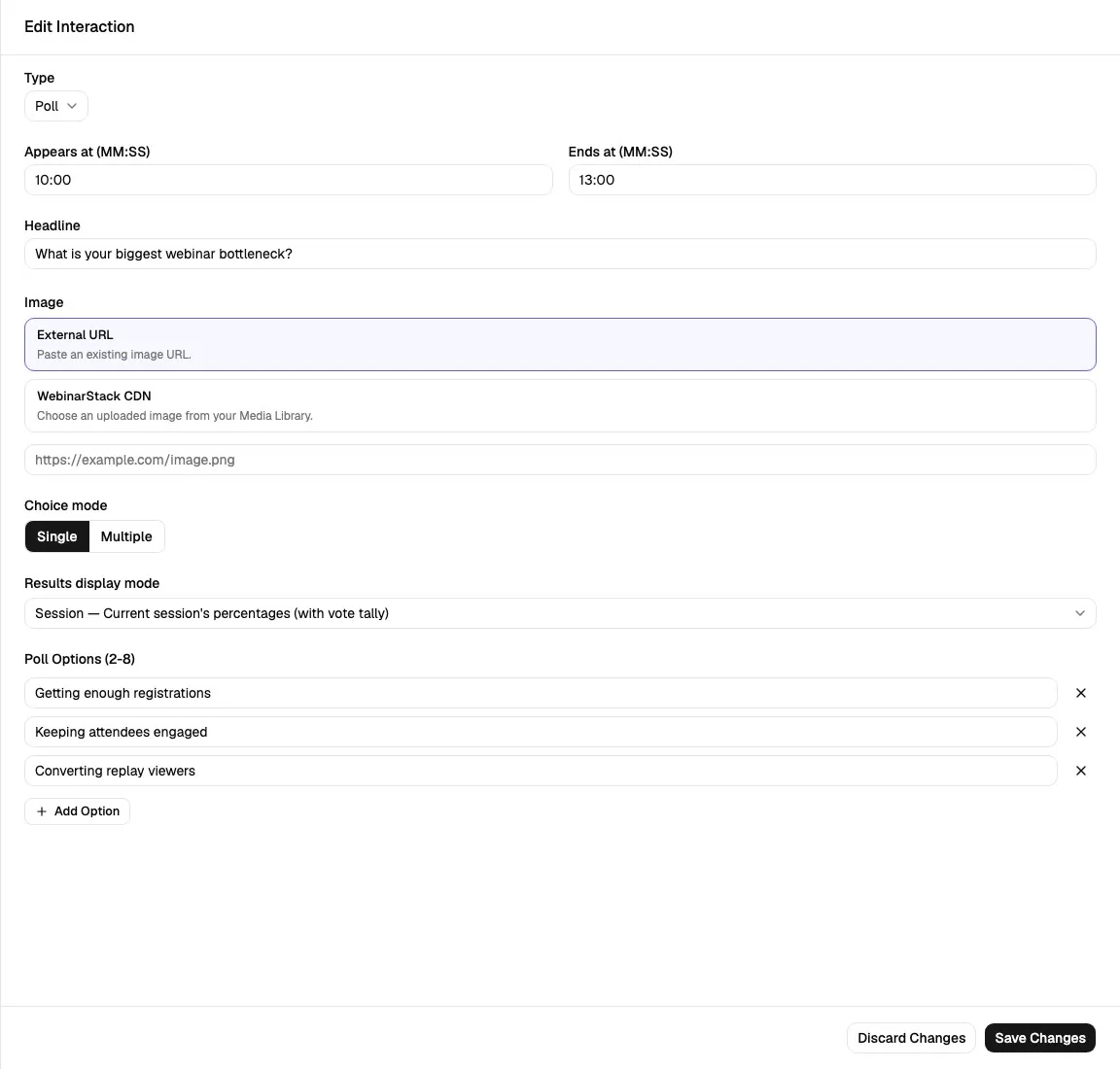
Poll fields:
| Field | Meaning | Rules |
|---|---|---|
| Choice mode | Whether attendees can select one option or multiple options. | Single or Multiple. |
| Results display mode | Whether and how attendees see poll results. | Off, Session, Historical, or Custom. |
| Aggregate min votes | Minimum vote count before historical results display. | 0 to 1000. Only shown for Historical mode. |
| Poll Options | Answer choices shown to attendees. | 2 to 8 options. Each option is required. |
| Custom percentages | Creator-set result percentages. | 0 to 100 per option. Only shown for Custom mode. |
Choice Mode
Section titled “Choice Mode”| Mode | Meaning |
|---|---|
| Single | Attendees choose one answer. |
| Multiple | Attendees can choose more than one answer. |
If a poll already has responses and you change its choice mode, WebinarStack warns you. Existing analytics may become harder to interpret because old responses were collected under a different selection rule.
Results Display Mode
Section titled “Results Display Mode”| Mode | Meaning | Good Use |
|---|---|---|
| Off | Do not show poll results to attendees. | Use when the poll is for segmentation, routing, or internal learning only. |
| Session | Show current session percentages and vote tally. | Use when attendees should see live social proof from their current cohort. |
| Historical | Show aggregated percentages from past sessions after a vote threshold is met. | Use when current-session sample sizes are often small. |
| Custom | Show creator-entered percentages per option. | Use when you want a curated result display or demonstration result. |
Custom percentages do not need to add up to 100. Empty custom percentage fields are omitted for that option.
Poll Options
Section titled “Poll Options”Polls require at least two options and support up to eight. Keep options short enough to scan quickly during video playback.
Good poll options:
- Clear and mutually exclusive for Single choice polls.
- Short enough to read while watching the webinar.
- Written in the same voice as the webinar.
- Useful later for analytics, segmentation, or branch routing.
The Chat card controls live chat, replay chat messages, third-party chat widgets, Slack forwarding, and chat notification email behavior.
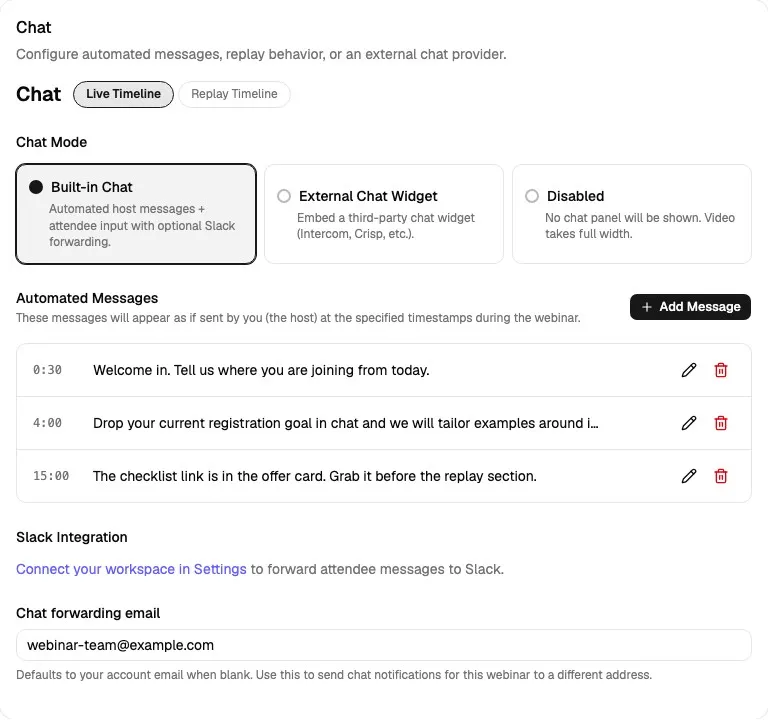
Chat Timelines
Section titled “Chat Timelines”| Timeline | Meaning |
|---|---|
| Live Timeline | Live webinar chat mode and automated live chat messages. |
| Replay Timeline | Replay automated messages when replay chat is built in. |
The live timeline controls whether the webinar has built-in chat, an external chat widget, or no chat panel. The replay timeline controls replay chat messages, but replay chat visibility also depends on the Replay tab’s replay chat mode.
Live Chat Modes
Section titled “Live Chat Modes”The Live Timeline has three chat modes.
| Mode | Meaning | When To Use It |
|---|---|---|
| Built-in Chat | WebinarStack chat panel with automated host messages and attendee input. | Use when you want WebinarStack to collect attendee chat and optionally forward it to Slack or email. |
| External Chat Widget | Third-party chat widget script rendered in the chat area. | Use when your team already works in Intercom, Crisp, or another chat provider. |
| Disabled | No chat panel is shown. | Use when video should take the full width or chat is not part of the experience. |
Changing the chat mode saves immediately.
Built-In Chat
Section titled “Built-In Chat”Built-in chat supports:
- Automated host messages.
- Attendee chat input.
- Slack forwarding when Slack is connected.
- Chat notification email forwarding.
- Replay timeline messages when replay chat is configured as built in.
Use built-in chat when you want a native webinar chat experience and want WebinarStack to own the chat behavior.
External Chat Widget
Section titled “External Chat Widget”External Chat Widget mode replaces the built-in chat panel with a third-party script.
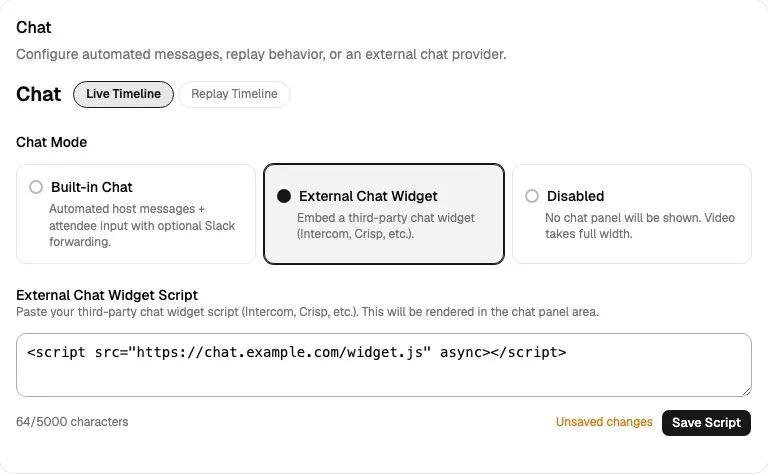
External script behavior:
| Detail | Behavior |
|---|---|
| Field | External Chat Widget Script. |
| Maximum length | 5,000 characters. |
| Save action | Click Save Script. |
| Dirty state | Shows unsaved changes until saved. |
| Switching modes | If you have unsaved script edits and switch away, WebinarStack asks before discarding them. |
Paste the complete script your chat provider gives you. For example, many providers give you a <script> tag that loads their widget.
Use this mode when:
- Your support team already lives in another chat inbox.
- You need provider-specific routing, assignment, or chat automation.
- The webinar chat should be part of a broader customer messaging system.
Disabled Chat
Section titled “Disabled Chat”Disabled chat hides the chat panel. Use it when the webinar should be focused only on the video, interactions, and offer/poll moments.
Automated Chat Messages
Section titled “Automated Chat Messages”Automated messages appear in chat at specific timestamps.
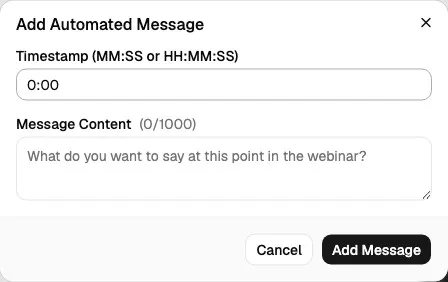
Fields:
| Field | Meaning | Rules |
|---|---|---|
| Timestamp | When the message appears. | Use MM:SS or HH:MM:SS. Must be zero or greater. |
| Message Content | Text sent as the host message. | Required, up to 1,000 characters. |
Use automated messages to:
- Welcome attendees.
- Ask attendees to introduce themselves.
- Point out an offer or poll.
- Reinforce a key moment.
- Direct attendees to a resource.
- Create replay chat activity that still feels guided.
Automated messages are shown only when the relevant timeline uses built-in chat. For the live timeline, that means Live Chat Mode is Built-in Chat. For replay, the Replay tab’s replay chat mode must be built in.
Copy Live Messages To Replay
Section titled “Copy Live Messages To Replay”On the Replay Timeline, you can copy live automated messages into replay.
Copy behavior:
| Detail | Behavior |
|---|---|
| Source | Live Timeline messages. |
| Destination | Replay Timeline. |
| Existing replay messages | If replay messages already exist, copying does not duplicate over them. |
| Best use | Start replay chat from the live script, then edit replay-specific language. |
Slack Integration
Section titled “Slack Integration”Slack forwarding appears when the Live Timeline is using Built-in Chat.
If Slack is not connected, the Experience tab links to Settings -> Integrations so you can connect a workspace. If Slack is connected, WebinarStack shows a channel selector.
Slack behavior:
| Detail | Behavior |
|---|---|
| Visibility | Live Timeline and Built-in Chat only. |
| Channel selection | Saves when you select a channel. |
| Purpose | Forward attendee messages to the selected Slack channel. |
| Related docs | Slack Chat Integration |
Slack is useful when a live operator, sales team, support team, or host wants to monitor attendee messages without staying inside WebinarStack.
Chat Forwarding Email
Section titled “Chat Forwarding Email”The Chat forwarding email field appears when the Live Timeline is using Built-in Chat.
Field behavior:
| Detail | Behavior |
|---|---|
| Required | No. |
| Validation | Must be a valid email address when filled. |
| Empty value | Defaults to the account email. |
| Save behavior | Saves on blur if the value changed and is valid. |
| Good use | Route one webinar’s chat notifications to a campaign inbox, sales inbox, or event support inbox. |
Leave this blank when the account-level email should receive chat notifications. Fill it when a specific webinar needs a different recipient.
Branch Transitions
Section titled “Branch Transitions”The Branch Transitions card appears only for adaptive webinars.
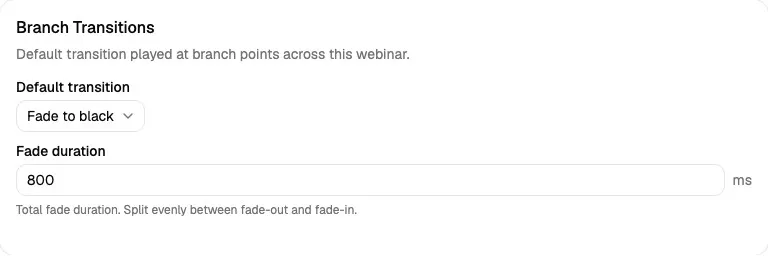
The default transition controls what attendees see when they move between adaptive branches unless a branch-specific transition overrides it in the Flow tab.
Transition options:
| Transition | Meaning | Configuration |
|---|---|---|
| Jump cut | Move to the next segment immediately. | No additional fields. |
| Buffering | Use a buffering-style transition. | No additional fields in the editor. |
| Fade to black | Fade out and back in between segments. | Fade duration in milliseconds. |
Fade duration behavior:
| Detail | Behavior |
|---|---|
| Field | Fade duration. |
| Minimum | 200 ms. |
| Maximum | 1,500 ms. |
| Step | 100 ms. |
| Runtime split | WebinarStack splits the total evenly between fade-out and fade-in. |
Use Jump cut for the fastest movement between segments. Use Fade to black when the transition should feel intentional and less abrupt.
How This Tab Connects To Other Tabs
Section titled “How This Tab Connects To Other Tabs”| Related Area | Connection |
|---|---|
| Setup tab | Setup controls webinar title, video source, schedule, and whether the webinar is adaptive. Experience controls the in-room brand and interaction behavior. |
| Registration tab | Registration controls how attendees sign up. Experience controls what they see after they arrive. |
| Pages tab | Pages controls registration and page layouts. Experience controls webinar room branding, chat, and timed in-room content. |
| Flow tab | Adaptive webinars use Flow for segments and branch routing. Experience provides the default transition used when branches do not override it. |
| Replay tab | Replay must be enabled before replay interactions and replay chat messages are visible to attendees. Replay chat mode also affects whether replay automated messages appear. |
| Automations tab | Automations can react to attendee behavior, while Experience creates the offers, polls, and chat moments attendees interact with. |
| Analytics | Offer clicks, poll responses, chat engagement, and replay behavior can later appear in analytics and reporting. |
| Media Library | WebinarStack CDN images selected in Brand identity or interaction images come from uploaded Media Library assets. |
Experience Tab Checklist
Section titled “Experience Tab Checklist”Before testing or publishing the webinar, review this checklist:
- Logo, header image, and host avatar are final and saved.
- Host display name matches the host identity attendees should see.
- Headline text supports the webinar promise without duplicating the public title.
- Live offers and polls appear at the right timestamps.
- Offer button URLs are correct and open in a new browser test.
- Poll options are clear and the results display mode is intentional.
- Replay interactions are configured if replay viewers should see offers or polls.
- Live chat mode matches your operating plan.
- Automated chat messages are timed correctly.
- Slack channel or chat forwarding email is configured if your team needs notifications.
- External chat script is saved if using a third-party widget.
- Adaptive transition default is intentional for adaptive webinars.
- Sticky Save changes bar is cleared.
- Preview and Test Live reflect the saved experience.
Troubleshooting
Section titled “Troubleshooting”| Issue | Likely Cause | What To Do |
|---|---|---|
| Brand image will not save | The image value is not a valid URL or no CDN image is selected. | Use a full image URL or choose a WebinarStack CDN image from the Media Library. |
| Logo or avatar looks wrong in chat | The image is not square, has low contrast, or is cropped poorly. | Upload a square version with the important content centered. |
| Sticky save bar remains visible | Brand identity or branch transition fields have unsaved changes. | Click Save changes or Discard. |
| Offer or poll does not appear in preview | The interaction was not saved, its timing is outside the preview timestamp, or you are viewing the wrong timeline. | Save the interaction, check Appears at and Ends at, and preview the correct live or replay timeline. |
| Interaction validation fails | Required fields are missing, Ends at is not after Appears at, an option is blank, or a URL/color value is invalid. | Fill required fields and correct URL, timestamp, option, or hex color values. |
| Internal offer label does not match the headline | The internal name was customized and no longer mirrors the headline. | Edit Internal Name if the dashboard label should change. |
| Replay interactions are not visible to attendees | Replay is disabled or the replay timeline has no saved interactions. | Enable replay from the Replay tab and add or copy replay interactions. |
| Automated messages do not appear | The relevant timeline is not using built-in chat, the message was not saved, or the timestamp has not been reached. | Confirm chat mode, save the message, and test at the right timestamp. |
| Slack channel selector does not appear | Slack is not connected or the workspace channels failed to load. | Connect Slack from Settings -> Integrations and reload the Experience tab. |
| Chat forwarding email does not save | The email address is invalid or the field has not lost focus. | Enter a valid email and tab/click out of the field. |
| External chat script disappears when switching modes | Unsaved script edits were discarded during a mode switch. | Save the script before switching away from External Chat Widget mode. |
| Branch Transitions is missing | The webinar is not adaptive. | Enable Adaptive webinar in the Setup tab if the webinar should use branching. |
| Fade duration is rejected | The value is outside the supported range. | Use a value from 200 to 1,500 milliseconds. |
Next tab: Webinar Replay Tab.