
Stripe Revenue Tracking
Stripe Revenue Tracking lets WebinarStack connect webinar engagement to purchase outcomes. When someone buys through Stripe, Stripe sends a signed webhook to WebinarStack. WebinarStack verifies the event, records it in a revenue ledger, and attributes it back to the matching webinar attendee and offer when it can.
Use this guide to understand what Stripe Revenue Tracking does, how to set it up, how revenue attribution works, what appears in Analytics, how refunds and chargebacks are handled, and how to troubleshoot missing or unattributed revenue.
Quick Reference
Section titled “Quick Reference”| Item | Details |
|---|---|
| Integration type | Inbound payment-provider webhook. |
| Main provider | Stripe. |
| Additional provider option | Generic HMAC for custom checkout systems or non-Stripe payment tools. |
| Where to configure it | Settings > Revenue. |
| Stripe endpoint format | /api/webhooks/revenue/{accountId}/stripe |
| Generic endpoint format | /api/webhooks/revenue/{accountId}/generic |
| Main use | Attribute purchases, refunds, and chargebacks to webinars, attendees, and offers. |
| Stripe secret direction | Copy Stripe’s whsec_... signing secret from Stripe into WebinarStack. |
| Generic secret direction | Generate or store the generic signing secret in WebinarStack, then use it in your sender. |
| Main analytics surfaces | Analytics health strip, Funnels revenue cards, offer detail revenue, attendee detail context, and revenue summary views. |
| Currency handling | Per currency. WebinarStack does not convert currencies into one blended total. |
| Default offer attribution window | 7 days unless a CTA/offer was configured through a surface that sets a different attributionWindowDays value. |
The most important setup rule is this: Stripe owns the Stripe webhook signing secret. Create the webhook endpoint in Stripe first, reveal the endpoint signing secret in Stripe, then paste that whsec_... value into WebinarStack.
What This System Is
Section titled “What This System Is”Stripe Revenue Tracking is for creator-side sales attribution.
It answers questions like:
- Did webinar attendees buy?
- Which webinar generated the purchase?
- Which offer click most likely led to the purchase?
- How much gross revenue, refunds, chargebacks, and net revenue came from this webinar?
- Which offers produced clicks but not purchases?
- Which attendees clicked an offer and later purchased?
It is especially useful when your webinar drives traffic to a Stripe Checkout page, a direct Stripe charge flow, or a subscription/invoice flow.
What This System Is Not
Section titled “What This System Is Not”Stripe Revenue Tracking is not the same thing as WebinarStack billing.
| System | Purpose |
|---|---|
| Stripe Revenue Tracking | Your Stripe account sends purchase outcomes into WebinarStack analytics. |
| WebinarStack billing | WebinarStack uses its own billing system to manage your subscription and platform usage. |
Do not use the WebinarStack billing webhook endpoint for attendee revenue tracking. Use the Stripe endpoint shown in Settings > Revenue.
Stripe Revenue Tracking also does not replace Stripe’s own reporting.
| Not Included | Why |
|---|---|
| Stripe fee accounting | WebinarStack records purchase, refund, and chargeback amounts, not Stripe payout net after fees. |
| Product catalog sync | WebinarStack does not import Stripe Products, Prices, SKUs, coupons, or line items into the webinar editor. |
| Payout reconciliation | Use Stripe for payout, fee, balance, and tax reconciliation. |
| CRM or ESP updates | Use automations, native integrations, Zapier, or outbound webhooks for contact updates. |
| Payment collection | Stripe still hosts or processes the checkout. WebinarStack receives the outcome after Stripe sends the webhook. |
| Cross-currency conversion | WebinarStack keeps each currency separate instead of converting everything into one reporting currency. |
How The Flow Works
Section titled “How The Flow Works”At a high level, revenue tracking has two halves: event ingestion and attribution.
- A registrant joins a webinar.
- WebinarStack records webinar activity such as joins, watch time, offer impressions, and offer clicks.
- The attendee buys through Stripe.
- Stripe sends a signed webhook to the Stripe revenue endpoint in WebinarStack.
- WebinarStack verifies the
Stripe-Signatureheader using thewhsec_...signing secret saved in Settings > Revenue. - WebinarStack maps the Stripe event into a normalized purchase, refund, or chargeback record.
- WebinarStack stores the record in the revenue ledger.
- WebinarStack tries to match the buyer email to the most recent WebinarStack registration in the current workspace.
- If the registration is found, WebinarStack ties the revenue to that webinar.
- If the attendee clicked an offer within that offer’s attribution window, WebinarStack also ties the revenue to that offer.
- Analytics shows total sales, gross revenue, refunds, chargebacks, and net revenue.
The webhook is inbound. Stripe calls WebinarStack. WebinarStack does not poll Stripe for payment data.
Where To Configure Revenue
Section titled “Where To Configure Revenue”Open the dashboard and go to Settings > Revenue.
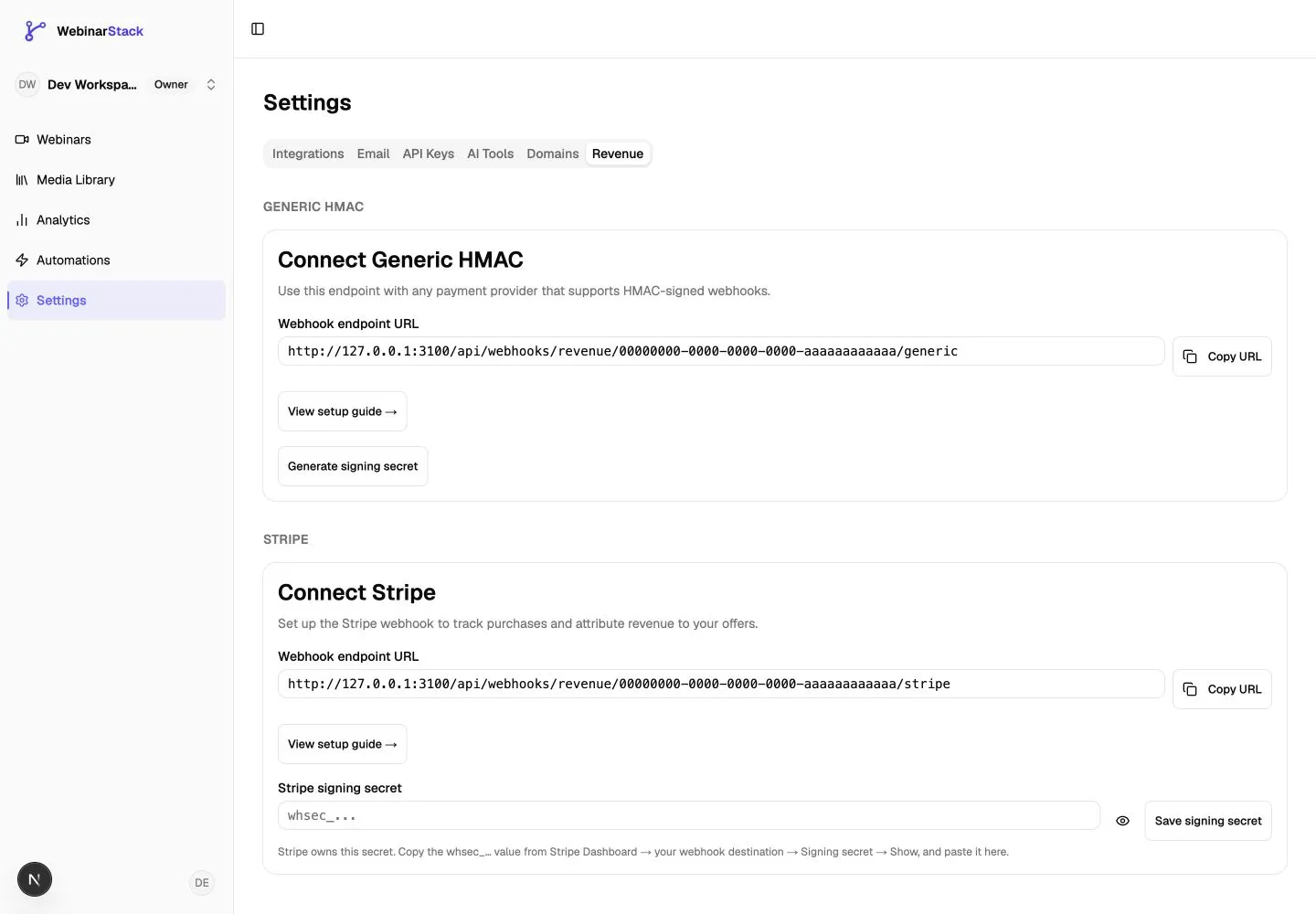
The Revenue tab shows one card for Stripe and one card for Generic HMAC. Each card has its own endpoint URL, signing secret controls, and last-received status.
Stripe Card
Section titled “Stripe Card”Use the Stripe card when purchases happen in Stripe.
| Field Or Control | What It Means |
|---|---|
| Webhook endpoint URL | The exact URL Stripe should call for this WebinarStack workspace. |
| Copy URL | Copies the endpoint URL to your clipboard. |
| View setup guide | Opens the in-app Stripe setup guide. |
| Stripe signing secret | The whsec_... endpoint signing secret generated by Stripe. |
| Show or hide secret | Reveals or hides the saved secret after an explicit click. |
| Save signing secret | Saves the Stripe-generated secret in WebinarStack. |
| Replace secret | Starts the rotation flow when Stripe gives you a new endpoint secret. |
| Last purchase received | Shows the most recent purchase, refund, or chargeback event WebinarStack accepted for that provider. |
Generic HMAC Card
Section titled “Generic HMAC Card”Use the Generic HMAC card only when your checkout system can send WebinarStack’s generic revenue JSON payload and sign the raw body with HMAC-SHA256.
| Field Or Control | What It Means |
|---|---|
| Webhook endpoint URL | The generic revenue endpoint for your workspace. |
| Generate signing secret | Creates a signing secret for your custom sender. |
| Show or hide secret | Reveals or hides the saved generic signing secret after an explicit click. |
| Copy Secret | Copies the revealed secret. |
| Regenerate Secret | Rotates the generic HMAC secret. Your sender must be updated immediately. |
| Last purchase received | Shows the most recent accepted generic revenue event. |
Most teams using Stripe should ignore Generic HMAC.
Set Up Stripe
Section titled “Set Up Stripe”Step 1: Copy The WebinarStack Endpoint URL
Section titled “Step 1: Copy The WebinarStack Endpoint URL”In WebinarStack:
- Open Settings.
- Select the Revenue tab.
- Find the Stripe section.
- Copy the Webhook endpoint URL.
The URL looks like this:
https://app.webinarstack.co/api/webhooks/revenue/{accountId}/stripeDo not manually edit the account ID or provider segment. Use the exact URL from your dashboard.
Step 2: Create A Stripe Webhook Endpoint
Section titled “Step 2: Create A Stripe Webhook Endpoint”In Stripe:
- Open the Stripe Dashboard.
- Go to Workbench > Webhooks.
- Create a new event destination or webhook endpoint.
- Choose events from your own account.
- Choose webhook endpoint as the destination type.
- Paste the WebinarStack endpoint URL.
- Select the Stripe events WebinarStack should receive.
- Save the endpoint.
Some Stripe accounts may still show the older Developers > Webhooks navigation. The destination setup is the same: create a webhook endpoint, paste the URL, and choose events.
For live mode, Stripe requires a publicly accessible HTTPS endpoint. The WebinarStack production endpoint already uses HTTPS.
Step 3: Select Stripe Events
Section titled “Step 3: Select Stripe Events”Enable the events that match the ways you collect payment.
| Stripe Event | WebinarStack Type | When To Enable It |
|---|---|---|
checkout.session.completed |
Purchase | Enable this for Stripe Checkout purchases. WebinarStack only records it when the Checkout Session payment status is paid. |
charge.succeeded |
Purchase | Enable this for direct charges or payment flows that create charges without Checkout. |
invoice.paid |
Purchase | Enable this for subscription or invoice flows. |
charge.refunded |
Refund | Enable this if you want refunds to reduce net revenue. |
charge.dispute.created |
Chargeback | Enable this if you want chargebacks to reduce net revenue. |
You do not have to enable every possible Stripe event. Unhandled event types are accepted as ignored events so Stripe does not keep retrying them, but they do not create revenue records.
Recommended setup:
| Payment Model | Events To Enable |
|---|---|
| Stripe Checkout one-time offer | checkout.session.completed, charge.refunded, charge.dispute.created |
| Direct Stripe charges | charge.succeeded, charge.refunded, charge.dispute.created |
| Subscriptions or invoices | invoice.paid, charge.refunded, charge.dispute.created |
| Mixed payment flows | Enable all five supported events. |
Step 4: Copy Stripe’s Signing Secret
Section titled “Step 4: Copy Stripe’s Signing Secret”After saving the webhook endpoint in Stripe:
- Open the endpoint you just created.
- Reveal the signing secret.
- Copy the
whsec_...value.
This value belongs to that specific Stripe endpoint. Test-mode and live-mode endpoints have different signing secrets. If you create multiple Stripe endpoints, each endpoint has its own secret.
Step 5: Paste The Signing Secret Into WebinarStack
Section titled “Step 5: Paste The Signing Secret Into WebinarStack”Back in WebinarStack:
- Open Settings > Revenue.
- Find the Stripe section.
- Paste the
whsec_...value into Stripe signing secret. - Click Save signing secret.
WebinarStack validates that Stripe secrets start with whsec_. If you paste an API key, restricted key, webhook endpoint ID, or some other Stripe value, the save fails.
Do not paste Stripe secret keys such as sk_live_... or rk_live_... into the Revenue tab. Revenue tracking only needs the webhook endpoint signing secret.
Step 6: Test Delivery
Section titled “Step 6: Test Delivery”In Stripe, send a test event for one of the event types you enabled.
Use a purchase event first, such as:
checkout.session.completedThen return to WebinarStack and check Settings > Revenue.
If WebinarStack accepted the event, the Stripe card’s Last purchase received timestamp updates. Analytics may take longer to show aggregate changes because some summary views refresh in the background.
If the test event has no email that matches a WebinarStack registration, it can still update the last-received timestamp but will not appear as attributed webinar revenue.
Stripe Event Mapping
Section titled “Stripe Event Mapping”WebinarStack stores a normalized revenue record, regardless of which supported Stripe event produced it.
| Stripe Event | Stored Type | Email Source | Amount Source | Original Transaction ID |
|---|---|---|---|---|
checkout.session.completed |
purchase |
customer_details.email, then customer_email |
amount_total |
payment_intent |
charge.succeeded |
purchase |
billing_details.email, then receipt_email |
amount |
Charge ID |
invoice.paid |
purchase |
customer_email |
amount_paid |
Charge ID when available, otherwise invoice ID |
charge.refunded |
refund |
billing_details.email, then receipt_email |
Negative refund amount | Charge ID |
charge.dispute.created |
chargeback |
Filled from the original purchase when found | Negative dispute amount | Charge ID |
Ignored Stripe Events
Section titled “Ignored Stripe Events”Events outside the supported list are ignored after signature verification. This is intentional.
Ignored means:
- The signature was valid.
- The event type was not one WebinarStack records for revenue analytics.
- WebinarStack returned success so Stripe does not retry forever.
- No revenue ledger row was created.
Duplicate Stripe Deliveries
Section titled “Duplicate Stripe Deliveries”Stripe can deliver the same event more than once. WebinarStack treats duplicate delivery as normal.
Revenue records are deduplicated by workspace and provider event ID. If Stripe sends the same event again, WebinarStack returns success and does not insert a second ledger row.
How Attribution Works
Section titled “How Attribution Works”Revenue attribution answers two separate questions:
- Which webinar should this purchase belong to?
- Which offer, if any, should get credit?
Step 1: Match The Buyer Email To A Registration
Section titled “Step 1: Match The Buyer Email To A Registration”For purchase events, WebinarStack lowercases the buyer email and looks for the most recent registration with that email in the current workspace.
| Result | What Happens |
|---|---|
| Registration found | The purchase can be attributed to that webinar and attendee. |
| No registration found | The purchase is still stored in the account-level revenue ledger, but it is not attached to a webinar or offer. |
| Multiple registrations with the same email | The most recent registration wins. |
This is why email consistency matters. If someone registers as alex@company.com but buys with alex+billing@company.com, WebinarStack cannot automatically know those are the same person.
Step 2: Match The Purchase To An Offer Click
Section titled “Step 2: Match The Purchase To An Offer Click”After WebinarStack finds the registration, it looks for the attendee’s most recent offer click within that offer’s attribution window.
The default CTA/offer attribution window is 7 days. Some API and AI-tool workflows can set attributionWindowDays on CTA interactions. If no custom value is set, WebinarStack uses the default.
| Result | What Happens |
|---|---|
| Offer click found inside the window | The purchase is attributed to that offer. |
| No offer click found | The purchase is attributed to the webinar but not to a specific offer. |
| Offer click exists but is outside the window | The purchase is attributed to the webinar but not to that offer. |
The attribution window is anchored to when WebinarStack receives the purchase webhook, not the timestamp inside the payment provider payload.
Step 3: Refunds And Chargebacks Copy Original Attribution
Section titled “Step 3: Refunds And Chargebacks Copy Original Attribution”Refund and chargeback records try to pair back to the original purchase by original transaction ID.
| Result | What Happens |
|---|---|
| Original purchase found | The refund or chargeback copies the original webinar, offer, attendee, and email attribution. |
| Original purchase not found | The refund or chargeback is still stored, but it remains unattributed. |
This matters for net revenue. A refund can reduce the right webinar or offer only when it can be paired to the original purchase.
What Shows In Analytics
Section titled “What Shows In Analytics”Revenue appears in several analytics surfaces after revenue webhooks are connected and events are received.
Health Strip
Section titled “Health Strip”The single-webinar analytics page includes a Total Revenue card in the top health strip.
This card shows net revenue for the primary currency in the selected date range. When prior-period data exists, it can show whether revenue is up, down, or flat versus the previous range.
Funnels Tab
Section titled “Funnels Tab”The Funnels tab shows revenue near the attendance funnel.
| Card | Meaning |
|---|---|
| Total Sales | Count of purchase records. Refunded purchases still count as sales. |
| Net Revenue | Gross purchase revenue minus refunds and chargebacks. |
If no revenue webhook is connected or no revenue has been received, Net Revenue may show an empty state such as guidance to connect a revenue webhook in Settings.
Engagement Events Table And Offer Detail
Section titled “Engagement Events Table And Offer Detail”The Engagement Events table ranks offers and polls together. For offer rows, WebinarStack can show revenue in the offer detail dialog.
Offer detail includes:
- Impressions.
- Clicks.
- Click-through rate.
- Revenue by currency.
- Refunds by currency.
- Net revenue by currency.
Use this to distinguish between an offer that gets clicks and an offer that actually produces purchases.
Attendee Detail
Section titled “Attendee Detail”When a purchase is attributed to a registered attendee, attendee-level analytics can show revenue context next to offer-click behavior.
Use attendee detail when you want to understand the path for one person: when they joined, how far they watched, which offer they clicked, and whether revenue was connected to that behavior.
Date Range Behavior
Section titled “Date Range Behavior”Revenue date filters use when WebinarStack received the purchase, refund, or chargeback webhook.
Example:
| Event | Date Range Used |
|---|---|
| Attendee clicked an offer on August 10 | Offer click appears in engagement analytics for August 10. |
| Attendee purchased on August 12 | Revenue appears in revenue analytics for August 12. |
| Refund arrived on September 3 | Refund affects net revenue in the date range containing September 3. |
Background Refresh Timing
Section titled “Background Refresh Timing”Some aggregate revenue views are refreshed by the analytics refresh job, which runs hourly. A newly received Stripe event can appear in the revenue ledger or last-received status before every aggregate chart has refreshed.
If a test purchase is accepted but a summary card does not update immediately:
- Check the selected date range.
- Confirm the purchase email matches a registration.
- Wait for the next analytics refresh.
- Reopen the webinar analytics page.
Revenue Metrics
Section titled “Revenue Metrics”Revenue metrics use minor currency units internally, then format values for display.
| Metric | Meaning |
|---|---|
| Sales | Count of records whose type is purchase. Refunds and chargebacks do not reduce this count. |
| Revenue | Sum of purchase amounts. |
| Refunds | Sum of refund and chargeback records. These values are stored as negative amounts. |
| Net Revenue | Sum of all purchase, refund, and chargeback amounts. |
Example:
| Record | Amount |
|---|---|
| Purchase | $500.00 |
| Purchase | $500.00 |
| Refund | -$100.00 |
| Chargeback | -$500.00 |
Result:
| Metric | Value |
|---|---|
| Sales | 2 |
| Revenue | $1,000.00 |
| Refunds | -$600.00 |
| Net Revenue | $400.00 |
Multi-Currency Revenue
Section titled “Multi-Currency Revenue”WebinarStack stores and displays revenue by currency.
If a webinar receives USD and EUR purchases, WebinarStack does not convert EUR into USD. You will see separate currency values.
This avoids misleading totals when exchange rates, settlement currency, fees, and payout timing differ from one business to another.
Use Stripe for official accounting, fee, tax, and payout reporting. Use WebinarStack revenue analytics to understand webinar and offer performance.
Generic HMAC Revenue Tracking
Section titled “Generic HMAC Revenue Tracking”Generic HMAC is for teams with a custom checkout or a payment tool that can send a signed JSON webhook.
Use it when:
- Purchases happen outside Stripe.
- Your checkout can send a custom HTTP
POST. - Your system can sign the exact raw JSON body with HMAC-SHA256.
- You want the same WebinarStack revenue attribution model.
Do not use Generic HMAC for Stripe if Stripe webhooks are available. Stripe’s native webhook signature flow is the safer and simpler option for Stripe.
Generic Endpoint
Section titled “Generic Endpoint”POST /api/webhooks/revenue/{accountId}/genericCopy the exact URL from Settings > Revenue.
Generic Payload
Section titled “Generic Payload”Your sender must post JSON with these fields:
{ "event_id": "provider_unique_event_id", "email": "buyer@example.com", "amount_minor": 12000, "currency": "USD", "type": "purchase", "original_transaction_id": null, "timestamp": "2026-08-25T18:00:00.000Z"}| Field | Required | Meaning |
|---|---|---|
event_id |
Yes | Unique event ID from your provider or checkout system. Used for deduplication. |
email |
Yes | Buyer email. Used for registration matching. |
amount_minor |
Yes | Integer amount in minor units, such as cents. $120.00 is 12000. |
currency |
Yes | Three-character ISO currency code, such as USD. |
type |
Yes | purchase, refund, or chargeback. |
original_transaction_id |
Recommended for refunds and chargebacks | Original purchase transaction ID used to copy attribution. |
timestamp |
Yes | Provider timestamp. Stored in the raw payload; attribution uses WebinarStack’s server receive time. |
For purchase, amount_minor must be zero or positive. For refund and chargeback, amount_minor must be zero or negative.
Generic Signature
Section titled “Generic Signature”Every generic request must include:
X-WebinarStack-Signature: sha256=<hex><hex> is:
HMAC-SHA256(raw_body, generic_revenue_signing_secret)The signature must be computed over the exact raw request body. Reformatting JSON, changing whitespace, or sorting keys after signing can break verification.
Security Practices
Section titled “Security Practices”Revenue webhooks include customer email and purchase amounts, so treat them as sensitive.
| Practice | Why It Matters |
|---|---|
| Use the exact endpoint URL from WebinarStack | The account ID in the URL scopes the destination workspace. |
Keep Stripe whsec_... values secret |
They prove events came from Stripe. |
| Do not paste secrets into AI prompts | Use placeholders such as STRIPE_WEBHOOK_SECRET. |
| Use Stripe’s signing secret, not an API key | Revenue tracking verifies webhooks; it does not call Stripe’s API. |
| Keep test and live secrets separate | Stripe generates different secrets for different endpoints and modes. |
| Rotate secrets if exposed | Replace the Stripe secret in both Stripe and WebinarStack. |
| Avoid logging raw webhook bodies unnecessarily | Raw payloads can include emails and payment details. |
WebinarStack verifies Stripe signatures with Stripe’s webhook signature system. Generic HMAC verification uses constant-time comparison against the raw body signature.
Rotating Or Replacing Secrets
Section titled “Rotating Or Replacing Secrets”Rotate A Stripe Signing Secret
Section titled “Rotate A Stripe Signing Secret”Stripe controls Stripe endpoint secrets.
Recommended rotation flow:
- In Stripe, roll or replace the endpoint signing secret.
- Copy the new
whsec_...value. - In WebinarStack, open Settings > Revenue.
- Click Replace secret in the Stripe card.
- Paste the new value.
- Save it.
- Send a Stripe test event.
- Confirm Last purchase received updates.
Until WebinarStack has the current Stripe signing secret, Stripe events for that endpoint will fail signature verification.
Rotate A Generic HMAC Secret
Section titled “Rotate A Generic HMAC Secret”Generic HMAC secrets are generated in WebinarStack.
Recommended rotation flow:
- Generate or regenerate the secret in WebinarStack.
- Copy it immediately.
- Update your custom sender’s environment variable or secret manager.
- Deploy or restart the sender.
- Send a test payload.
- Confirm Last purchase received updates.
Regenerating a generic secret breaks senders that still use the previous secret.
Troubleshooting
Section titled “Troubleshooting”Last Purchase Received Does Not Update
Section titled “Last Purchase Received Does Not Update”Check these first:
| Possible Cause | What To Check |
|---|---|
| Wrong endpoint URL | Copy the Stripe endpoint from Settings > Revenue again and compare it to Stripe. |
| Wrong signing secret | Confirm the saved secret is the endpoint signing secret beginning with whsec_.... |
| Test/live mismatch | Make sure you are using the secret from the same Stripe mode and endpoint that is sending events. |
| Unsupported event type | Send one of the supported purchase events, such as checkout.session.completed, charge.succeeded, or invoice.paid. |
| Checkout session was not paid | checkout.session.completed is only recorded when payment status is paid. |
| Endpoint disabled in Stripe | Confirm the webhook destination is enabled. |
| Provider not configured | Save the signing secret in WebinarStack before sending events. |
Revenue Shows In Settings But Not Analytics
Section titled “Revenue Shows In Settings But Not Analytics”The webhook may be accepted before analytics has enough context to display attributed revenue.
Check:
- The buyer email matches the webinar registration email.
- The purchase belongs to the current workspace.
- The webinar analytics date range includes the webhook receive time.
- The analytics refresh job has had time to update aggregate views.
- The purchase event was not only a Stripe test event with placeholder data.
Revenue Is Attributed To The Webinar But Not An Offer
Section titled “Revenue Is Attributed To The Webinar But Not An Offer”This usually means WebinarStack found a matching registration but did not find an eligible offer click.
Common causes:
- The attendee never clicked an offer.
- The attendee clicked after buying.
- The purchase arrived outside the offer attribution window.
- The attendee clicked a different offer more recently.
- The offer was later deleted, which can clear the offer pointer while preserving the revenue ledger row.
Refunds Do Not Reduce Net Revenue
Section titled “Refunds Do Not Reduce Net Revenue”Check:
charge.refundedis selected for the Stripe endpoint.- The refund event reached the same WebinarStack Stripe endpoint.
- The refund references the original charge or transaction.
- The original purchase was received by WebinarStack.
- The selected analytics date range includes when the refund webhook was received.
Chargebacks Do Not Reduce Net Revenue
Section titled “Chargebacks Do Not Reduce Net Revenue”Check:
charge.dispute.createdis selected for the Stripe endpoint.- The dispute event reached the same WebinarStack Stripe endpoint.
- The dispute references the original charge.
- The original purchase was received by WebinarStack.
Sales Count Looks Higher Than Expected
Section titled “Sales Count Looks Higher Than Expected”Total Sales counts purchase records. A refunded purchase still counts as a sale because the sale happened. Refunds and chargebacks affect revenue and net revenue, not the original purchase count.
Revenue Looks Split Across Currencies
Section titled “Revenue Looks Split Across Currencies”That is expected. WebinarStack does not convert currencies into one total.
If you sell in both USD and EUR, treat them as separate revenue streams in WebinarStack and use Stripe for official converted accounting.
Best Practices
Section titled “Best Practices”Use The Same Email Through The Funnel
Section titled “Use The Same Email Through The Funnel”Revenue attribution depends on matching buyer email to registration email.
To improve attribution:
- Pre-fill the checkout email when your funnel allows it.
- Avoid asking for a different billing email unless necessary.
- Keep the registration and checkout flow on a clear path.
- Test with the same email address in WebinarStack and Stripe.
Choose The Right Stripe Event Set
Section titled “Choose The Right Stripe Event Set”For most accounts, enabling all five supported events is simplest:
checkout.session.completedcharge.succeededinvoice.paidcharge.refundedcharge.dispute.createdIf you only use one payment model, you can select the purchase event that matches that model plus refund and dispute events.
Keep Offer URLs Specific
Section titled “Keep Offer URLs Specific”If a webinar has multiple offers, use specific URLs and internal names so your team can tell which offer the buyer clicked before purchasing.
The offer click is what allows offer-level revenue attribution. If every offer sends to the same generic checkout with no clear campaign context, WebinarStack can still attribute by click timing, but your team may have a harder time interpreting Stripe-side reporting.
Test Before Sending Traffic
Section titled “Test Before Sending Traffic”Before a launch:
- Create or use a test webinar.
- Register with a test email.
- Join the webinar.
- Click the offer.
- Complete a Stripe test purchase with the same email.
- Confirm the Stripe card’s last-received timestamp updates.
- Confirm analytics shows the purchase after refresh.
- Send a test refund if refunds matter for your reporting.
Treat WebinarStack As Performance Attribution, Not Accounting
Section titled “Treat WebinarStack As Performance Attribution, Not Accounting”Use WebinarStack to understand which webinars, attendees, and offers led to revenue.
Use Stripe or your accounting system for:
- Fees.
- Payouts.
- Tax reporting.
- Disputes workflow.
- Revenue recognition.
- Product-level financial reporting.
AI Prompts You Can Use
Section titled “AI Prompts You Can Use”You can ask an AI assistant to help with setup or troubleshooting, but never paste real webhook secrets, Stripe secret keys, full customer payloads, or private customer data into a public AI chat. Replace secrets with placeholders.
Prompt: Configure Stripe Webhook Events
Section titled “Prompt: Configure Stripe Webhook Events”I am setting up a Stripe webhook for WebinarStack revenue tracking.
The WebinarStack endpoint URL is:https://app.webinarstack.co/api/webhooks/revenue/ACCOUNT_ID/stripe
Help me choose the Stripe webhook events for this payment flow:- Payment flow: [Stripe Checkout / direct charges / subscriptions / mixed]- I want refunds and chargebacks reflected in WebinarStack analytics: [yes/no]
Use only these WebinarStack-supported event types:checkout.session.completedcharge.succeededinvoice.paidcharge.refundedcharge.dispute.created
Do not ask me to share my Stripe signing secret or API keys.Prompt: Troubleshoot Missing Revenue
Section titled “Prompt: Troubleshoot Missing Revenue”Help me troubleshoot why a Stripe purchase is not showing in WebinarStack analytics.
Known facts:- Stripe event type: [event type]- Stripe delivery status: [status code from Stripe]- WebinarStack Last purchase received updated: [yes/no]- Buyer email matches WebinarStack registration email: [yes/no/not sure]- Webinar analytics date range includes the purchase receive time: [yes/no]- Refund/chargeback event selected: [yes/no/not relevant]
Please give me a step-by-step checklist.Do not ask for real webhook secrets, API keys, or full customer payloads.Prompt: Build A Generic HMAC Sender
Section titled “Prompt: Build A Generic HMAC Sender”I need to send generic revenue events to WebinarStack from a custom checkout.
Build an example in [Node/Python/Ruby/PHP] that:- Creates this JSON payload exactly: event_id, email, amount_minor, currency, type, original_transaction_id, timestamp- Signs the raw JSON body with HMAC-SHA256- Sends the header: X-WebinarStack-Signature: sha256=<hex>- Posts to: https://app.webinarstack.co/api/webhooks/revenue/ACCOUNT_ID/generic
Use WEBINARSTACK_REVENUE_SECRET as an environment variable.Do not hard-code secrets.Prompt: Improve Attribution Quality
Section titled “Prompt: Improve Attribution Quality”Review this webinar purchase funnel and suggest ways to improve revenue attribution quality.
Funnel:- Registration page: [URL or description, no private attendee data]- Webinar offer timing: [timestamp]- Offer URL destination: [checkout or sales page]- Checkout provider: Stripe- Does checkout pre-fill email? [yes/no]- Do buyers often use a different billing email? [yes/no/not sure]- Average time from offer click to purchase: [estimate]
Please suggest changes that improve matching purchases to webinar registrations and offer clicks.Do not ask for API keys, webhook secrets, or customer records.Launch Checklist
Section titled “Launch Checklist”Before relying on Stripe revenue analytics:
- Stripe endpoint URL is copied from Settings > Revenue.
- Stripe webhook endpoint is enabled.
- Correct Stripe mode is used, test or live.
- Supported purchase event is selected.
- Refund and dispute events are selected if net revenue matters.
- Stripe endpoint signing secret beginning with
whsec_is saved in WebinarStack. - Test event updates Last purchase received.
- Test purchase uses the same email as a WebinarStack registration.
- Test attendee clicks the offer before buying.
- Analytics date range includes the purchase receive time.
- Your team understands that revenue is per currency and not fee-adjusted.
- Secrets are stored securely and never pasted into prompts, tickets, screenshots, or public repos.