
MailerLite Integration
The MailerLite integration lets WebinarStack update your MailerLite account when webinar automation rules fire. Use it to add registrants as subscribers, move attendees into groups, remove outdated group memberships, and write custom field values that help you personalize campaigns and follow-up in MailerLite.
This guide explains what the integration does, how to connect MailerLite, what every setup field means, how each MailerLite automation action behaves, what data is sent, how delivery works in the background, and how to troubleshoot common setup and delivery issues.
Quick Reference
Section titled “Quick Reference”| Item | Details |
|---|---|
| Integration type | Native email service provider integration. |
| Direction | WebinarStack updates MailerLite. MailerLite does not push subscribers into WebinarStack through this integration. |
| Where to connect it | Settings > Integrations > Email Service Providers > MailerLite. |
| Credential | MailerLite API token. |
| Authentication method | Bearer API key through the MailerLite API and SDK. |
| API family | MailerLite’s current API for the newer MailerLite product, not the legacy MailerLite Classic API. |
| Region setting | Default or EU. Choose EU when your MailerLite account requires the EU-specific API endpoint. |
| Main workflow | Create a webinar automation with Action Type set to Integration, Provider set to MailerLite, and a MailerLite action selected. |
| Supported actions | Add/upsert subscriber, add to group, remove from group, set custom field. |
| Default attendee data | WebinarStack sends the attendee email address and, when available, the attendee name as the MailerLite name field. |
| Groups | MailerLite group actions use group names from your connected MailerLite account. |
| Custom fields | Field actions write selected MailerLite custom fields for the attendee subscriber. |
| Delivery model | MailerLite actions run asynchronously after the automation trigger and conditions pass. |
| Disconnect behavior | Disconnecting MailerLite deletes the stored credential and disables MailerLite automation rules. |
The biggest conceptual difference from Kit, ActiveCampaign, and Mailchimp is that MailerLite uses groups for this integration flow. WebinarStack does not show MailerLite tags or lists because MailerLite groups are the supported audience-membership primitive in the current integration.
What You Can Do With MailerLite
Section titled “What You Can Do With MailerLite”MailerLite is useful when webinar behavior should become subscriber, group, or field data in your email marketing system.
| Capability | Available? | How It Works |
|---|---|---|
| Connect a MailerLite account | Yes. | Paste a MailerLite API token in Settings > Integrations. |
| Choose API region | Yes. | Use the Region selector during setup. Choose Default for the normal MailerLite endpoint or EU for EU-routed accounts. |
| Add or update a subscriber | Yes. | Use an automation action that upserts the attendee by email address. |
| Add a subscriber to groups | Yes. | Select one or more existing MailerLite groups. WebinarStack makes sure the subscriber exists, then adds the subscriber to each selected group. |
| Remove a subscriber from groups | Yes. | Select one or more existing MailerLite groups. WebinarStack removes only those group memberships. |
| Set custom fields | Yes. | Select one or more existing MailerLite fields and enter values to write. |
| Trigger from webinar behavior | Yes. | Pair MailerLite actions with registration, join, no-show, watch-time, completion, offer-click, poll, chat, time-based, or adaptive webinar triggers. |
| Use conditions | Yes. | Add automation conditions so only matching attendees update MailerLite. |
| Run multiple MailerLite updates | Yes. | Create multiple rules for the same trigger, such as one rule to add a group and another rule to set fields. |
| Retry temporary provider failures | Yes. | WebinarStack runs delivery in the background and retries transient failures. |
Common use cases:
- Add every registrant as a MailerLite subscriber.
- Add registrants to a
Webinar Registeredgroup. - Add live attendees to a
Webinar Attendedgroup. - Add people who watched most of the webinar to a
High Intentgroup. - Remove people from a pre-webinar nurture group after they attend.
- Remove people from a generic awareness group after they click an offer.
- Set a
lead_sourcecustom field toWebinarStack. - Set a
last_webinarcustom field to the current webinar name. - Set an
engagement_scorefield that your MailerLite automations can use later.
What MailerLite Does In WebinarStack
Section titled “What MailerLite Does In WebinarStack”MailerLite is part of WebinarStack’s Email Service Providers integration section. It is not the same thing as Email Delivery.
| System | Purpose |
|---|---|
| Email Delivery | Sends WebinarStack emails through providers such as SendGrid or Postmark. |
| MailerLite integration | Updates MailerLite subscribers, groups, and custom fields through webinar automation rules. |
| Webhooks and Zapier | Send richer event payloads to custom systems or no-code workflows. |
| API keys and MCP | Let your own systems or AI tools manage WebinarStack resources directly. |
Use MailerLite when you want attendee behavior in WebinarStack to update MailerLite.
Use Email Delivery when you want WebinarStack to send its own confirmation, reminder, and follow-up emails through a sending provider.
Use Webhooks or Zapier when you need a custom payload, a CRM workflow, data enrichment, branching logic, or routing beyond the built-in MailerLite actions.
Connecting MailerLite does not make MailerLite the sender for WebinarStack emails. If you want WebinarStack email automations to send from your own verified domain, set up Email Delivery.
What MailerLite Does Not Do
Section titled “What MailerLite Does Not Do”The integration is intentionally focused on WebinarStack-to-MailerLite automation updates.
| Not Included | Use This Instead |
|---|---|
| Sending WebinarStack emails through MailerLite | Use Email Delivery with SendGrid or Postmark. |
| Importing MailerLite subscribers into WebinarStack | Register attendees through WebinarStack, the REST API, an embed, Zapier, or your own registration flow. |
| Creating MailerLite campaigns, newsletters, sites, forms, or automations | Build and manage those inside MailerLite. |
| Creating MailerLite groups from the automation picker | Create groups in MailerLite first, then select them in WebinarStack. |
| Creating MailerLite custom fields from the automation picker | Create fields in MailerLite first, then select them in WebinarStack. |
| Managing MailerLite segments directly | Use groups and fields from WebinarStack, then build MailerLite segments inside MailerLite. |
| Bidirectional contact sync | Use API, webhooks, or a dedicated sync process if you need two-way state. |
| Replacing MailerLite consent and unsubscribe handling | Respect MailerLite subscriber status, consent, unsubscribe, bounce, and compliance behavior. |
| Showing a stored API token after setup | Create a new token in MailerLite and reconnect WebinarStack. |
How The Pieces Fit Together
Section titled “How The Pieces Fit Together”The MailerLite integration has three layers.
| Layer | What It Stores Or Does | Why It Matters |
|---|---|---|
| Account connection | A MailerLite API token and optional region metadata for the current WebinarStack workspace. | Gives WebinarStack permission to call the right MailerLite API endpoint. |
| Webinar automation rule | Trigger, conditions, Integration action type, MailerLite provider, MailerLite action, and parameters. | Decides when WebinarStack should update MailerLite. |
| Background delivery | Worker decrypts the credential, calls MailerLite, records the result, and retries transient failures. | Keeps the attendee experience fast and gives you an audit trail. |
The normal flow is:
- You create a MailerLite API token.
- You connect MailerLite in WebinarStack Settings.
- WebinarStack validates and stores the token.
- You create one or more automation rules for a webinar.
- An attendee registers, joins, watches, clicks, responds, or otherwise matches a trigger.
- WebinarStack checks the rule conditions.
- If the rule matches, WebinarStack sends the MailerLite action to a background worker.
- The worker updates MailerLite and records success or failure.
Before You Start
Section titled “Before You Start”Prepare these items before connecting MailerLite.
| Requirement | Why It Matters |
|---|---|
| MailerLite account on the current MailerLite product | WebinarStack uses MailerLite’s current API. Legacy MailerLite Classic API keys are not the right credential for this integration. |
| MailerLite API token | This is the credential WebinarStack stores and uses. |
| Correct region choice | Some accounts require EU routing. Choose the same region that matches your MailerLite token/account. |
| Existing MailerLite groups | Group actions search and update groups that already exist in MailerLite. |
| Existing MailerLite custom fields | Field actions set values for fields that already exist. |
| Clear consent model | Adding subscribers or updating marketing membership should match the permission you collected from attendees. |
| WebinarStack account access | You need access to Settings > Integrations and the webinar editor. |
Treat the MailerLite API token like a password. Do not paste it into public docs, support tickets, screenshots, issue trackers, browser recordings, or AI chats.
Step 1: Create A MailerLite API Token
Section titled “Step 1: Create A MailerLite API Token”Create a MailerLite API token from the MailerLite integrations area.
Recommended token setup:
- Open MailerLite.
- Go to Integrations.
- Open MailerLite API.
- Generate a new token.
- Give the token a clear internal name, such as
WebinarStack Production. - Copy the token immediately and store it in your password manager.
- Paste it into WebinarStack only when you are ready to connect.
MailerLite notes that API tokens are not shown again after creation because they are not stored in plain text. If you lose the token, create a new token in MailerLite and reconnect WebinarStack.
Important token notes:
- MailerLite API tokens are bound to the MailerLite user who created them.
- If that user is removed or deleted from the MailerLite account, the token can stop working.
- New MailerLite accounts should use the current MailerLite API token flow, not legacy MailerLite Classic API V1 or V2 keys.
- MailerLite’s current API base URL is
https://connect.mailerlite.com/api; WebinarStack handles the final API paths for you. - MailerLite applies rate limits. The global API limit is 120 requests per minute, and import-style endpoints have their own stricter limit.
Step 2: Connect MailerLite In WebinarStack
Section titled “Step 2: Connect MailerLite In WebinarStack”Connect MailerLite from the account settings area.
- Open WebinarStack.
- Go to Settings.
- Select Integrations.
- Scroll to Email Service Providers.
- Find the MailerLite card.
- Click Connect.
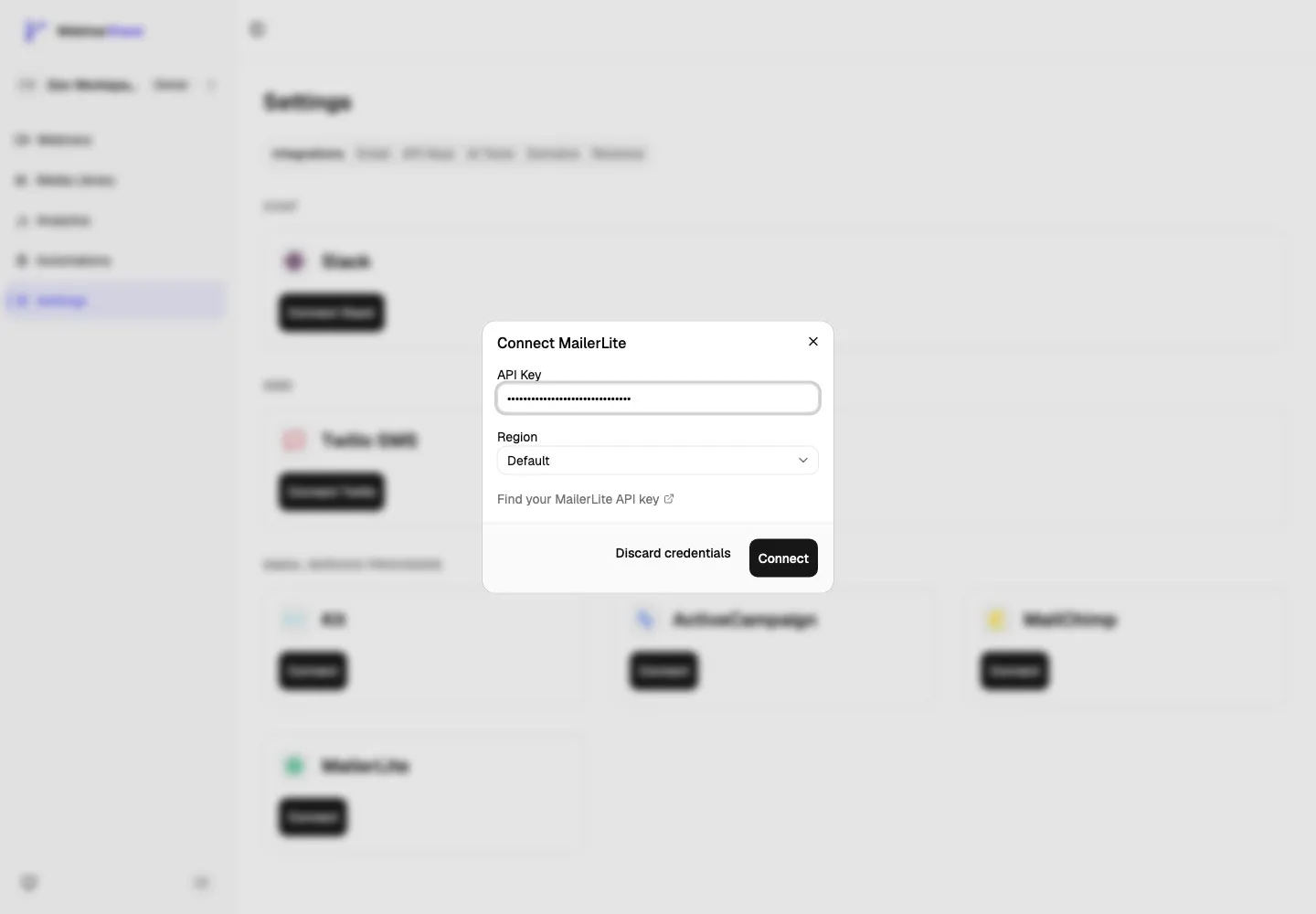
- Paste your MailerLite API token.
- Choose the correct Region.
- Click Connect.
Connection Fields
Section titled “Connection Fields”The MailerLite connection dialog has one required credential field and one region selector.
| Field Or Control | What It Means | How To Use It |
|---|---|---|
| API Key | The MailerLite API token WebinarStack will use for this workspace. | Paste the full token from MailerLite. |
| Region | The API endpoint routing mode for the token. | Choose Default for normal MailerLite accounts. Choose EU when your MailerLite account or token requires EU routing. |
| Find your MailerLite API key | Opens MailerLite’s API key help page. | Use this if you need to create or locate an API token. |
| Discard credentials | Closes the dialog without saving anything. | Use it if you pasted the wrong token or are not ready to connect. |
| Connect | Validates the token and stores the encrypted credential. | Click after entering the token and region. If validation fails, check the token and region in MailerLite and try again. |
There is no audience picker during MailerLite setup. Groups and fields are selected later inside individual webinar automation rules.
Region Selection
Section titled “Region Selection”The Region field exists because MailerLite API keys can be region-bound.
| Region | How WebinarStack Uses It | When To Choose It |
|---|---|---|
| Default | Uses the standard MailerLite API routing. | Choose this unless your MailerLite account requires EU routing. |
| EU | Stores region: eu metadata and routes MailerLite calls through WebinarStack’s EU MailerLite endpoint support. |
Choose this when a valid MailerLite token is rejected in Default mode and the account is EU-routed. |
If the token is valid but the region is wrong, WebinarStack can show an error similar to:
API key may be for a different region - check your MailerLite account settingsWhen that happens:
- Confirm the token was copied from the current MailerLite account.
- Try the other Region option.
- Confirm the MailerLite user who created the token still has access.
- Generate a fresh token if the old token was lost, rotated, or tied to a removed user.
Step 3: Confirm MailerLite Is Connected
Section titled “Step 3: Confirm MailerLite Is Connected”After connection, the MailerLite card shows a Connected badge and a Disconnect button.
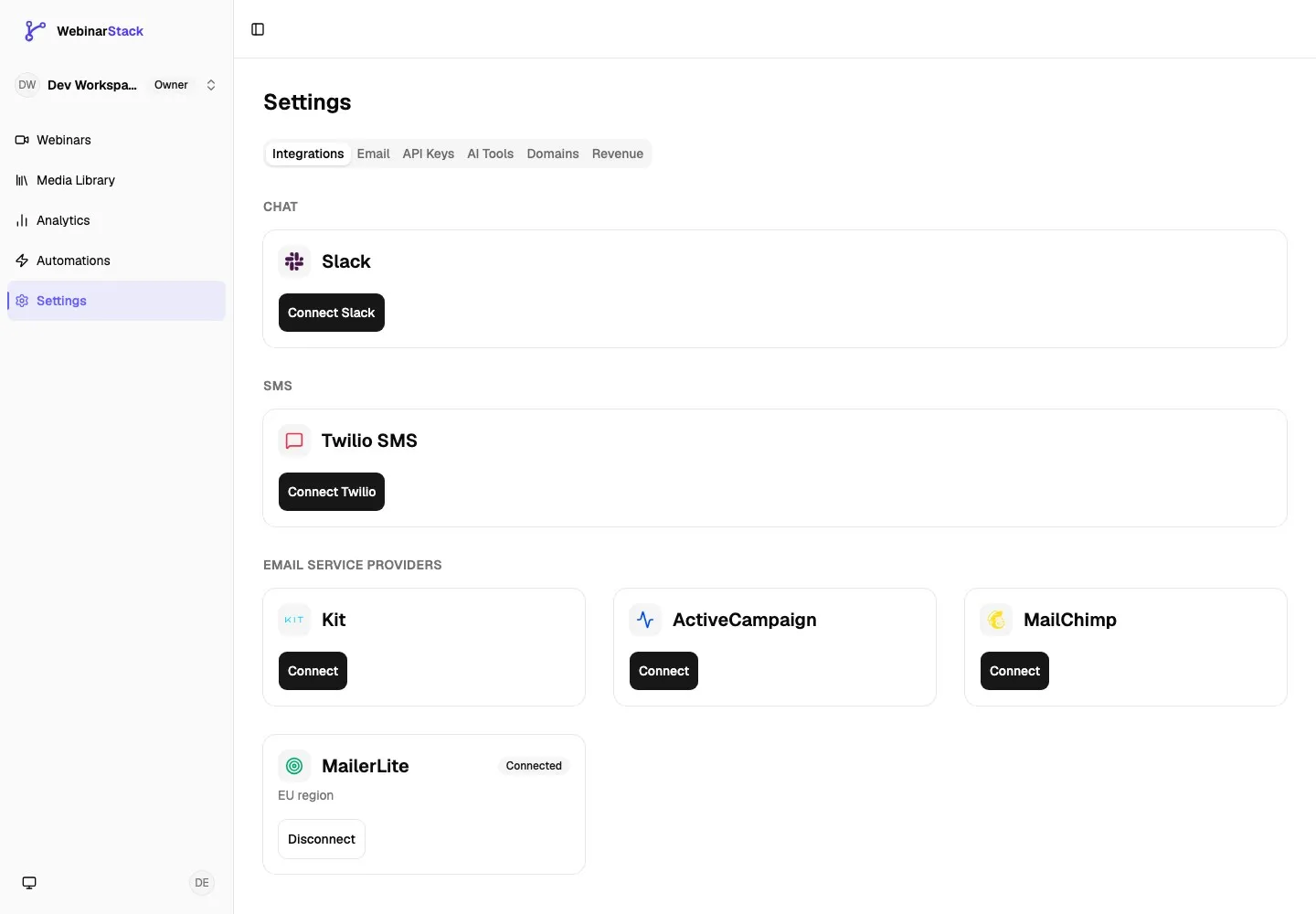
When the connection is EU-routed, the card shows EU region. The connected card never shows the plaintext API token.
Connection states:
| State | Meaning | What To Do |
|---|---|---|
| Not connected | No usable MailerLite credential is stored. | Click Connect and paste a MailerLite API token. |
| Connected | WebinarStack has a validated token and optional region metadata. | Create automation rules that use MailerLite. |
| Error | MailerLite rejected the token during validation or delivery. | Reconnect with a valid token and the correct region. |
| Disconnected | The credential is absent or unusable. | Reconnect if future MailerLite updates should continue. |
MailerLite Subscribers, Groups, Segments, And Fields
Section titled “MailerLite Subscribers, Groups, Segments, And Fields”Understanding MailerLite’s data model helps you build cleaner automations.
Subscribers
Section titled “Subscribers”A subscriber is a person in MailerLite. WebinarStack identifies the subscriber by attendee email address.
For subscriber upserts, WebinarStack sends:
| MailerLite Field | WebinarStack Source |
|---|---|
email |
Attendee email address. |
name |
Attendee registration name when available. |
status |
active for normal add/update actions. |
MailerLite’s create/update subscriber endpoint behaves as an upsert: if the email does not exist, MailerLite creates the subscriber; if it already exists, MailerLite updates the provided values without requiring a separate “create” versus “update” decision in WebinarStack.
Groups
Section titled “Groups”Groups are MailerLite audience containers that you explicitly assign subscribers to. WebinarStack uses groups for membership updates.
Good group names are specific, consistent, and easy for marketing operators to recognize:
| Group | Meaning |
|---|---|
Webinar Registered |
Contact registered for a webinar. |
Webinar Attended Live |
Contact joined the webinar. |
Webinar No Show |
Contact registered but did not attend. |
Webinar Watched 75 Percent |
Contact watched most of the webinar. |
Offer Clicked Demo |
Contact clicked a demo or offer CTA. |
Pre-webinar Nurture |
Contact should receive pre-session nurture messages. |
Groups are best for durable membership decisions. They answer questions like “Should this subscriber belong to this follow-up audience?”
Segments
Section titled “Segments”Segments are built inside MailerLite from subscriber attributes, group membership, field values, and MailerLite conditions. WebinarStack does not directly create or manage MailerLite segments.
Instead, WebinarStack writes groups and fields that MailerLite segments can use.
Example segment ideas:
| Segment | Possible MailerLite Rules |
|---|---|
| Hot webinar leads | Is in Webinar Watched 75 Percent OR is in Offer Clicked Demo. |
| No-show nurture | Is in Webinar Registered AND is not in Webinar Attended Live. |
| Product demo follow-up | Custom field last_webinar equals Product Demo Webinar. |
| Replay viewers | Is in Replay Viewed OR custom field last_replay_viewed_at is not empty. |
Custom Fields
Section titled “Custom Fields”Custom fields store values on a subscriber.
Use fields for data that has a value:
| Field Key Or Name | Example Value | Why It Is A Field |
|---|---|---|
lead_source |
WebinarStack |
Source is a value, not just a yes/no marker. |
last_webinar |
Product Demo Webinar |
The value can change over time. |
webinar_offer |
Annual plan demo |
Useful for personalization and segmentation. |
engagement_score |
High |
More descriptive than many overlapping groups. |
last_watch_percent |
85 |
Numeric or score-like value can be reused in segmentation. |
MailerLite fields can have types such as text, number, and date. Make sure the value you enter in WebinarStack fits the field type you created in MailerLite.
Supported MailerLite Actions
Section titled “Supported MailerLite Actions”MailerLite supports four provider actions in WebinarStack.
| Dashboard Action | Internal Action | What It Does | Parameters |
|---|---|---|---|
| Add/upsert subscriber | add_subscriber |
Creates or updates the MailerLite subscriber by attendee email. | None. |
| Add to group | add_to_group |
Creates the subscriber if needed, resolves each selected group by exact name, and assigns the subscriber to those groups. | groups string array. |
| Remove from group | remove_from_group |
Finds the existing subscriber by email and removes the subscriber from selected groups. | groups string array. |
| Set custom field | set_field |
Creates or updates the subscriber and writes selected custom field values. | fields key/value rows in the dashboard, or a field object in API-created rules. |
Choose the smallest action that expresses what you want:
| Goal | Recommended Action |
|---|---|
| Make sure every registrant exists in MailerLite | Add/upsert subscriber. |
| Move someone into a follow-up audience | Add to group. |
| Remove a subscriber from an older stage or nurture track | Remove from group. |
| Store campaign, source, preference, or score values | Set custom field. |
Create A MailerLite Automation
Section titled “Create A MailerLite Automation”After MailerLite is connected, create an automation rule from a webinar.
- Open the webinar.
- Select the Automations tab.
- Click Add automation.
- Give the rule a clear name.
- Choose the trigger.
- Add conditions if only some attendees should update MailerLite.
- Set Action Type to Integration.
- Set Provider to MailerLite.
- Choose the MailerLite action.
- Fill in the action parameters.
- Save the automation.
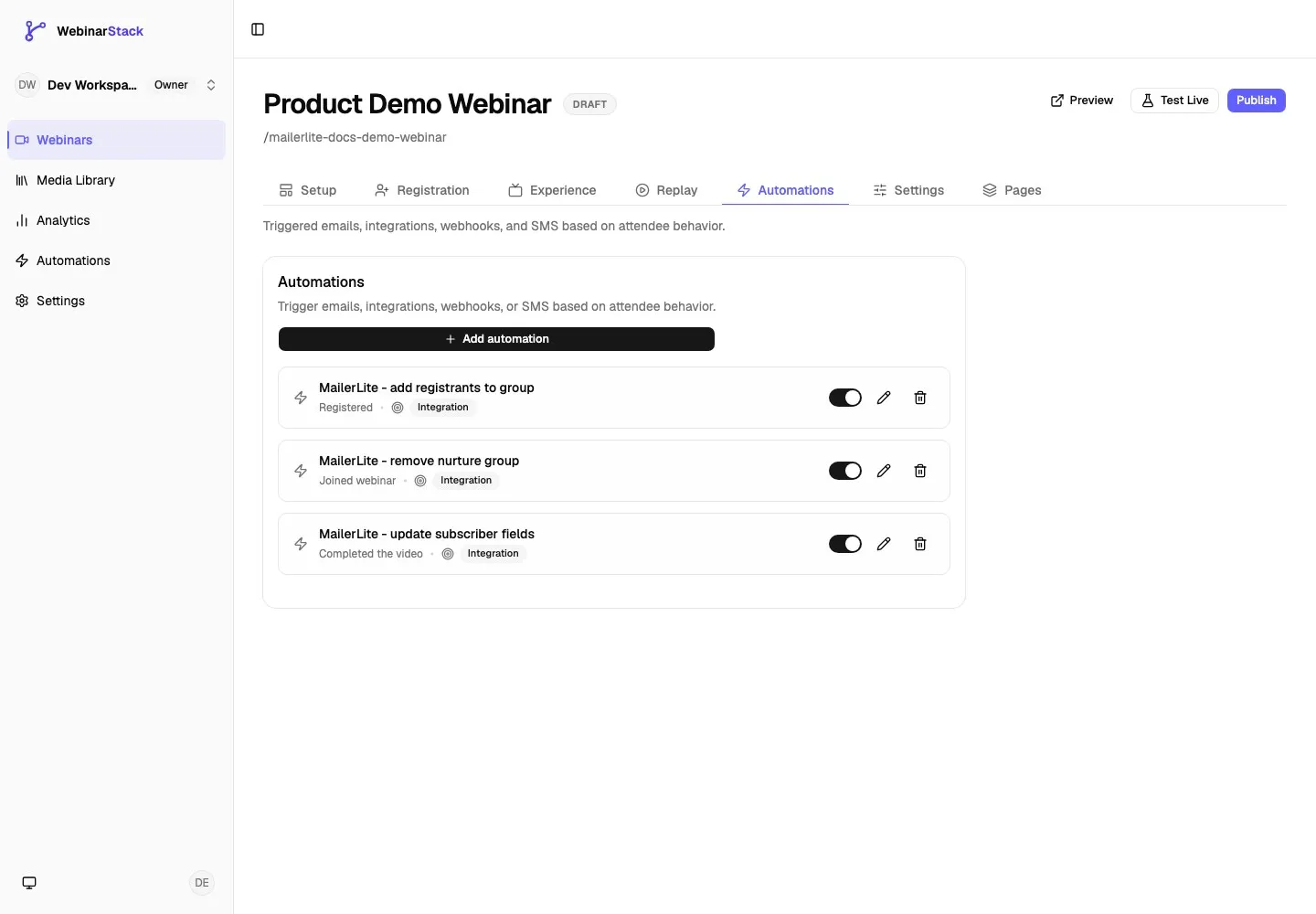
If no providers are connected, the Provider field shows an empty state and links back to Settings > Integrations.
Automation Fields
Section titled “Automation Fields”| Field | What It Means | MailerLite Guidance |
|---|---|---|
| Rule Name | Internal name for the automation rule. | Use a name such as MailerLite - add registrants to group or MailerLite - set webinar fields. |
| Trigger | The webinar behavior that starts the rule. | Use Registered for list-building, Joined for attendance, Watched percent for engagement, and CTA clicked for intent. |
| Conditions | Optional filters that must pass before the action runs. | Use conditions when only a subset of attendees should update MailerLite. |
| Action Type | The type of work the automation performs. | Choose Integration for MailerLite updates. |
| Provider | The connected external provider. | Choose MailerLite. It appears only when connected. |
| Action | The MailerLite operation to run. | Choose Add/upsert subscriber, Add to group, Remove from group, or Set custom field. |
| Groups to add to | Selected groups for the Add to group action. | Groups must already exist in MailerLite and names are matched exactly during delivery. |
| Groups to remove from | Selected groups for the Remove from group action. | WebinarStack removes only selected group memberships. It does not delete the subscriber or the group. |
| Fields to set | Custom fields and values for the Set custom field action. | Fields should already exist in MailerLite and values should match field type expectations. |
| Delay | Some trigger types can run immediately or after a configured offset. | Use delays for timed follow-up, but keep critical segmentation close to the behavior it represents. |
| Enabled | Whether the rule should run for future matching attendees. | Disable while drafting. Enable after you test the connection and rule behavior. |
Good Trigger Patterns
Section titled “Good Trigger Patterns”MailerLite gets more useful when each trigger maps to a clear marketing intent.
| Trigger Pattern | MailerLite Action | Example |
|---|---|---|
| Registered | Add/upsert subscriber | Make sure every webinar registrant exists in MailerLite. |
| Registered | Add to group | Add the subscriber to Webinar Registered or Pre-webinar Nurture. |
| Joined | Add to group | Add the subscriber to Webinar Attended Live. |
| No-show | Add to group | Add the subscriber to Webinar No Show for replay follow-up. |
| Watched percent >= 75 | Add to group | Add the subscriber to High Intent Webinar Lead. |
| Watched percent >= 75 | Set custom field | Set engagement_score to High. |
| CTA clicked | Add to group | Add the subscriber to Offer Clicked Demo. |
| CTA clicked | Remove from group | Remove the subscriber from Pre-webinar Nurture or Cold Lead. |
| Video complete | Set custom field | Set last_webinar to the webinar name. |
Avoid packing every marketing meaning into one rule. It is usually easier to maintain several focused rules than one overloaded automation.
Action: Add/Upsert Subscriber
Section titled “Action: Add/Upsert Subscriber”Use Add/upsert subscriber when the main goal is to make sure the attendee exists in MailerLite.
What WebinarStack does:
- Reads the attendee email and name from the registration.
- Calls MailerLite’s subscriber create/update flow.
- Sends the email address, name field, and active status.
- Stores the provider result on the background delivery record.
Use this action for:
- Adding every new registrant to MailerLite.
- Creating a baseline subscriber before other MailerLite automations depend on it.
- Keeping the MailerLite name field aligned with WebinarStack registration data.
For many workflows, Add to group is more useful than a bare add/upsert because it also assigns the subscriber to a meaningful follow-up audience. The Add to group action already creates the subscriber if they do not exist, so a separate add/upsert rule is usually only needed when subscriber creation is the whole goal or when you want the behavior managed independently.
Consent note: adding or updating a subscriber should reflect the permission you collected on the registration page and your MailerLite compliance settings.
Action: Add To Group
Section titled “Action: Add To Group”Use Add to group when a registrant or attendee should belong to one or more MailerLite groups.
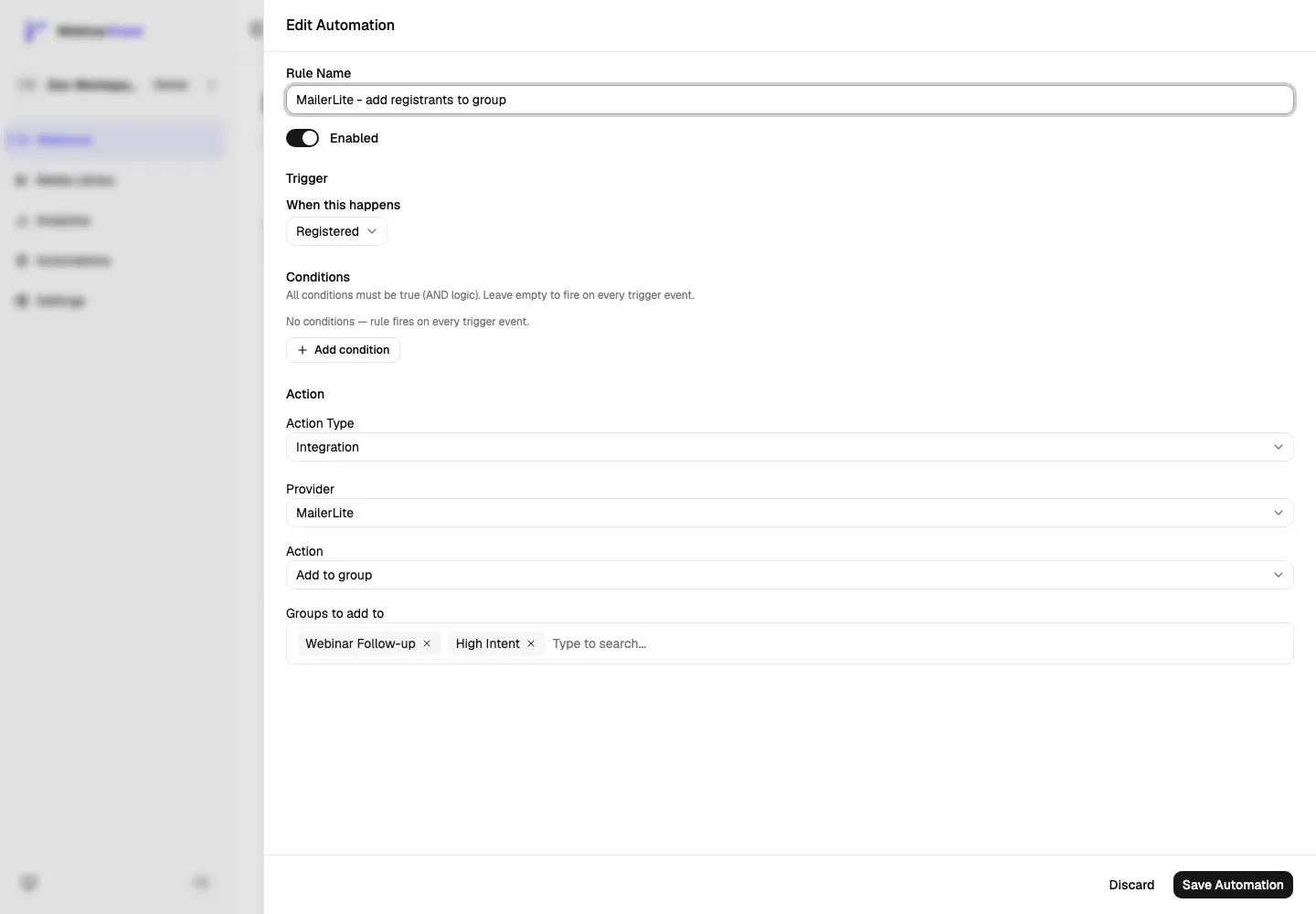
Setup steps:
- Set Action Type to Integration.
- Set Provider to MailerLite.
- Set Action to Add to group.
- Search for an existing MailerLite group.
- Select one or more groups.
- Save the automation.
Delivery behavior:
- WebinarStack finds the MailerLite subscriber by attendee email.
- If the subscriber does not exist, WebinarStack creates or updates the subscriber first.
- WebinarStack fetches MailerLite groups and matches selected groups by exact name.
- WebinarStack assigns the subscriber to each matching group.
- If a selected group no longer exists, delivery fails until the group name is corrected or the group is recreated.
Group actions are idempotent from a marketing perspective. If the subscriber is already in the group, the result is still the desired state: the subscriber belongs to the group.
Good group rules:
| Rule Name | Trigger | Groups |
|---|---|---|
MailerLite - add registrants to nurture |
Registered | Pre-webinar Nurture, Webinar Registered |
MailerLite - mark attendees |
Joined | Webinar Attended Live |
MailerLite - mark high intent |
Watched percent >= 75 | High Intent Webinar Lead |
MailerLite - mark offer clickers |
CTA clicked | Offer Clicked Demo |
Action: Remove From Group
Section titled “Action: Remove From Group”Use Remove from group when webinar behavior should remove a subscriber from an older audience or lifecycle stage.
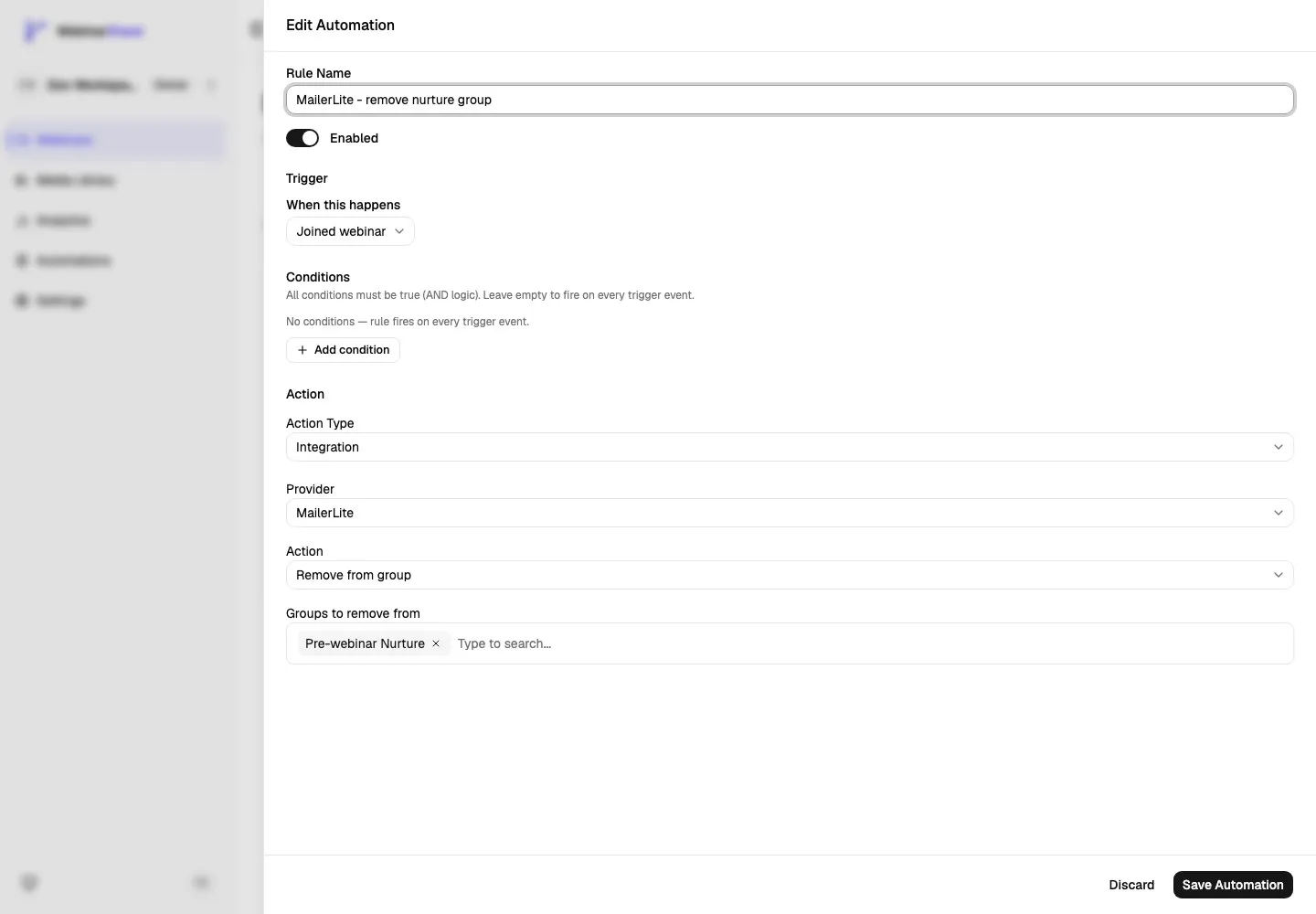
Setup steps:
- Set Action Type to Integration.
- Set Provider to MailerLite.
- Set Action to Remove from group.
- Search for an existing MailerLite group.
- Select one or more groups.
- Save the automation.
Delivery behavior:
- WebinarStack looks up the subscriber by attendee email.
- If the subscriber does not exist, WebinarStack skips the removal because there is no group membership to remove.
- WebinarStack fetches MailerLite groups and matches selected groups by exact name.
- WebinarStack removes the subscriber from each matching group.
- If a selected group no longer exists, WebinarStack skips that missing group for this action.
- WebinarStack does not delete the subscriber.
- WebinarStack does not delete the MailerLite group.
Use removal actions carefully. They are useful for cleanup, but it should be obvious why a behavior removes a subscriber from a group.
Good removal patterns:
| Trigger | Remove From | Why |
|---|---|---|
| Joined | Pre-webinar Nurture |
The attendee no longer needs pre-session reminders. |
| CTA clicked | Cold Lead |
The attendee expressed higher intent. |
| Video complete | Partial Viewer |
The attendee completed the video, so the older stage is stale. |
| Registered for a newer webinar | Older webinar-specific group | Keeps campaign membership current. |
Action: Set Custom Field
Section titled “Action: Set Custom Field”Use Set custom field when you need to write values onto the MailerLite subscriber.
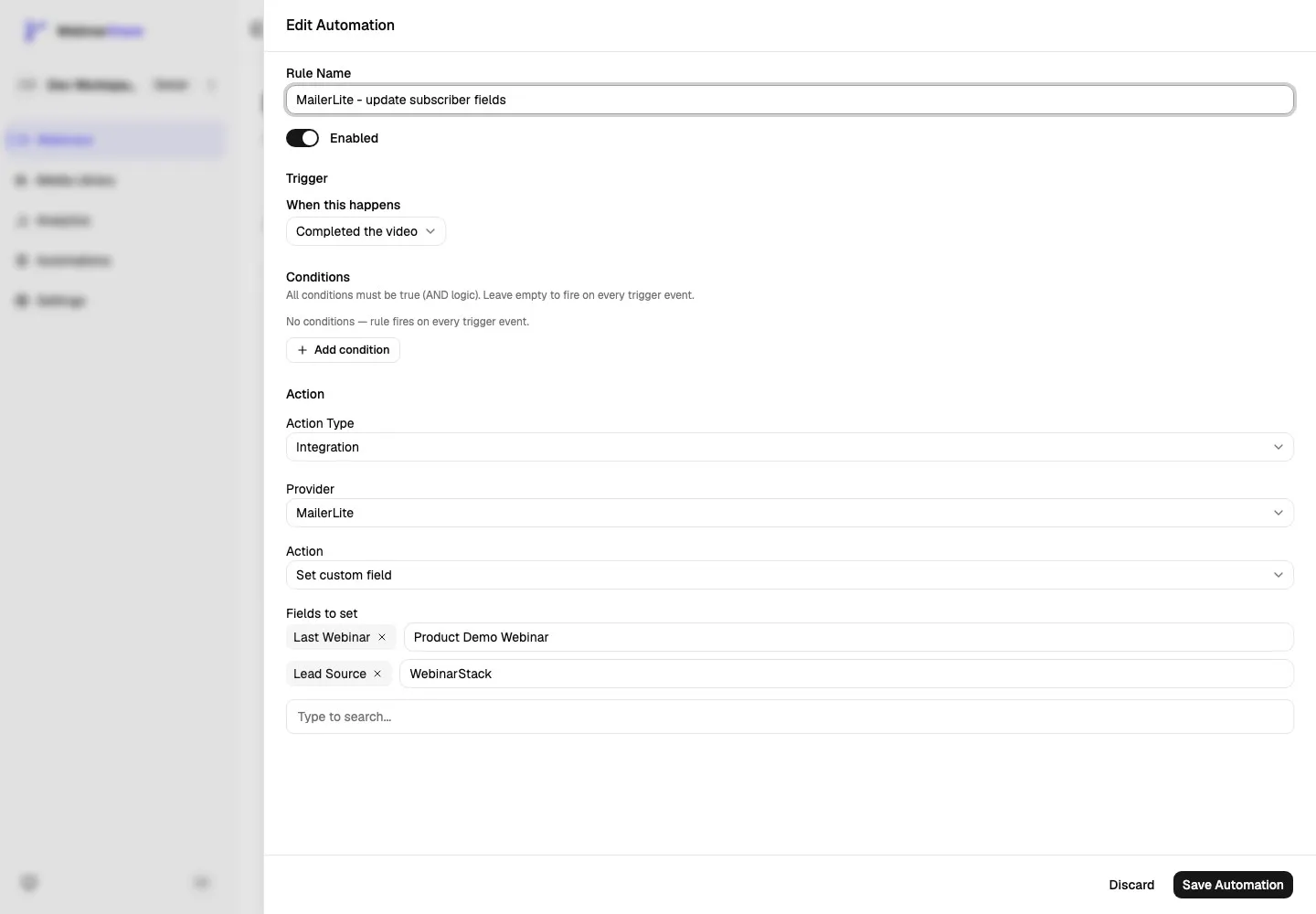
Setup steps:
- Set Action Type to Integration.
- Set Provider to MailerLite.
- Set Action to Set custom field.
- Search for a MailerLite field.
- Select the field.
- Enter the value WebinarStack should write.
- Add additional field rows if needed.
- Save the automation.
Delivery behavior:
- WebinarStack creates or updates the MailerLite subscriber by attendee email.
- WebinarStack sends the selected field values to MailerLite.
- Only fields included in the automation action are updated.
- Omitted fields are not removed just because they are missing from the action.
Good field rules:
| Field | Example Value | Trigger |
|---|---|---|
lead_source |
WebinarStack |
Registered |
last_webinar |
Product Demo Webinar |
Registered or Video complete |
engagement_score |
High |
Watched percent >= 75 |
last_offer_clicked |
Annual Demo CTA |
CTA clicked |
webinar_attendance_status |
Attended live |
Joined |
Use fields when the value matters. Use groups when membership is the important fact.
Field Names, Keys, And Types
Section titled “Field Names, Keys, And Types”MailerLite fields have display names, API keys, and types. The dashboard picker shows the fields returned from your MailerLite account. For normal dashboard-created automation rules, select the field from the picker and enter the value in the row.
If you create automation rules through the WebinarStack REST API, MCP tools, or another internal process, use a fields object for MailerLite custom-field updates:
{ "provider": "mailerlite", "action": "set_field", "params": { "fields": { "last_webinar": "Product Demo Webinar", "lead_source": "WebinarStack" } }}Recommended field practice:
- Create fields in MailerLite before building rules in WebinarStack.
- Use stable API-friendly field keys such as
lead_source,last_webinar, andengagement_score. - Keep text values short enough to be useful in filters and email personalization.
- Match date and number values to the MailerLite field type.
- Avoid storing sensitive personal information unless you have a clear need and consent basis.
API-Created MailerLite Automations
Section titled “API-Created MailerLite Automations”If you create automation rules through the WebinarStack REST API, MCP tools, or another internal process, use the MailerLite provider slug and action IDs shown below.
Add Or Update Subscriber
Section titled “Add Or Update Subscriber”{ "actionType": "integration", "actionConfig": { "provider": "mailerlite", "action": "add_subscriber", "params": {} }}Add To Groups
Section titled “Add To Groups”{ "actionType": "integration", "actionConfig": { "provider": "mailerlite", "action": "add_to_group", "params": { "groups": ["Webinar Follow-up", "High Intent"] } }}Group names must match MailerLite group names exactly.
Remove From Groups
Section titled “Remove From Groups”{ "actionType": "integration", "actionConfig": { "provider": "mailerlite", "action": "remove_from_group", "params": { "groups": ["Pre-webinar Nurture"] } }}This removes membership only. It does not delete the subscriber and does not delete the group.
Set Custom Fields
Section titled “Set Custom Fields”{ "actionType": "integration", "actionConfig": { "provider": "mailerlite", "action": "set_field", "params": { "fields": { "lead_source": "WebinarStack", "last_webinar": "Product Demo Webinar", "engagement_score": "High" } } }}The current MailerLite delivery adapter also accepts the dashboard row shape for saved rules:
{ "fields": [ { "key": "lead_source", "value": "WebinarStack" }, { "key": "last_webinar", "value": "Product Demo Webinar" } ]}For hand-authored API payloads, the object form is easier to read and is the recommended format.
Delivery And Reliability
Section titled “Delivery And Reliability”MailerLite actions run in the background.
The delivery flow is:
- A webinar event happens.
- WebinarStack evaluates the automation trigger and conditions.
- If a MailerLite rule matches, WebinarStack creates or updates an automation execution record.
- The integration worker loads the rule, registration, and MailerLite credential.
- The worker decrypts the token only inside the provider delivery step.
- The worker merges credential metadata, including the optional EU region.
- The worker calls MailerLite.
- WebinarStack records success or failure.
Reliability behavior:
| Behavior | What It Means |
|---|---|
| Async delivery | Attendees do not wait for MailerLite to respond. |
| Encrypted credential storage | MailerLite API tokens are encrypted at rest. |
| Region metadata | EU-region connections store region metadata so the worker calls the correct endpoint. |
| Idempotency cache | Successful provider results can be reused during retry handling so duplicate delivery work is reduced. |
| Retryable failures | Temporary provider/network failures can retry in the background. |
| Rate limits | MailerLite 429 responses are treated as rate limits and retried later. |
| Credential errors | Auth failures mark the MailerLite connection as errored so the account can reconnect it. |
| Recipient-level issues | A problem with one subscriber does not automatically mean the whole MailerLite connection is broken unless MailerLite reports an auth/permission problem. |
How MailerLite responses are handled:
| MailerLite Response | WebinarStack Behavior |
|---|---|
| Success | Marks the delivery and automation execution as successful. |
429 |
Treats the response as rate limited and retries after a delay. |
400, 404, or 422 |
Treats the response as a non-retryable provider request issue. Fix the rule, subscriber data, group, or field value. |
401 or 403 |
Treats the response as a credential or permission problem and marks the connection as needing attention. |
| Network or temporary provider failure | Retries through the background worker. |
If MailerLite is slow or temporarily unavailable, the attendee-facing webinar flow continues. The MailerLite update may complete later or fail after retries.
Disconnect Or Reconnect MailerLite
Section titled “Disconnect Or Reconnect MailerLite”To disconnect MailerLite:
- Open Settings.
- Select Integrations.
- Find the MailerLite card.
- Click Disconnect.
- Confirm the disconnect.
Disconnecting MailerLite:
- Deletes the stored MailerLite credential from WebinarStack.
- Disables automation rules that use MailerLite.
- Prevents future MailerLite deliveries from using an old token.
- Stops future MailerLite updates until MailerLite is reconnected and rules are reviewed.
Reconnect MailerLite when:
- The API token was deleted in MailerLite.
- The token was rotated or exposed.
- The MailerLite user whose token was used was removed or lost access.
- WebinarStack shows MailerLite in an error state.
- You need to switch between Default and EU region routing.
- You want WebinarStack to use a different MailerLite account.
After reconnecting, review disabled MailerLite rules before turning them back on.
Testing Checklist
Section titled “Testing Checklist”Use this checklist before relying on MailerLite automations for a launch.
- Confirm the MailerLite card is connected in Settings > Integrations.
- Confirm the selected Region matches the MailerLite account.
- Confirm the token belongs to a MailerLite user who should own the integration.
- Confirm the groups you need already exist in MailerLite.
- Confirm the custom fields you need already exist in MailerLite.
- Create a simple internal automation, such as Registered > Integration > MailerLite > Add to group.
- Register with an internal test email address.
- Trigger the behavior, such as registration, join, watch threshold, or offer click.
- Wait for the background action to run.
- Open MailerLite and search for the subscriber.
- Confirm the subscriber exists.
- Confirm the expected group membership changed.
- Confirm the expected field values were written.
- Confirm no unintended groups or fields changed.
- Review the rule before enabling it for production traffic.
Troubleshooting
Section titled “Troubleshooting”The MailerLite Card Is Not Connected
Section titled “The MailerLite Card Is Not Connected”Check:
- You are in the correct WebinarStack workspace.
- You are viewing Settings > Integrations.
- The token was pasted into the MailerLite card, not another provider card.
- The connection was saved after validation.
- Another account member did not disconnect MailerLite.
If the token was lost, create a new token in MailerLite and reconnect.
API Key Rejected
Section titled “API Key Rejected”Check:
- The token was copied from MailerLite’s current API token screen.
- The token is not from MailerLite Classic API V1/V2.
- The full token was copied without missing characters or extra spaces.
- The MailerLite user who created the token still exists.
- The MailerLite user still has the right account access.
- The selected Region is correct.
If the key was exposed or copied into an unsafe place, revoke it in MailerLite, generate a new token, and reconnect WebinarStack.
Wrong Region Error
Section titled “Wrong Region Error”If WebinarStack says the API key may be for a different region:
- Open the MailerLite connection dialog again.
- Keep the same token if you are confident it is valid.
- Switch the Region selector from Default to EU, or from EU to Default.
- Click Connect.
If both regions fail, generate a fresh token in MailerLite and try again.
Groups Are Not Appearing
Section titled “Groups Are Not Appearing”Check:
- MailerLite is connected.
- The groups exist in MailerLite.
- You are using a MailerLite group action, not a tag action or list action.
- The MailerLite token belongs to the account where the groups exist.
- The selected Region is correct.
The current WebinarStack lookup helper requests up to 500 MailerLite groups for dashboard selection and delivery-time resolution. If your account has a very large group catalog, use a smaller, consistent set of webinar-specific groups and contact support if an expected group is not visible.
Add To Group Failed
Section titled “Add To Group Failed”Check:
- The subscriber email is valid.
- The MailerLite connection is still connected.
- The group still exists in MailerLite.
- The group name in the rule matches the MailerLite group name exactly.
- MailerLite did not reject the subscriber due to status, compliance, or validation.
- MailerLite did not rate-limit or temporarily reject the request.
If a group was renamed in MailerLite, update the WebinarStack automation rule to use the new group name.
Remove From Group Did Not Change Anything
Section titled “Remove From Group Did Not Change Anything”Check:
- The subscriber already exists in MailerLite.
- The subscriber is currently in the group you selected.
- The group still exists in MailerLite.
- The group name in the rule matches the MailerLite group name exactly.
- The automation trigger and conditions actually matched the attendee.
Removal is a no-op when there is no existing subscriber to remove from a group.
Custom Fields Are Not Updating
Section titled “Custom Fields Are Not Updating”Check:
- The field exists in MailerLite.
- The field value matches the field type.
- The field is selected in the dashboard rule.
- For API-created rules,
params.fieldsuses field keys or names accepted by MailerLite. - The subscriber email is valid.
- MailerLite is connected and using the correct region.
Date and number fields are the most common source of value-format issues. When in doubt, test with a text field first, then move to stricter field types.
Provider Is Missing In The Automation Editor
Section titled “Provider Is Missing In The Automation Editor”Check:
- MailerLite is connected in Settings > Integrations.
- You selected Action Type Integration.
- You are editing a webinar in the same workspace where MailerLite is connected.
- Browser data is not stale. Refresh the page after connecting MailerLite.
If MailerLite was disconnected, dependent rules may have been disabled. Reconnect MailerLite, then review and re-enable the rules you still want.
Classic API Key Does Not Work
Section titled “Classic API Key Does Not Work”MailerLite’s current API is separate from the older MailerLite Classic API. New MailerLite accounts should use the latest API and current API token flow. If you paste an old Classic key, the current integration may reject it.
Create a token from the current MailerLite API integration screen and reconnect WebinarStack.
Best Practices
Section titled “Best Practices”- Create a dedicated MailerLite API token for WebinarStack.
- Use a MailerLite user account that will not be deleted casually.
- Store the token in a password manager.
- Rotate the token if it is exposed.
- Keep MailerLite groups purposeful and limited.
- Use groups for audience membership and lifecycle state.
- Use fields for values such as source, webinar name, score, preference, or date.
- Create groups and fields in MailerLite before building rules in WebinarStack.
- Use exact group names and stable field keys.
- Test every MailerLite automation with an internal registration before launch.
- Keep Email Delivery separate from MailerLite subscriber updates in your mental model.
- Do not use MailerLite group updates as a shortcut around consent, unsubscribe, bounce, or compliance handling.
AI Prompts You Can Use
Section titled “AI Prompts You Can Use”AI can help you plan MailerLite groups, fields, and WebinarStack automation rules. Do not paste real API tokens, private attendee data, or customer lists into AI tools.
Prompt: Plan MailerLite Groups And Fields
Section titled “Prompt: Plan MailerLite Groups And Fields”I am using WebinarStack with MailerLite.
My webinar goal is:[describe the goal]
My attendee lifecycle stages are:[registered, attended, no-show, watched 75 percent, clicked offer, bought, etc.]
My follow-up emails in MailerLite are:[describe campaigns or automations]
Help me design a clean MailerLite data model.
Please recommend:- Groups to create in MailerLite- Custom fields to create in MailerLite- Which WebinarStack triggers should add people to each group- Which WebinarStack triggers should remove people from groups- Which fields should be set by WebinarStack- Naming conventions that will still make sense six months from now- Consent and unsubscribe risks to watch forPrompt: Design A MailerLite Automation Rule
Section titled “Prompt: Design A MailerLite Automation Rule”Help me design a WebinarStack automation rule that updates MailerLite.
Webinar behavior I care about:[registered / joined / no-show / watched percent / CTA clicked / poll response / chat response / time delay]
Marketing outcome I want in MailerLite:[add to group / remove from group / set field / add subscriber]
Known MailerLite groups:[paste group names, not subscriber data]
Known MailerLite custom fields:[paste field keys or names]
Available MailerLite actions:- add_subscriber- add_to_group- remove_from_group- set_field
Please propose:- Rule name- Trigger- Conditions- MailerLite action- Parameters- Edge cases- A test plan I can run with an internal email addressPrompt: Write API JSON For A MailerLite Rule
Section titled “Prompt: Write API JSON For A MailerLite Rule”Help me write the actionConfig JSON for a WebinarStack automation that updates MailerLite.
Provider slug: mailerliteAction I want:[add_subscriber / add_to_group / remove_from_group / set_field]
Known MailerLite group names:[group names]
Known MailerLite field keys:[field keys]
Desired field values:[field=value pairs]
Return only valid JSON for actionConfig.Do not include a real API token.Use a fields object for set_field.Prompt: Troubleshoot MailerLite Delivery
Section titled “Prompt: Troubleshoot MailerLite Delivery”I am troubleshooting a WebinarStack to MailerLite automation.
Symptoms:[describe what happened]
Rule:- Trigger: [trigger]- Conditions: [conditions]- MailerLite action: [action]- Groups or fields configured: [names]
Connection:- Region: [Default or EU]- Connection state in WebinarStack: [connected/error/disconnected]
MailerLite setup:- Subscriber exists? [yes/no/unknown]- Groups exist? [yes/no/unknown]- Fields exist? [yes/no/unknown]
Give me a checklist that covers WebinarStack rule setup, MailerLite connection state, API token, region, groups, fields, subscriber status, consent/unsubscribe state, and API rate limits.Prompt: Decide Between Groups And Fields
Section titled “Prompt: Decide Between Groups And Fields”I use WebinarStack automations to update MailerLite.
Here is a webinar behavior:[describe behavior]
Here is how I plan to use it in MailerLite:[describe follow-up, segmentation, personalization, or reporting]
Should this be represented as:- A MailerLite group- A MailerLite custom field- Both- Neither, use a webhook or Zapier instead
Explain the tradeoffs and recommend the cleanest setup.Official MailerLite Resources
Section titled “Official MailerLite Resources”These MailerLite resources are useful when you are setting up or troubleshooting the WebinarStack integration:
- MailerLite API documentation
- MailerLite API getting started, authentication, and rate limits
- MailerLite subscribers API
- MailerLite groups API
- MailerLite fields API
- Where to find the MailerLite API key, Group ID, and documentation