
Automations
Automations are rule-based workflows that respond to registration activity, live webinar behavior, replay behavior, chat messages, offers, polls, and adaptive webinar paths.
They are one of the most important parts of WebinarStack because they are not limited to simple time-based email drips. A rule can react to what an attendee actually did, check additional engagement conditions, wait for the right moment, and then send an email, call a webhook, update an external marketing tool, or send an SMS.
Use this guide when you want to understand everything an automation can do and how to design reliable automation systems for your webinars.
The Mental Model
Section titled “The Mental Model”Every automation rule has the same core shape:
| Part | What It Controls |
|---|---|
| Rule name | The internal label your team sees in the dashboard. |
| Enabled state | Whether the rule is active for future trigger evaluations. |
| Trigger | The event or scheduled moment that starts the rule. |
| Trigger options | Extra trigger-specific settings, such as a watch threshold, offer, poll, keyword, branch, segment, or timing offset. |
| Conditions | Optional AND-only checks that must all be true before the action runs. |
| Action | What WebinarStack does when the rule passes: email, webhook, integration, or SMS. |
| Action configuration | The fields required by the selected action type. |
| Delay or timing offset | When the action should run relative to the trigger or session. |
| Delivery history | Action-specific logs for webhook and SMS rules, plus execution history through the API. |
The basic flow is:
- An attendee registers, joins, watches, clicks, responds, chats, follows a branch, or reaches a scheduled moment.
- WebinarStack records the event.
- The automation evaluator loads enabled rules for that webinar and trigger type.
- WebinarStack builds a current attendee engagement snapshot.
- All rule conditions are evaluated with AND logic.
- If the rule passes, WebinarStack writes an execution ledger row to prevent duplicate sends.
- The selected action is dispatched.
- The action worker applies any final delay or channel-specific guardrails.
- The delivery is sent, logged, retried when appropriate, and marked complete or failed.
Where To Manage Automations
Section titled “Where To Manage Automations”Create and edit automations from the webinar editor:
- Open a webinar in the dashboard.
- Go to the Automations tab.
- Click Add automation.
- Configure the rule.
- Click Save Automation.
For a field-by-field walkthrough of the editor tab, see the Webinar Automations Tab guide.
The main dashboard also has an Automations page. Use it to see automation rules across webinars, filter by webinar, toggle rules on or off, and jump back to the webinar editor to edit the rule.
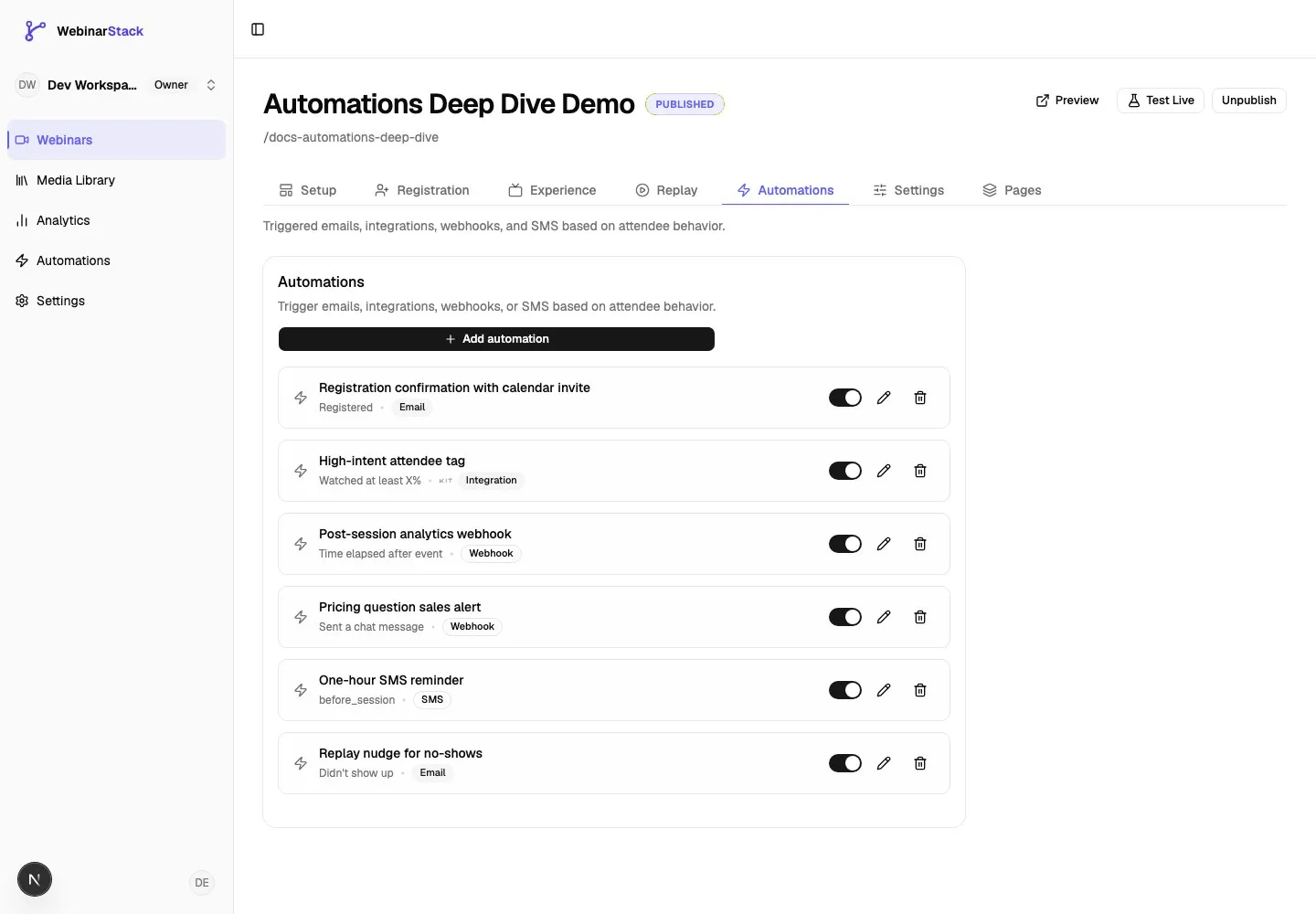
What Makes Automations Different
Section titled “What Makes Automations Different”WebinarStack automations are designed around attendee behavior, not just calendar time.
A typical email platform can send “1 hour after signup” or “tomorrow at 9am.” WebinarStack can also send:
- A sales webhook when someone watches at least 75 percent of the webinar and clicks the offer.
- A CRM tag when someone answers a poll with a specific option.
- A follow-up email only for people who joined but did not complete the video.
- A Slack or email-forwarded chat workflow while also triggering an automation when a chat message contains a keyword.
- An adaptive follow-up when an attendee takes a specific branch or completes a specific segment.
- An SMS reminder that respects opt-in state, recipient local quiet hours, and stale-session safeguards.
That means you can build follow-up systems around intent, not only attendance.
Rule Anatomy
Section titled “Rule Anatomy”Rule Name
Section titled “Rule Name”Use a name that describes the audience, moment, and outcome.
Good names:
Send confirmation emailTag high-intent attendees in KitWebhook: watched 75 percent and clicked offerSMS reminder 1 hour before sessionPricing chat message to sales
Avoid vague names such as Automation 1 or Follow up. You will want names to stay clear when the webinar has ten or more rules.
Enabled
Section titled “Enabled”Enabled rules can fire when their trigger occurs. Disabled rules are skipped by future trigger evaluation.
Use Disabled when:
- The destination webhook is not ready.
- You are drafting copy.
- An integration is connected but not fully tested.
- You want to pause a rule without deleting its configuration.
Important: disabling is not a guaranteed retroactive cancellation mechanism for work that is already queued. Scheduled before-session, after-session, and time-elapsed tracks may have already started for existing registrations. Disable before launch when possible, and test timing rules before sending traffic to the webinar.
Trigger
Section titled “Trigger”The trigger answers: “When should WebinarStack consider this rule?”
Triggers fall into four groups:
| Group | Triggers |
|---|---|
| Registration and attendance | Registered, Joined webinar, Left webinar, Didn’t show up |
| Engagement behavior | Watched at least X minutes, Watched at least X%, Completed the video, Clicked an offer, Responded to a poll, Sent a chat message |
| Time-based | Before session, After session, Time elapsed after event |
| Adaptive webinars | Branch taken, Segment completed |
Conditions
Section titled “Conditions”Conditions answer: “Even if the trigger happened, should this rule run for this attendee?”
Conditions are optional. If you leave conditions empty, the rule fires for every attendee who hits the trigger.
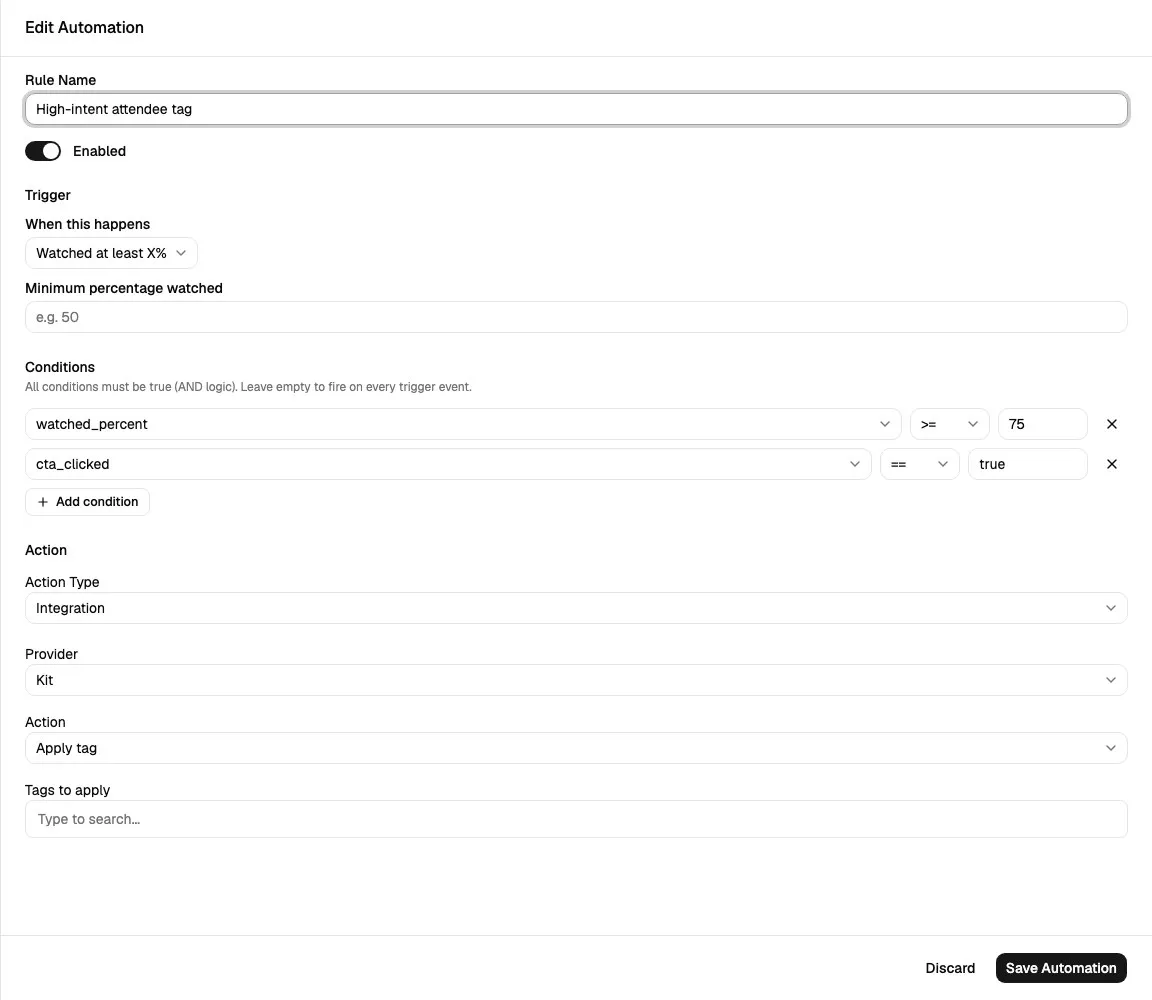
All conditions must pass. This is AND logic, not OR logic.
Example:
| Condition | Meaning |
|---|---|
| Watch percentage >= 75 | The attendee watched at least 75 percent. |
Clicked Offer (ID) = offer-id |
The attendee clicked that offer. |
| Completed video is true | The attendee completed the video. |
If all three are on one rule, the action only runs when all three are true.
Action
Section titled “Action”The action answers: “What should happen after the rule passes?”
Supported dashboard actions:
| Action Type | Use It For |
|---|---|
| Registration confirmations, reminders, replay follow-up, segmented follow-up, chat-triggered responses. | |
| Webhook | Sending event payloads to your own systems, middleware, CRMs, data warehouses, Zapier, Make, or custom AI workflows. |
| Integration | Applying tags, updating subscribers, adding contacts to lists/groups, and setting fields in connected email service providers. |
| SMS | Opt-in reminder and follow-up messages through your connected Twilio account. |
Trigger Reference
Section titled “Trigger Reference”Registered
Section titled “Registered”Fires when an attendee registration is confirmed.
Use it for:
- Confirmation emails.
- Adding the registrant to an external list.
- Sending a “new registrant” webhook to a CRM.
- Starting a same-day nurture sequence.
Notes:
- WebinarStack does not force a confirmation email. You create one with a Registered automation.
- A registered rule with no delay runs as soon as the registration event is processed.
- You can add a delay to event-driven email rules, such as “send 5 minutes after registration.”
Joined Webinar
Section titled “Joined Webinar”Fires when the attendee joins a webinar session.
Use it for:
- Marking attendance in a CRM.
- Applying an “attended live” tag.
- Sending a webhook to sales or analytics.
- Starting an in-session behavior funnel.
Good conditions to combine with Joined:
| Condition | Use Case |
|---|---|
| Joined is true | Usually redundant for this trigger, but can be useful in cloned/API-created rules. |
| Watch percentage >= 25 | Delay the action and only run it if the attendee stayed long enough. |
Clicked Offer (ID) = offer-id |
Follow up only if the attendee also clicked a specific offer. |
Left Webinar
Section titled “Left Webinar”Fires when the attendee leaves the session.
Use it for:
- Follow-up based on early exits.
- Triggering a recovery workflow when an attendee leaves before the offer.
- Updating an external audience or lead score.
Common pattern:
- Trigger: Left webinar.
- Condition: Watch percentage < 50.
- Action: Email with a replay link or “finish watching” CTA.
Didn’t Show Up
Section titled “Didn’t Show Up”Fires after WebinarStack determines that a registered attendee did not attend the session.
No-show detection depends on webinar configuration:
| Configuration | How No-Show Is Detected |
|---|---|
| Late-join cutoff configured | The attendee is a no-show if they never join or if their first server-side join happens after the cutoff. |
| No late-join cutoff | The attendee is a no-show if they have zero join events after the full video duration plus a small grace window. |
Use it for:
- No-show replay emails.
- No-show SMS reminders, if the attendee opted in.
- CRM tags such as
webinar-no-show. - Webhooks to suppress immediate sales outreach.
Good no-show rule:
| Field | Value |
|---|---|
| Trigger | Didn’t show up |
| Delay | 30 to 90 minutes |
| Action | |
| Message | Replay link plus a reason to watch soon |
Watched At Least X Minutes
Section titled “Watched At Least X Minutes”Fires from heartbeat events when the attendee reaches a watch-time threshold.
The editor adds a condition like:
watched_minutes >= 20Use it for:
- Engagement scoring.
- Mid-webinar follow-up.
- Sending “stayed long enough” data to a CRM.
- Triggering a webhook when a prospect reaches an important part of the presentation.
Tips:
- Use minutes when the important moment is time-based, such as “the offer appears at 38 minutes.”
- Use percentage when webinars have varying durations.
- Heartbeats during adaptive transition windows are excluded from watch-time aggregation.
Watched At Least X Percent
Section titled “Watched At Least X Percent”Fires from heartbeat events when the attendee reaches a completion-percentage threshold.
The editor adds a condition like:
watched_percent >= 75Use it for:
- High-intent segmentation.
- Completion-based follow-up.
- Sales alerts for engaged attendees.
- Triggering “nearly finished” offers.
Recommended thresholds:
| Threshold | Meaning |
|---|---|
| 25 percent | Light engagement. |
| 50 percent | Meaningful engagement. |
| 75 percent | High intent. |
| 90 percent | Nearly complete. |
| 100 percent | Use Completed the video instead when you specifically need completion. |
Completed The Video
Section titled “Completed The Video”Fires when the attendee reaches video completion.
Use it for:
- Completion certificates.
- Post-webinar surveys.
- Strong sales follow-up.
- Completion-based tags.
- Replay calls to action.
Good conditions to combine:
- Clicked Offer (ID) equals a specific offer.
- Poll answer value equals a qualifying answer.
- Joined is true.
Clicked An Offer
Section titled “Clicked An Offer”Fires when an attendee clicks an offer or CTA.
The editor lets you choose:
| Option | Meaning |
|---|---|
| Any offer | The rule fires when the attendee clicks any offer in the webinar. |
| Specific offer | The rule only considers clicks for the selected offer. |
Use it for:
- Sales alerts.
- Cart or checkout workflows.
- Tagging high-intent prospects.
- Sending offer-specific follow-up.
- Webhooks to attribution systems.
Important details:
- The watch-player may record the raw event as an offer click, but automations use the user-facing Clicked an offer trigger.
- Webhook payloads for offer and poll triggers can include interaction details such as headline and internal name when available.
Responded To A Poll
Section titled “Responded To A Poll”Fires when an attendee submits a poll response.
The editor lets you choose:
| Option | Meaning |
|---|---|
| Any poll | The rule fires when the attendee responds to any poll. |
| Specific poll | The rule only considers responses for the selected poll. |
Use it for:
- Lead qualification.
- Segmentation based on answers.
- Routing attendees into relevant follow-up.
- Sending poll data to your CRM.
Useful conditions:
| Condition | Meaning |
|---|---|
Answered poll (ID) = poll-id |
The attendee answered that poll. |
Poll answer value = Enterprise |
The selected answer matches the value you entered. |
Sent A Chat Message
Section titled “Sent A Chat Message”Fires when an attendee sends a chat message.
The editor includes two important chat options:
| Field | Meaning |
|---|---|
| Only when message contains | Optional keyword or phrase. Matching is case-insensitive. Leave blank to match any chat message. |
| Fire on every matching message | Off by default. When off, the rule fires once per attendee per session. When on, it can fire for each matching message. |
Use it for:
- Routing pricing questions.
- Sending a sales webhook when someone asks about cost, discounts, implementation, or demos.
- Sending a follow-up email that references
{{chat_message}}. - Triggering a support workflow when someone asks for help.
Example chat automation:
| Field | Value |
|---|---|
| Trigger | Sent a chat message |
| Keyword | pricing |
| Fire on every matching message | Off |
| Action | Webhook |
| Destination | Your sales routing endpoint |
Email and SMS actions can use {{chat_message}} when the automation fires from this trigger.
Before Session
Section titled “Before Session”Fires at a configured offset before the attendee’s session start.
Use it for:
- 24-hour reminders.
- 1-hour reminders.
- 15-minute reminders.
- SMS reminders for opted-in attendees.
Fields:
| Field | Meaning |
|---|---|
| Amount | Number of minutes or hours before the session. |
| Unit | Minutes or hours. |
Important details:
- Before-session rules use the attendee’s effective session start time.
- For just-in-time-only webinars, before-session rules may not fire because the calculated fire time is already in the past.
- Use Registered or Time elapsed after registration when you need a reminder-like message for just-in-time registration flows.
After Session
Section titled “After Session”Fires at a configured offset after the webinar content ends.
Use it for:
- Replay follow-up.
- Attendee thank-you emails.
- Post-webinar surveys.
- Sales handoff for people who watched enough.
- Integrations that should happen only after the session experience is complete.
Fields:
| Field | Meaning |
|---|---|
| Amount | Number of minutes or hours after the content ends. |
| Unit | Minutes or hours. |
Important details:
- “0 minutes after session” means after the video content ends, not when the session starts.
- The timing anchor uses the webinar video duration.
- Conditions are evaluated at fire time, so you can combine After session with watch percentage, offer click, poll answer, or video completion.
Time Elapsed After Event
Section titled “Time Elapsed After Event”Fires after a configured delay from one of two anchors:
| Anchor | Meaning |
|---|---|
| Registration | Wait the configured delay after the attendee registers. |
| Session end | Wait the configured delay after the session-end/no-show sweep runs. |
Use it for:
- “Wait 10 minutes after registration, then check whether they clicked the watch link.”
- “Wait 2 hours after session end, then send a webhook for people who watched less than 50 percent.”
- “Delay a CRM update until final engagement state has settled.”
Choose Time elapsed when you care about “wait, then evaluate conditions.” Choose Before session or After session when you care about session-relative calendar timing.
Branch Taken
Section titled “Branch Taken”Available for adaptive webinars.
Fires when an attendee enters a segment through a specific branch.
Use it for:
- Follow-up based on a path the attendee chose.
- Segmenting attendees by branch logic.
- Applying external tags for route-based personalization.
- Webhooks that tell a CRM which adaptive path the attendee took.
Fields:
| Field | Meaning |
|---|---|
| Branch | The specific source-to-target branch that should trigger the rule. |
Notes:
- Adaptive branch and segment automation requires adaptive webinar capability.
- The editor only shows branch triggers for adaptive webinars.
- Branch Taken fires on segment entry when a branch was used to reach that segment.
Segment Completed
Section titled “Segment Completed”Available for adaptive webinars.
Fires when an attendee exits a segment after watching it.
Use it for:
- Follow-up based on completed content path.
- Segment-level completion tracking.
- Branch-aware sales or support workflows.
- Tagging attendees who completed a specific module.
Fields:
| Field | Meaning |
|---|---|
| Segment | The segment that must be completed. |
Notes:
- The editor only shows segment triggers for adaptive webinars.
- Segment completion ignores page-close flushes that do not include watched segment duration.
Condition Reference
Section titled “Condition Reference”Conditions are evaluated against the attendee’s accumulated webinar state at the time the automation is evaluated.
That means a rule can trigger on one event and check facts from earlier events. For example:
- Trigger on Left webinar, then check Watch percentage < 50.
- Trigger on After session, then check Clicked Offer (ID) equals a specific offer.
- Trigger on Responded to a poll, then check Watch minutes >= 20.
Supported dashboard condition fields:
| Condition Field | Type | Common Operators | Meaning |
|---|---|---|---|
| Watch time (minutes) | Number | =, !=, >=, <=, >, < |
Maximum watched minutes recorded for the attendee in the session. |
| Watch percentage | Number | =, !=, >=, <=, >, < |
Maximum completion percentage recorded for the attendee, capped at 100. |
| Clicked Offer (ID) | Text membership | =, != |
Whether the attendee clicked a specific offer or CTA interaction ID. |
| Answered poll (ID) | Text membership | =, != |
Whether the attendee answered a specific poll interaction ID. |
| Poll answer value | Text | =, != |
The answer value on the triggering poll response. |
| Joined | Boolean | is, is not | Whether the attendee has a join event. |
| Left | Boolean | is, is not | Whether the attendee has a leave event. |
| No show | Boolean | is, is not | Whether the attendee has a no-show event. |
| Completed video | Boolean | is, is not | Whether the attendee has a video completion event. |
Advanced/API-created conditions can also use contains for string payload fields. The dashboard uses this internally for chat keyword matching with the message field.
How AND Logic Works
Section titled “How AND Logic Works”All conditions on a rule must be true.
Example:
| Rule Part | Value |
|---|---|
| Trigger | After session |
| Condition 1 | Watch percentage >= 75 |
| Condition 2 | Clicked Offer (ID) = offer_123 |
| Condition 3 | Completed video is true |
| Action | Integration: apply hot-lead tag |
This rule only applies the tag to attendees who:
- Reached the after-session evaluation point.
- Watched at least 75 percent.
- Clicked the selected offer.
- Completed the video.
If you need OR logic, create multiple rules that point to the same action. For example, create one rule for Poll answer value = Enterprise and another rule for Clicked Offer (ID) = demo_offer.
Action Reference
Section titled “Action Reference”Email Actions
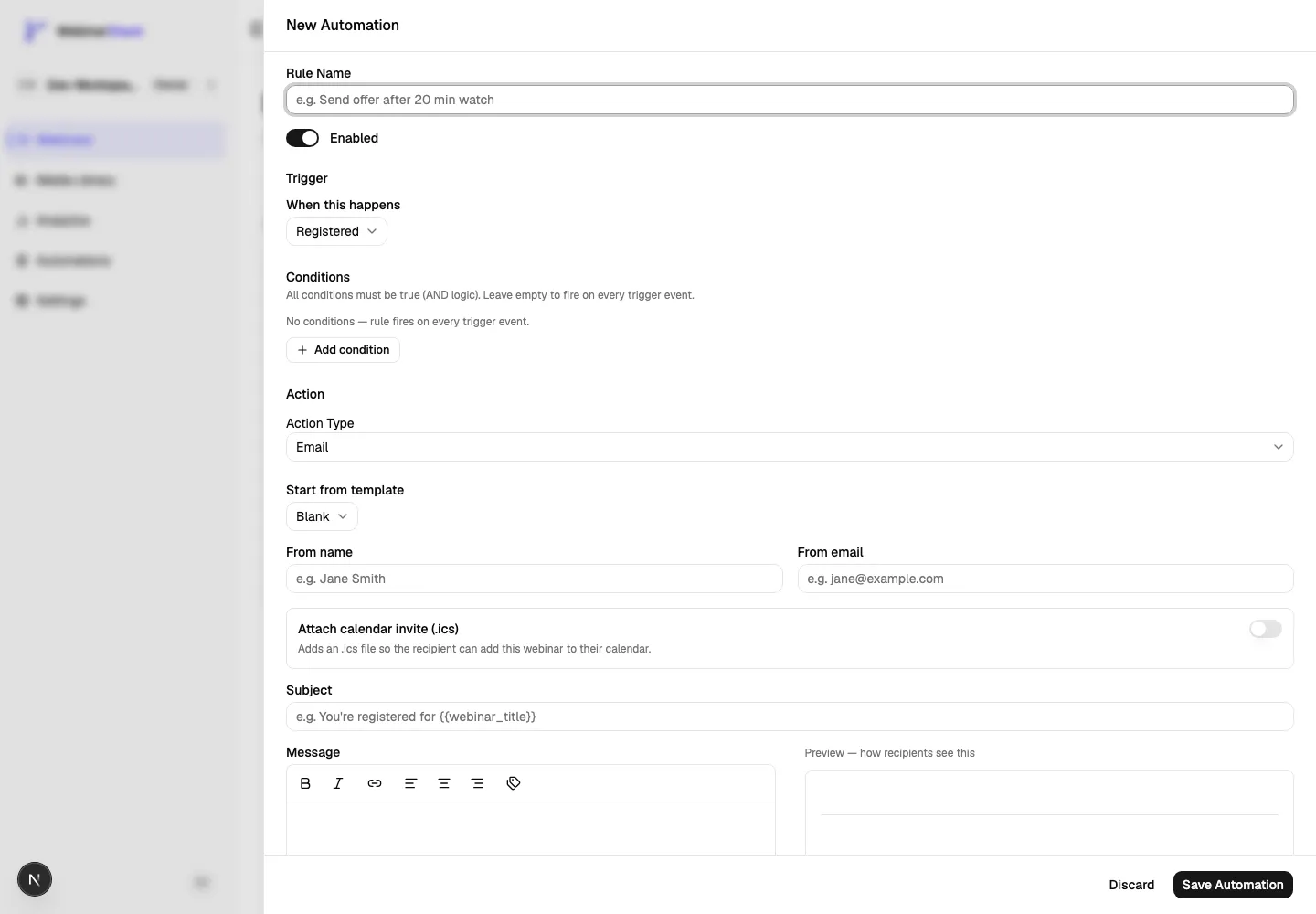
Section titled “Email Actions”Email actions send a personalized automation email to the attendee.
Fields:
| Field | Meaning |
|---|---|
| Start from template | Optional starter copy for common webinar emails. |
| From name | Optional sender display name for this rule. |
| From email | Optional sender email for this rule. |
| Attach calendar invite (.ics) | Adds a calendar invite attachment for the attendee’s session. |
| Subject | Email subject. Supports personalization tokens. |
| Message | Rich-text email body. Supports formatting, links, and token chips. |
| Delay after trigger | Minutes to wait after event-driven triggers. Hidden for before-session, after-session, and time-elapsed triggers because those triggers own their timing. |
Starter templates:
| Template | Use It For |
|---|---|
| Registration confirmed | Confirmation email after registration. |
| 24-hour reminder | Reminder the day before a scheduled session. |
| 1-hour reminder | Reminder shortly before a scheduled session. |
| Thanks for attending | Attendee follow-up. |
| Sorry we missed you | No-show follow-up. |
Supported personalization tokens:
| Token | Meaning |
|---|---|
{{attendee_name}} |
The attendee name from registration. |
{{attendee_email}} |
The attendee email from registration. |
{{webinar_title}} |
The webinar title. |
{{session_date}} |
The attendee’s localized session date. |
{{session_time}} |
The attendee’s localized session time. |
{{session_timezone}} |
The attendee’s session timezone abbreviation. |
{{host_name}} |
The webinar host display name. |
{{replay_link}} |
The attendee’s replay URL. |
{{watch_link}} |
The attendee’s live/watch URL. |
{{unsubscribe_link}} |
The attendee’s unsubscribe URL. |
{{chat_message}} |
The triggering chat message. Only populated for chat-response automations. |
Email delivery behavior:
- Emails use the account’s connected SendGrid or Postmark credentials when configured.
- If no tenant email provider is connected, the platform default sender is used.
- Email opt-outs are respected before any delayed send.
- Test emails resolve tokens with sample values so you can inspect formatting before launch.
- Calendar invites are built at send time from the attendee’s effective session time.
- Very large email payloads are rejected before send rather than retried repeatedly.
For provider setup, sender rules, domain verification, and troubleshooting, see the Email Delivery guide.
Webhook Actions
Section titled “Webhook Actions”Webhook actions send signed JSON to an external URL.
Fields:
| Field | Meaning |
|---|---|
| Destination URL | The URL WebinarStack should send the POST request to. Use HTTPS in production. |
| Webhook Secret | Auto-generated after save. Use it to verify the X-WebinarStack-Signature header. |
| Delivery History | Shows recent delivery attempts for the rule, including status, response code, attempts, and response body excerpt. |
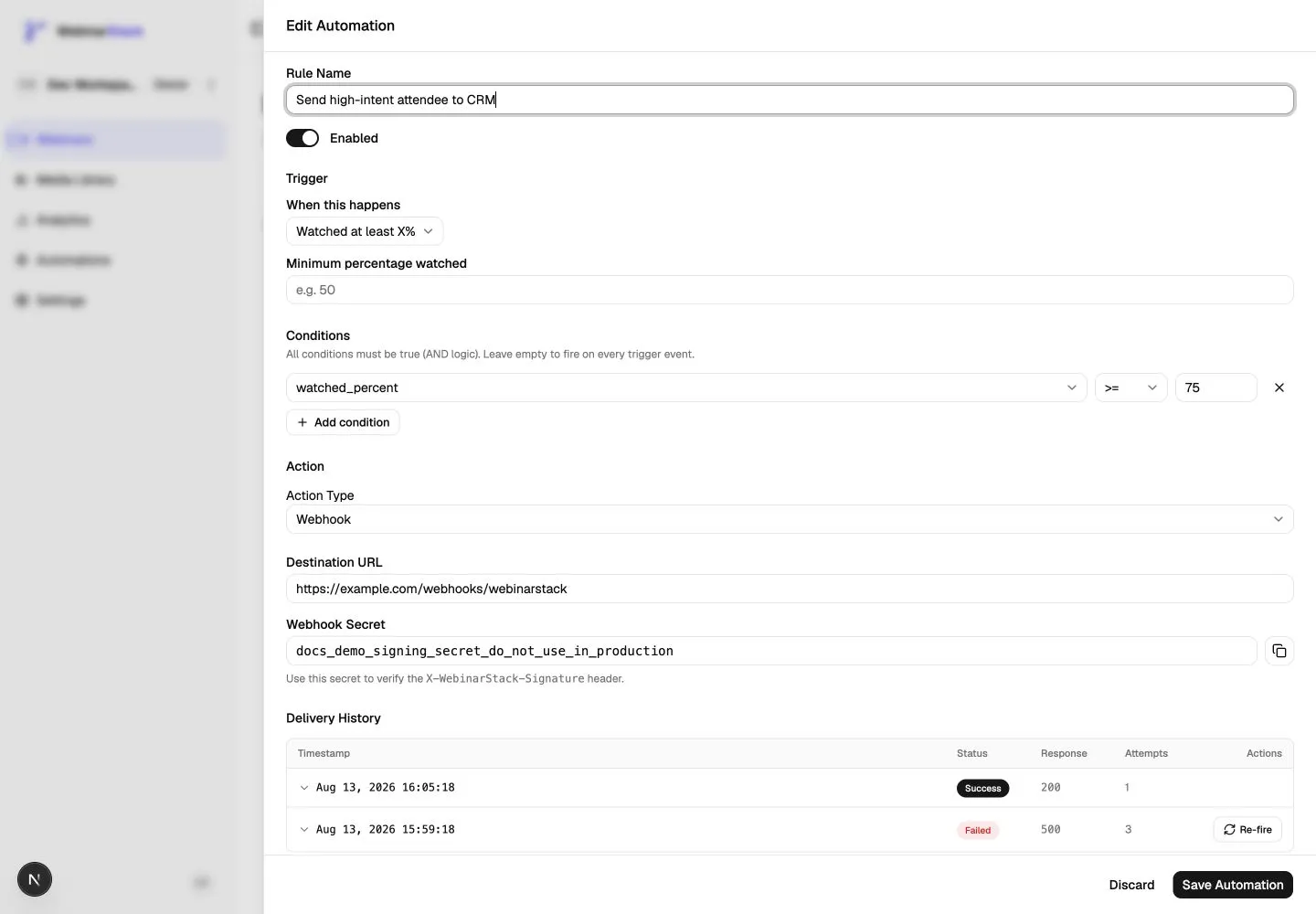
Webhook delivery behavior:
- WebinarStack sends a JSON payload.
- The request includes
Content-Type: application/json. - The request includes
User-Agent: WebinarStack/1.0. - The request includes
X-WebinarStack-Signature: sha256=<hex>. - The signature is HMAC-SHA256 over the exact raw request body.
- Delivery uses a 10-second timeout.
- Non-2xx responses are treated as failures and retried by the background worker.
- Response body excerpts are truncated in delivery history.
- Failed deliveries can be re-fired from the rule editor.
Use webhook actions when:
- You need to send data to your own backend.
- You want to connect WebinarStack to a tool that does not have a native integration.
- You want to ask an AI or automation platform to classify, enrich, or route attendee behavior.
- You need an auditable event stream for webinar engagement.
For a full implementation walkthrough, see the Webhooks guide. For no-code Zapier workflows, see the Zapier Integration guide.
Integration Actions
Section titled “Integration Actions”Integration actions update connected email service providers directly from WebinarStack.
Supported providers:
| Provider | Supported Actions |
|---|---|
| Kit | Add/upsert subscriber, apply tag, remove tag, set custom field. |
| ActiveCampaign | Add/upsert contact, apply tag, remove tag, add to list, set custom field. |
| MailChimp | Add/update member, apply tag, remove tag, add to audience, set merge field. |
| MailerLite | Add/upsert subscriber, add to group, remove from group, set custom field. |
Integration field behavior:
| Field Type | How It Works |
|---|---|
| Tags | Search and select tags from the connected provider. |
| Lists | Search and select ActiveCampaign lists or MailChimp audiences. |
| Groups | Search and select MailerLite groups. |
| Fields | Select a provider field and enter the value to set. |
| No-parameter actions | Some upsert actions only need the attendee name and email. |
Important details:
- The provider must be connected in Settings > Integrations before you can create a provider action.
- For Kit-specific setup, tags, custom fields, and action details, see Kit Integration.
- For ActiveCampaign-specific setup, account URLs, tags, lists, custom fields, and action details, see ActiveCampaign Integration.
- For Mailchimp-specific setup, default audience behavior, and action details, see Mailchimp Integration.
- For MailerLite-specific setup, regions, groups, custom fields, and action details, see MailerLite Integration.
- Provider credentials are encrypted at rest.
- Credentials are decrypted only inside the background dispatch step that needs them.
- Provider rate limiting is handled by throttling and retries.
- Credential-level auth failures mark the integration as error so the account can reconnect it.
- Recipient-level failures are handled as delivery failures and do not automatically break the whole integration.
SMS Actions
Section titled “SMS Actions”SMS actions send a text message through the account’s connected Twilio credentials.
For the full setup flow, including Twilio connection, phone consent, delivery statuses, quiet hours, and troubleshooting, see Twilio SMS Integration.
Fields:
| Field | Meaning |
|---|---|
| Message | Plain-text SMS body. Supports token chips. |
| Segment counter | Shows character count, estimated segments, encoding, and worst-case link expansion. |
| Send test SMS | Sends a test message to an ad-hoc number without writing a delivery row. |
| Delivery History | Shows recent SMS attempts, masked phone number, status, attempts, message preview, and re-fire controls. |
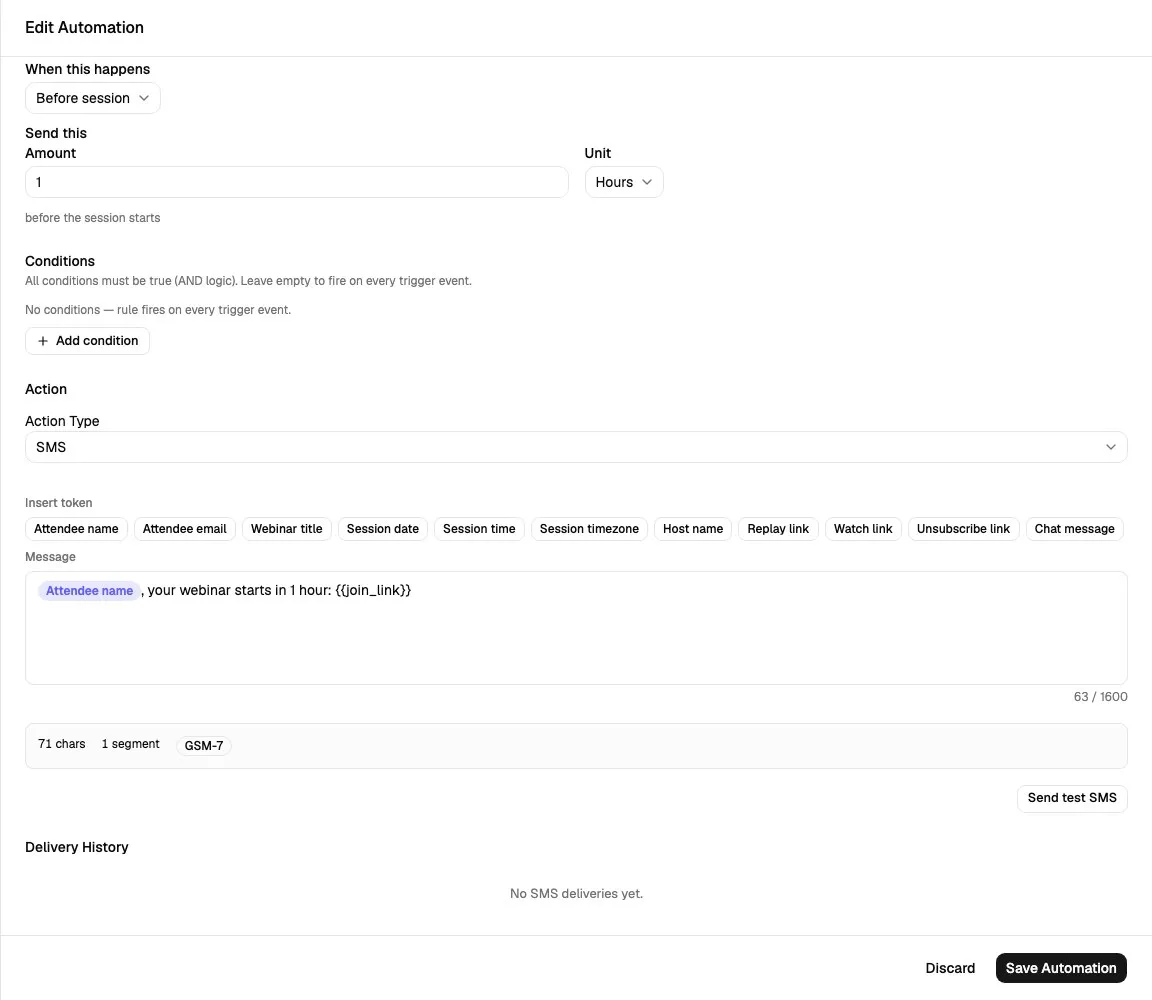
The SMS editor exposes personalization token chips for attendee, webinar, session, host, link, and chat-message authoring. For production SMS, verify trigger-specific tokens with an internal registration before relying on them.
SMS guardrails:
| Guardrail | Behavior |
|---|---|
| Twilio required | If Twilio is not connected or is in an error state, the delivery is skipped. |
| Attendee opt-in required | If the attendee did not opt in to SMS or has no phone number, the delivery is skipped. |
| Quiet hours | Sends outside the 8am to 9pm recipient-local window are deferred to the next 8am local time. |
| Stale live-intent protection | Live-session messages deferred past the session end are skipped instead of sent late. |
| STOP detection | Twilio opt-out signals mark the attendee as opted out and stop further SMS sends. |
| Permanent errors | Invalid phone, non-mobile number, disabled region, carrier filtering, and similar permanent failures are not endlessly retried. |
| Sensitive data | Full phone numbers are not rendered in delivery history. |
SMS delivery statuses:
| Status | Meaning |
|---|---|
| Sent to Twilio | The message was accepted by Twilio. This is not a carrier delivery receipt. |
| Failed | A send failed. Some failures can be re-fired; permanent failures cannot. |
| Opted out (STOP) | Twilio reported the recipient opted out. |
| Skipped | WebinarStack intentionally did not send, usually because of missing opt-in, missing credentials, stale timing, or missing phone number. |
| Scheduled around 8am | Quiet-hours deferral is pending. |
Timing And Delay Rules
Section titled “Timing And Delay Rules”Timing is one of the easiest places to make mistakes. The same delay concept behaves differently depending on trigger type.
| Trigger Type | Timing Behavior |
|---|---|
| Event-driven triggers | The rule evaluates when the event happens. Dashboard email rules expose Delay after trigger. API-created webhook and integration rules can also honor delayMinutes. |
| Before session | The delay is the offset before the attendee’s effective session start. The action dispatcher does not apply the same delay again. |
| After session | The delay is the offset after the webinar content ends. The action dispatcher does not apply the same delay again. |
| Time elapsed after event | The delay belongs to the time-elapsed trigger itself, anchored to registration or session end. |
| No-show | No-show evaluation happens after the no-show detection window. Any action delay applies after that trigger evaluation. |
Examples:
| Goal | Recommended Trigger |
|---|---|
| Send immediately after registration | Registered with 0-minute delay. |
| Send 5 minutes after registration | Registered with 5-minute email delay, or Time elapsed after Registration with 5-minute delay. |
| Send 24 hours before a scheduled session | Before session, 24 hours. |
| Send when the video content ends | After session, 0 minutes. |
| Send 30 minutes after the video content ends | After session, 30 minutes. |
| Wait until session engagement settles, then check watch behavior | Time elapsed after Session end. |
Execution And Duplicate Protection
Section titled “Execution And Duplicate Protection”WebinarStack keeps an automation execution ledger so the same rule does not accidentally fire repeatedly for the same attendee and session.
The core deduplication key is:
rule + registration + session startFor chat-response rules with “Fire on every matching message” enabled, the key also includes a stable message id so separate matching messages can each fire.
What this means in practice:
- Retried background jobs do not create duplicate sends for the same automation execution.
- If the same event batch is processed more than once, the ledger prevents duplicate rule execution.
- Manual re-fire actions are intentional and can create a new delivery attempt.
- Editing a rule does not retroactively re-run it for past attendees.
Delivery And Retry Behavior
Section titled “Delivery And Retry Behavior”Automations are delivered asynchronously. Attendees do not wait on webhooks, integrations, emails, or SMS messages to finish.
General behavior:
- Background jobs retry transient failures.
- Final failures are recorded for operational visibility.
- Execution rows are marked completed when delivery succeeds.
- Execution rows are marked failed when retries are exhausted.
- Webhook and SMS rules expose delivery history in the rule editor.
Channel-specific behavior:
| Channel | Retry And Logging Behavior |
|---|---|
| Retries transient provider failures. Skips opted-out attendees. Marks execution completed after send. | |
| Webhook | Logs pending, success, and failed deliveries. Retries non-2xx, network, and timeout failures. Failed rows can be re-fired. |
| Integration | Logs provider delivery attempts and stores provider response data for idempotency. Handles rate limits and credential errors. |
| SMS | Logs masked-number delivery rows, respects opt-in and quiet hours, classifies Twilio errors, and allows re-fire only when appropriate. |
Lifecycle Sort Order
Section titled “Lifecycle Sort Order”Automation lists use a deterministic lifecycle order rather than simple creation time.
Rules sort in this order:
- Registered.
- Joined.
- Left.
- Watched minutes.
- Watched percent.
- Completed video.
- Clicked offer.
- Responded to poll.
- Time elapsed.
- Branch taken.
- Segment completed.
- Chat response.
- Before session.
- After session.
- No-show.
Within the same lifecycle group, rules sort by delay minutes and then by rule id.
This makes automation lists easier to scan as a webinar lifecycle: registration, live behavior, scheduled reminders, follow-up, and no-show handling.
Dashboard Workflow
Section titled “Dashboard Workflow”Create A Basic Email Automation
Section titled “Create A Basic Email Automation”- Open the webinar editor.
- Go to Automations.
- Click Add automation.
- Enter a specific rule name.
- Keep Enabled on.
- Choose a trigger.
- Add trigger-specific fields, such as a watched percentage or timing offset.
- Add conditions if the rule should only apply to a smaller audience.
- Choose Email.
- Choose a starter template or write from scratch.
- Set From name and From email if needed.
- Enable Attach calendar invite for confirmation or reminder emails when appropriate.
- Write the subject and message.
- Use the preview and test email flow.
- Save the automation.
Create A Webhook Automation
Section titled “Create A Webhook Automation”- Open the webinar editor.
- Go to Automations.
- Click Add automation.
- Choose the trigger and conditions.
- Set Action Type to Webhook.
- Enter the destination URL.
- Save the automation.
- Reopen the rule.
- Copy the generated webhook secret.
- Configure your receiver to verify
X-WebinarStack-Signature. - Trigger a test event.
- Open Delivery History and confirm the response status.
Create An Integration Automation
Section titled “Create An Integration Automation”- Connect the provider in Settings > Integrations.
- Open the webinar editor.
- Go to Automations.
- Click Add automation.
- Choose the trigger and conditions.
- Set Action Type to Integration.
- Choose the provider.
- Choose the provider action.
- Select tags, lists, groups, or fields if the action needs them.
- Save the automation.
- Test with an internal registration.
Create An SMS Automation
Section titled “Create An SMS Automation”- Connect Twilio in Settings > Integrations.
- Make sure your registration flow collects phone number and SMS opt-in.
- Open the webinar editor.
- Go to Automations.
- Click Add automation.
- Choose the trigger and conditions.
- Set Action Type to SMS.
- Write the message.
- Use token chips for personalized values.
- Check the segment counter.
- Send a test SMS.
- Save the automation.
For a detailed checklist, see Twilio SMS Integration.
API Workflow
Section titled “API Workflow”Advanced teams can manage automation rules with the REST API.
Before calling these endpoints, create a WebinarStack API key from Settings > API Keys with REST API access and the automation scopes required by the operation.
REST automation endpoints:
| Endpoint | Purpose | Required Scope |
|---|---|---|
GET /api/v1/webinars/{id}/automations |
List automation rules for a webinar. | automations:read |
POST /api/v1/webinars/{id}/automations |
Create an automation rule. | automations:write |
GET /api/v1/webinars/{id}/automations/{automationId} |
Get one automation rule. | automations:read |
PATCH /api/v1/webinars/{id}/automations/{automationId} |
Update an automation rule. | automations:write |
DELETE /api/v1/webinars/{id}/automations/{automationId} |
Delete an automation rule. | automations:write |
GET /api/v1/webinars/{id}/automations/{automationId}/executions |
List execution history. | automations:read |
REST create/update currently supports email, webhook, and integration action types. Dashboard-created SMS automation is available from the webinar editor.
POST, PATCH, and DELETE support idempotency. Send an Idempotency-Key header so retries from your own system do not create duplicate writes.
Example email automation request:
{ "name": "Tag registrants who watch 75 percent", "triggerType": "watched_percent", "conditions": [ { "field": "watched_percent", "op": ">=", "value": 75 } ], "actionType": "integration", "actionConfig": { "provider": "kit", "action": "tag_subscriber", "params": { "tags": ["webinar-high-intent"] } }, "delayMinutes": 0, "enabled": true}Example webhook automation request:
{ "name": "Send offer clicks to CRM", "triggerType": "cta_click", "conditions": [], "actionType": "webhook", "actionConfig": { "webhookUrl": "https://example.com/webhooks/webinarstack" }, "delayMinutes": 0, "enabled": true}When you list automations, you can filter by:
| Query Parameter | Meaning |
|---|---|
enabled |
Filter by enabled state. |
triggerType |
Filter by trigger type. |
actionType |
Filter by action type. |
limit |
Page size from 1 to 100. |
cursor |
Opaque cursor from the previous response. |
includeSubscriptionRules |
Include webhook subscription backing rules that are excluded by default. |
AI-Assisted Automation Design
Section titled “AI-Assisted Automation Design”Automations are a strong fit for AI-assisted planning because the best workflows depend on your webinar goal, audience, offer, sales process, and follow-up stack.
You can ask your preferred AI tool to help design rules before you build them. Give it:
- Webinar topic.
- Target audience.
- Offer or conversion goal.
- Important moments in the webinar.
- Poll questions and expected answers.
- What tools you use for CRM, email, Slack, or data.
- Whether you want email, webhook, integration, SMS, or a mix.
Useful prompts:
I am building WebinarStack automations for a webinar called "[title]".The goal is [demo bookings / course sales / onboarding / lead qualification].The key offer appears around [minute].Design a complete automation sequence using these triggers:registered, before_session, watched_percent, cta_click, poll_response,after_session, and no_show.For each rule, give me the rule name, trigger, conditions, action type,message or integration action, delay, and why it exists.Design behavior-based follow-up for a WebinarStack webinar.I want to identify high-intent attendees without annoying casual viewers.Use watch percentage, offer clicks, poll responses, and chat keywords.Return a table with automation rule names, triggers, conditions, and actions.Include separate paths for hot leads, warm leads, no-shows, and people who left early.Help me write WebinarStack automation emails.Use these tokens where appropriate:{{attendee_name}}, {{webinar_title}}, {{session_date}}, {{session_time}},{{session_timezone}}, {{host_name}}, {{watch_link}}, {{replay_link}},and {{unsubscribe_link}}.Create copy for:registration confirmation, 24-hour reminder, 1-hour reminder,attendee follow-up, high-intent offer-click follow-up, and no-show follow-up.I use [Kit / ActiveCampaign / MailChimp / MailerLite].Create a WebinarStack integration automation strategy.Suggest tags, lists/groups, and custom fields for:registered, attended, watched 50 percent, watched 75 percent,clicked offer, answered poll, completed video, no-show, and left early.Return provider action names and suggested field values.I want to use WebinarStack webhook automations with my backend.Design the receiver behavior for these events:registered, joined, watched_percent, cta_click, poll_response,chat_response, after_session, and no_show.For each event, tell me what my backend should validate, store, and forward.Also suggest how to deduplicate events by attendee and rule.If you have WebinarStack MCP tooling connected, you can also ask your AI assistant to configure a sequence directly. The automation sequence workflow can create up to 20 rules for a webinar in one atomic operation: either all requested rules are created, or none are created.
Recommended Automation Playbooks
Section titled “Recommended Automation Playbooks”Standard Launch Sequence
Section titled “Standard Launch Sequence”Use this for most scheduled webinars.
| Rule | Trigger | Conditions | Action |
|---|---|---|---|
| Registration Confirmation | Registered | None | Email immediately with {{watch_link}} and calendar invite. |
| 24-Hour Reminder | Before session, 24 hours | None | Email reminder. |
| 1-Hour Reminder | Before session, 1 hour | None | Email or SMS reminder. |
| Attendee Thank You | After session, 30 minutes | Joined is true | Email with replay or next step. |
| No-Show Follow-Up | Didn’t show up, 30 to 90 minute delay | No show is true | Email with replay link. |
High-Intent Sales Sequence
Section titled “High-Intent Sales Sequence”Use this when the webinar has an offer or demo CTA.
| Rule | Trigger | Conditions | Action |
|---|---|---|---|
| Hot Lead Webhook | Clicked an offer | Watch percentage >= 50 | Webhook to CRM or sales router. |
| Hot Lead Tag | Watched at least 75 percent | None | Integration: apply high-intent tag. |
| Offer Click Follow-Up | After session | Clicked Offer (ID) = offer ID | Email with offer-specific CTA. |
| Abandoned Offer Follow-Up | Left webinar | Clicked Offer (ID) = offer ID and Completed video is false | Email or webhook. |
Poll-Based Segmentation
Section titled “Poll-Based Segmentation”Use this when polls reveal buyer stage or use case.
| Rule | Trigger | Conditions | Action |
|---|---|---|---|
| Enterprise Poll Answer | Responded to a poll | Poll answer value = Enterprise | Integration tag or CRM webhook. |
| Beginner Poll Answer | Responded to a poll | Poll answer value = Beginner | Email with beginner resource. |
| Sales Ready Answer | Responded to a poll | Poll answer value = Talk to sales | Webhook to sales queue. |
Chat Keyword Routing
Section titled “Chat Keyword Routing”Use this when chat messages signal intent.
| Rule | Trigger | Conditions | Action |
|---|---|---|---|
| Pricing Question | Sent a chat message contains pricing |
None | Webhook to sales with {{chat_message}}. |
| Support Question | Sent a chat message contains help |
None | Webhook to support queue. |
| Demo Request | Sent a chat message contains demo |
None | Integration tag plus follow-up email. |
Adaptive Webinar Follow-Up
Section titled “Adaptive Webinar Follow-Up”Use this for adaptive webinars with branch logic.
| Rule | Trigger | Conditions | Action |
|---|---|---|---|
| Took Enterprise Branch | Branch taken | Specific branch selected | Apply enterprise tag. |
| Completed Objection Segment | Segment completed | Specific segment selected | Send objection-specific follow-up. |
| Finished Pricing Path | Segment completed | Watch percentage >= 75 | Webhook to CRM as high intent. |
SMS Reminder Sequence
Section titled “SMS Reminder Sequence”Use this only when SMS opt-in is collected.
| Rule | Trigger | Conditions | Action |
|---|---|---|---|
| SMS Confirmation | Registered | None | SMS with short confirmation and watch link. |
| SMS 1-Hour Reminder | Before session, 1 hour | None | SMS reminder. |
| SMS Replay Nudge | Didn’t show up | SMS opted-in attendees only through delivery gate | SMS with replay note. |
Keep SMS short. Watch the segment counter, avoid unnecessary links, and assume link tokens may expand.
Troubleshooting
Section titled “Troubleshooting”A Rule Did Not Fire
Section titled “A Rule Did Not Fire”Check:
- The rule is enabled.
- The webinar is the correct webinar.
- The trigger actually happened.
- Conditions are not too strict.
- The attendee belongs to the session you are testing.
- For before-session rules, the fire time was not already in the past.
- For just-in-time webinars, use Registered or Time elapsed after Registration instead of Before session.
- For adaptive triggers, the webinar is adaptive and the correct branch or segment is selected.
- For chat-response rules, the keyword appears in the attendee message.
An Email Did Not Send
Section titled “An Email Did Not Send”Check:
- The attendee has not opted out of email.
- Subject and body are not blank.
- Personalization tokens are valid.
- Tenant email credentials are connected if you expect a custom provider.
- The rule was not disabled before the trigger happened.
- The action delay has elapsed.
A Webhook Failed
Section titled “A Webhook Failed”Check:
- The destination URL is public and reachable.
- The receiver responds within 10 seconds.
- The receiver returns a 2xx status.
- Your receiver verifies
X-WebinarStack-Signatureagainst the raw body. - The endpoint accepts
Content-Type: application/json. - Delivery History shows the response code and response body excerpt.
An Integration Did Not Update The Provider
Section titled “An Integration Did Not Update The Provider”Check:
- The provider is connected in Settings > Integrations.
- The provider credential is not in an error state.
- Tags, lists, audiences, groups, or fields exist in the provider account.
- The selected action matches the provider.
- Provider rate limits or temporary outages may delay delivery.
An SMS Did Not Send
Section titled “An SMS Did Not Send”Check:
- Twilio is connected.
- The attendee has a phone number.
- The attendee opted in to SMS.
- The message is under 1600 characters before and after token expansion.
- The send may be deferred by quiet hours.
- The delivery may be skipped if a live-session message became stale before quiet hours ended.
- Permanent Twilio errors, such as invalid number or non-mobile number, cannot be re-fired.
For the deeper troubleshooting flow, see Twilio SMS Integration.
Best Practices
Section titled “Best Practices”Use a small number of high-signal automations before building complex sequences.
Recommended starting point:
- Registered confirmation email.
- 24-hour reminder.
- 1-hour reminder.
- Attendee follow-up.
- No-show follow-up.
- High-intent rule for watched 75 percent.
- Offer-click webhook or integration tag.
- Poll-based segmentation rule.
Then expand based on actual attendee behavior.
Guidelines:
- Prefer specific rule names.
- Keep conditions simple and auditable.
- Use multiple rules instead of trying to force OR logic into one rule.
- Test each rule with an internal registration before launch.
- Keep webhooks idempotent on your side.
- Keep SMS short and opt-in based.
- Use integration tags consistently so external tools stay clean.
- Build around attendee intent: watch depth, offer clicks, poll answers, and chat questions.
Glossary
Section titled “Glossary”| Term | Meaning |
|---|---|
| Trigger | The event or scheduled moment that starts rule evaluation. |
| Condition | An additional check that must pass before the action runs. |
| Action | The email, webhook, integration, or SMS operation that runs after a rule passes. |
| Execution | A ledger row showing that a rule fired for a registration and session. |
| Delivery | A channel-specific send attempt, such as a webhook POST or SMS send. |
| Effective session start | The attendee-specific session start time used by scheduling and timezone behavior. |
| Idempotency | Duplicate protection so retries do not send the same automation repeatedly. |
| Re-fire | A manual retry of a failed delivery. |
| JIT | Just-in-time scheduling, where sessions can start shortly after registration. |
| Adaptive branch | A route between webinar segments based on attendee behavior. |
| Segment | A content section inside an adaptive webinar. |