
Adaptive Webinars and the Flow Tab
Use Flow to give attendees different video paths based on their poll answers, offer clicks, chat messages, or watch behavior. A segment is one video with its own timing and interactions. A branch connects it to the next segment and decides who takes that route.
This guide builds a complete example: an introduction asks attendees to choose a track, then both tracks rejoin for a shared closing.
Open Flow
Section titled “Open Flow”- Open Dashboard → Webinars → select a webinar → Setup.
- Under Webinar type, enable Adaptive webinar and click Save changes.
- Open the Flow tab that appears between Registration and Experience.
Your workspace needs adaptive webinar access. In adaptive mode, assign videos to individual segments in Flow; the main video field in Setup is hidden. See Setup and Billing, plans, and usage for those settings.
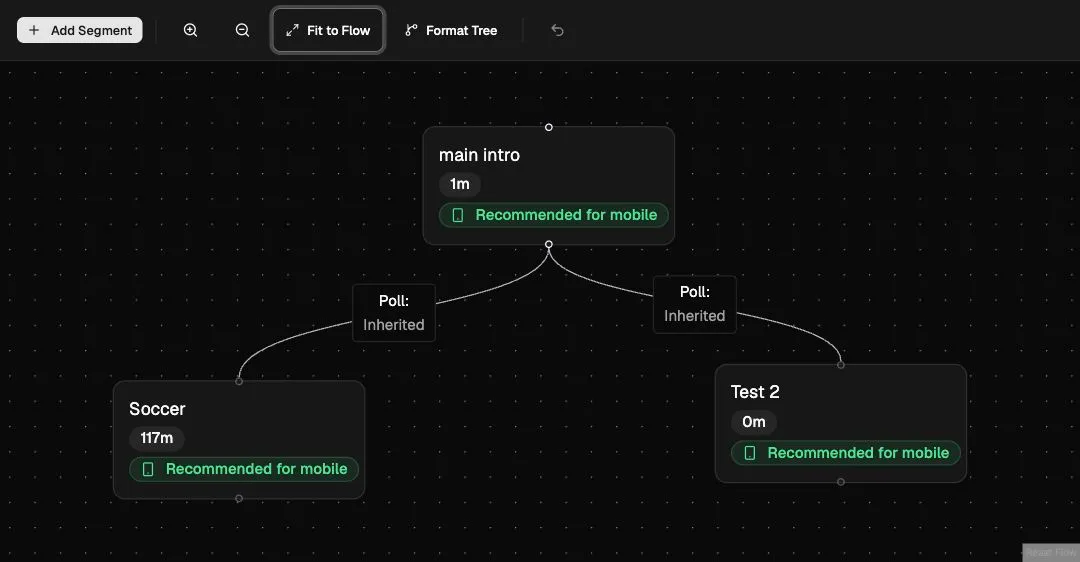
The screenshots show controls in an existing test flow. The worked example below uses its own labels and durations.
Worked example: two tracks, one closing
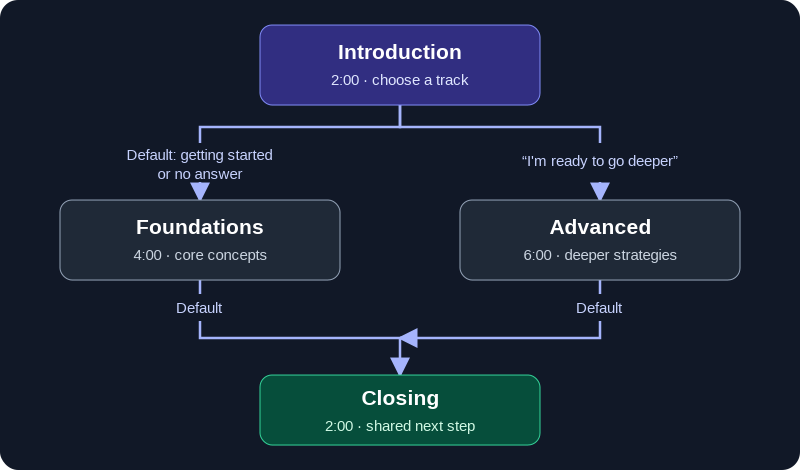
Section titled “Worked example: two tracks, one closing”Imagine a training with a Foundations track for new attendees and an Advanced track for experienced attendees. Everyone starts with Introduction and finishes with Closing. People who do not answer the poll receive Foundations.
1. Create the four segments
Section titled “1. Create the four segments”Prepare one video for each segment. For this example, use these lengths:
| Create in this order | Video length | Purpose |
|---|---|---|
| Introduction | 2:00 | Welcome attendees and ask which track fits them. |
| Foundations | 4:00 | Teach the core concepts. |
| Advanced | 6:00 | Teach the deeper strategies. |
| Closing | 2:00 | Give both groups the same next step. |
- Click Add Segment and enter Introduction in Label.
- Choose a ready video from the Media Library or a supported YouTube or Vimeo source.
- Wait for the draft to save. A new segment saves automatically once its required label and valid video are supplied.
- Check Duration in hours, minutes, and seconds. Set it to the actual video length, then click Save Segment.
- Repeat for Foundations, Advanced, and Closing.
Create Introduction first in this new flow so it is the starting segment. Dragging a card to the top or clicking Format Tree changes the canvas layout, not which segment starts playback.
Use your actual video lengths if they differ from the example. Do not shorten the Duration field just to make a test faster; segment timing and routing depend on it.
2. Add the choice poll to Introduction
Section titled “2. Add the choice poll to Introduction”Click Introduction, then Add Interaction and add a poll with these values:
| Field | Example value |
|---|---|
| Question | Which track fits you best? |
| Choice mode | Single |
| Results display mode | Off |
| First answer | I’m getting started |
| Second answer | I’m ready to go deeper |
| Start time | 0:30 |
| End time | 1:30 |
Save the poll. Its times are relative to the start of Introduction, and it closes before that two-minute segment ends. Use Experience’s poll fields for the full poll reference.
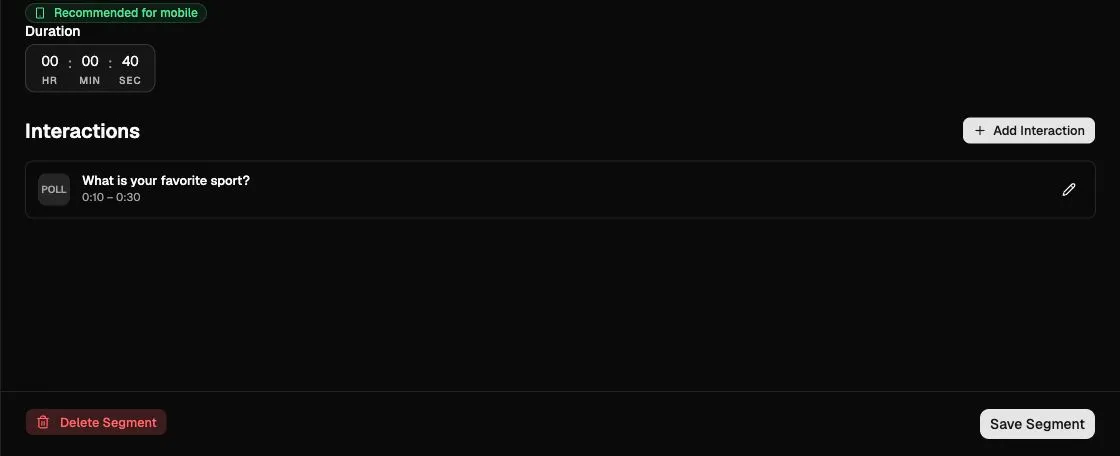
You can also click Open in timeline to inspect the segment’s timing. Keep this choice poll assigned to Introduction. An Everywhere item repeats at the same offset in every segment; see Timeline timing and scope.
3. Connect the fallback route first
Section titled “3. Connect the fallback route first”Drag from the connection point at the bottom of Introduction to the point at the top of Foundations.
When a segment has no default route, its first outgoing connection becomes the default and saves immediately. Click that connection to verify Default routing and Default Branch.
This route handles both the first answer and no answer. A separate rule for “I’m getting started” is unnecessary because those attendees can use the fallback.
4. Add the Advanced rule
Section titled “4. Add the Advanced rule”Connect Introduction to Advanced. Because Introduction already has a default, this connection opens New Routing Rule.
- Set Routing Type to Poll Response.
- Choose Which track fits you best? in Poll.
- Choose I’m ready to go deeper in Answer.
- Leave Default Branch off so Foundations remains the fallback.
- Leave Transition on Use webinar default for now.
- Click Save Routing Rule.
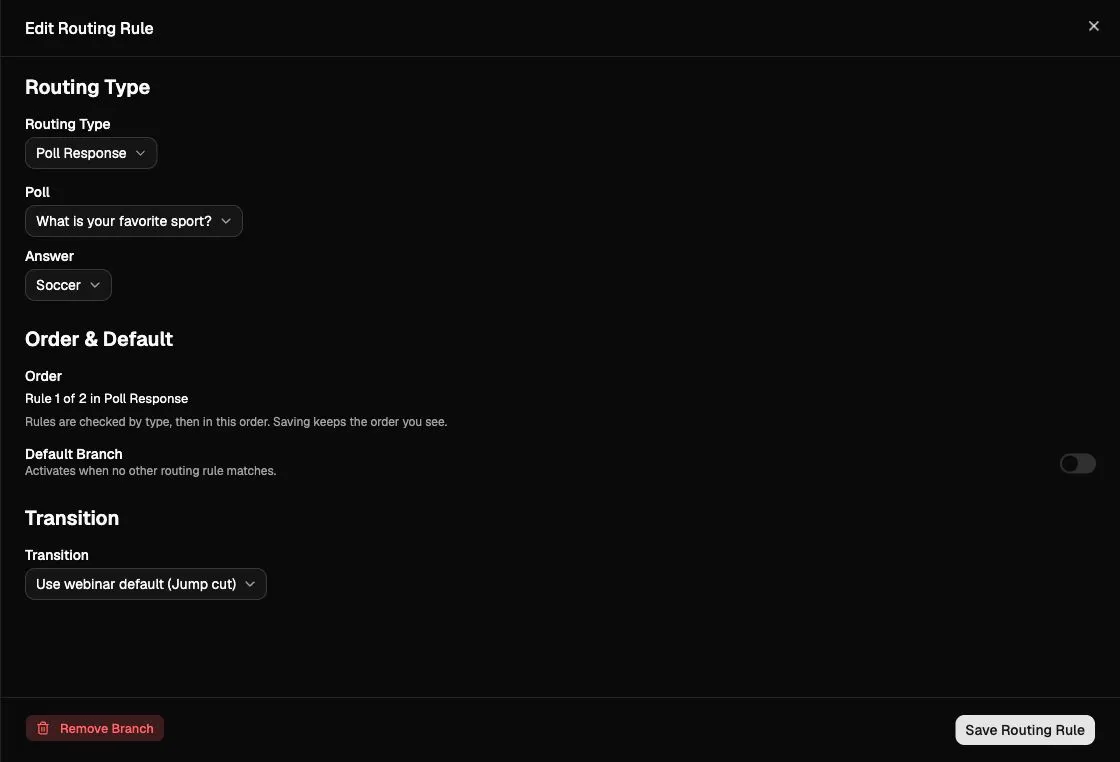
Answering the poll does not immediately interrupt the video. WebinarStack evaluates the route when Introduction ends.
5. Rejoin at Closing
Section titled “5. Rejoin at Closing”Connect Foundations → Closing, then Advanced → Closing. Each is the first outgoing connection from its source, so each becomes that segment’s default route.
Leave Closing without an outgoing connection to make it the final segment. A shared segment is allowed; a connection that loops back into an earlier part of the path is not.
Click Format Tree to arrange the saved segments, then Fit to Flow to see the whole graph. In Timeline, inspect both paths and the shared Closing segment. Editing Closing affects both paths.
6. Test all three outcomes
Section titled “6. Test all three outcomes”Save your changes, then start a fresh Test Live run for each case. Let Introduction finish so the branch can be evaluated.
| Action during Introduction | Expected path | Video duration |
|---|---|---|
| Choose “I’m getting started” | Introduction → Foundations → Closing | 8:00 |
| Choose “I’m ready to go deeper” | Introduction → Advanced → Closing | 10:00 |
| Do not answer | Introduction → Foundations → Closing | 8:00 |
The totals are the sum of the example videos; loading and transitions can add time. Check sound at each transition, the poll’s display window, and the final end-of-session behavior. Test on a phone as well as desktop.
Test Live creates normal test registrations and activity. Review its testing boundaries before testing automations or clicking an offer.
Routing rules and evaluation order
Section titled “Routing rules and evaluation order”Rules use attendee activity from the current segment. Do not depend on a poll answer, offer click, or chat message from an earlier segment to choose a later route.
| Checked in this order | Routing Type | Configure |
|---|---|---|
| 1 | Poll Response | Choose the poll and the answer that should match. |
| 2 | Offer Click | Choose the offer the attendee must click. |
| 3 | Chat Keyword | Enter comma-separated keywords and choose Contains or Exact match. Matching is case-insensitive. |
| 4 | Watch Behavior | Set a percentage from 0 to 100 and choose Watched at least or Watched less than. |
| 5 | Default / Default Branch | Choose the fallback when no condition matches. |
Within each type, the first matching rule wins. A matching poll rule takes precedence over a matching offer-click rule, regardless of their creation order. For watch behavior, Watched at least 50% includes exactly 50%; Watched less than 50% does not.
Contains matches a keyword anywhere in a chat message. Exact match requires the whole message to match the keyword. Keep keywords specific enough to avoid unintended matches.
Flow shows a read-only Order label, such as “Rule 1 of 2 in Poll Response.” To reorder rules within a type, use the up and down controls in Timeline’s branch editor.
Keep one clear fallback at every decision point that should continue. If no condition matches and there is no default, the attendee’s path ends at that segment. A card can be visible on the canvas without being reachable from the starting segment.
Canvas controls and saving
Section titled “Canvas controls and saving”| Control or change | Behavior |
|---|---|
| Add Segment | Opens a draft. It saves automatically after you supply the required label and valid video. Finish the segment before connecting it. |
| Edit an existing segment | Use Save Segment for label, video, and duration changes. Labels are required and limited to 100 characters. |
| Add Interaction / edit interaction | Save in the interaction’s own dialog. Save Segment does not replace that action. |
| First outgoing connection when no default exists | Creates and immediately saves the default route. |
| Additional connection | Complete New Routing Rule, then click Save Routing Rule. Closing an unfinished rule discards it. |
| Edit an existing connection | Click the line or its label, make the changes, then click Save Routing Rule. |
| Drag a segment | Saves its canvas position. It does not change routing or the starting segment. |
| Zoom In, Zoom Out, Fit to Flow | Change how you view the canvas. |
| Format Tree | Arranges the graph and saves the new positions. Finish drafts and pending connections first. |
| Undo | Uses canvas history. Do not rely on it to restore saved segment or routing edits, or deleted content. |
Flow’s segment and routing actions save separately from the editor’s sticky Save changes bar. Save any pending Setup or Experience changes there as well before testing or leaving.
Transitions and mobile playback
Section titled “Transitions and mobile playback”Set the webinar’s default transition in Experience → Branch Transitions. Available styles are Jump cut, Buffering, and Fade to black.
In a routing rule, Use webinar default inherits that setting. An Inherited label on the canvas describes the transition; it does not mean the connection is the fallback route.
When you explicitly change the transition in a Flow routing rule and save, the change applies to the routes leaving that same source segment. To return those routes to inheritance, choose Reset to webinar default, then Save Routing Rule.
WebinarStack CDN is marked Recommended for mobile. YouTube and Vimeo are Best-effort on mobile and may require another tap to restore audio when the video changes. Test the actual devices your audience uses. See Media Library for video source options.
Remove a branch or segment
Section titled “Remove a branch or segment”To remove a connection, open it and choose Remove Branch. Check the source segment’s remaining rules and fallback afterward; unmatched attendees need a default if they should continue.
To delete a segment, open it and choose Delete Segment. Read the impact summary before confirming. Deletion cannot be undone and can affect more than the canvas:
- Offers, polls, scripted chat, chapters, and connections attached to the segment are removed.
- Related poll responses and attendee path records are removed.
- Affected automation rules lose their segment or branch link and run for the whole webinar. Review those rules before continuing.
- Purchases remain, but affected attribution links are removed.
Choose Keep segment if the impact is broader than intended. After a deletion, review the starting segment, all remaining routes, interactions, and automations, then test again.
Troubleshooting
Section titled “Troubleshooting”| Problem | What to check |
|---|---|
| Flow is missing | Enable Adaptive webinar in Setup and click Save changes. Check that your workspace has adaptive access. |
| A draft will not save or connect | Supply a nonempty label and supported video. Wait for creation to finish, verify a positive duration, and resolve any field errors before connecting it. |
| Playback starts with the wrong segment | Moving cards does not change the start. For a new flow, create the intended introduction first. If you deleted the original start, review the remaining segment order and test again. |
| The next segment never plays | Check that a connection actually exists and is saved. If no rule matches, a default is required. An unattached card is not part of the attendee’s route. |
| Everyone takes the fallback | Confirm the rule points to the correct poll or offer, that the selected answer still exists, and that the interaction appears in the source segment before it ends. Save the rule and try a fresh test. |
| The wrong rule wins | Check the fixed type order, then the order within that type. Use Timeline to reorder rules of the same type. Include a test where multiple conditions match. |
| A poll answer does not switch videos immediately | Routing happens at the end of the current segment. Let it finish before judging the result. |
| Changing poll answers breaks a route | Reopen every rule that uses that poll and select the intended current answer. Timeline marks polls that route attendees. |
| An interaction is missing or repeats | Check its segment assignment and times. Segment times start at zero; Everywhere items repeat in each segment. Keep the interaction within the segment’s duration. |
| Routing or content happens too early or too late | Compare the saved segment Duration with the actual selected video. Check segment-relative timing in Timeline and save corrected values. |
| A video is unavailable | Confirm the assigned source is playable. A CDN video still processing is not ready; a failed upload needs a usable replacement. Check external video access and embedding settings. |
| A connection is rejected as a loop | Connect forward to a new or shared later segment. A path cannot return to a segment it has already passed through. |
| Format Tree is unavailable or fails | Finish draft segments and pending connections. It needs at least two saved segments and a graph without loops. |
| Audio stops on a phone | Check the provider badge. Test unmuting after a transition; consider CDN-hosted segment videos for better mobile continuity. |
| A transition changed on more than one route | Flow applies an explicitly changed transition to all routes leaving that source segment. Review that decision point and the Experience default. |
| Save fails | Keep the editor open, resolve the displayed error, and retry the segment or routing save. Check active workspace access if editing is blocked. Verify the saved result before testing. |
Related guides
Section titled “Related guides”- Timeline view for timing, path inspection, and rule reordering.
- Test Live for attendee testing and the launch checklist.
- Experience tab for interaction fields and transition defaults.
- Analytics for reviewing attendee behavior and adaptive paths after launch.